Knowledge base
1000 FAQs, 500 tutorials and instructional videos. Here, there are only solutions!
Manage Acronis Agent Resources
This guide explains how to customize the resources (CPU and bandwidth) used by the Acronis software to back up your computer with Swiss Backup.
Introduction
- This procedure is particularly useful if your internet connection or computer becomes slow while backups are in progress.
- Also, refer to the Acronis documentation on this topic.
- Warning: by limiting the resources allocated to your backups, the latter may take longer to complete.
Customize the resources dedicated to backups
To access the Acronis management interface:
- Click here to access the Acronis Console using the credentials obtained after adding the device (need help?).
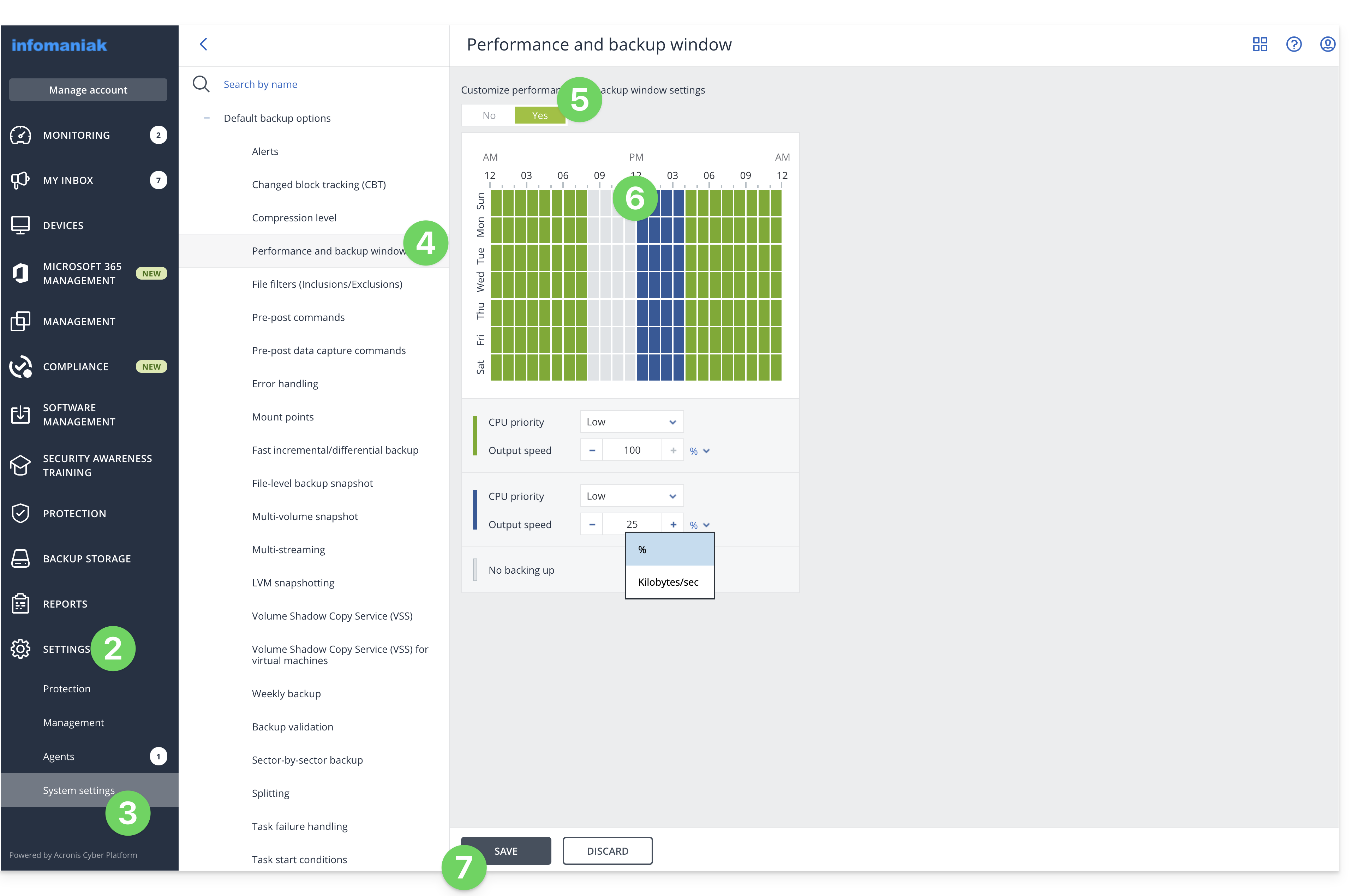
- Click on Settings in the left-hand menu.
- Click on System settings in the left-hand menu.
- Click on Performance and backup schedule.
- Click on YES to enable performance customization.
- Define the resources dedicated to Acronis:
- CPU priority: allows you to limit the power allocated to your backups.
- Output speed: allows you to limit the bandwidth allocated to your backups; on macOS, enter this parameter in KB/second because the percentage value is only taken into account under Windows.
- Define a time slot during which the resources will be lower: this allows you to allocate all resources to your backups when you are not using your computer, for example, reduced resources from 6 PM to 6 AM, while Acronis can use all the resources during the night.
- Click on Save:
Link to this FAQ: https://faq.infomaniak.com/2425
Has this FAQ been helpful?