Knowledge base
1000 FAQs, 500 tutorials and instructional videos. Here, there are only solutions!
Sync kDrive via WebDAV on Windows
This guide provides instructions for synchronizing kDrive with Windows using the WebDAV connection protocol.
✘ UNAVAILABLE with
kSuite Free / kSuite Standard
my kSuite / my kSuite+ (ik.me, etik.com, ikmail.com)
⚠ WARNING ⚠
Use the WebDAV protocol on kDrive for specific and occasional use cases:
- If you want to work on your files and share them, kDrive is the ideal tool; it is recommended to install the kDrive application to avoid any file loss.
- However, to secure your data against loss or corruption and ensure the continuity of your business, Swiss Backup is the essential and appropriate solution.
Infomaniak guarantees that its services comply with standard protocols (IMAP, S3, etc.) but does not provide additional support for external services or software, as their configuration may change depending on the provider or publisher(see:
Connect to kDrive via WebDAV on Windows
For a Windows PC:
- Right-click on This PC (formerly “My Computer”) in File Explorer or the Start menu.
- Click on Connect a network drive:
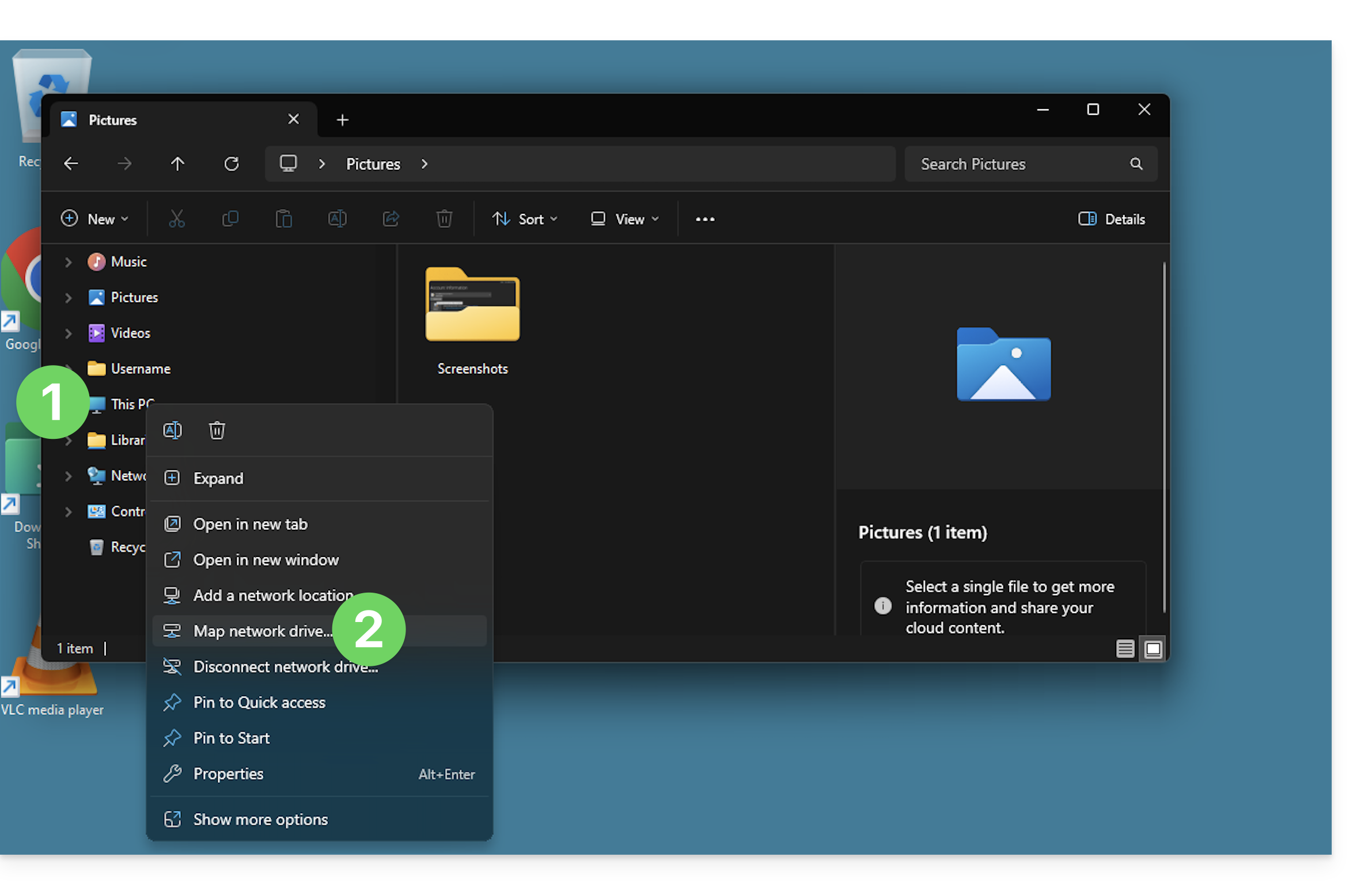
- Enter a letter to designate the kDrive virtual drive.
- Enter the server address:
https://IDkDrive.connect.kdrive.infomaniak.com(need help?). - Click on Finish to log in:
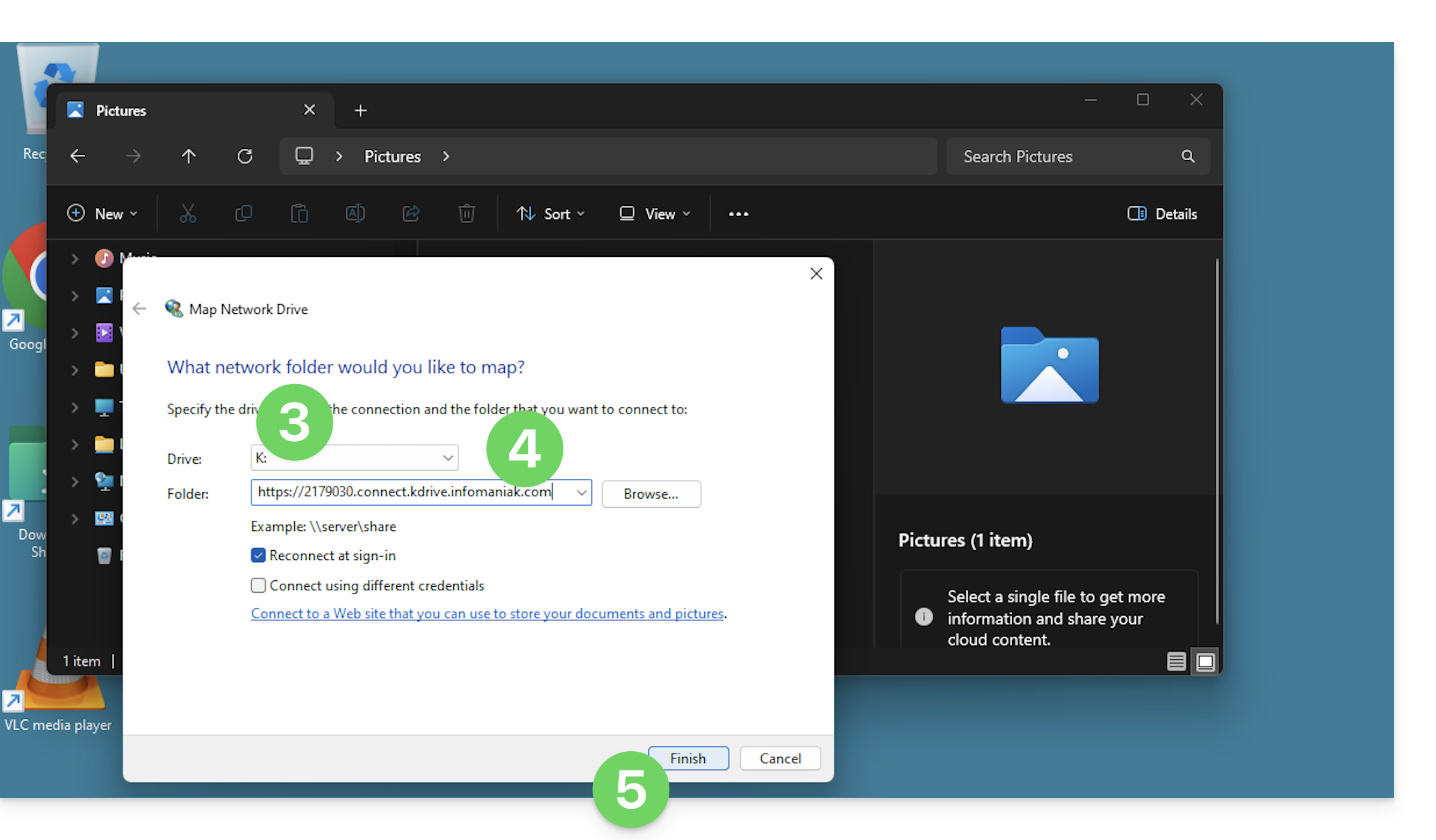
- Enter the following information:
- Username: the email address you use to log in to your Infomaniak account.
- Password: create an application password for this specific use.
- If desired, click the box to save the login information.
- Confirm the connection by clicking the button:
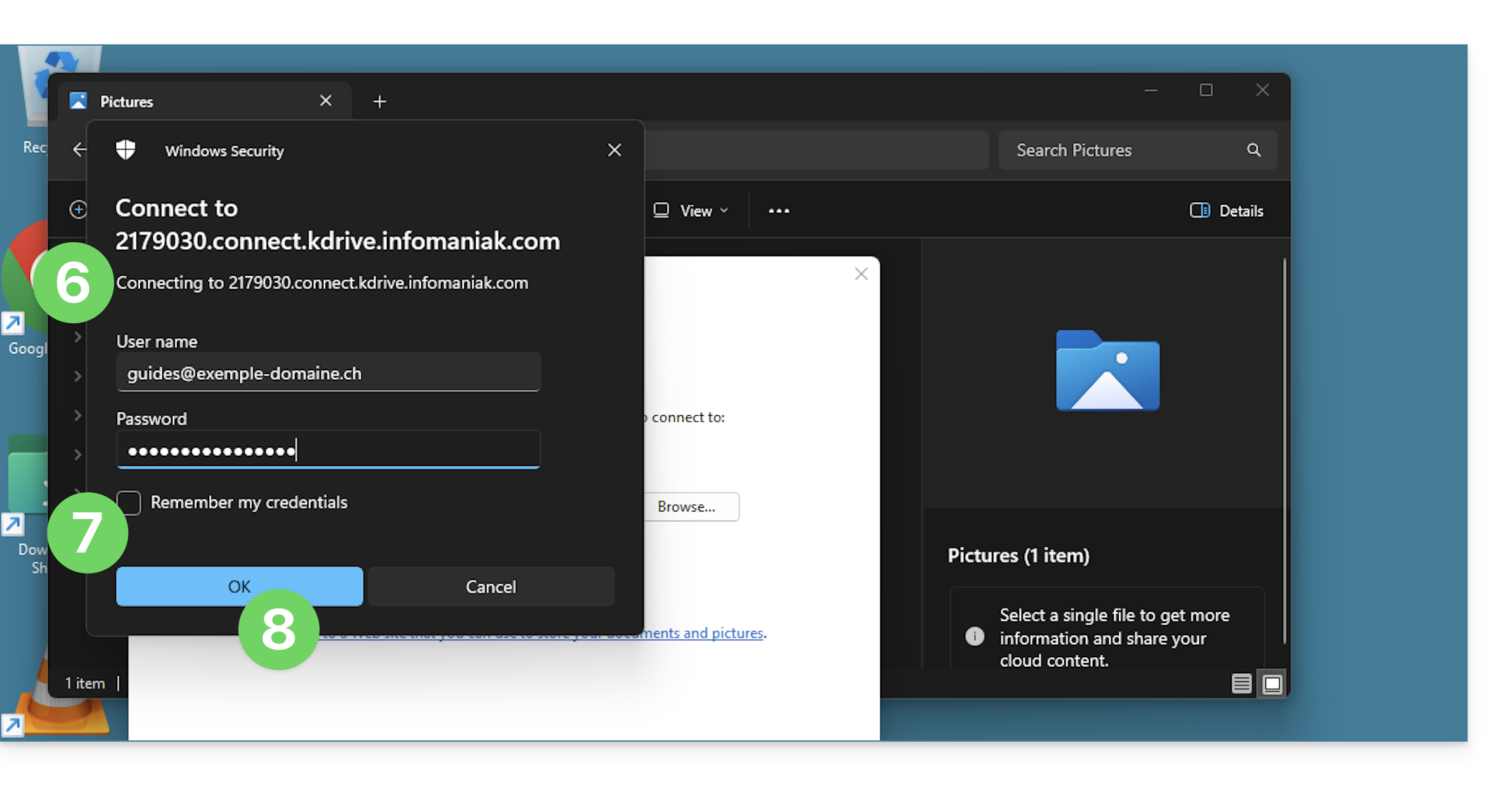
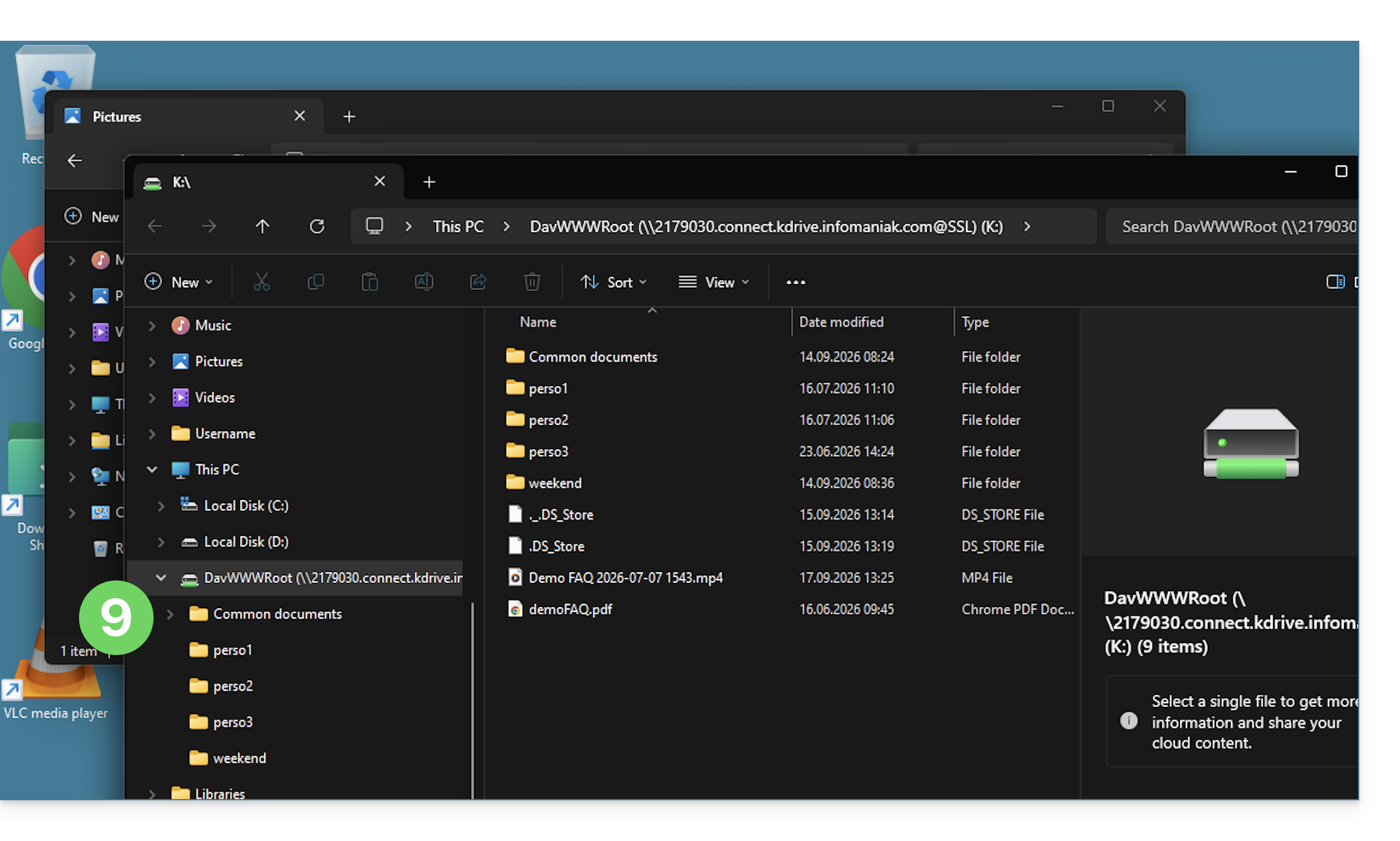
- The kDrive content is now displayed in the file explorer, just like it is accessible in kDrive for your Infomaniak user:
The Mountain Duck alternative
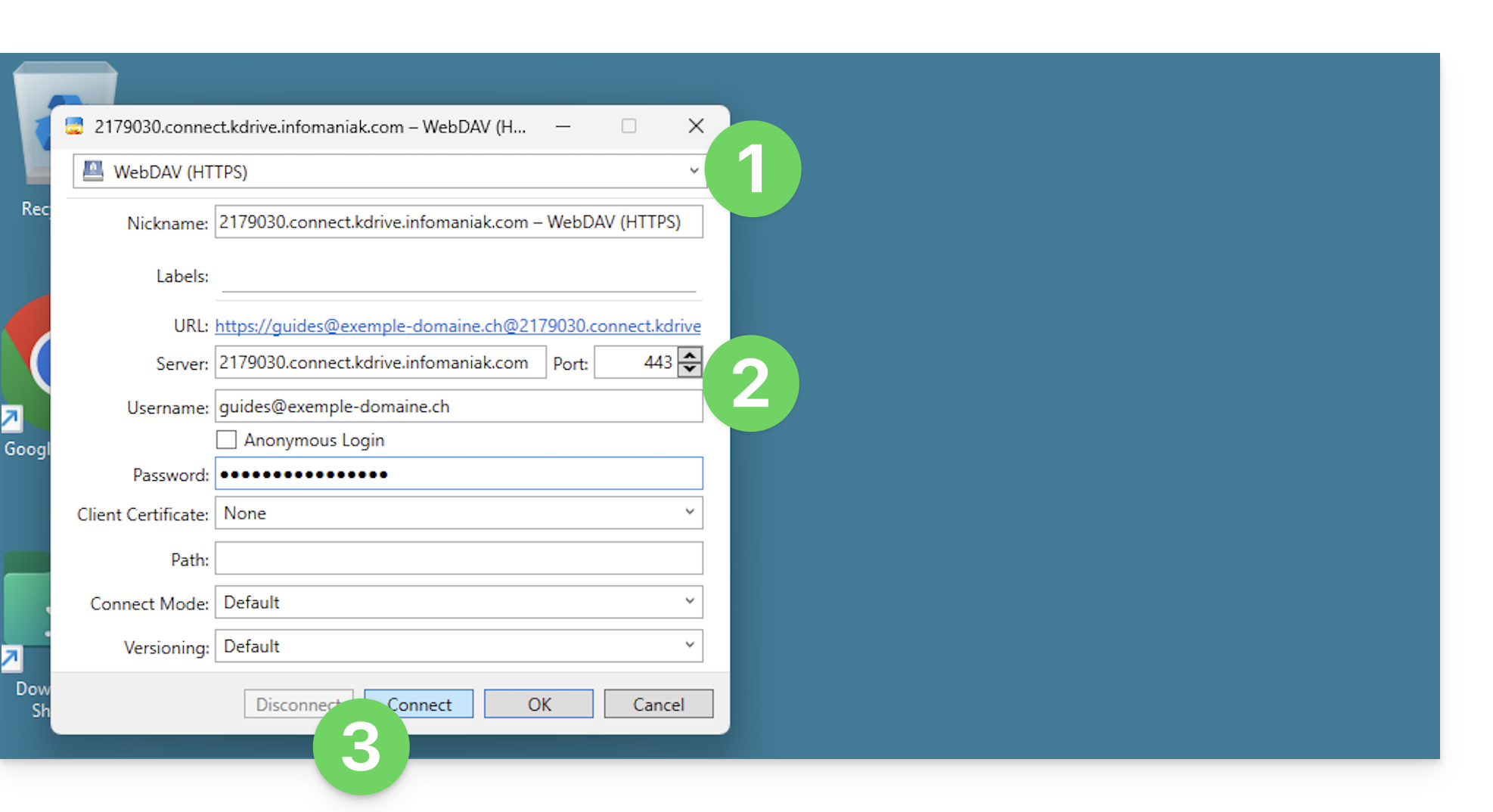
Using the same principle and with the same information, you can also consider connecting via a WebDAV software/client such as Mountain Duck:
- Create a new WebDAV connection in Mountain Duck.
- Enter the appropriate information.
- Click on Log in:
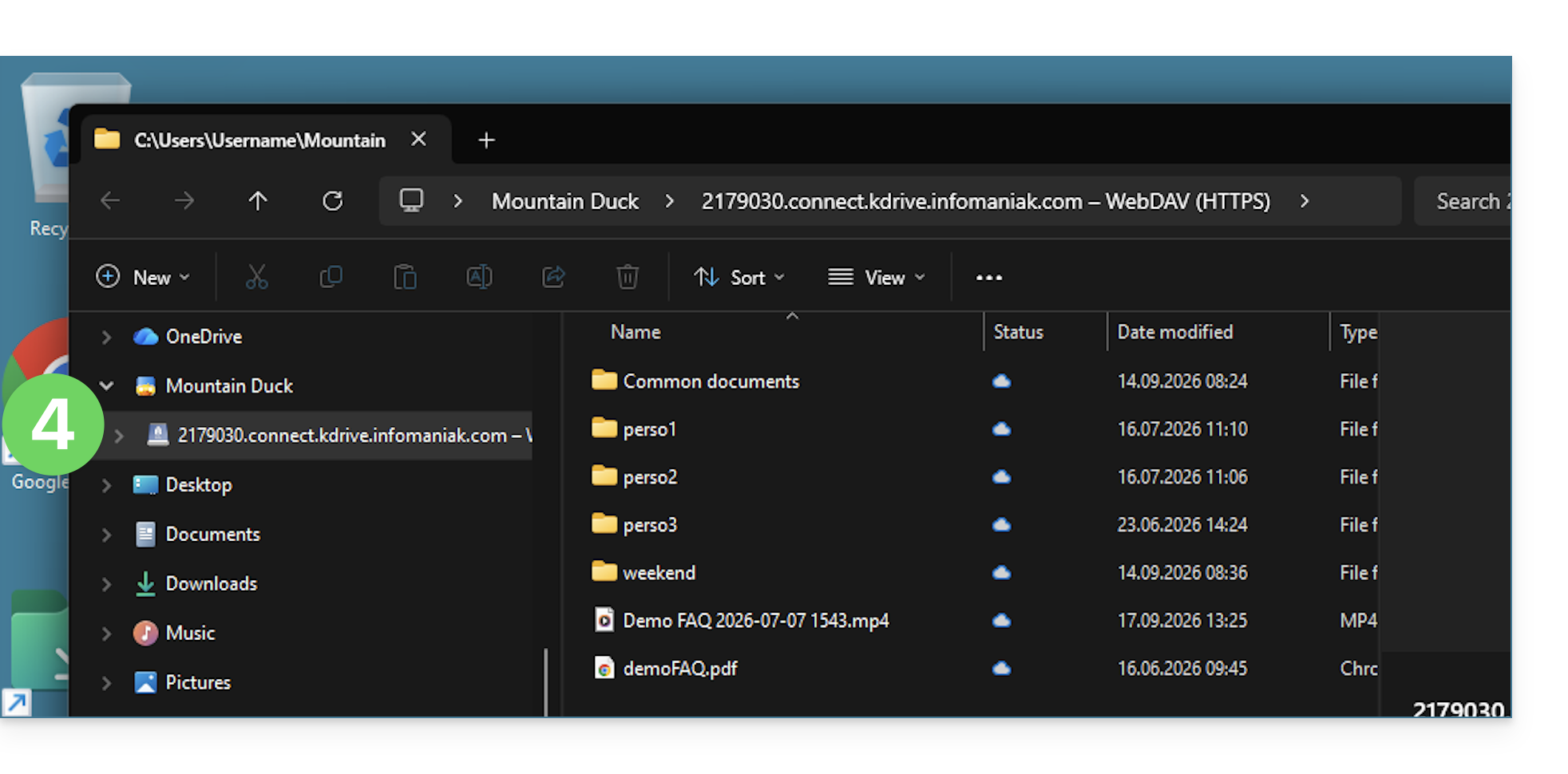
- There you go, the kDrive content is now displayed in the file explorer, just like what is accessible on kDrive for your Infomaniak user:
Link to this FAQ: https://faq.infomaniak.com/2419
Has this FAQ been helpful?