Knowledge base
1000 FAQs, 500 tutorials and instructional videos. Here, there are only solutions!
Understanding kDrive Data Analysis
This guide explains why analyses are performed on your kDrive data when you grant this permission to Infomaniak, and how to revoke it.
Introduction
- The confidentiality of data stored on kDrive is an important issue, especially when humans analyze this data from time to time:
- Analyzing data is essential for improving artificial intelligence (AI) because it allows AI models to be fed with quality data; this will improve the searches you perform within your kDrive as well as the automatic categorization.
- Data is used only for these specific purposes.
- The AI scans the file to extract its content and all related information; based on all this information, it will determine the category that is most likely to match the document.
- If the model is unsure, the file will not be categorized to avoid errors.
- Read this other guide about the model used and the responsibilities of each party.
Analyze completely internally
Infomaniak is committed to protecting its customers' data and complying with current privacy standards. Furthermore, it is extremely rare for an employee to manually intervene in this analysis system, because although the technical capability exists (hence this communication), it is not put into practice.
Obviously, Infomaniak is the only provider that intervenes in this data analysis. Infomaniak does not authorize any third party to intervene in its systems to guarantee the security and confidentiality of this data.
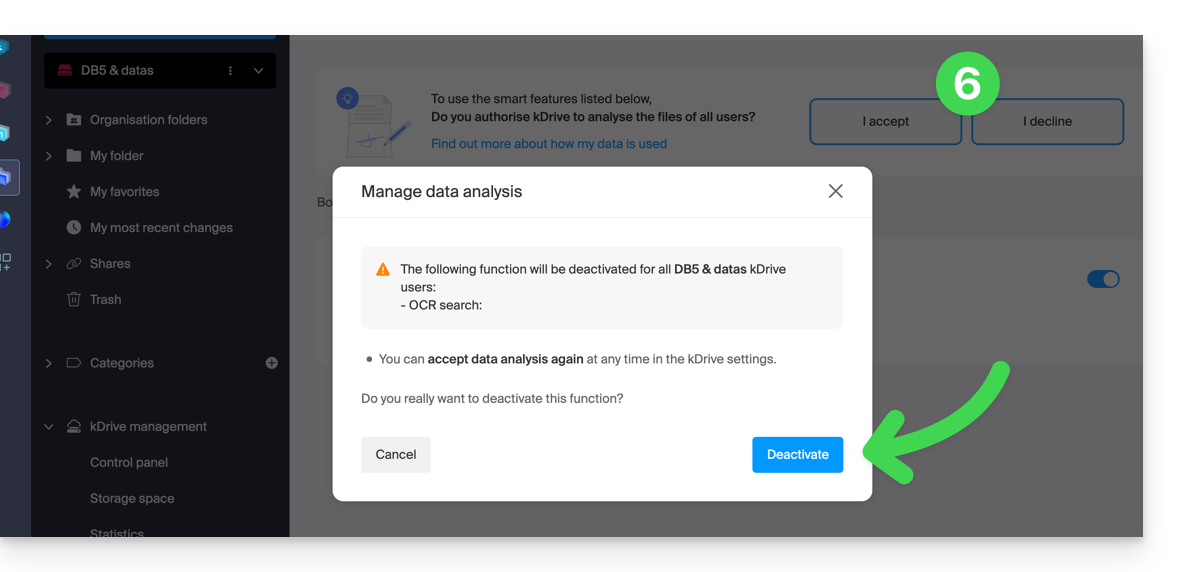
Revoke the granted right
Prerequisites
- Be an Administrator or Legal Representative within the Organization that manages the kDrive.
Then you can check your data analysis status by logging in to your kDrive and then going to:
- Click here to access the Infomaniak kDrive web app (online service ksuite.infomaniak.com/kdrive).
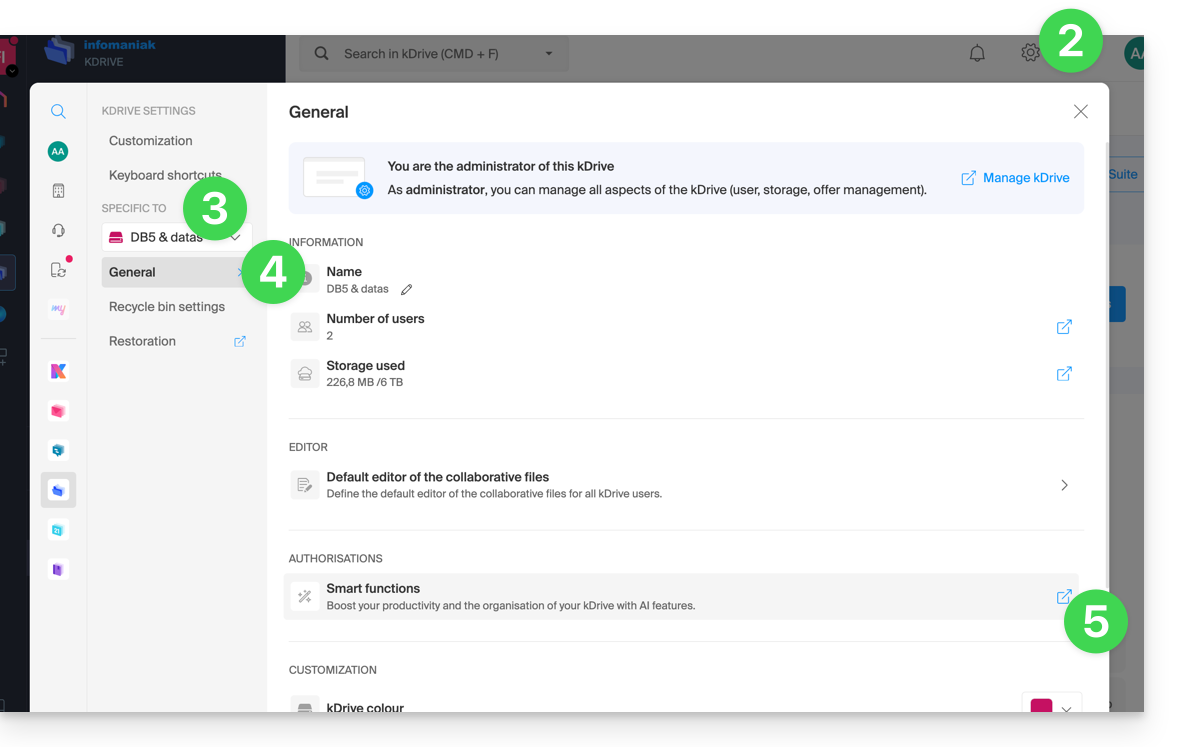
- Click on the Settings icon in the top right corner.
- Check or select the relevant kDrive from the dropdown menu in the left-hand sidebar.
- Click on General in the left-hand sidebar.
- Click on Smart Features:
- Click on the button to perform the desired action:
Link to this FAQ: https://faq.infomaniak.com/2412
Has this FAQ been helpful?