Knowledge base
1000 FAQs, 500 tutorials and instructional videos. Here, there are only solutions!
Understanding kDrive folders (personal, shared, and common)
This guide details the structure of Infomaniak's kDrive: online interface, menus for managing and finding your shares, the purpose and meaning of the default folders, etc.
Introduction
- This guide applies to the kDrive web app (online service ksuite.infomaniak.com/kdrive).
- The desktop app is not directly affected and will display certain elements differently, or not at all (❓: help).
- The mobile app, however, is similar in terms of menu organization (with some specific features, such as offline files).
- The Shared folders and the Sharing menu are only visible with certain multi-user plans.
- Do not rename and/or move the folders created by defaultneither in the web version nor locally, as this will cause synchronization problems.
- To quickly access the various features/operations, right-click on your files.
3 main elements
The kDrive interface features a left-hand menu that takes you to your kDrive data, including these 3 main elements:
1. Organization folders: shared by all collaborators in your Organization
This folder displays the tree structure of shared folders, automatically showing them to certain or all users of the same kDrive. If they contain documents, they will be displayed in the center of the interface: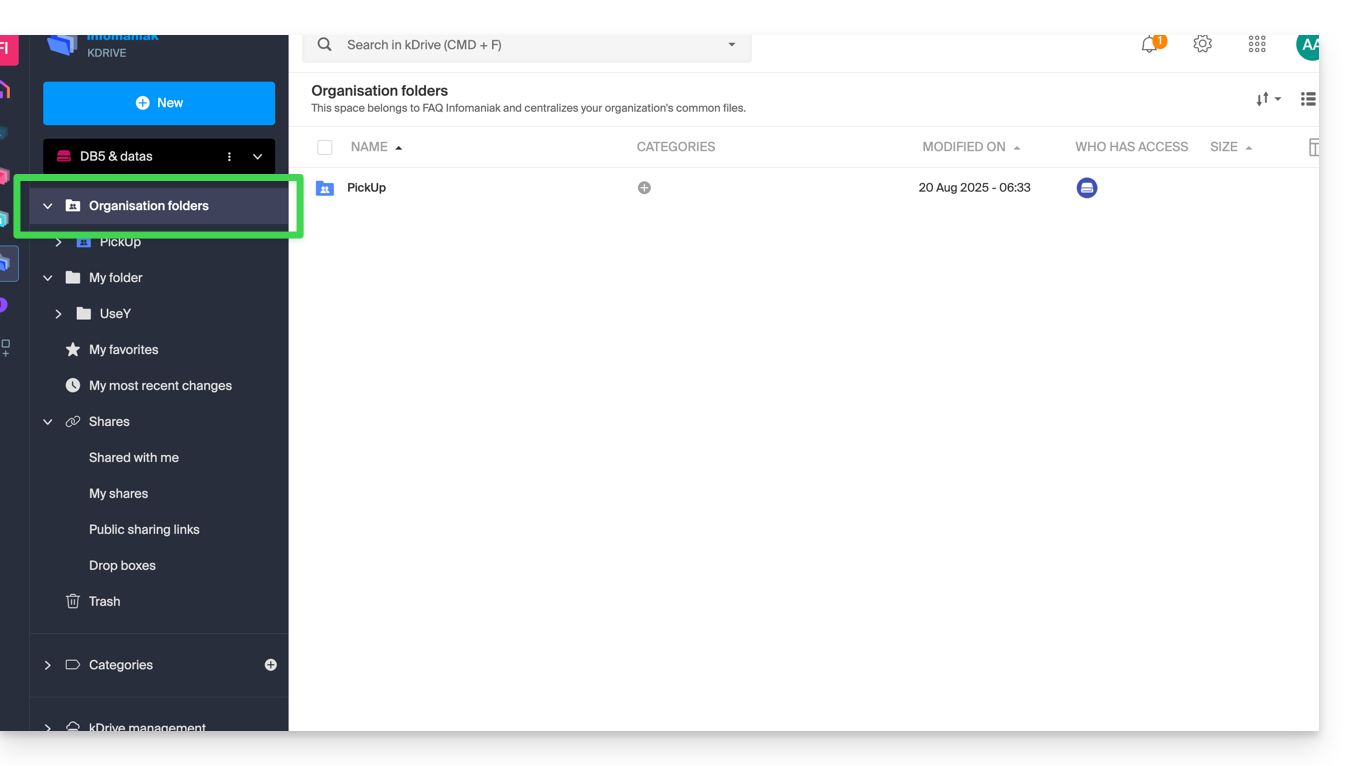
If you create a new folder here (❓: help), you can choose to share it with the entire Organization (all users of the kDrive) or only with a few users/groups, who will then have to request access if necessary: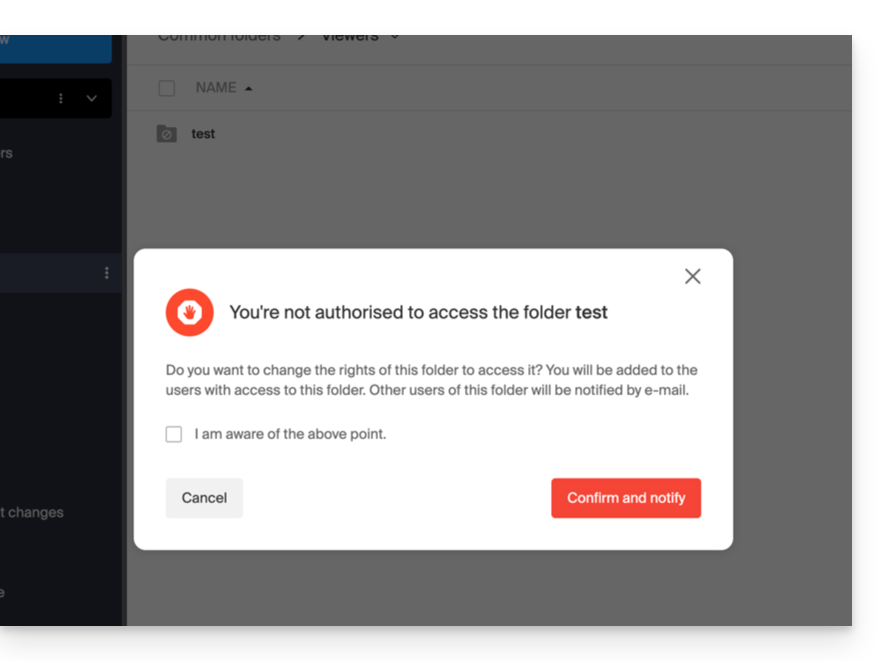
2. My folder: personal & private folder by default
This folder displays the directory structure of the folders belonging to the user themselves: indeed, each kDrive user has their own personal space that will not be automatically shared with other users of the same kDrive: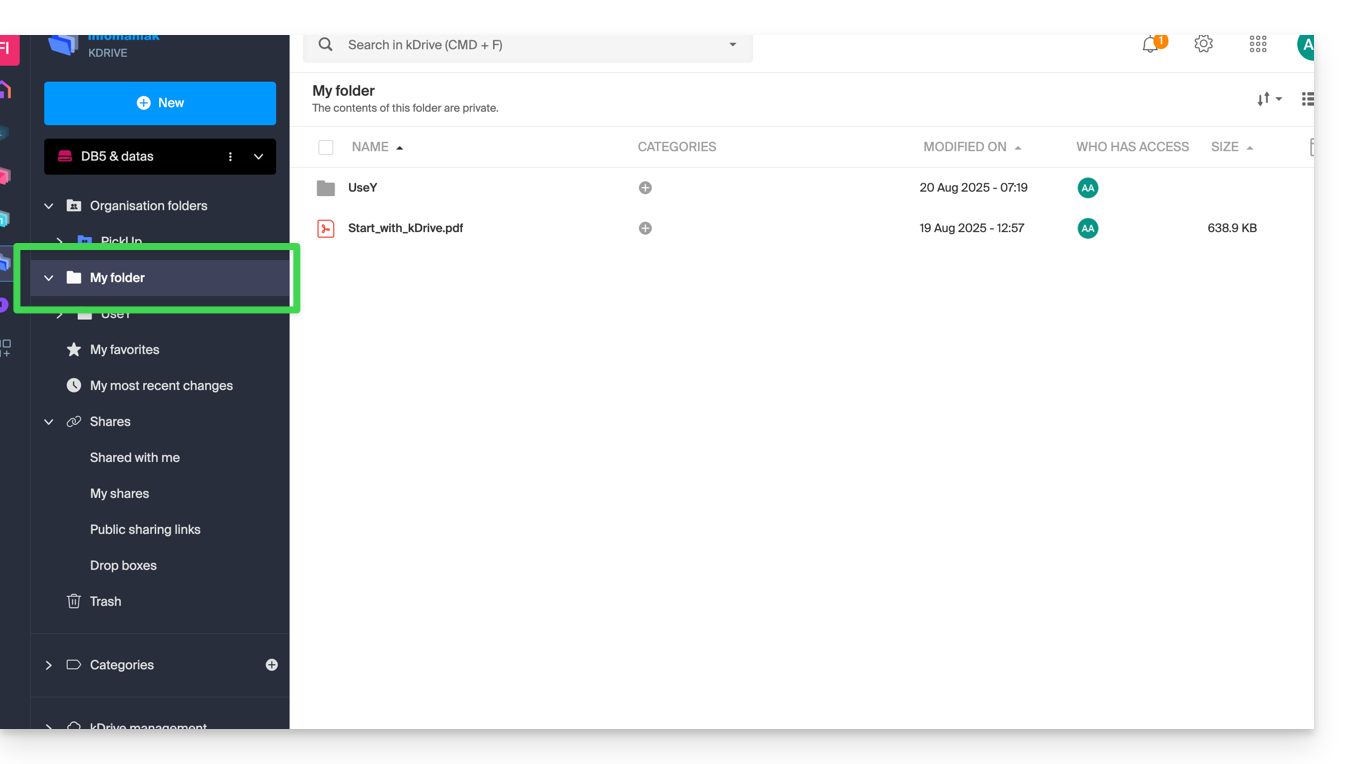
Any relevant documents will be displayed in the center of the interface.
3. Sharing
The Sharing menu leads to 4 sub-menus displayed in the left-hand menu:
- Items that are shared with you by other kDrive users, among the kDrive accounts to which you have access with your login credentials.
- Items you share with other users (❓: help).
- Items you have shared by creating a public sharing link (❓: help).
- Drop boxes (❓: help).
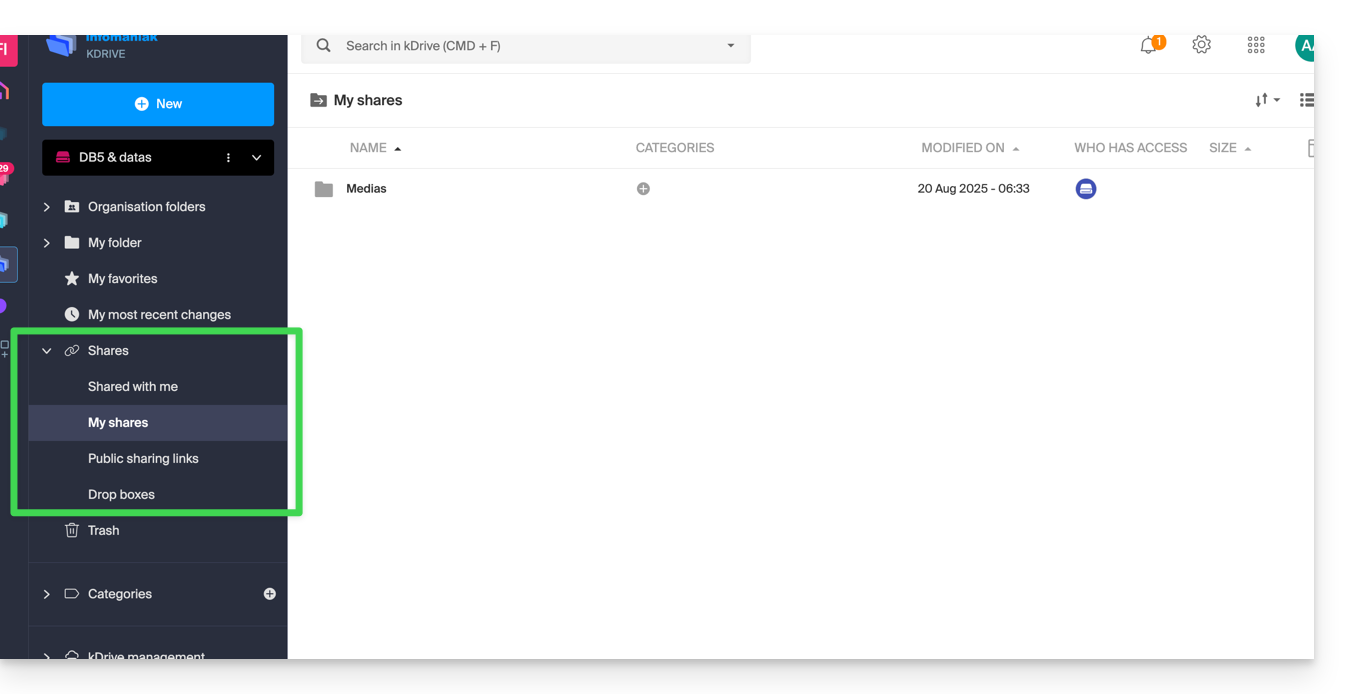
Any existing items will be displayed in the center of the interface and can be modified/deleted.
Refer to this other guide about how these shared folders behave in the Desktop app.
Additional elements
My favorites
This menu groups your files and folders defined as favorites on kDrive (❓: help), which you can then find in the web app…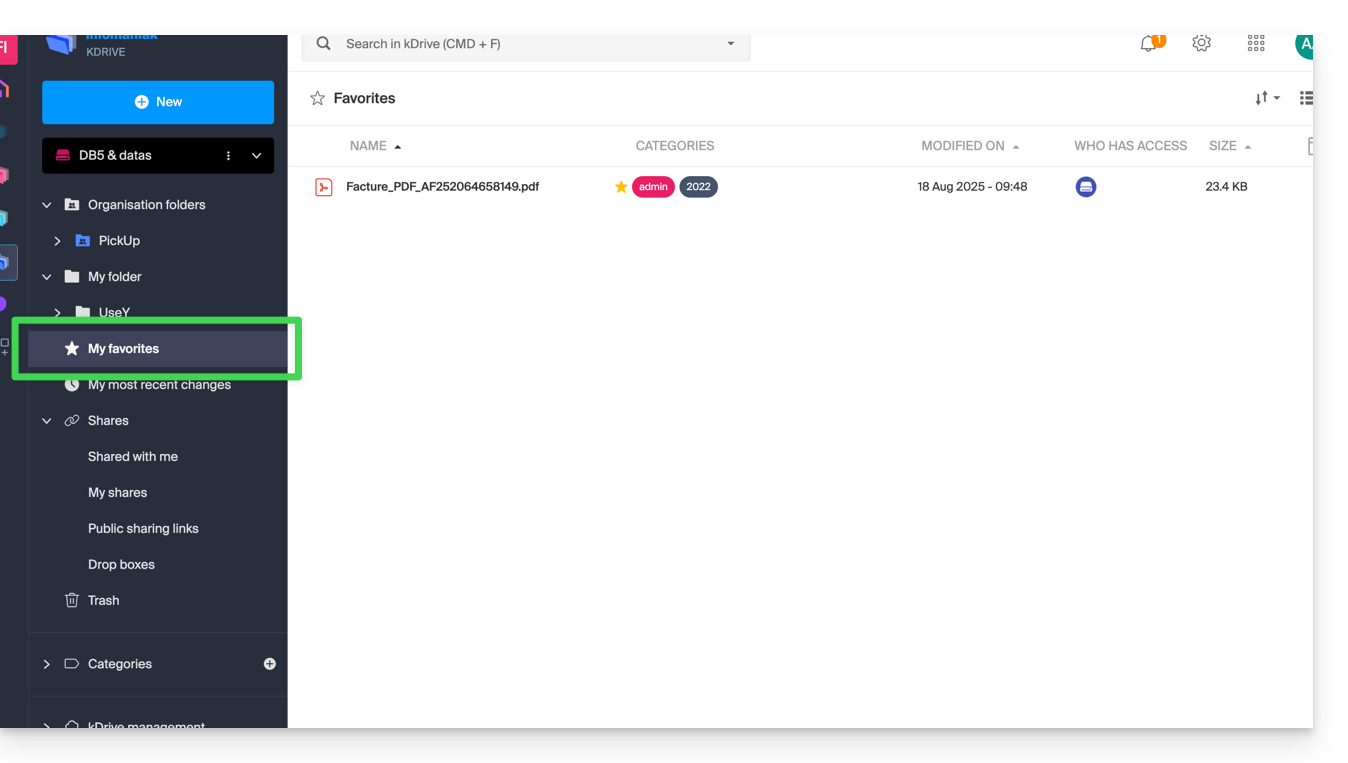
… and the mobile app:
My latest changes
This menu displays the latest operations performed by your user: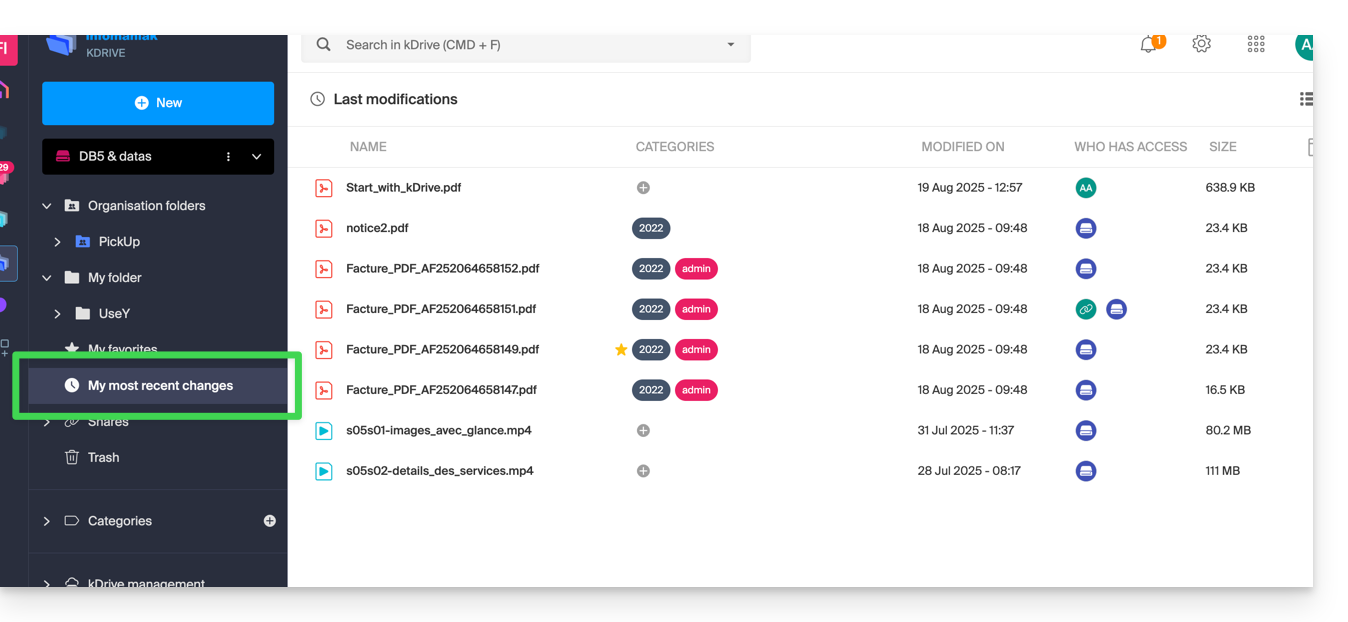
This allows you to quickly return to recently modified files, even if they are located in different subfolders within your kDrive. You can also select these files to move or delete them in bulk.
Trash
This menu leads to your deleted data, which can still be restored (❓: help):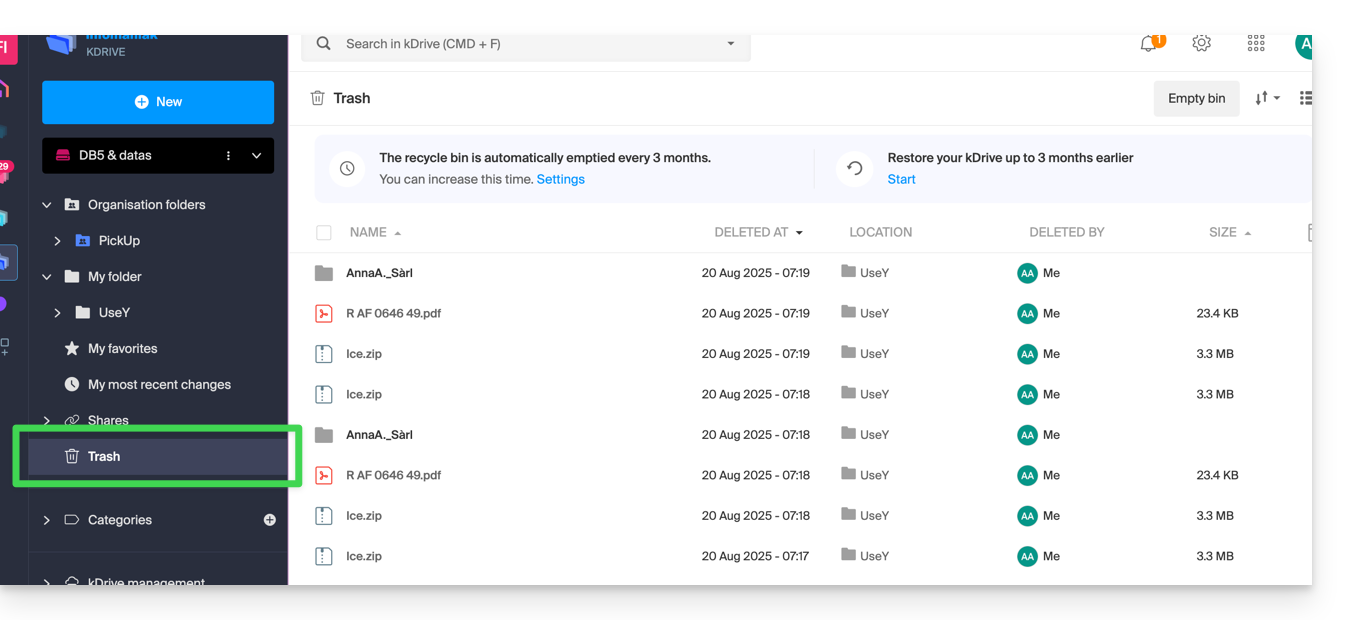
Categories
You can also quickly access your files if they are categorized (❓: help) using the Categories menu by clicking on the different categories listed there: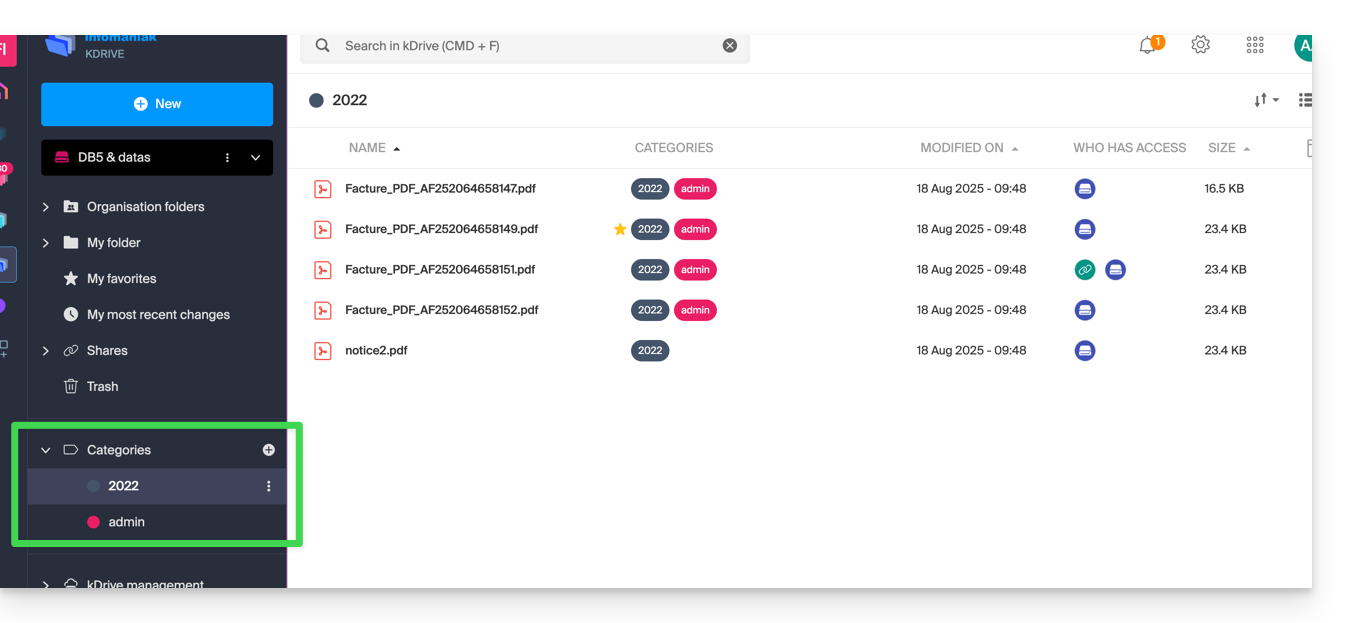
Define the default display when starting up
You can choose which home page to use when navigating within kDrive, from the following three options:
- your personal folder
- the shared documents folder
- favorites (which groups together the documents added as favorites by your user)
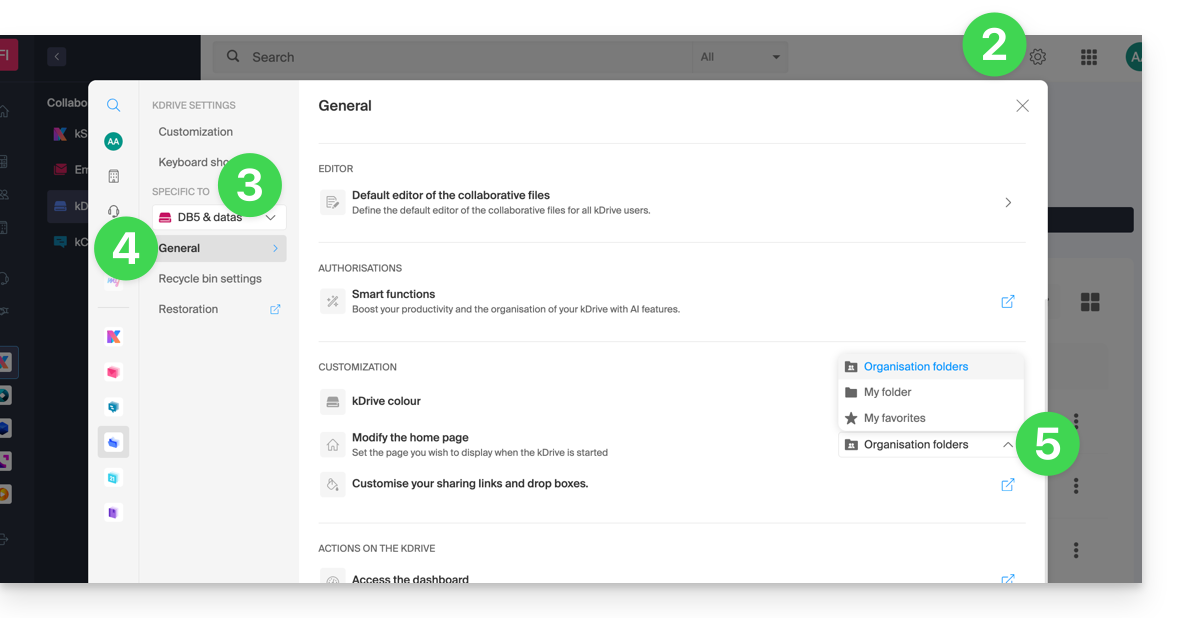
To access kDrive and modify the home page:
- Click here to access the management interface for your product on the Infomaniak Manager (❓: help).
- Click on Settings in the top right corner.
- Check or select the relevant kDrive from the drop-down menu in the left-hand menu.
- Click on General in the left-hand menu.
- Choose the page that should be displayed by default when you arrive at the home page:
Restore the shared folder (synchronized on a computer)
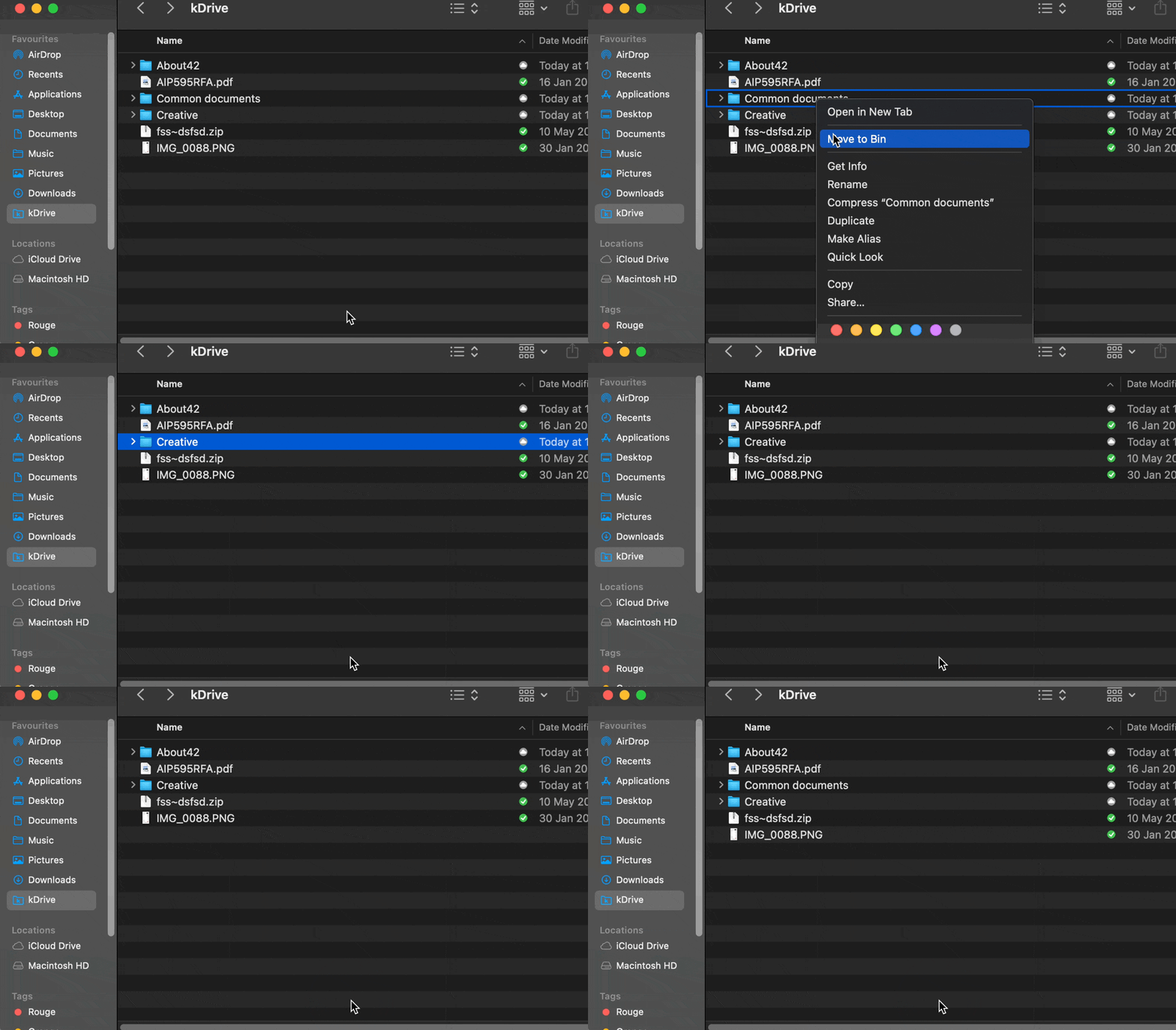
If you accidentally delete the folder containing the data you share with all kDrive users ("Organization folders"), don't worry: it will automatically be restored. This is a special folder that cannot be moved, even on your computer:
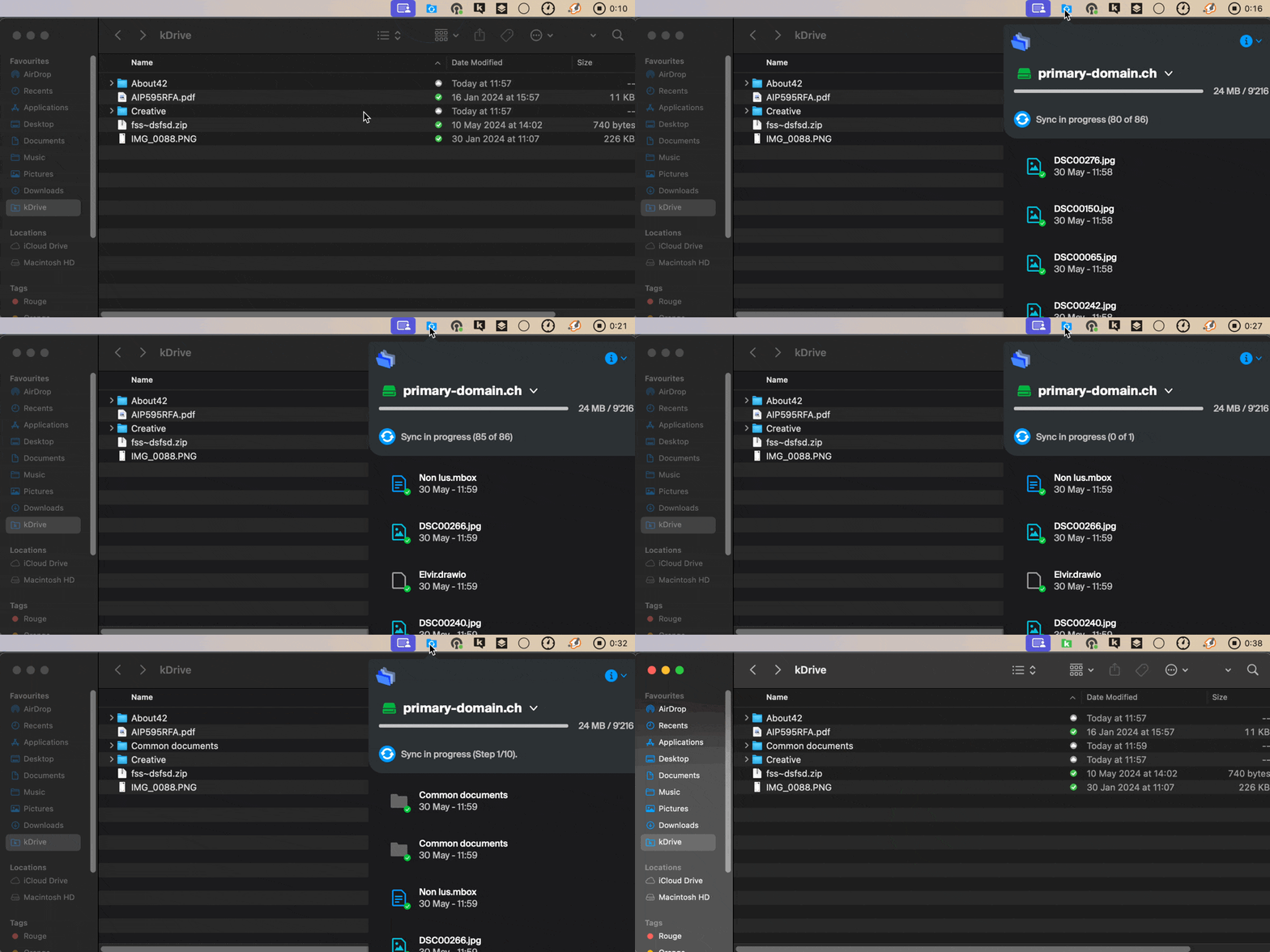
If it doesn't return immediately, wait for the tasks already running in the background to complete:
Link to this FAQ: https://faq.infomaniak.com/2410
Has this FAQ been helpful?