Knowledge base
1000 FAQs, 500 tutorials and instructional videos. Here, there are only solutions!
Manage live streaming controls
This guide explains how to enable and use the Timeshift function (also called DVR) for your live video broadcasts. This feature allows your viewers to rewind if they missed the beginning of your live stream.
Enabling the Timeshift (DVR) Function
To access the video streaming service:
- Click here to access the management of your product in the Infomaniak Manager (need help?).
- Click directly on the name assigned to the product in question:
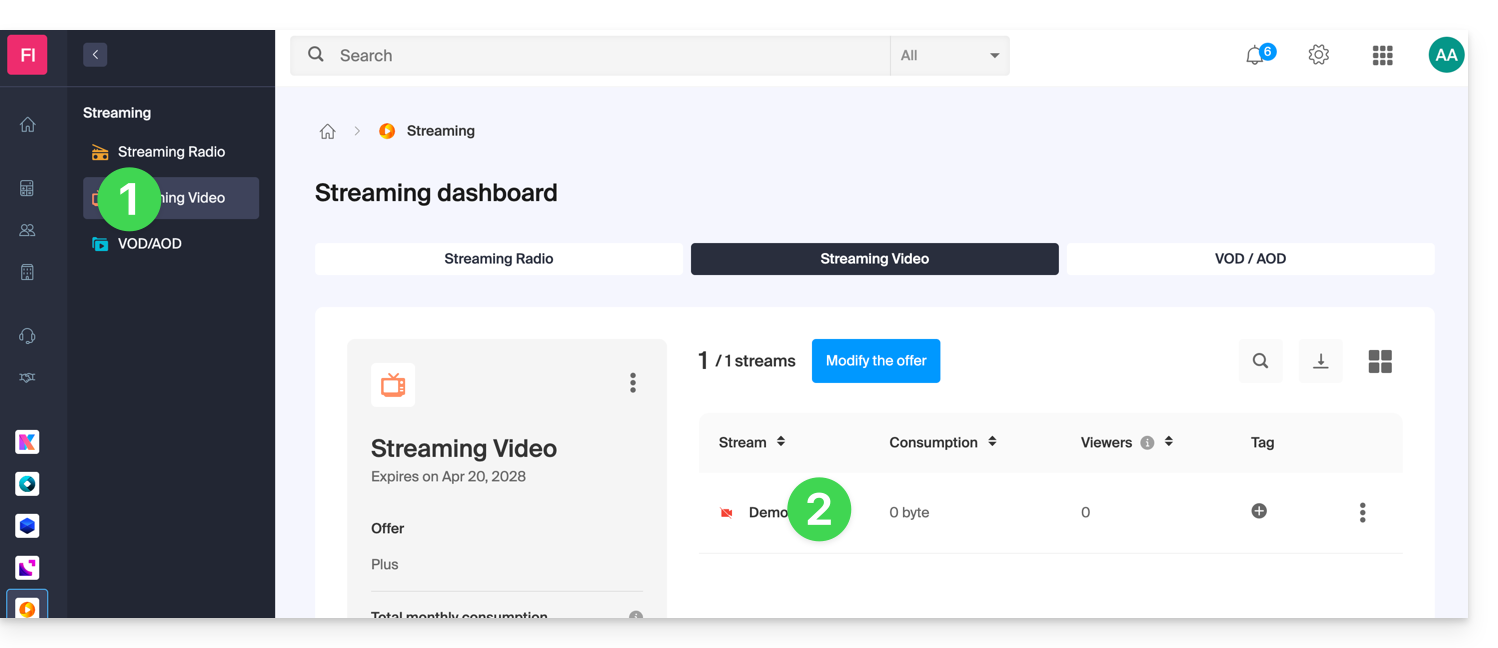
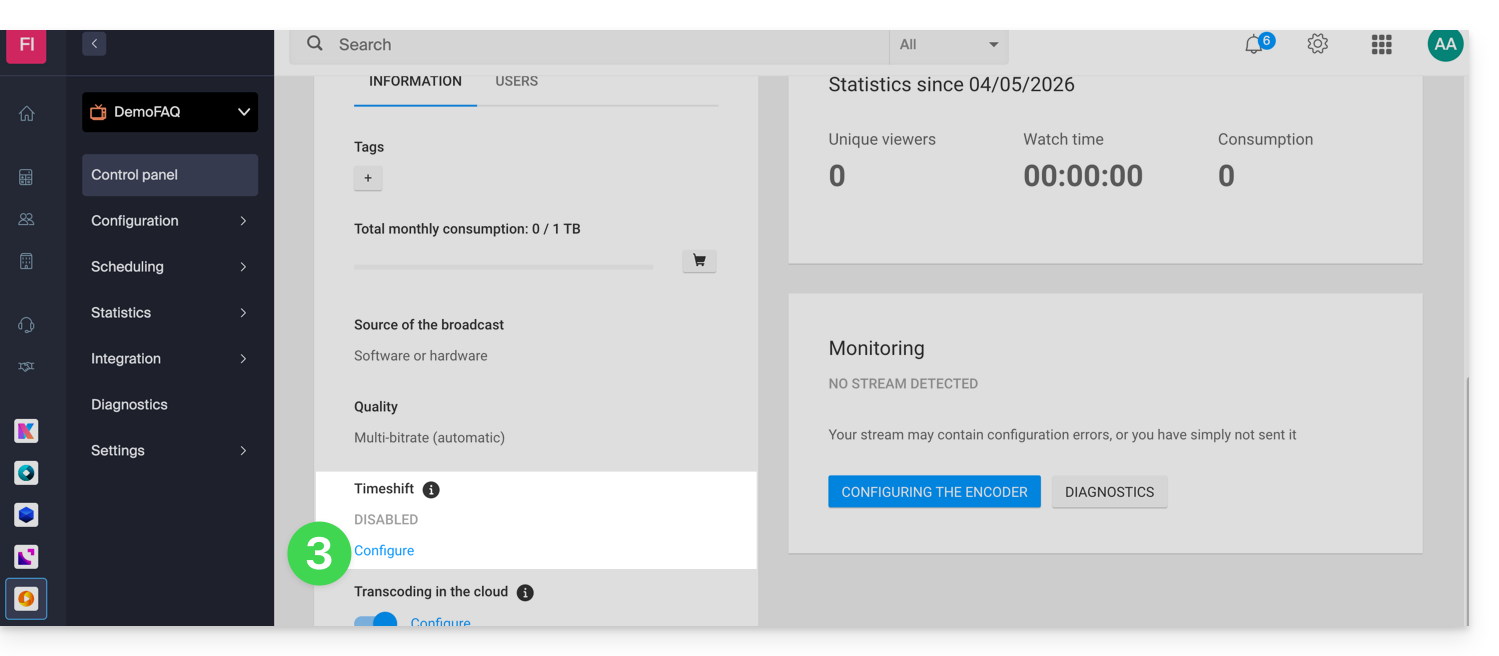
- Click on Configure under Timeshift from the dashboard:
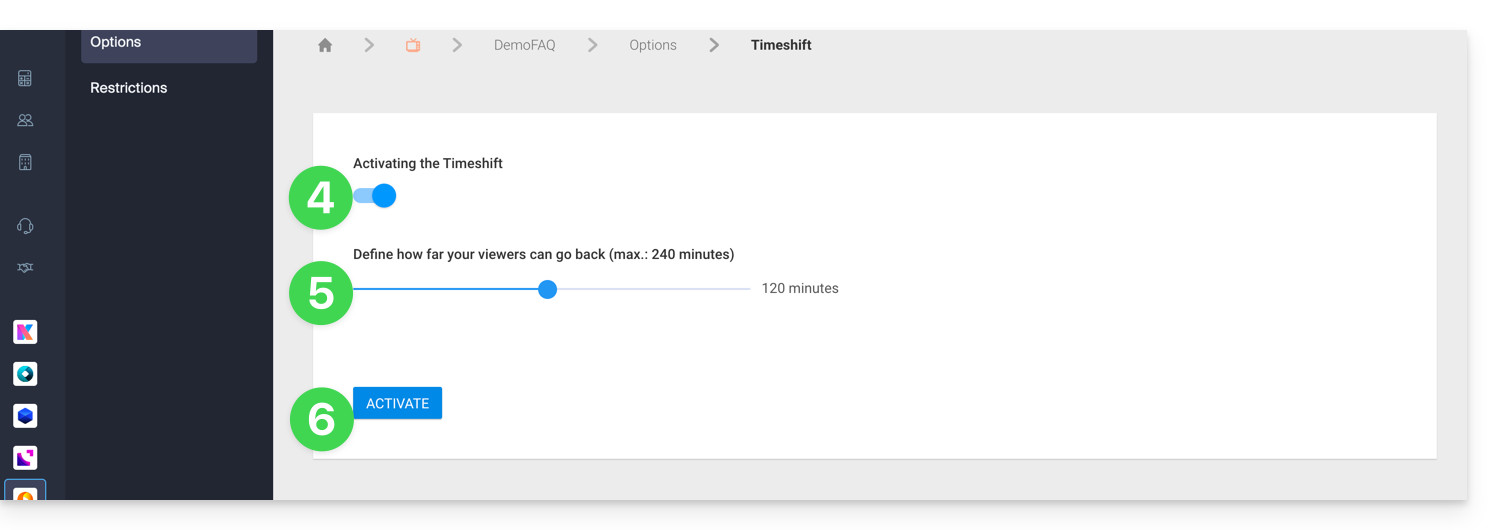
- Enable Timeshift.
- Define the duration for which your viewers can rewind (max. 240 min.).
- Click on the Enable button:
Customizing the Timeshift Function
It is possible to enable this option via the scheduling tool for a specific time range, thereby limiting this possibility to certain programs. The settings defined in the scheduling tool will override the default status defined from the dashboard.
To better understand this, imagine a TV that broadcasts a soccer match from 10 a.m. to 12 p.m.
1. The TV channel wants to activate Timeshift only during the match
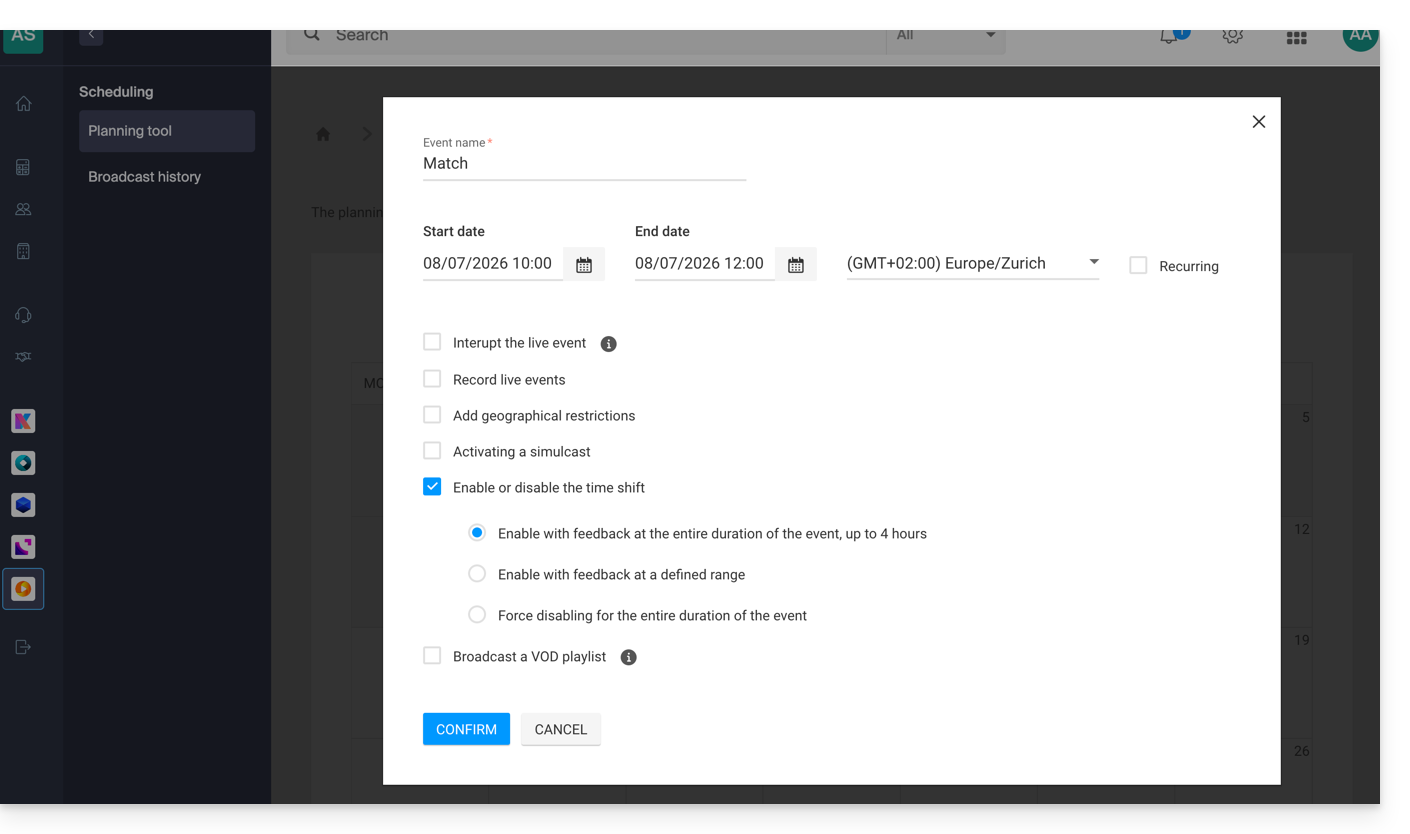
With this configuration, viewers who join the live broadcast at 11:59 AM will be able to watch the beginning of the match at 10:00 AM, but they will not be able to watch the programs that preceded the match before 10:00 AM. As a reminder, the maximum Timeshift duration is 240 minutes (4 hours).
2. The TV channel wants to activate a 20-minute Timeshift only during the match
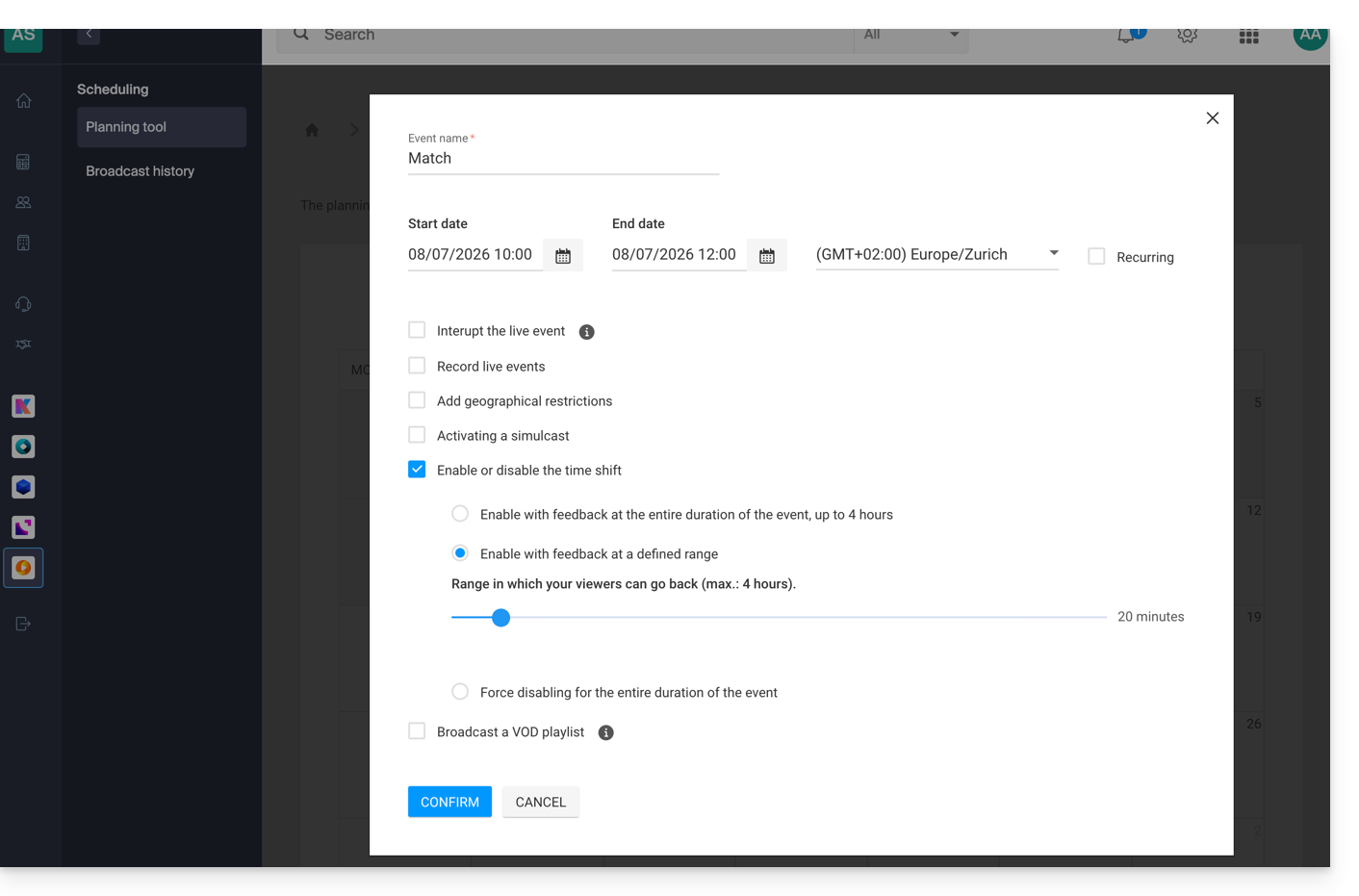
With this configuration, viewers who join the live broadcast at 11:30 AM will be able to watch the previous 20 minutes, but they will not be able to watch the beginning of the match; only the last 20 minutes will be accessible throughout the duration of the match.
3. The TV channel wants to disable Timeshift during the match
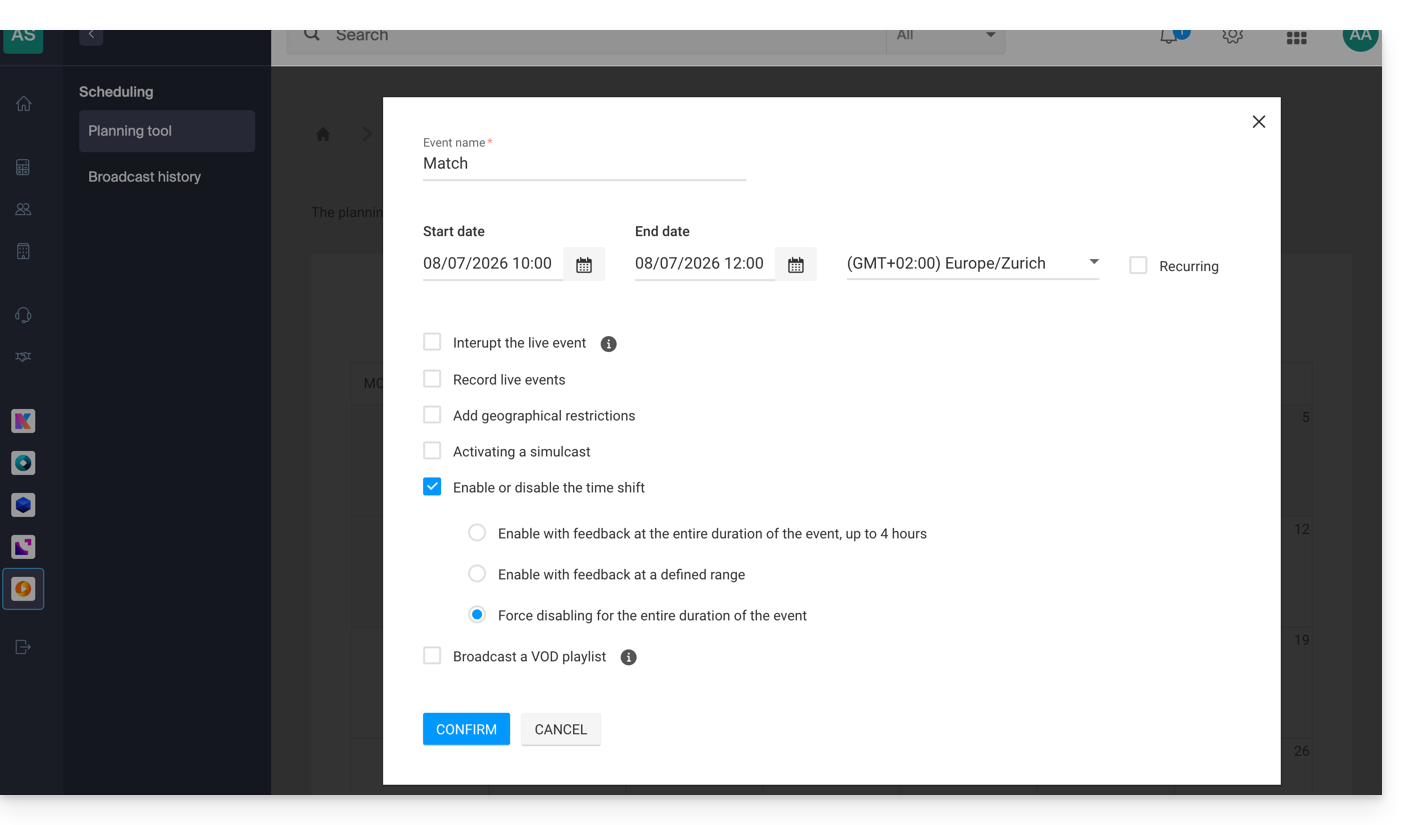
With this configuration, viewers will not be able to watch parts of the match. They will only be able to watch the programs that precede the match if the Timeshift function has been enabled by default from the stream dashboard.
In summary, there are 2 use cases:
- Enable Timeshift permanently, except for specific events.
- Disable Timeshift permanently, except for specific events.
The default status is managed from the stream dashboard, and exceptions are managed from the scheduling tool.
Learn more about how it works
If you have defined a one-hour Timeshift and you have just activated it, the rewind time will gradually increase up to the chosen duration from the moment of activation.
If geographical restrictions are defined with a specific time range, these will be respected in all cases. For example, if a TV channel with a 4-hour timeshift reserves its sports program for Swiss viewers from 10 a.m. to 12 p.m., an Italian viewer who connects to the stream at 1 p.m. will only be able to watch programs from 9 a.m. to 10 a.m.
Link to this FAQ: https://faq.infomaniak.com/2407
Has this FAQ been helpful?