Knowledge base
1000 FAQs, 500 tutorials and instructional videos. Here, there are only solutions!
Resolve a kDrive synchronization conflict
This guide details the possible solutions when the desktop app icon for kDrive (desktop application on macOS / Windows / Linux) turns orange, which means there was a synchronization conflict.
Introduction
- kDrive does not indicate whether a file is open or being modified on another local device (no alert is displayed in this case):
- It is therefore perfectly possible to view (read) a file while it is being modified on another device without this causing a conflict.
- The conflict only appears in the event of simultaneous modification.
kDrive synchronization conflict cases
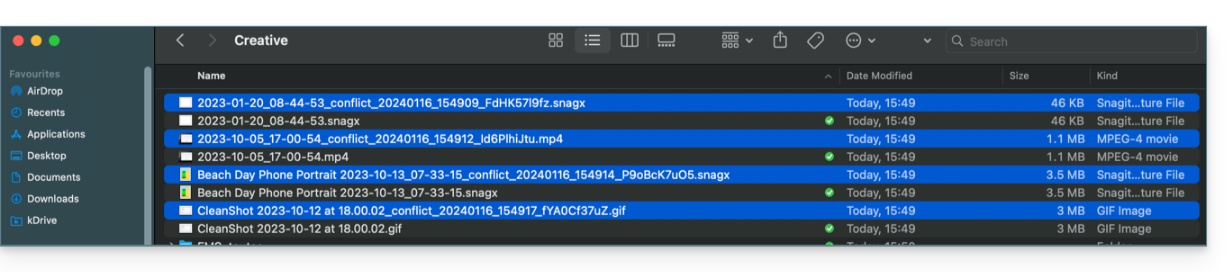
When do conflict files appear?
- When you modify a file locally while it is also being modified on kDrive Web (the two versions become different).
- When you create or move a file while a similar operation is taking place simultaneously on kDrive Web.
- When you modify a file whose parent folder has been deleted on kDrive Web.
- When a file move cannot be synchronized correctly.
In all these cases
- The kDrive Web version remains unchanged.
- Your local version is saved under the name "[file name]_conflict".
- The conflicting file is not synchronized with kDrive Web.
What to do with these conflicting files?
- Either keep both versions (but only the original file will be synchronized).
- Or delete the
_conflictfile if it is the older version. - Either delete the original version (the one that is not
_conflict) if it is outdated, and then rename the_conflictversion to synchronize it. - Or, manually merge the two versions before deleting the
_conflictversion.
When reinstalling the kDrive application
These conflicts can also occur if you uninstall and then reinstall the application without deleting the configuration, while changes have been made on kDrive Web. To avoid this, it is recommended to:
- Either do not save the configuration during uninstallation.
- Or synchronize completely before any uninstallation.
- Refer to the best practices below in this guide.
Managing Synchronization Conflicts
When simultaneous changes are made to the same file (locally and in kDrive Web, or while the application is closed), kDrive automatically manages these conflicts according to specific rules.
For kDrive app versions prior to 3.6.11
- In the event of simultaneous creation, concurrent modification, or conflicting movement, the kDrive Web version always takes precedence. The local version is renamed with "
_conflict". - For conflicts involving a deletion on the kDrive Web side, the local file is generally kept and resynchronized.
- Conflicting transfers are cancelled and recalculated based on the status of kDrive Web.
Starting with version 3.6.11
For "placeholder" files (files dehydrated via Lite Sync):
- They are automatically deleted locally.
- If the file still exists on kDrive Web, it will be resynchronized correctly.
For all other cases:
- The kDrive Web version remains the priority in most situations.
- Locally conflicting files are renamed with “
_conflict”. - Important exception: when a file modified locally should be deleted according to the kDrive Web status…
- …it is moved to a folder named "
kDrive Rescue Folder" (instead of being deleted); this protects your local modifications from accidental deletion.
- …it is moved to a folder named "
Special cases:
- If a parent folder is deleted, locally modified files are retained.
- Cycles of moves (folders moved back and forth) are resolved in favor of the state of kDrive Web.
- Renaming conflicts are resolved in favor of the kDrive Web version.
How to view conflicts?
To display conflicting files:
- Left-click on the kDrive desktop app icon in your computer's notification area (top right on macOS, bottom right on Windows, and double-left-click in the taskbar on Linux).
- Click on the information button at the top.
- Click on the event listed to view its details:

- Conflicts and errors are displayed in two separate tabs, allowing you to view the unsynchronized data:
- The first tab allows you to resolve conflicts:

- You will then need to choose how to resolve the conflict by deciding whether to send the local version
- to the server (i.e., synchronize)
- or to the computer's recycle bin

Preventing synchronization conflicts
Recommendations:
- Do not work on the same file simultaneously with others (unless you are working online on a Word, Excel, or PowerPoint document).
- Synchronize your offline changes before modifying the same files online.
- Avoid creating folders with the same name as folders that you do not synchronize on a device.
If necessary, to manually resolve certain synchronization conflictswhich would not have been done automatically:
- Open both files.
- Compare the differences.
- Retrieve the information from the conflict file (the one with the exclamation mark) and merge it into the base file.
- Delete the file that is causing the conflict and is not being synchronized (the one with the exclamation mark and the label
conflicted copy):
Are you not seeing the conflict files on all your devices?This is normal; the conflict file (the one with the exclamation mark and the conflicted copy mention in its name) is not synchronized. The idea is that you, the author of the changes, are the best person to resolve the conflict.
Refer to this other guide if you encounter a problem even though the kDrive desktop app icon is green.
Link to this FAQ: https://faq.infomaniak.com/2403
Has this FAQ been helpful?