Knowledge base
1000 FAQs, 500 tutorials and instructional videos. Here, there are only solutions!
Manage read receipts in Mail Infomaniak
This guide explains how to enable or disable read receipts from the Infomaniak Mail web app (online service ksuite.infomaniak.com/mail).
Introduction
- Delivery and/or read receipt requests are compatible with most email systems.
- However, they depend on the user's action and the settings of their email system.
- The sending (or non-sending) of a read receipt does not guarantee anything (the logs may be better suited for certain cases).
Request a delivery/read receipt
To allow your recipient to easily confirm that they have received your message sent from the Infomaniak Mail web app (online service ksuite.infomaniak.com/mail):
- Click here to access the Infomaniak Mail web app (online service ksuite.infomaniak.com/mail).
- Click on Settings in the top right corner.
- Click on Sending in the left-hand menu.
- Activate the toggle switch to request a delivery/read receipt:
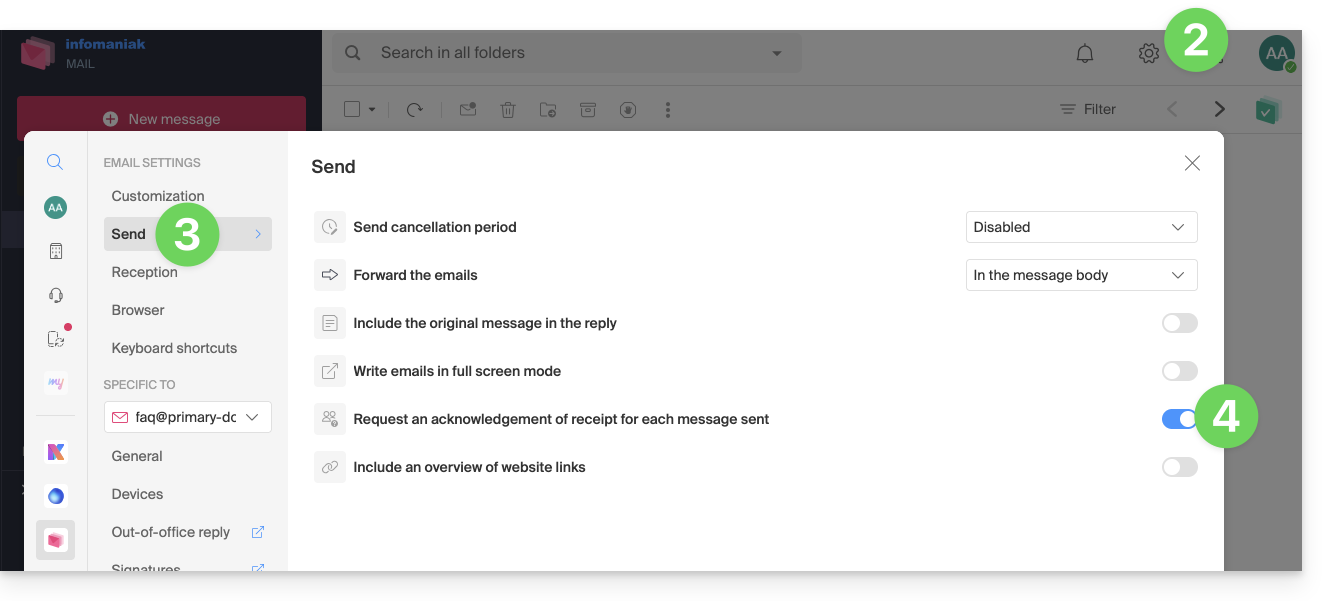
Note that it is also possible to activate it on a case-by-case basis when sending your message on Mail, from the writing options by clicking on ⋮ and then on the corresponding option: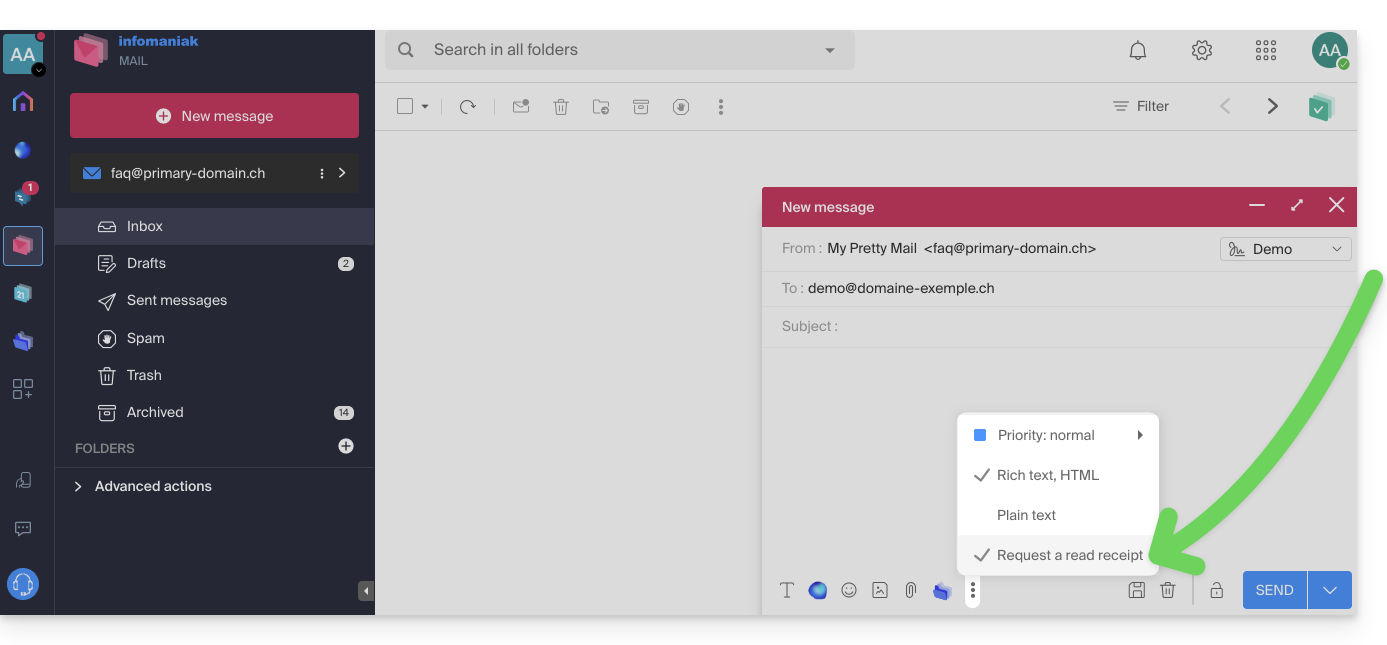
Confirm message receipt
If you receive an email and view it in the Infomaniak Mail web app (online service ksuite.infomaniak.com/mail), and the sender has specifically requested to be notified, you can confirm receipt of the message when you read it: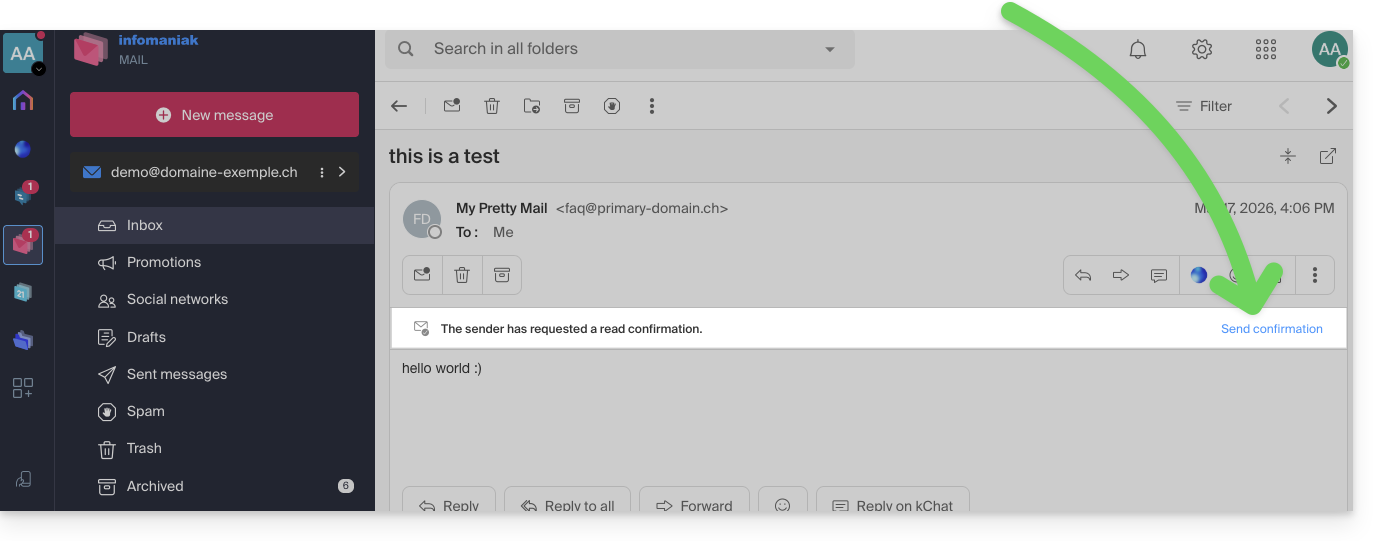
Link to this FAQ: https://faq.infomaniak.com/240
Has this FAQ been helpful?