Knowledge base
1000 FAQs, 500 tutorials and instructional videos. Here, there are only solutions!
Scan with the kDrive mobile app
Update 06/18/2026
This guide explains how to scan or digitize documents (multi-page) with the mobile app kDrive (application for iOS / Android smartphone or tablet).
Prerequisites
- Have a kDrive or kSuite offer.
- Install the mobile app kDrive (application for iOS / Android smartphone or tablet).
Scan documents
To quickly digitize paper documents and store them on your kDrive:
- Launch the mobile app kDrive on your iOS or Android device.
- Press the icon at the bottom:
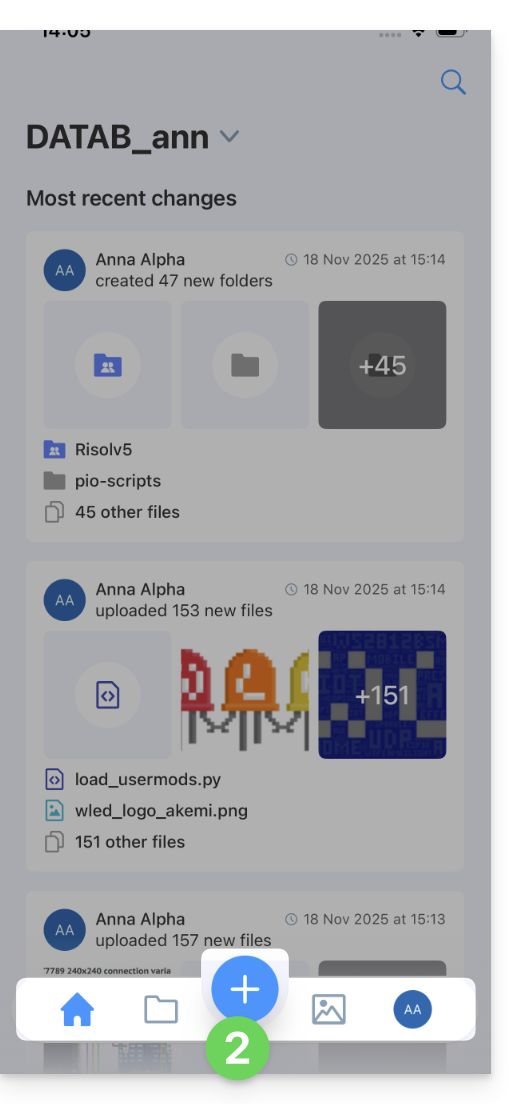
- Press Scan a document:
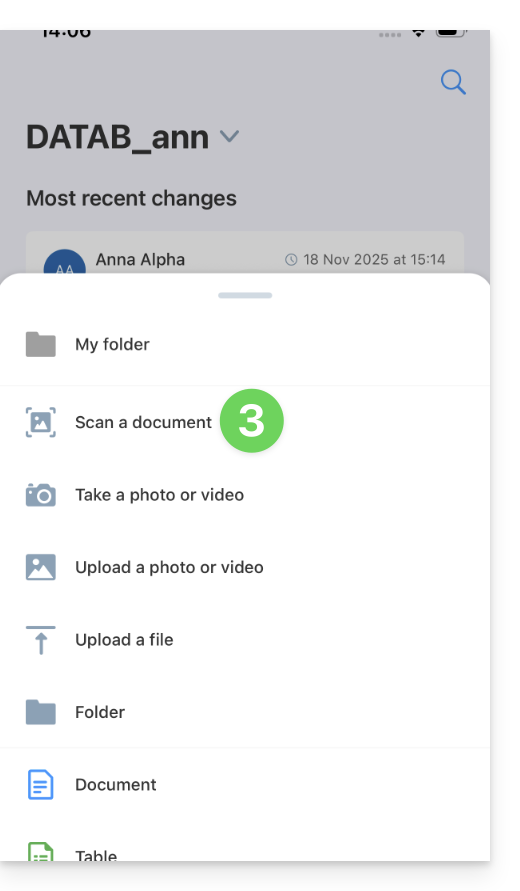
- If necessary, authorize the accesses requested by the app:
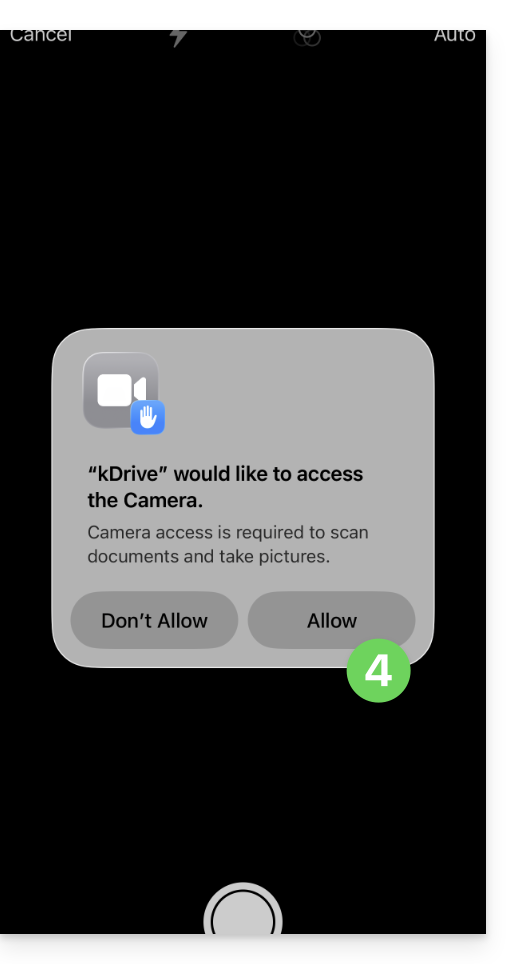
- Document search and detection is performed automatically as soon as the image is stable:
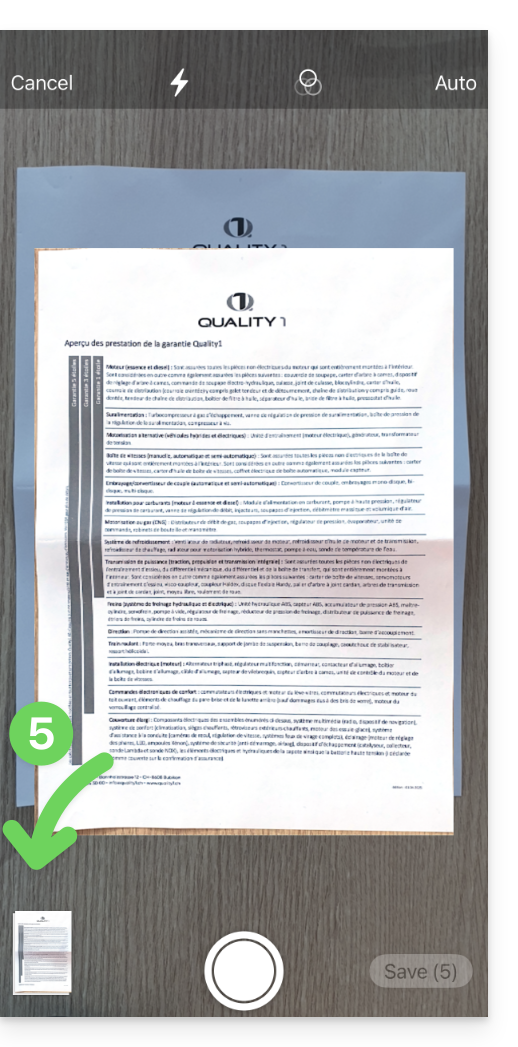
- You can switch to Manual mode at the top right and trigger the photo yourself when you are ready:
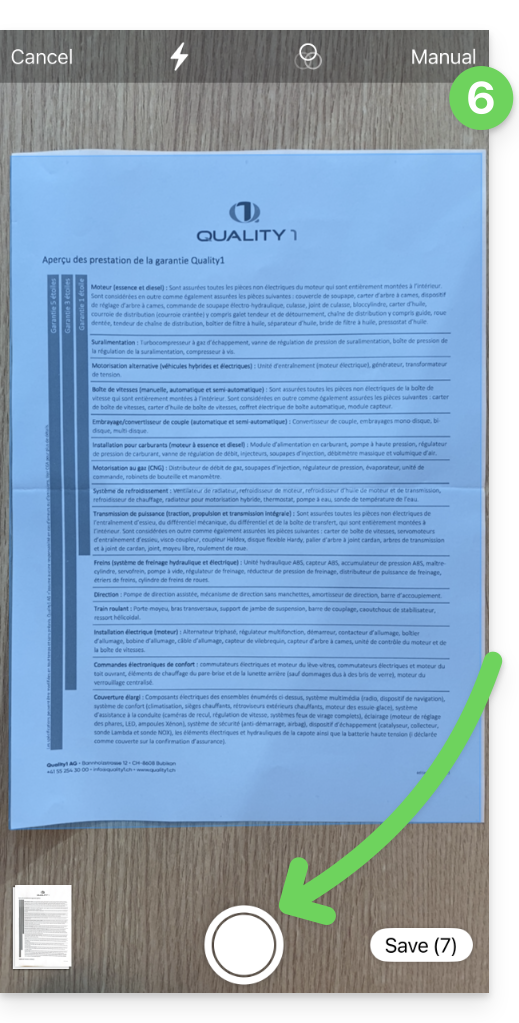
- If necessary, crop the document after manually taking the photo:
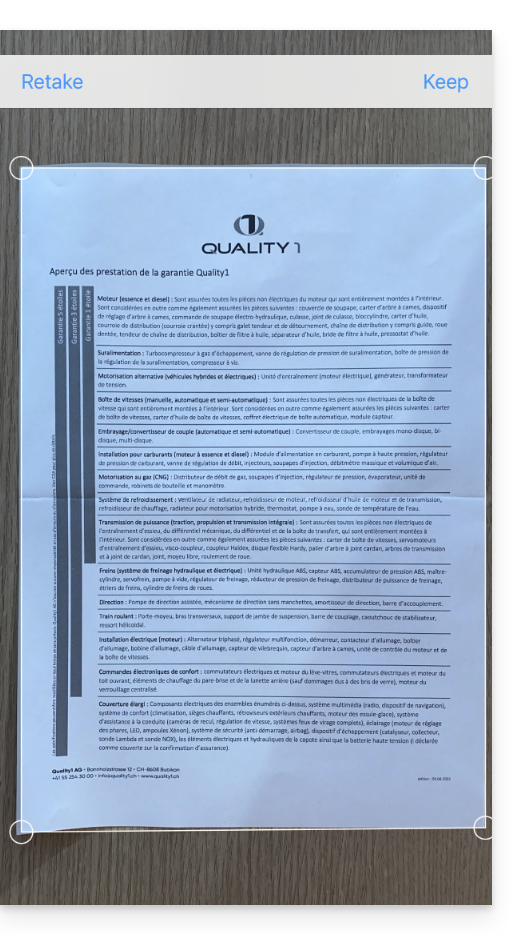
- Press KEEP at the top right.
- Press the thumbnail at the bottom left to access advanced editing (rotation, black and white...) or to delete a specific page.
- Press Finish at the top left.
- Repeat the steps to scan other pages or press Save at the bottom right:
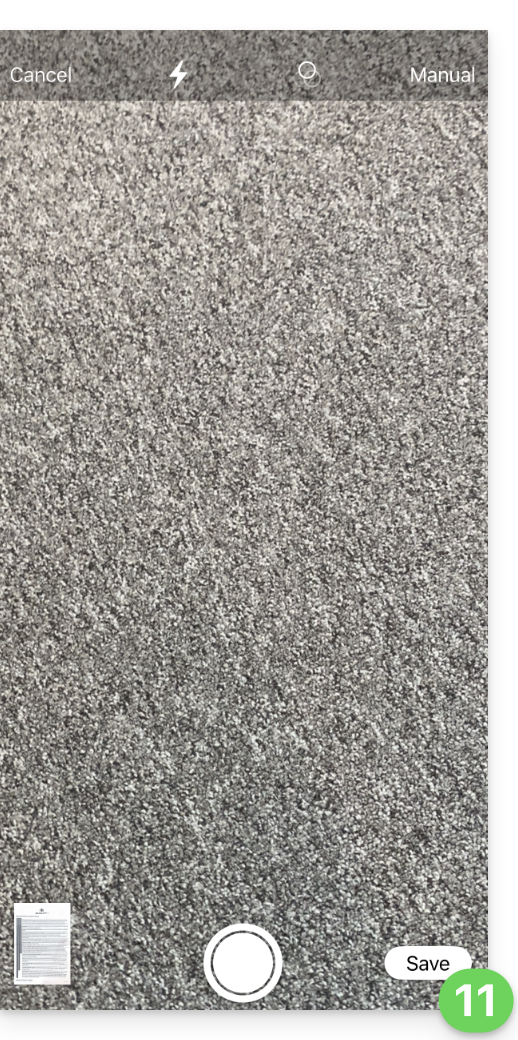
- If your scan contains multiple pages, it will be grouped into a PDF to be saved in the location of your choice on the kDrive. If there is only one image, you can choose to save it in .JPG format:
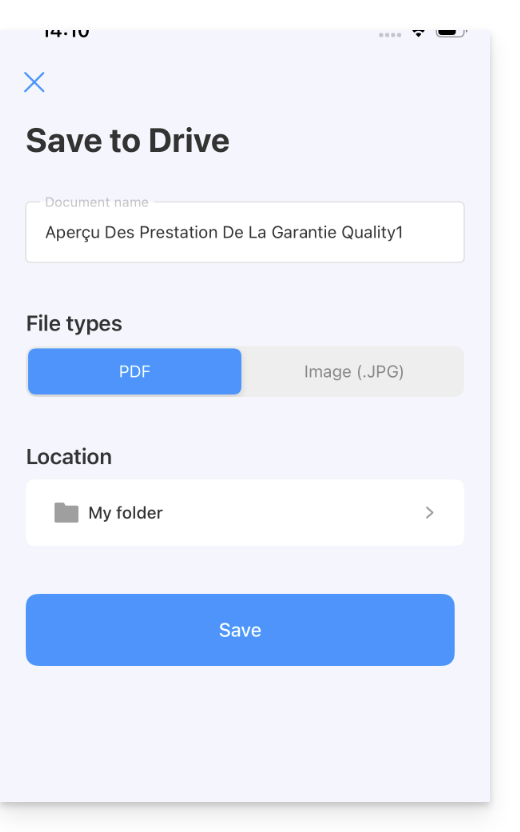
- The document is sent to the kDrive:
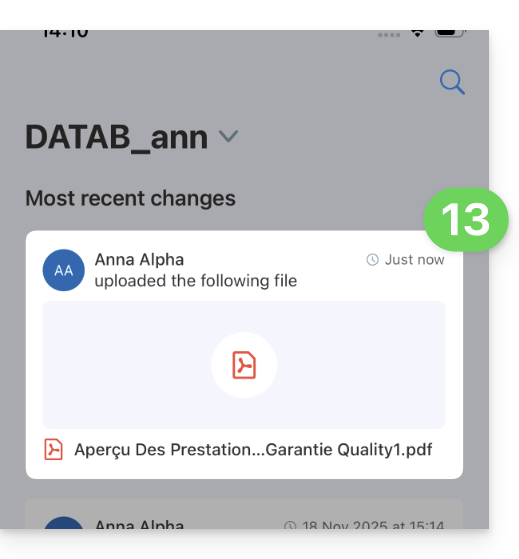
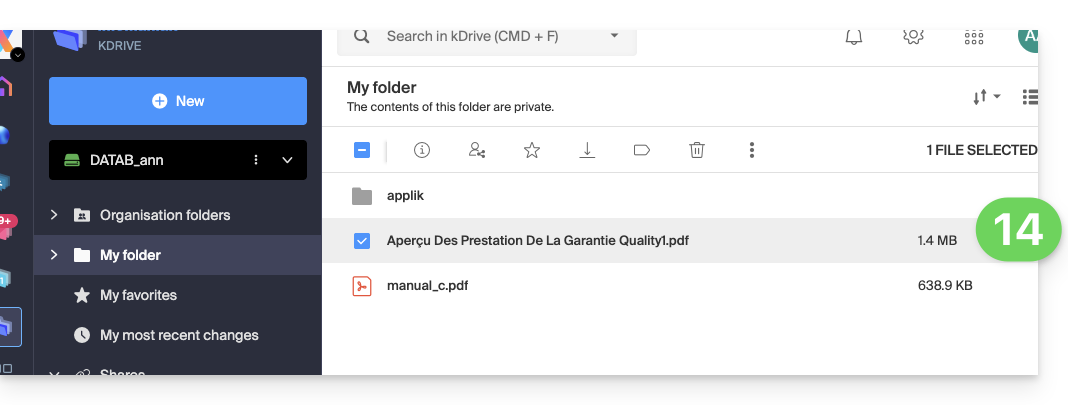
- You will find it on all your connected devices:
Link to this FAQ: https://faq.infomaniak.com/2395
Has this FAQ been helpful?