Knowledge base
1000 FAQs, 500 tutorials and instructional videos. Here, there are only solutions!
Scan with the kDrive mobile app
This guide explains how to scan or digitize documents (multi-page) using the mobile app kDrive (application for iOS / Android smartphones or tablets).
Prerequisites
- You must have a kDrive or kSuite subscription.
- Install the kDrive mobile app (application for iOS / Android smartphones or tablets).
Scanning Documents
To quickly digitize paper documents and store them on your kDrive:
- Launch the kDrive mobile app on your iOS or Android device.
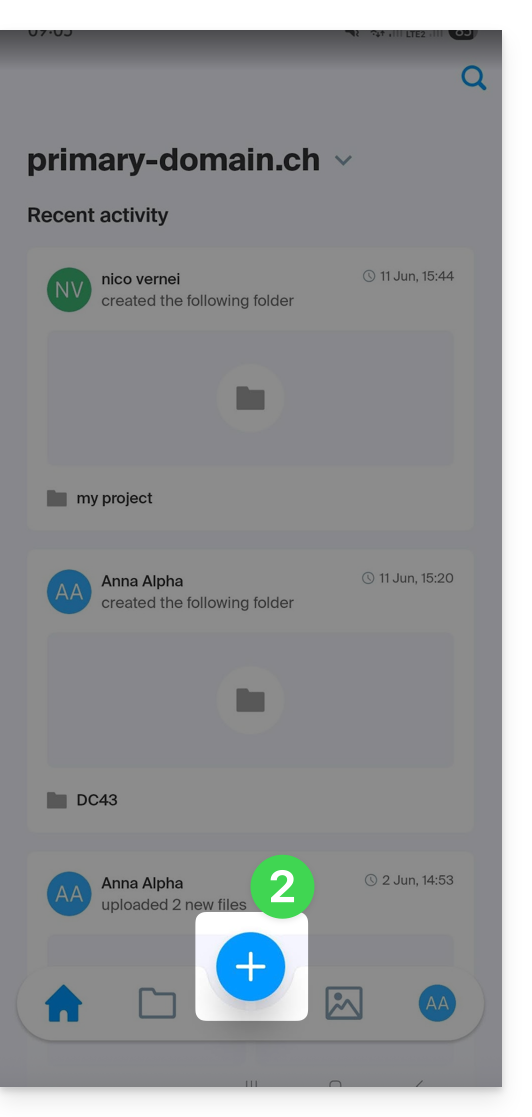
- Tap the icon at the bottom:
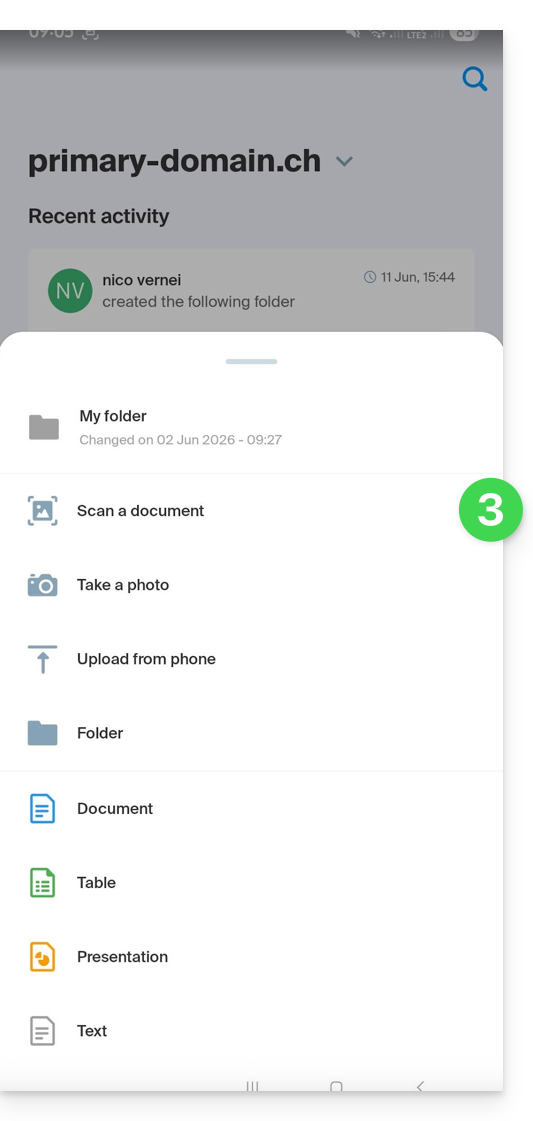
- Tap Scan a document in the panel that opens:
- If necessary, allow the app to access the requested permissions (camera, etc.).
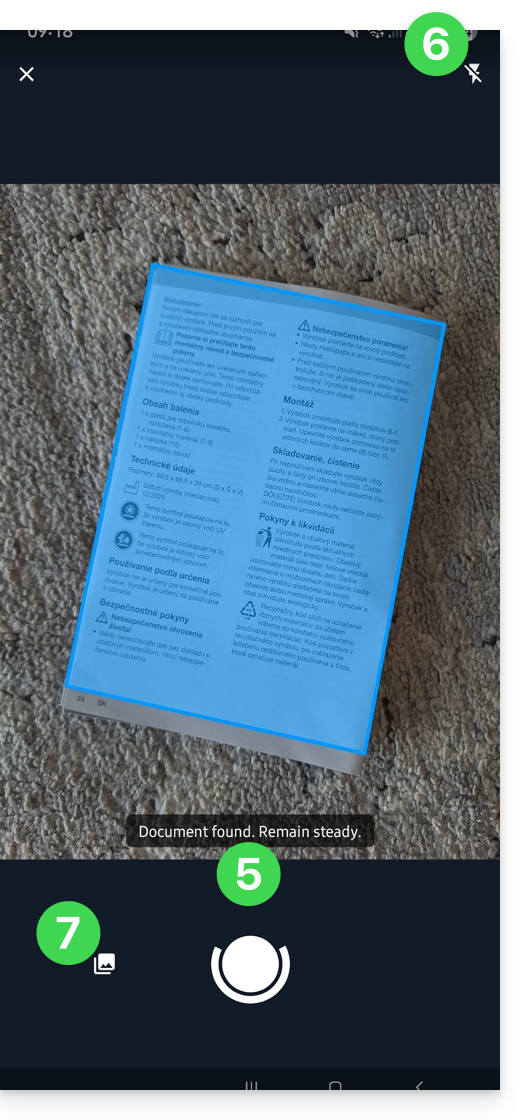
- The document search and detection process is performed automatically as soon as the image is stable (text and a circle will indicate this), but you can tap the central circle to manually trigger a capture.
- If necessary, enable the use of the flash.
- When scanning a series of documents, you can manually insert a file that is already in your device's gallery to add it to your final multi-page document:
- If the selected image is not suitable, you can repeat the operation.
- Once the image is selected, you can apply a rotation, a filter such as black & white, cropping, etc.
- You can add other scans to your final document:
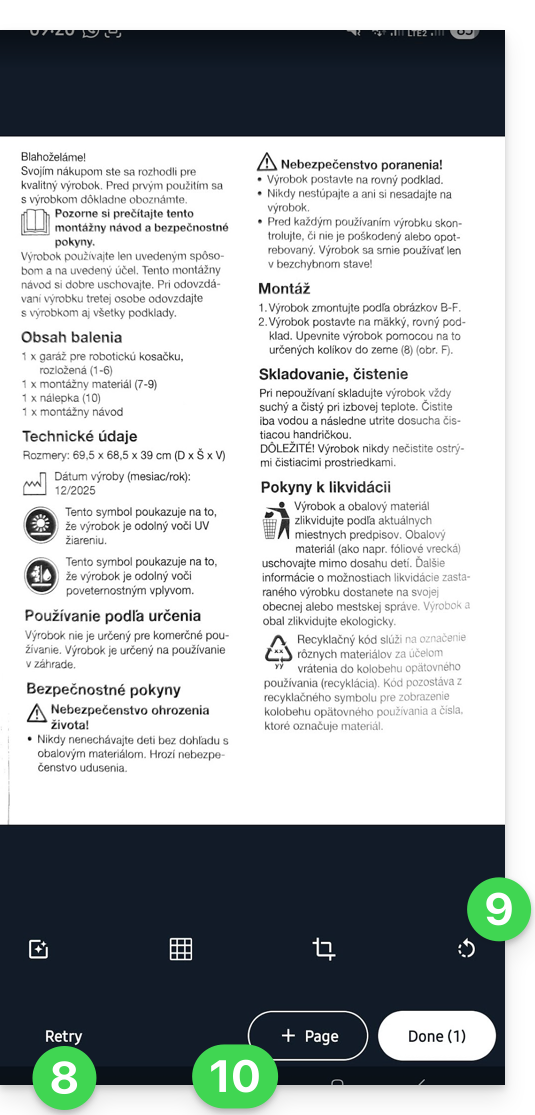
- Once you have added all the pages (the number is displayed on the button), tap Finish in the bottom right corner:
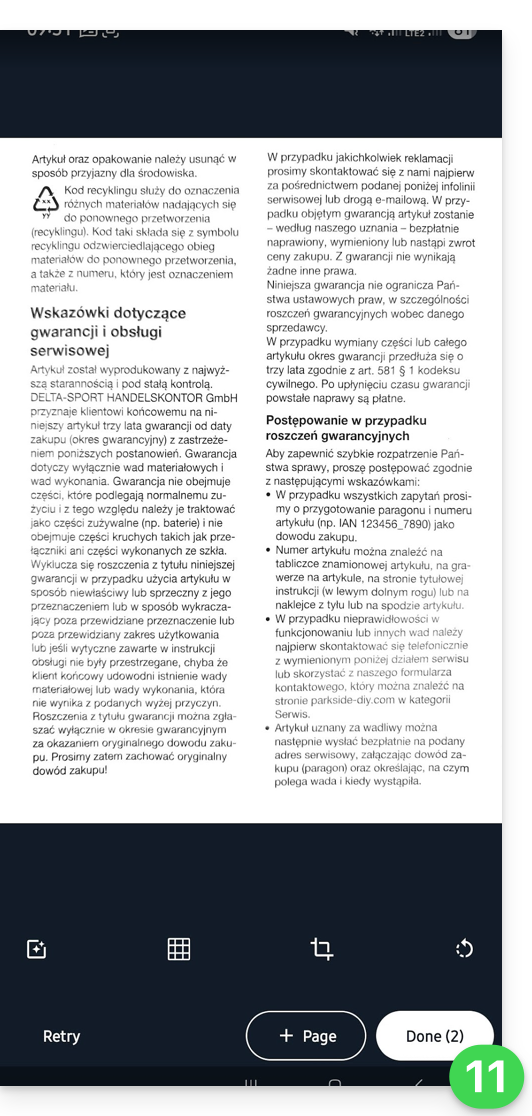
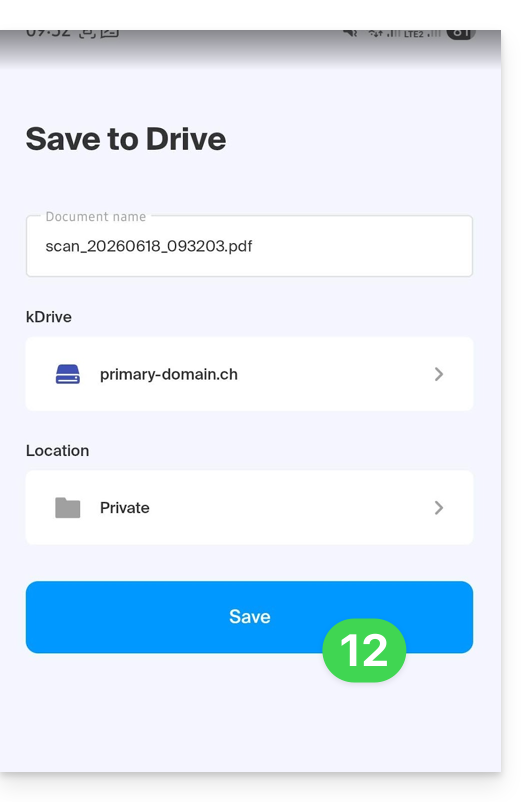
- If your scan contains multiple pages, it will be grouped into a PDF to be saved in the location of your choice on kDrive; if there is only one image, you can choose to save it in .JPG format (iOS only):
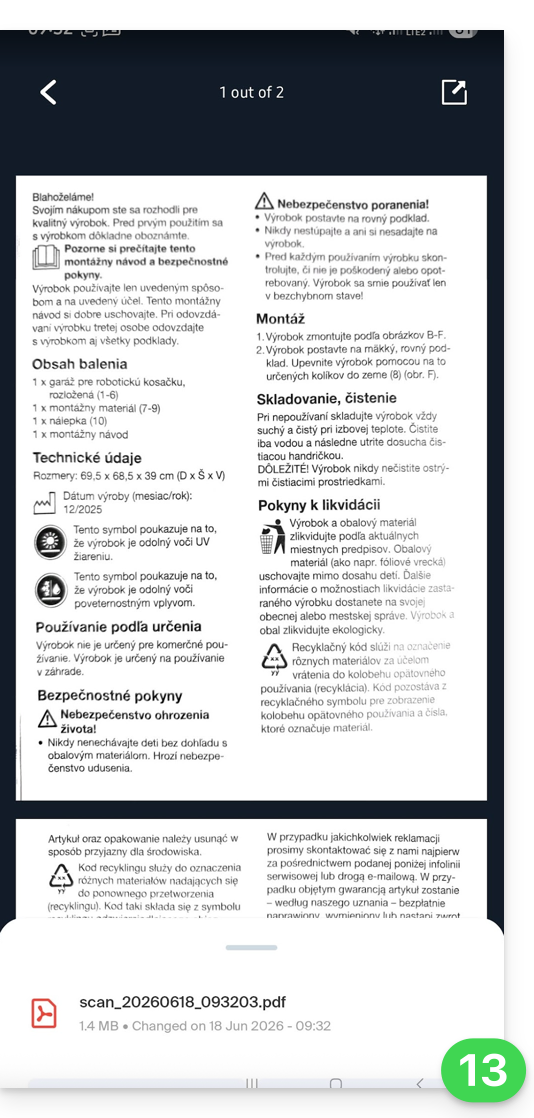
- The document is sent to kDrive and you can view it:
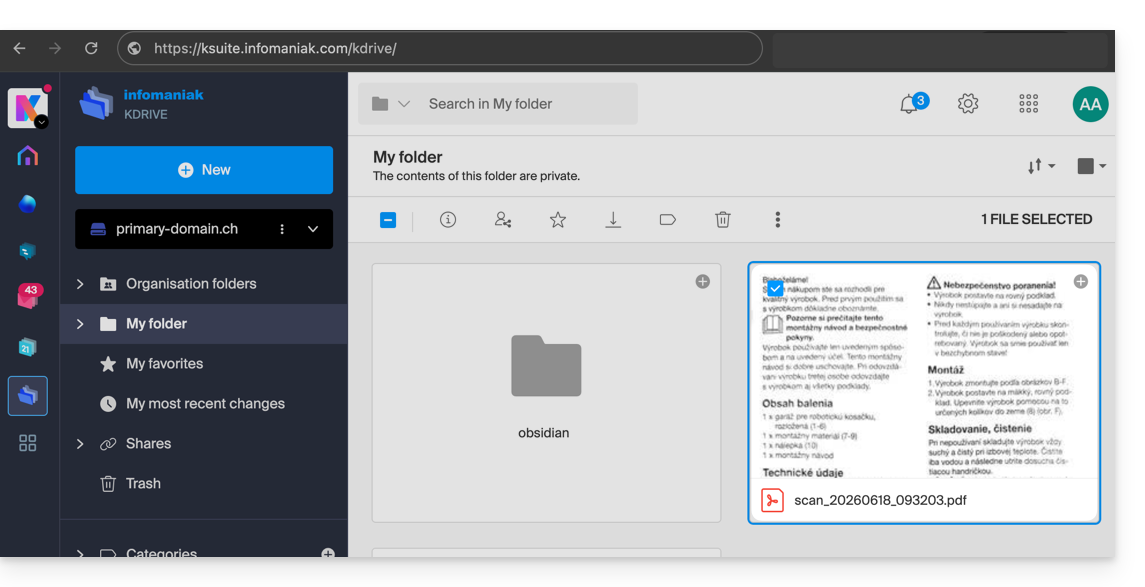
- You can also find it on all your connected devices:
Link to this FAQ: https://faq.infomaniak.com/2395
Has this FAQ been helpful?