Knowledge base
1000 FAQs, 500 tutorials and instructional videos. Here, there are only solutions!
Import photos on the kDrive mobile app (iOS)
This guide explains how to automatically transfer photos from your mobile device (iOS) to kDrive Infomaniak.
Preamble
- Once this feature is enabled, photos from the mobile device will be saved in the kDrive folder of your choice.
- Foreground mode:
- The synchronization works optimally when the kDrive app is active and in the foreground.
- Background mode
- iOS limits the operation of closed applications.
- kDrive will, however, be able to send files in short sessions (every 15 minutes or so) or during the night if the device is charging and connected to Wi-Fi.
- File naming: automatic backup may rename your files to avoid collision errors or duplicates (see below).
Enable sending to kDrive on iOS (iPhone, iPad)
Prerequisites
To configure automatic backup:
- Open the mobile app kDrive.
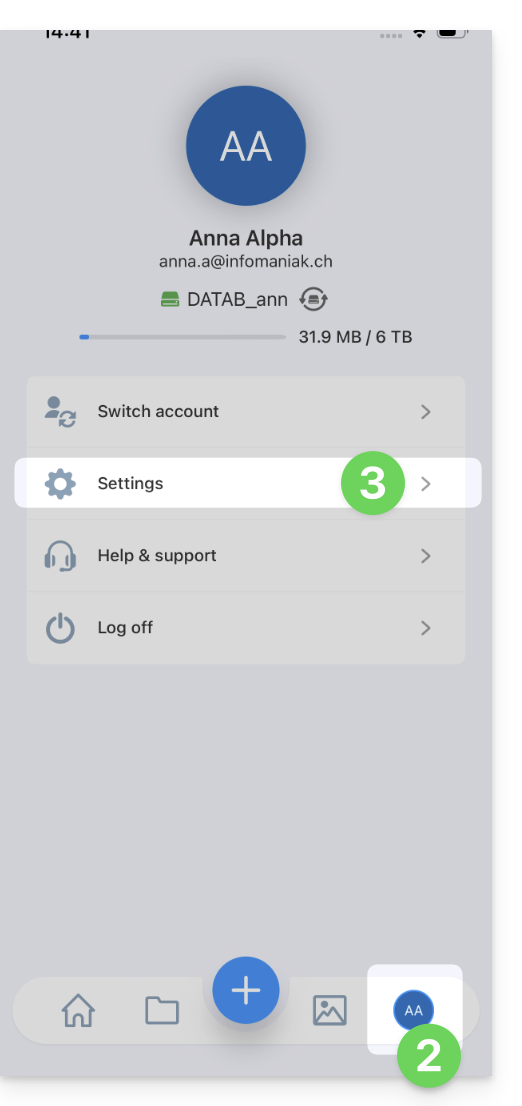
- Tap on your initials or avatar (bottom right).
- Go to Settings:
- Select Photo backup:
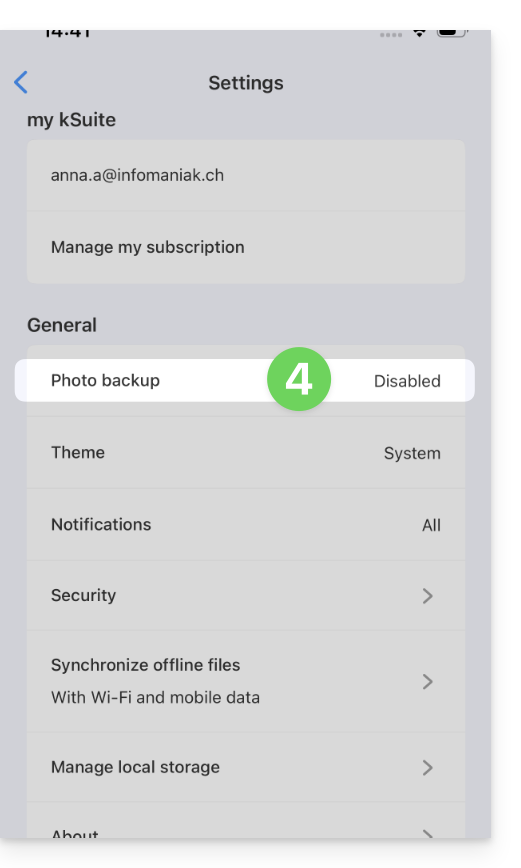
- Enable Automatic backup.
- Authorize access to your photos according to the options proposed by iOS.
- Choose the destination kDrive and the target folder.
- Adjust your preferences (videos, screenshots, deletion after sending, etc.) then tap Save.
Keep the original name of the photos
By default, automatic backup renames your files (e.g. 20260101_101000_1234.jpg) to avoid collision errors or duplicates.
If you want your photos to keep their original name (e.g. IMG_3006.jpg) instead of being renamed by date, you must use the iOS sharing function instead of automatic backup:
- Open the iOS Photos app.
- Select the desired photo(s).
- Tap the Share icon (square with an upward arrow).
- Select kDrive from the list of apps.
- Choose the location and send.
Manual export via the Share button is not recommended for mass transfers of thousands of photos, but it ensures the integrity of the original file name.
Link to this FAQ:
Has this FAQ been helpful?