Knowledge base
1000 FAQs, 500 tutorials and instructional videos. Here, there are only solutions!
Edit a text file (notepad) in the kDrive web app
Update 10/13/2026
This guide explains how to create, save, and edit a plain text file (no specific formatting, like a notepad or raw code) in the kDrive web app (online service ksuite.infomaniak.com/kdrive) using the native editor.
Creating a plain text file
To create a .txt file:
- Click here to access the kDrive web app (online service ksuite.infomaniak.com/kdrive).
- If necessary, open the folder where you want to create the .txt document.
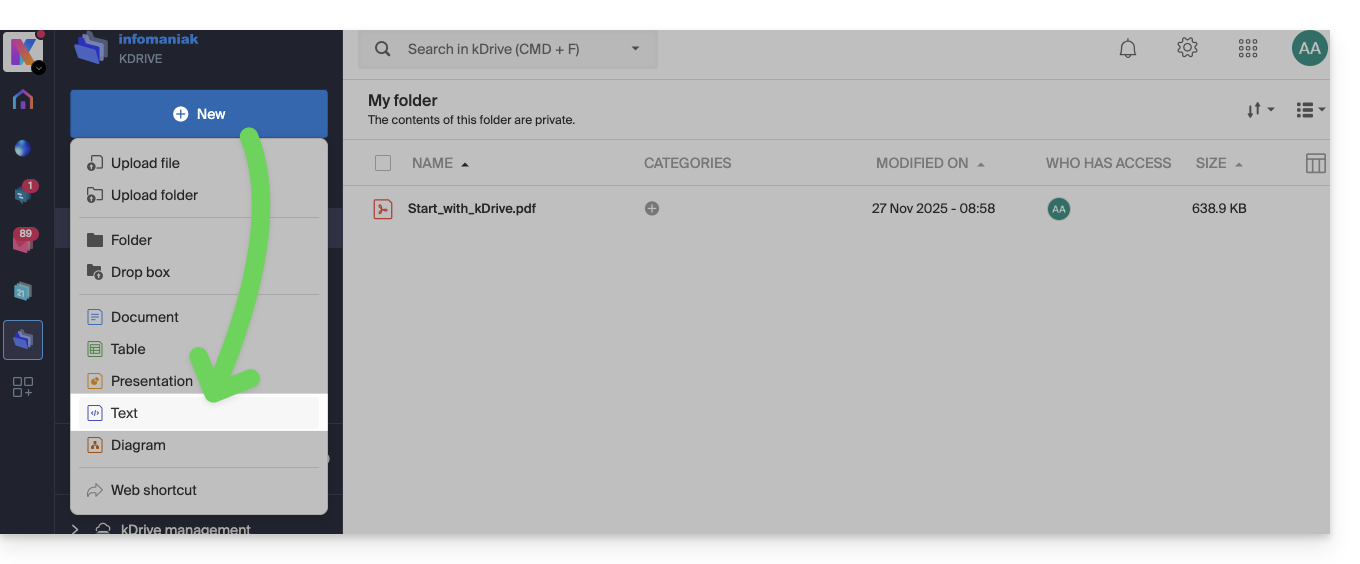
- Click the New button in the upper left corner.
- Choose the Text type to create a blank document:
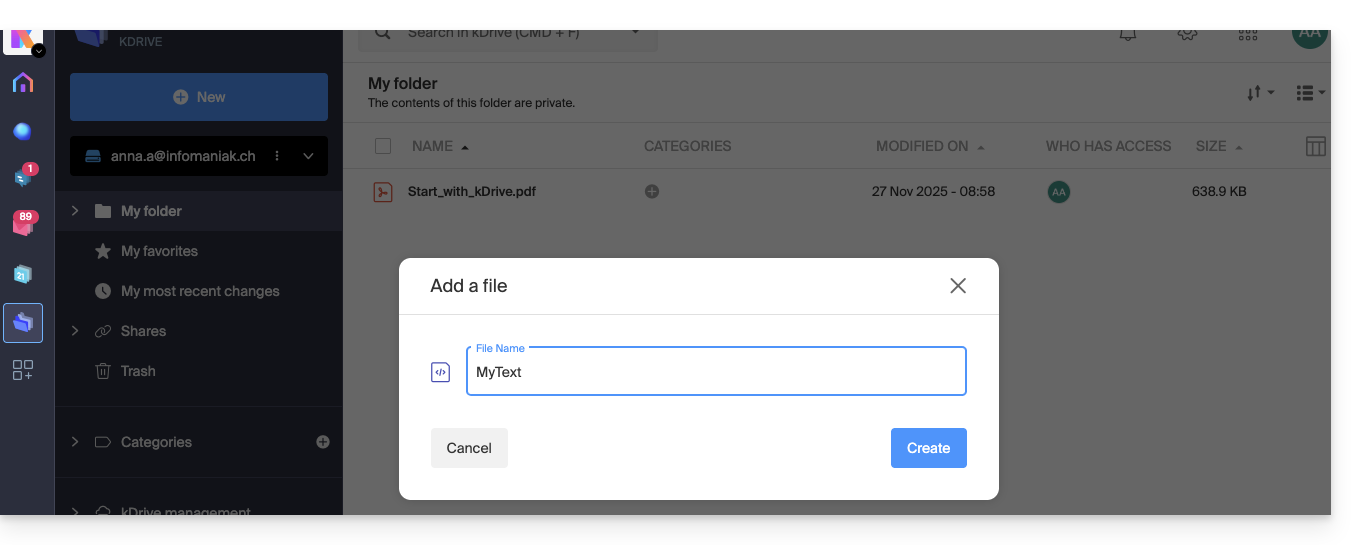
- Enter a file name:
- The blank file opens automatically, and you can enter plain text:
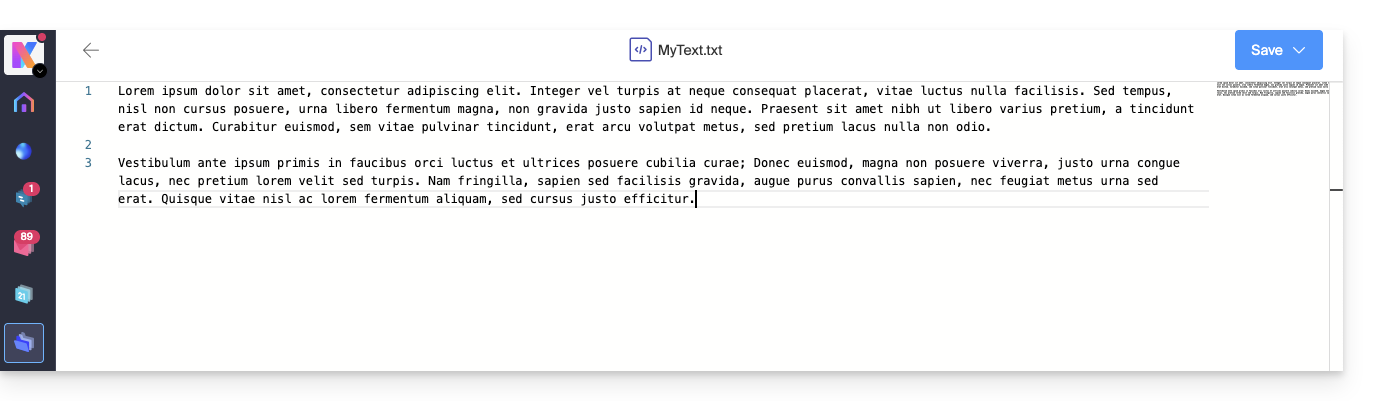
- There is no way to format the text, edit its style, or its alignment, etc. (use Office file types for that).
- If you paste rich content onto the page, it will be converted to plain text without formatting.
- A page outline is displayed on the right to facilitate quick navigation in long documents.
- Saving is automatic, but you can manually save your changes in the upper right corner if needed.
Find and Replace Function
To work with and replace all instances of a text with just a few clicks, once the document is created:
- Select the term to be replaced throughout the text.
- Right-click on the selection and choose the "Edit all instances" menu item:
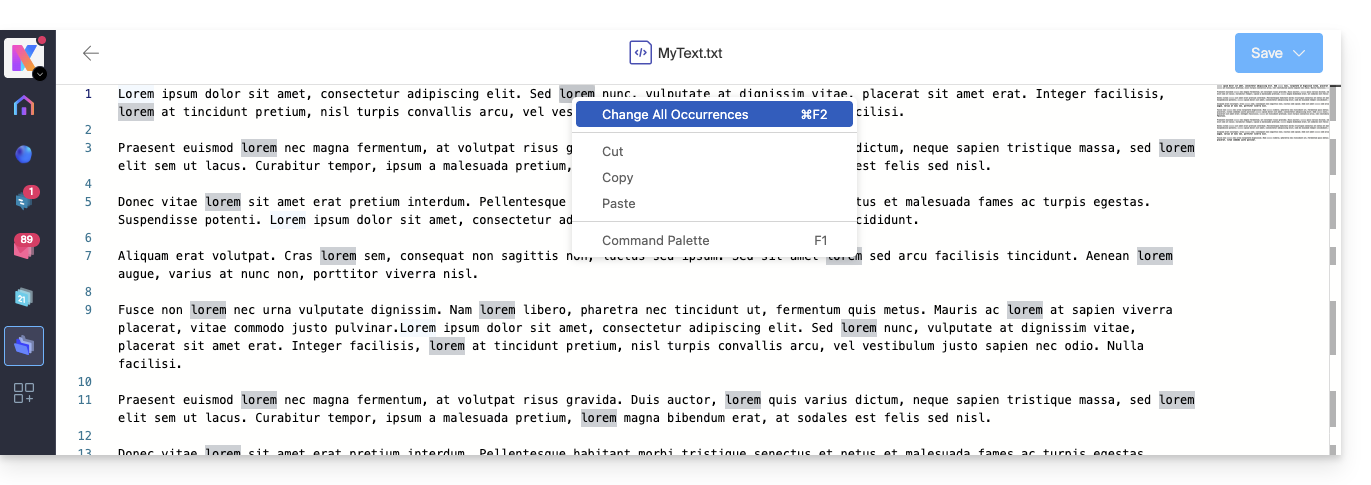
- Enter the text that should replace the selection; the text will replace all identical instances:
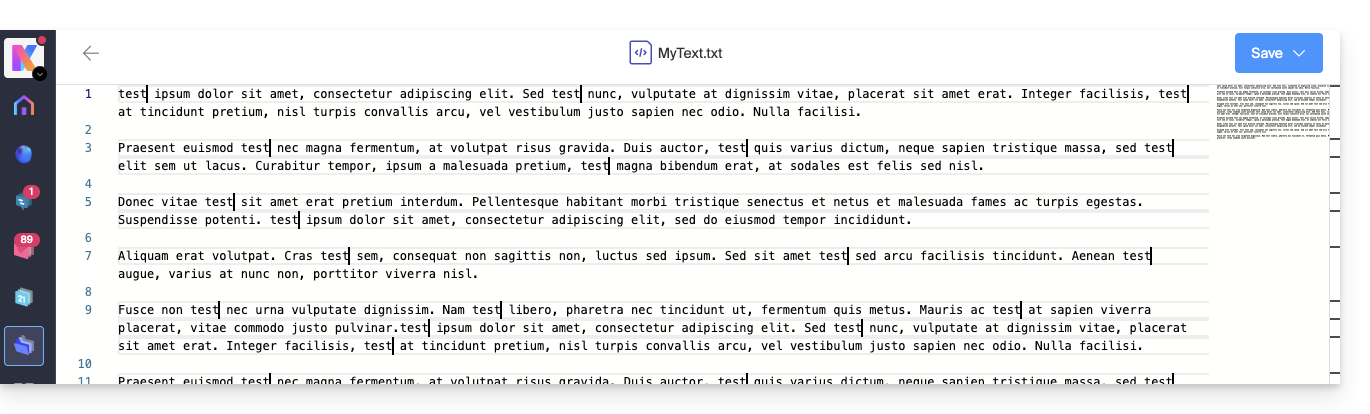
- Saving is automatic, but you can manually save your changes in the upper right corner if needed.
Link to this FAQ: https://faq.infomaniak.com/2389
Has this FAQ been helpful?