Knowledge base
1000 FAQs, 500 tutorials and instructional videos. Here, there are only solutions!
Send a message on kChat from n8n
This guide explains how to configure an action in n8n so that a message is sent on kChat when the conditions are met.
Prerequisites
- Install n8n on an Infomaniak hosting.
- Create a webhook on the Infomaniak kChat app.
Create the action in n8n
In your n8n session:
- Click to start from scratch:
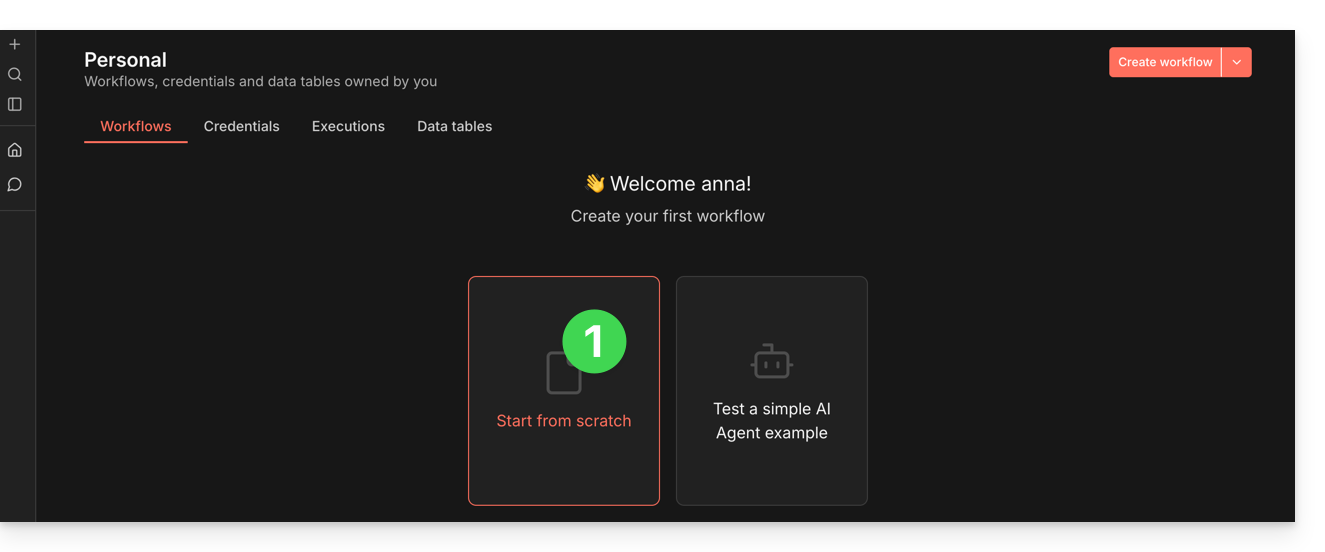
- Click to add a first action.
- Choose a manual trigger:
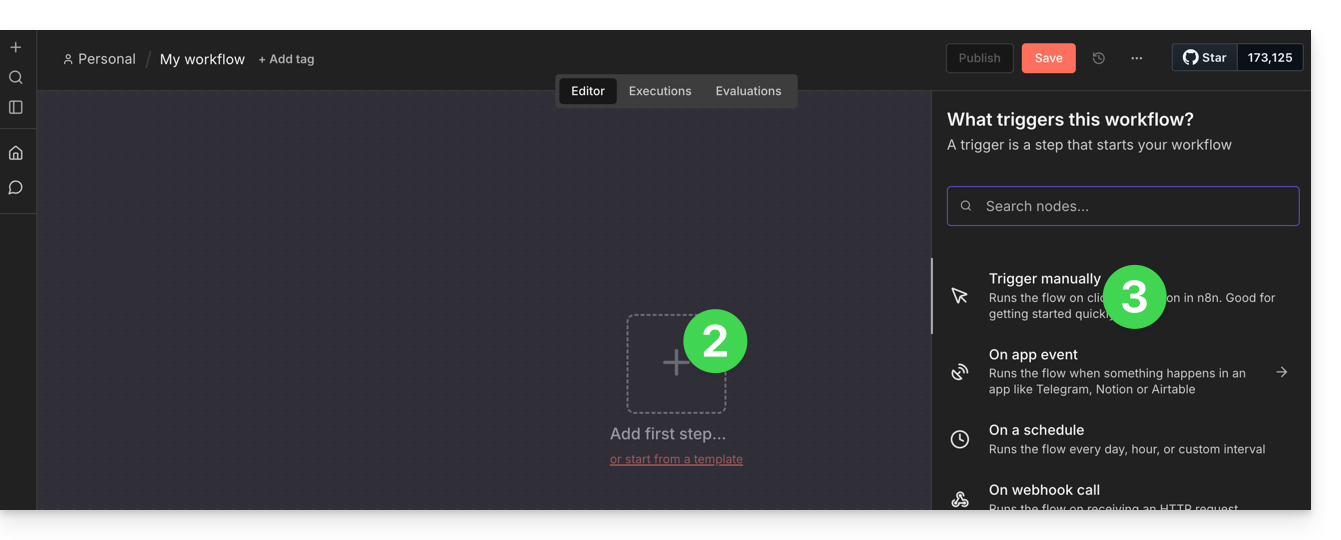
- Click to add an action to trigger.
- Search for and activate an action of the “HTTP Request” type:
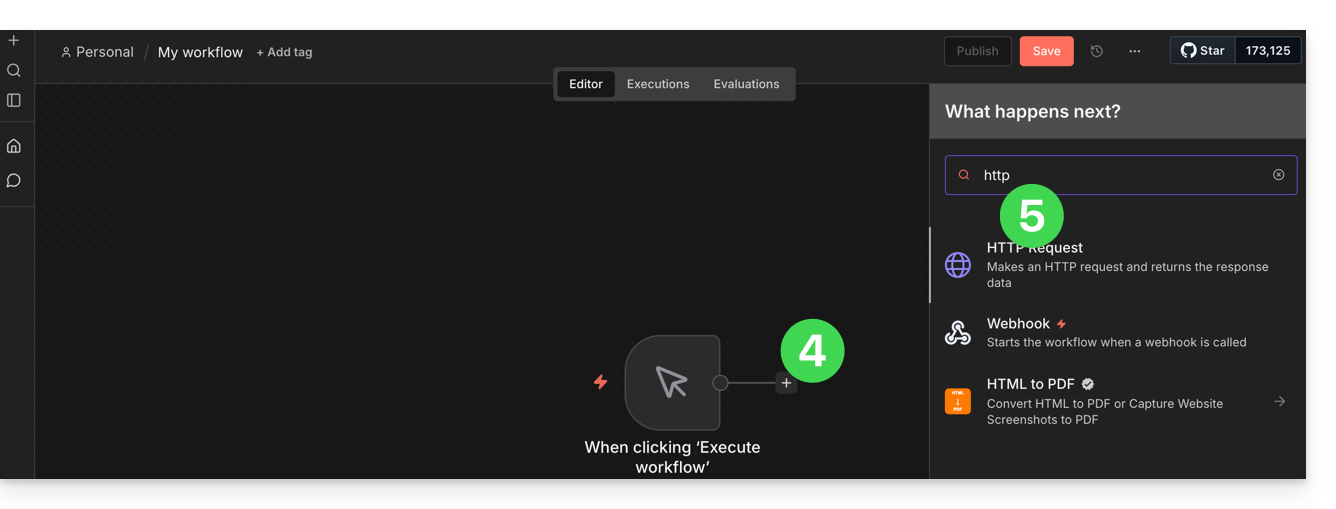
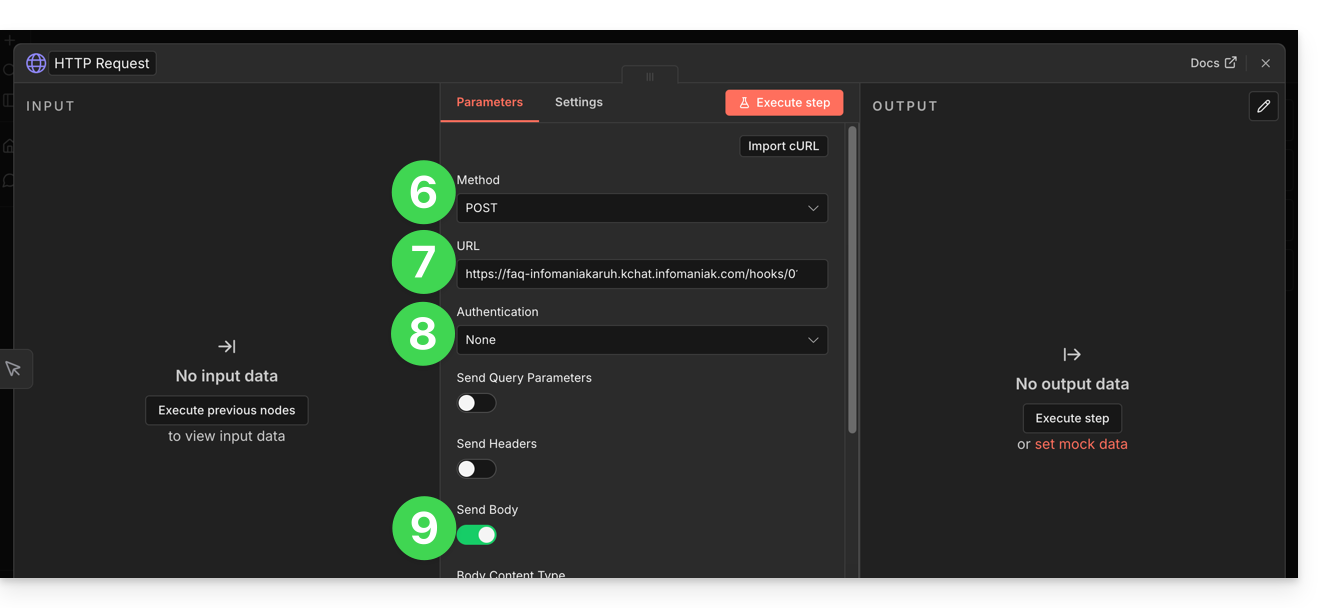
- Choose the POST method.
- Enter the URL of your kChat webhook.
- Authentication is not required (already applied in the URL).
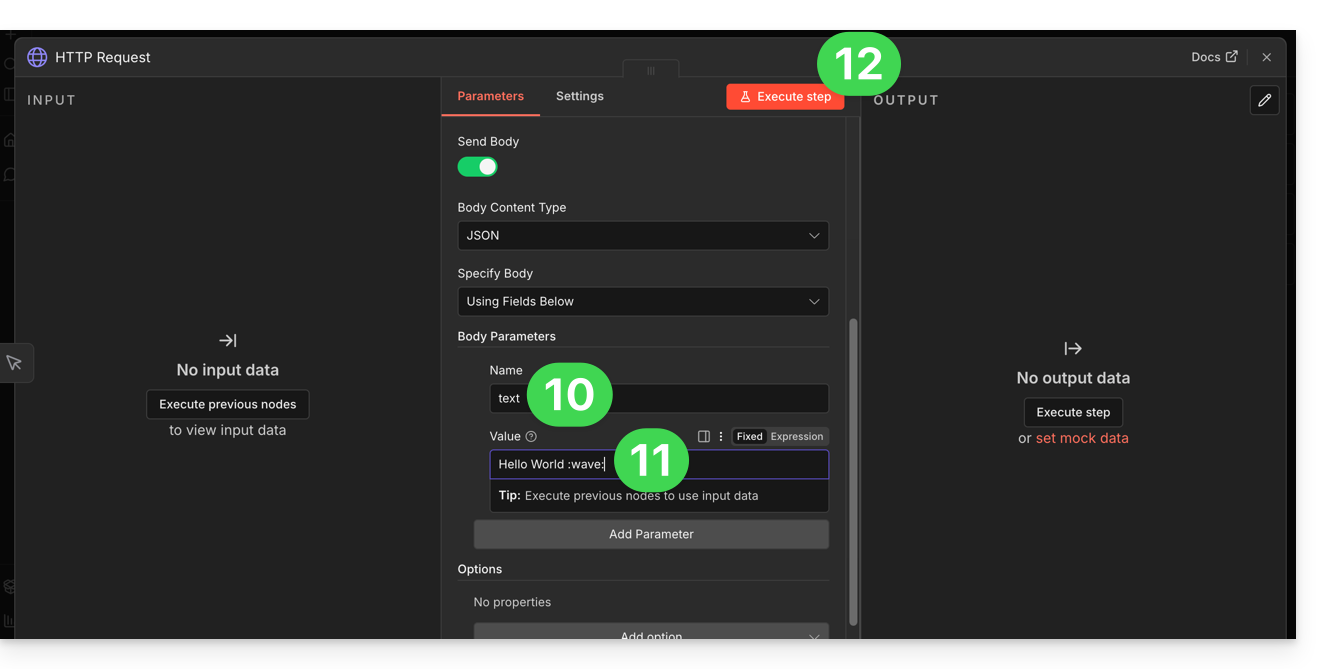
- Activate the “Send body” toggle switch to specify content:
- In the “Name” field, enter the exact term “text” as expected by kChat.
- In the “Value” field, enter the information you want to display on kChat.
- Click the button to test and apply your custom command:
- The message specified in n8n will then be displayed on kChat:
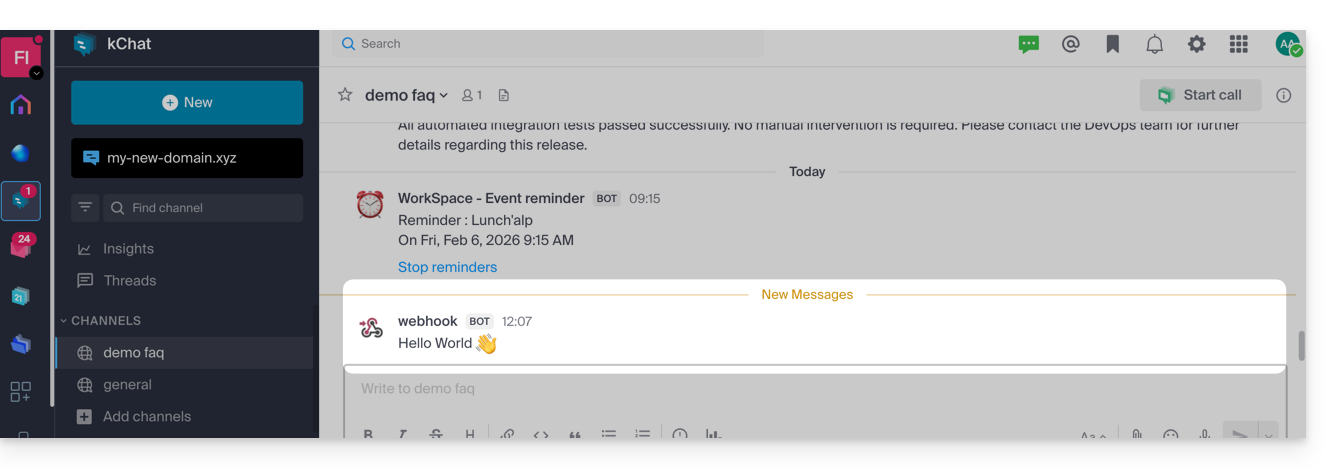
Now that this base is working, you could imagine replacing the fixed text with data from elsewhere. For example, add an "Imap" or "RSS Feed" node before the HTTP Request node. This way, instead of writing the text manually, click on the small gear next to Value > Expression to say: "Send the title of the last email received on kChat"…
Link to this FAQ: https://faq.infomaniak.com/2388
Has this FAQ been helpful?