Knowledge base
1000 FAQs, 500 tutorials and instructional videos. Here, there are only solutions!
Manage kDrive storage
This guide explains how to view how your kDrive storage space is being used and how to increase its capacity if needed.
Introduction
- The maximum number of files per kDrive is not a fixed limit, but if this limit is exceeded, Infomaniak cannot guarantee the stability of the storage system and the kDrive application.
- Only the specific Backup and storage terms and conditions, which you can find in your Manager, apply.
- Consult this other guide for details specific to mailboxes.
Current limits
Other types of limits are detailed in this other guide.
⚠ Maximum number of files / subfolders:
| by kDrive | by folder | |
| All offers | 300000 / 1000 | 50000 |
⚠ Bandwidth (in GB) allowed per day and per user(these limits, provided for informational and precautionary purposes, may apply if excessive use degrades the service, in order to guarantee its stability and availability for all users):
| kSuite | free | 200 |
| Standard | 1000 | |
| Business | 1000 | |
| Enterprise | 1000 | |
| my kSuite | 200 | |
| my kSuite+ | 200 | |
| kDrive | Solo | 1000 |
| Team | 1000 | |
| Pro | 1000 |
⚠ Maximum number of daily downloads per user for a file:
| kSuite | free | 50000 |
| Standard | 100000 | |
| Business | 100000 | |
| Enterprise | 100000 | |
| my kSuite | 50000 | |
| my kSuite+ | 50000 | |
| kDrive | Solo | 50000 |
| Team | 50000 | |
| Pro | 50000 |
⚠ Max. file size (in GB) uploaded via:
| Desktop app | Web app | API | |
| All offers | 1000 | 1000 | 1000 |
Check your kDrive storage space
To access kDrive:
- Click here to access the Infomaniak kDrive web app (online service ksuite.infomaniak.com/kdrive).
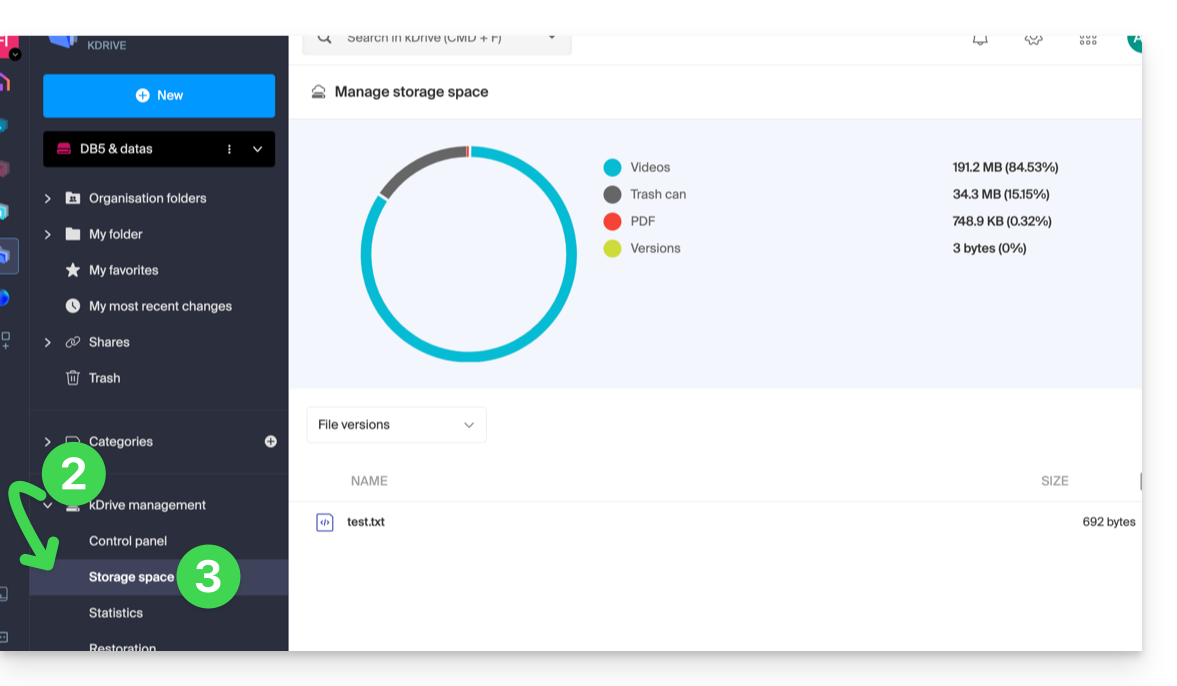
- Click on the chevron to expand the kDrive Management section in the left-hand menu.
- Click on Storage space in the left-hand menu:
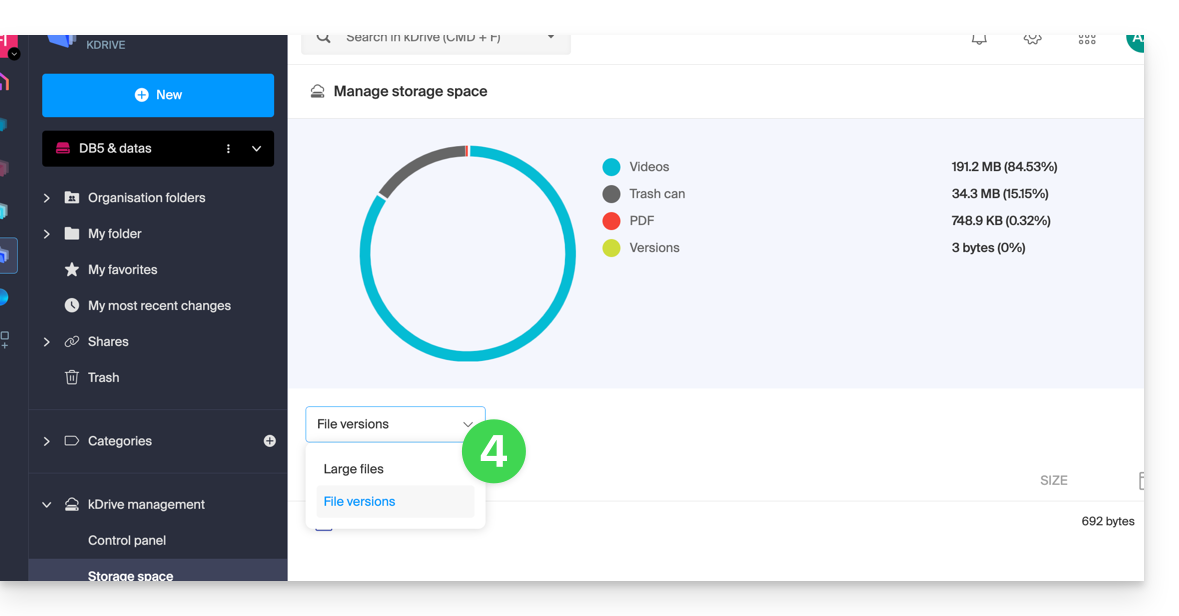
- Choose the large files (or the file versions which are also counted towards the storage space) using the drop-down menu:
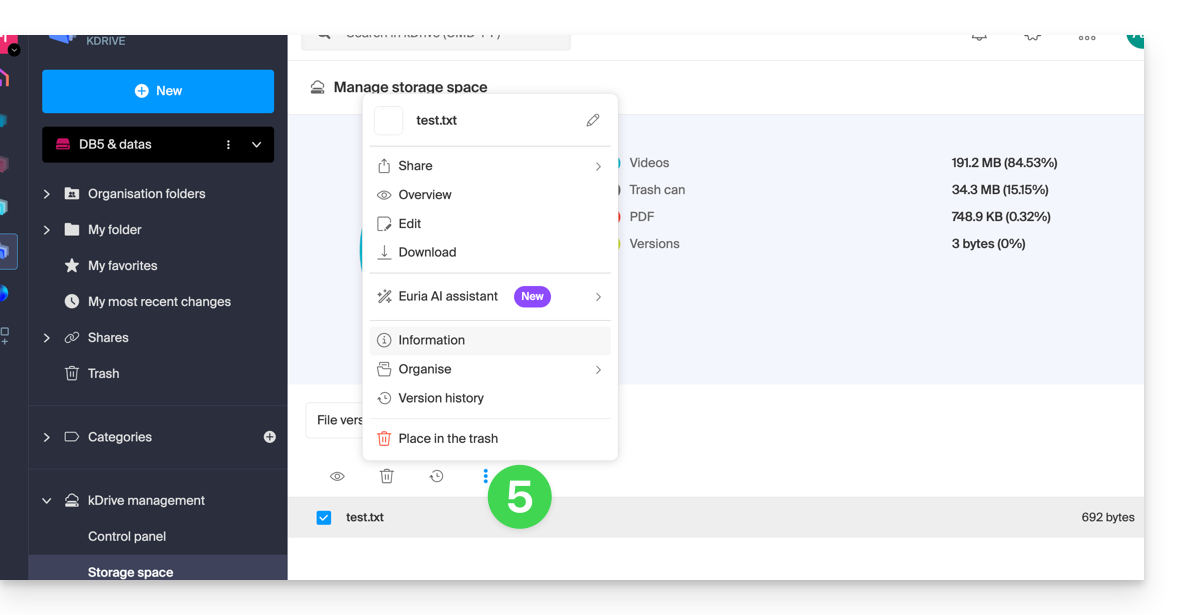
- Click on the action menu ⋮ located above your selection to perform an action (e.g., delete):
Increase kDrive storage space
Prerequisites
- You must have sufficient permissions within the Organization.
To modify the kDrive storage space:
- Click here to access the Infomaniak kDrive web app (online service ksuite.infomaniak.com/kdrive).
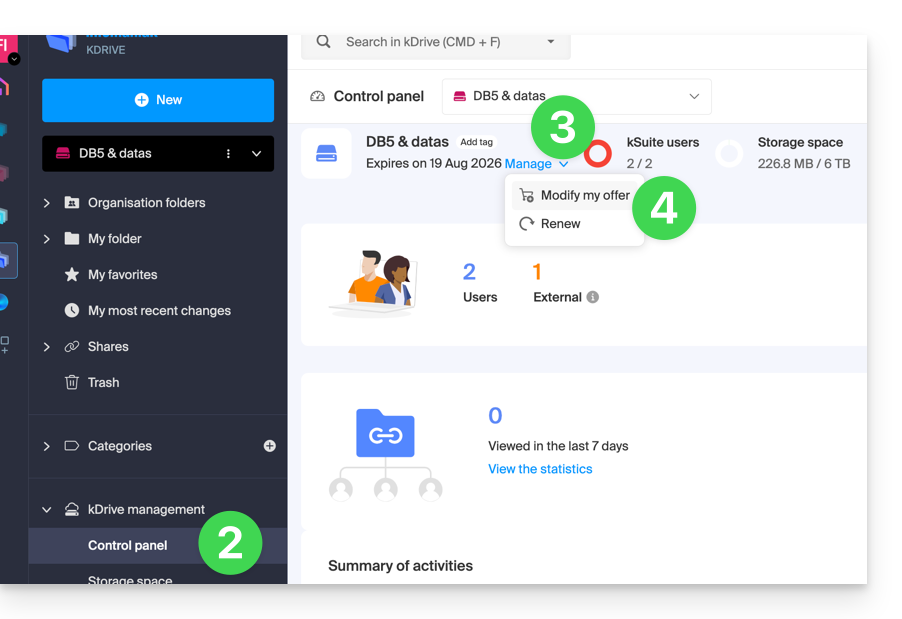
- Click on Dashboard in the left-hand menu under kDrive Management.
- Click on Manage.
- Click on Modify offer:
- You will then be given the option to modify the offer or change the maximum storage space for your kDrive.
- Once the offer has been modified, click on Next and proceed with the payment.
Get information about a folder and its contents
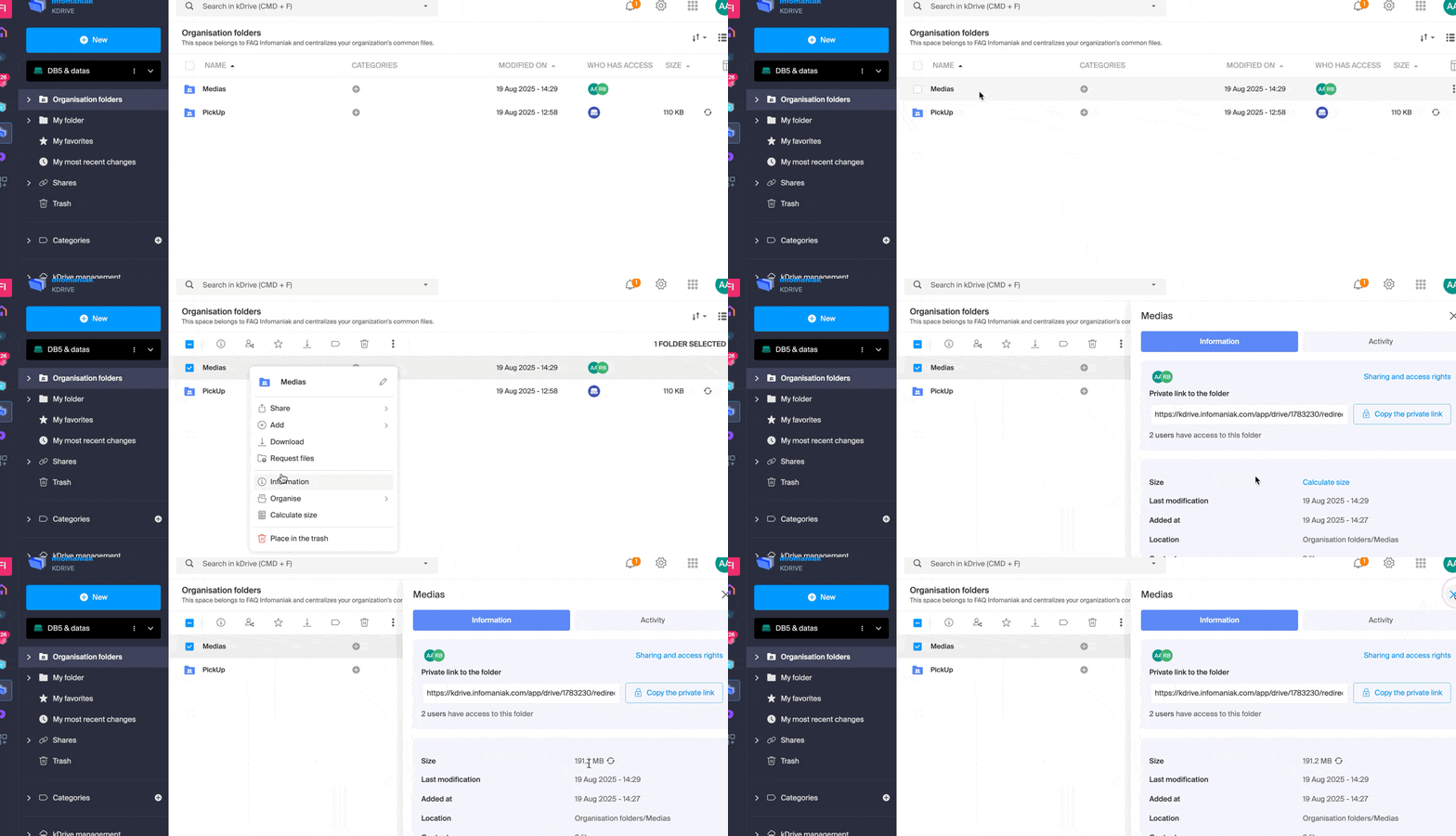
Simply right-click on any folder in the kDrive web app to view its size and contents:
Link to this FAQ: https://faq.infomaniak.com/2387
Has this FAQ been helpful?