Knowledge base
1000 FAQs, 500 tutorials and instructional videos. Here, there are only solutions!
Restore a kDrive file to its previous version
This guide explains how to use the file history or versioning feature on kDrive.
Introduction
- This feature is very useful for recovering information that has been deleted or modified by a third party within a collaborative file.
- Infomaniak saves the different versions in the history.a backup of all changes made to Office file types on kDrive.
- You can choose to keep certain versions of these files indefinitely.
A global backup of the organization's folders and personal Drives is not offered; this choice is intentional in order to guarantee the confidentiality of personal spaces: administrators do not have access to users' private data.
- Maximum number of versions / Maximum number of days:
- kSuite Free = 30 / 30
- kSuite Standard = 100 / 120
- kSuite Business = 200 / 180
- kSuite Enterprise = 200 / 365
- my kSuite = 30 / 30
- my kSuite+ = 60 / 120
- kDrive Solo = 100 / 60
- kDrive Team = 100 / 60
- kDrive Pro = 200 / 120
- Other types of limits exist at the level of:
Manage previous file versions
To access kDrive:
- Click here to access the Infomaniak web app kDrive (online service ksuite.infomaniak.com/kdrive).
- Select the file to edit (or right-click on the file, and in that case, proceed to step 4).
- Click on the action menu ⋮ in the toolbar.
- Click on Version History:
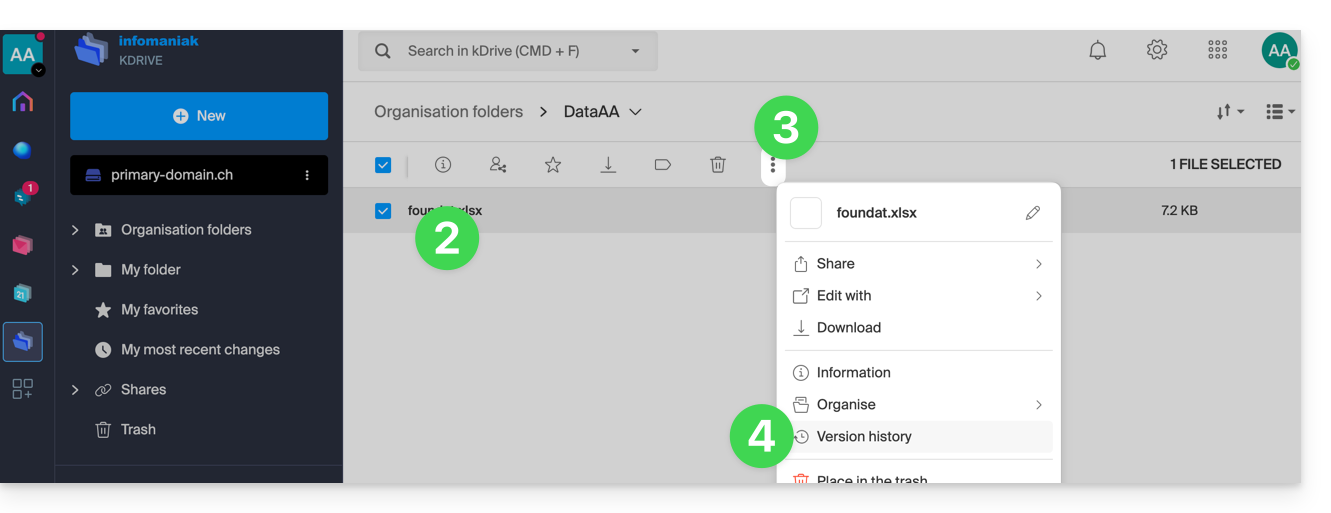
The different versions of the file are listed in reverse chronological order.
You can delete all versions of this file using the following button: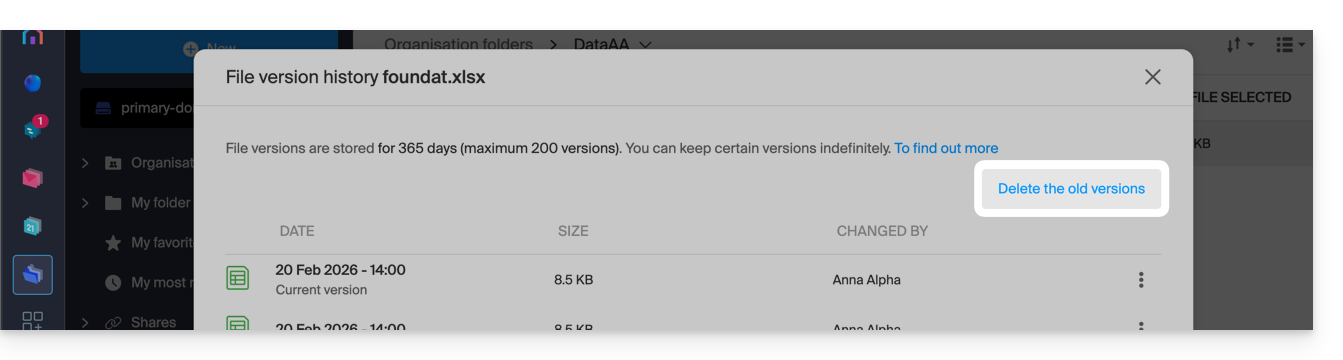
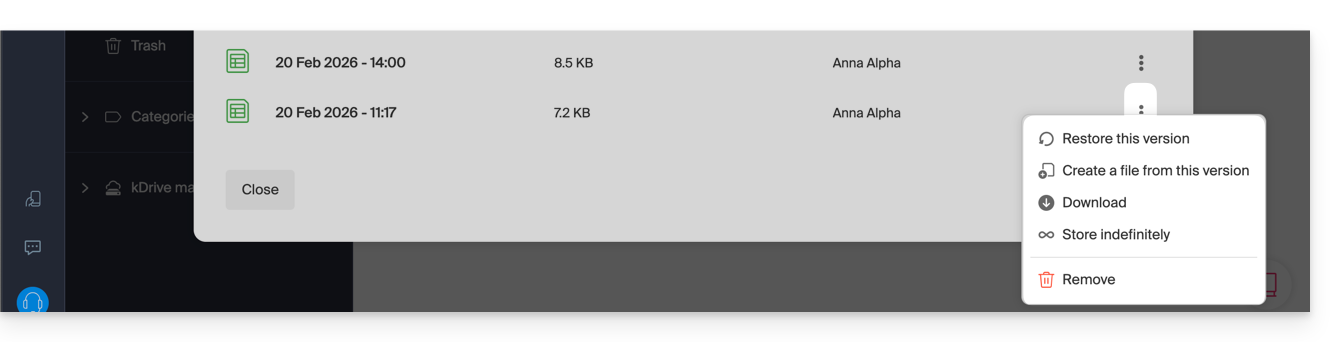
Otherwise, a menu on the right side of each version allows you to:
- … keep it indefinitely: the version will be saved after the standard retention period,
- … create a new file on kDrive from this version,
- … delete the version: this allows you to delete only this version.
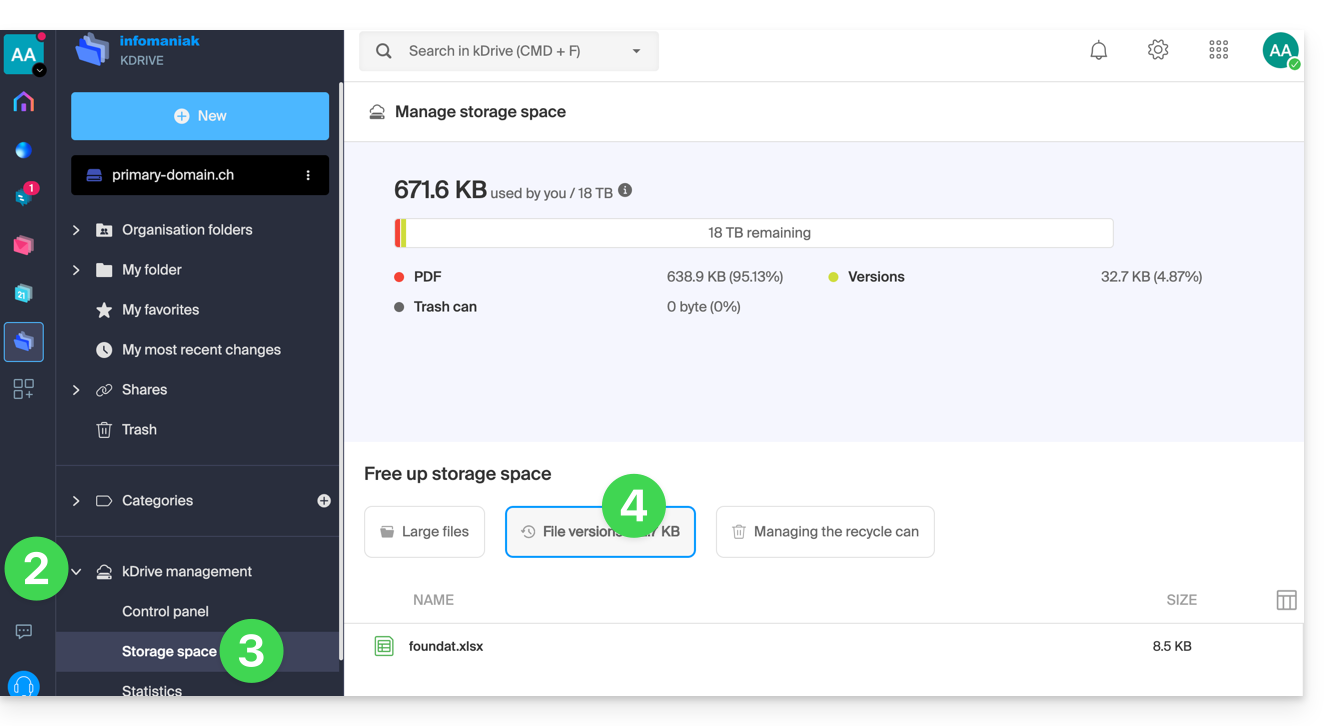
You can also access all versions of all your files:
- Click here to access the Infomaniak kDrive web app (online service ksuite.infomaniak.com/kdrive).
- Click on Manage kDrive in the left-hand menu.
- Click on Manage storage space
- Click to select File versions:
You can also restore a previous version of your entire file organization on kDrive.
Link to this FAQ: https://faq.infomaniak.com/2384
Has this FAQ been helpful?