Knowledge base
1000 FAQs, 500 tutorials and instructional videos. Here, there are only solutions!
Manage kDrive file deletion
This guide explains how to manage the behavior of deleted files and the trash bin in kDrive.
Introduction
- When a file is deleted from one of the tools synchronized with kDrive, the kDrive web app (online service ksuite.infomaniak.com/kdrive) places the file in its recycle bin.
- If this kDrive recycle bin is emptied, it is impossible to recover its contents.
- If the operating system's recycle bin on the computer where kDrive is installed is emptied, this will not empty the recycle bin of the kDrive web app.
- The file remains in the kDrive recycle bin for at least 30 days, but some plans allow you to set a higher number for the file retention period in the kDrive recycle bin:
- Files remain in the kDrive trash for at least 30 days after deletion, but depending on the plan you have, the maximum retention period in the trash (in days) may be longer:
- kSuite Free = 30
- kSuite Standard = 60
- kSuite Business = 180
- kSuite Enterprise = 365
- my kSuite = 30
- my kSuite+ = 60
- kDrive Solo = 365
- kDrive Team = 365
- kDrive Pro = 365
Delete a file…
… on the kDrive web app
To delete a file and track its path to the recycle bin:
- Click here to access the kDrive web app (online service ksuite.infomaniak.com/kdrive).
- Select the file(s) in question.
- Click on the trash can icon in the top bar:
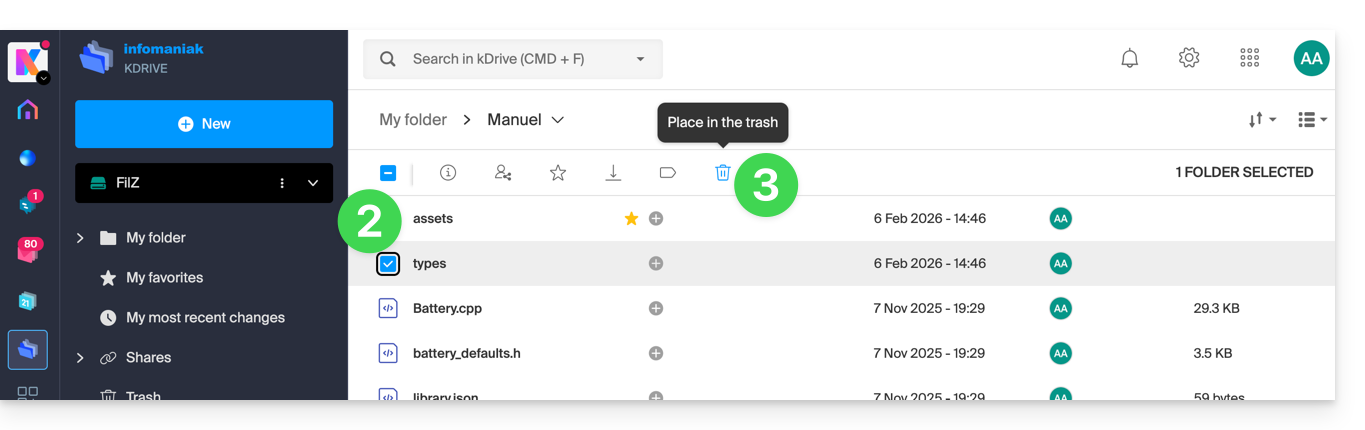
- Confirm the deletion:
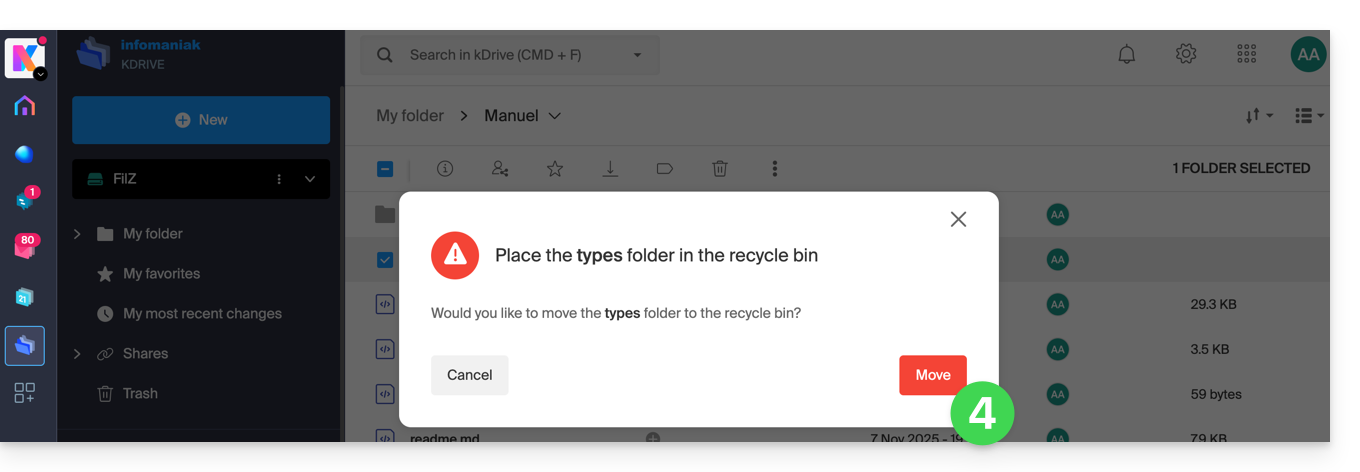
- A confirmation message appears at the bottom of the screen, allowing you to cancel the deletion if needed.
- Click on the Trash menu:
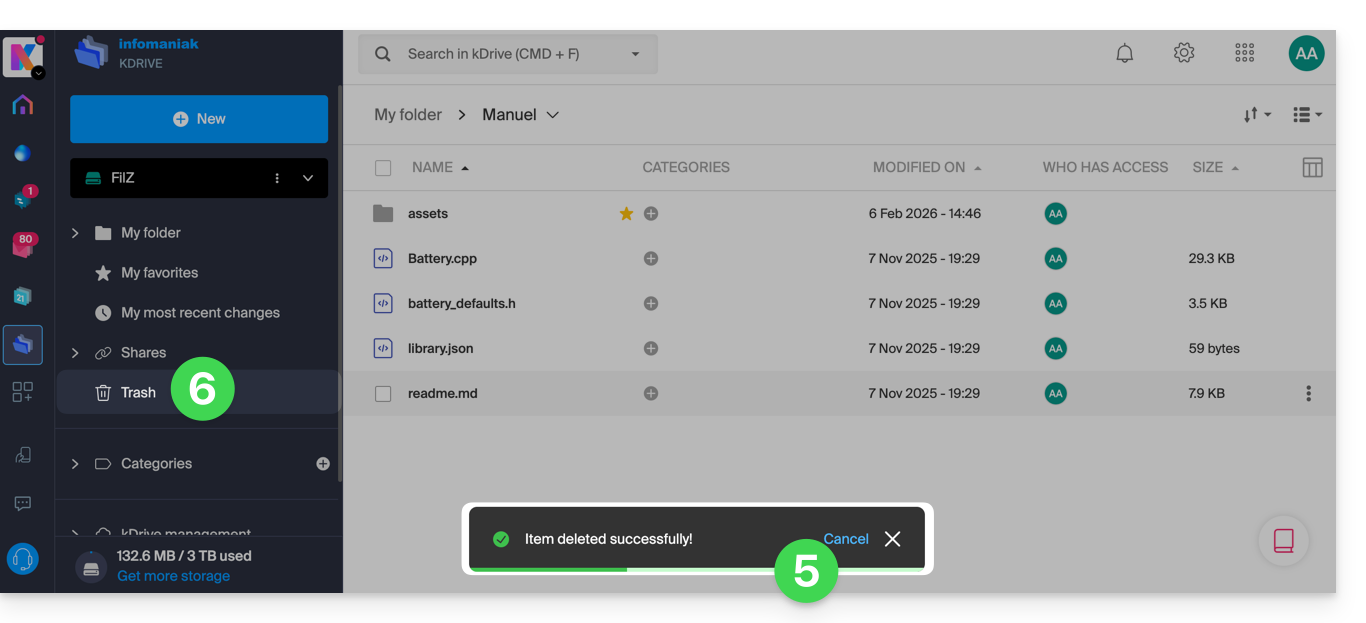
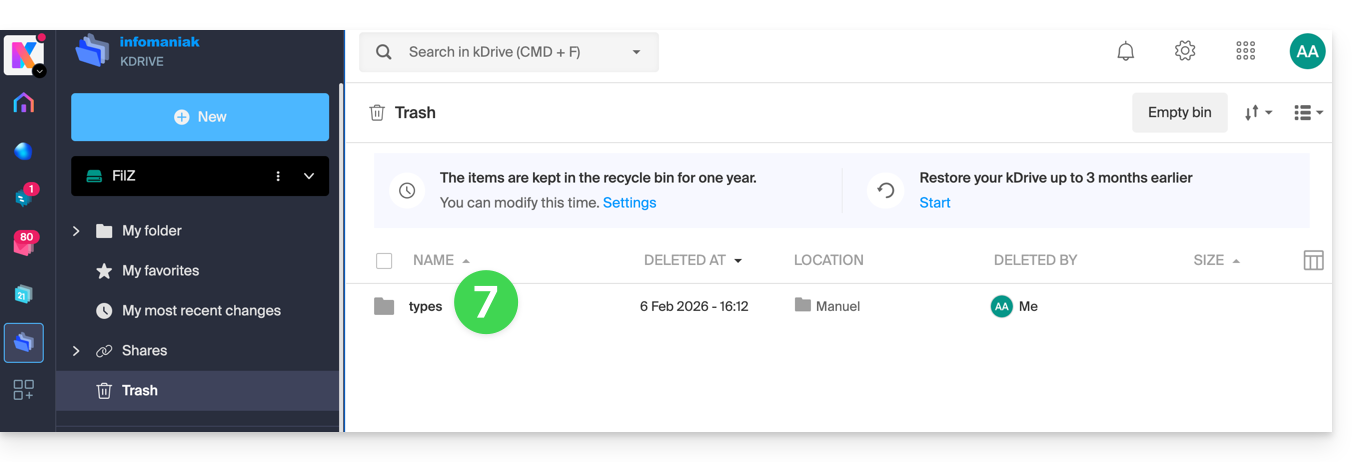
- Recently deleted items are displayed here:
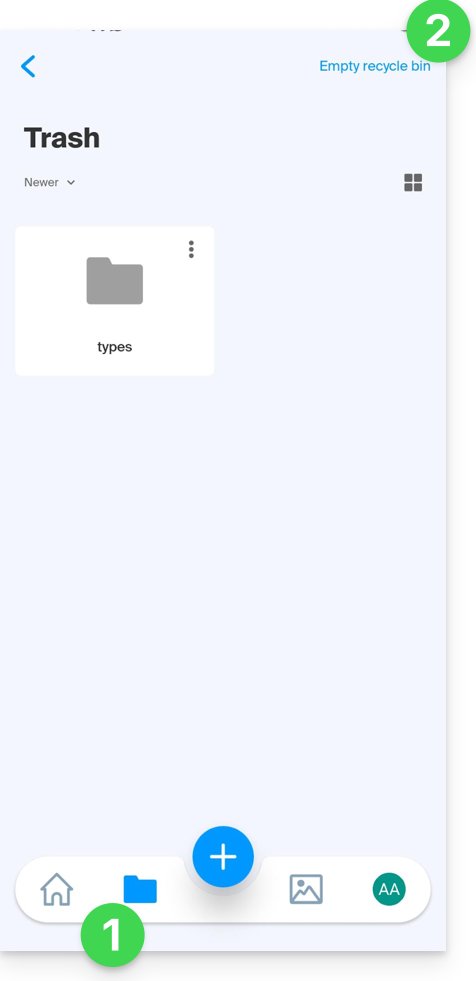
Deletion is synchronized with the various solutions connected to the same kDrive, for example the kDrive mobile app (application for iOS/Android smartphones or tablets):
- The Trash menu is located under the Folders icon at the bottom.
- You can empty the trash from this page, but please read the information below in this guide:
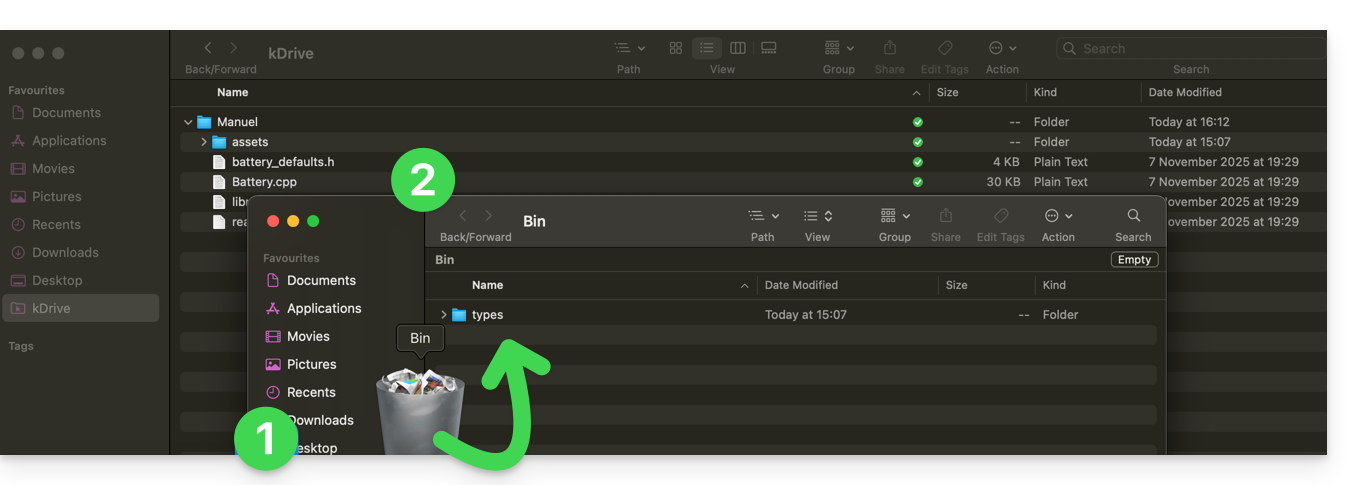
Deletion is also synchronized (if this option is not disabled – see below in this guide) with the desktop app kDrive (desktop application for macOS / Windows / Linux), which will instruct the computer to send any data deleted from the web app to the computer's recycle bin (and vice versa):
- Open the computer's recycle bin.
- Deleted data is in the trash, and no longer in the main kDrive file structure:
Empty the trash manually…
… on the kDrive web app
To empty the kDrive trash manually (not recommended as it is better to wait for the scheduled deletion):
- Click here to access the kDrive web app (online service ksuite.infomaniak.com/kdrive).
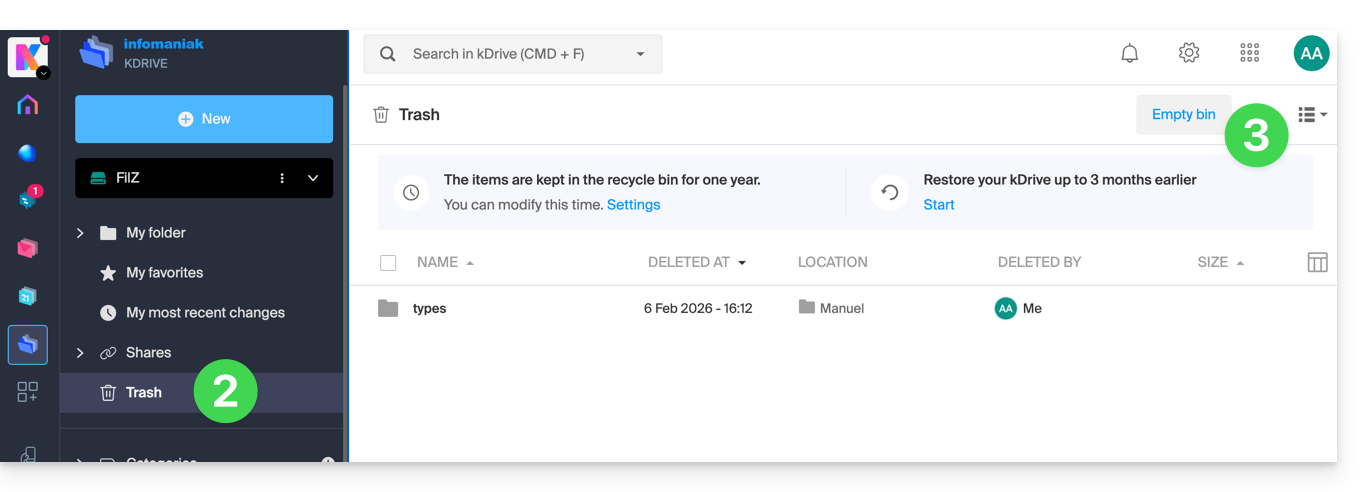
- Click on the Trash menu in the left-hand menu.
- Click on Empty Trash:
- Confirm the operation:
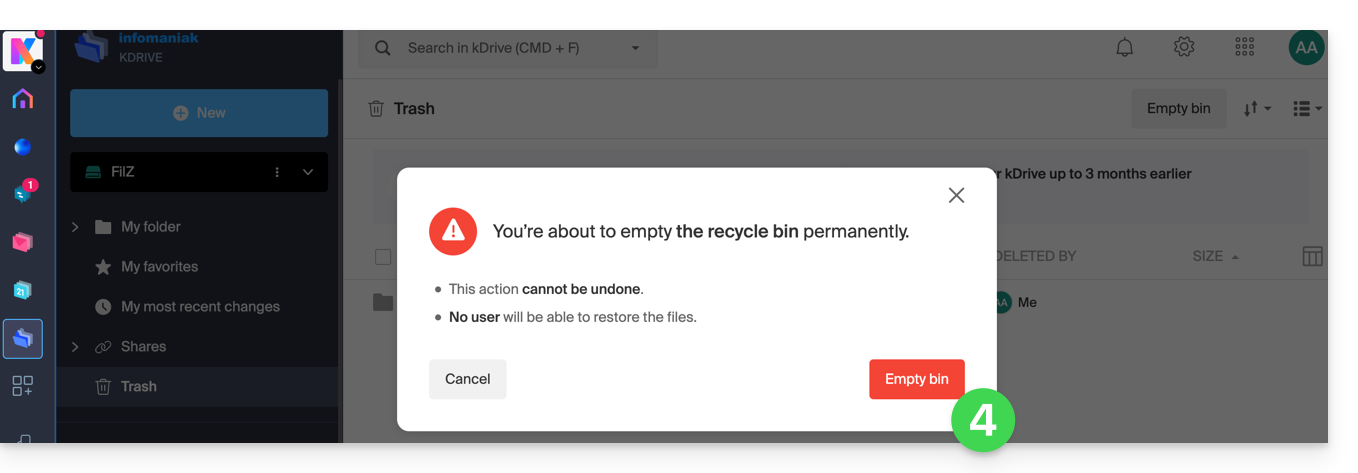
- Data is permanently deleted, only on the kDrive web app; files remain in the computer's recycle bin.
… on the synchronized computer
- If the computer's recycle bin is emptied (Empty button in the example below)…
- and the deletion is confirmed…
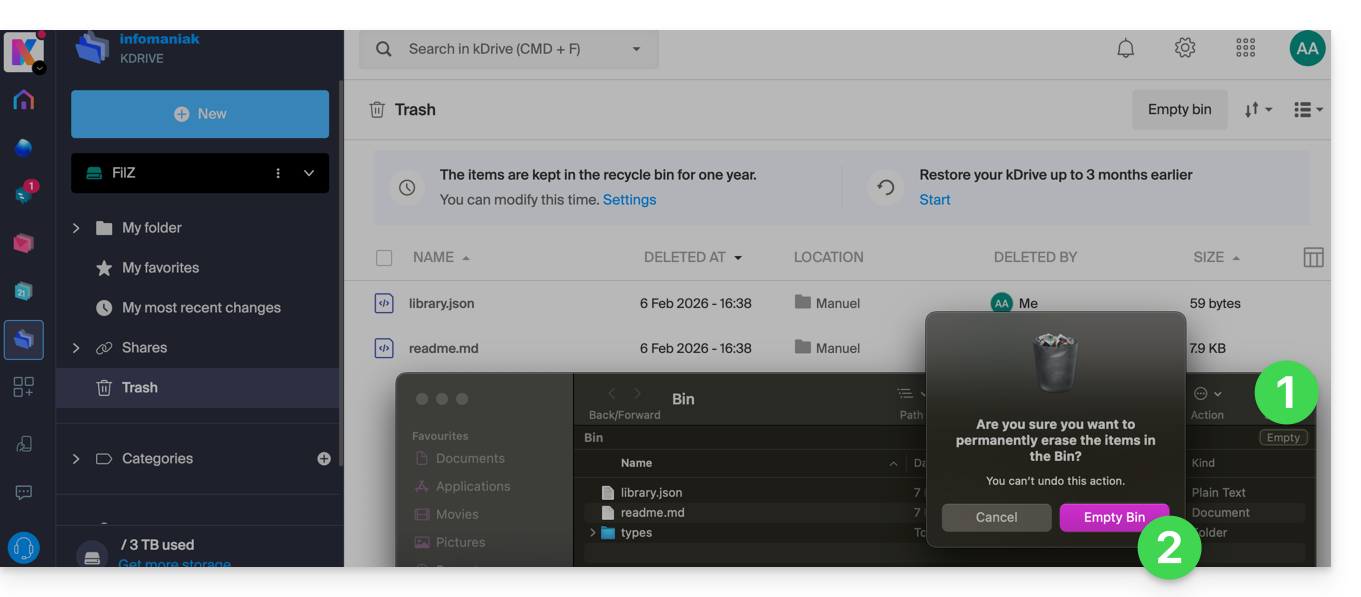
- … the web app's kDrive trash is not affected, and deleted files will still be found there, as long as this kDrive trash is not emptied, either manually or automatically after a certain period.
Manage the kDrive trash retention period
To access the files in the trash:
- Click here to access the kDrive web app (online service ksuite.infomaniak.com/kdrive).
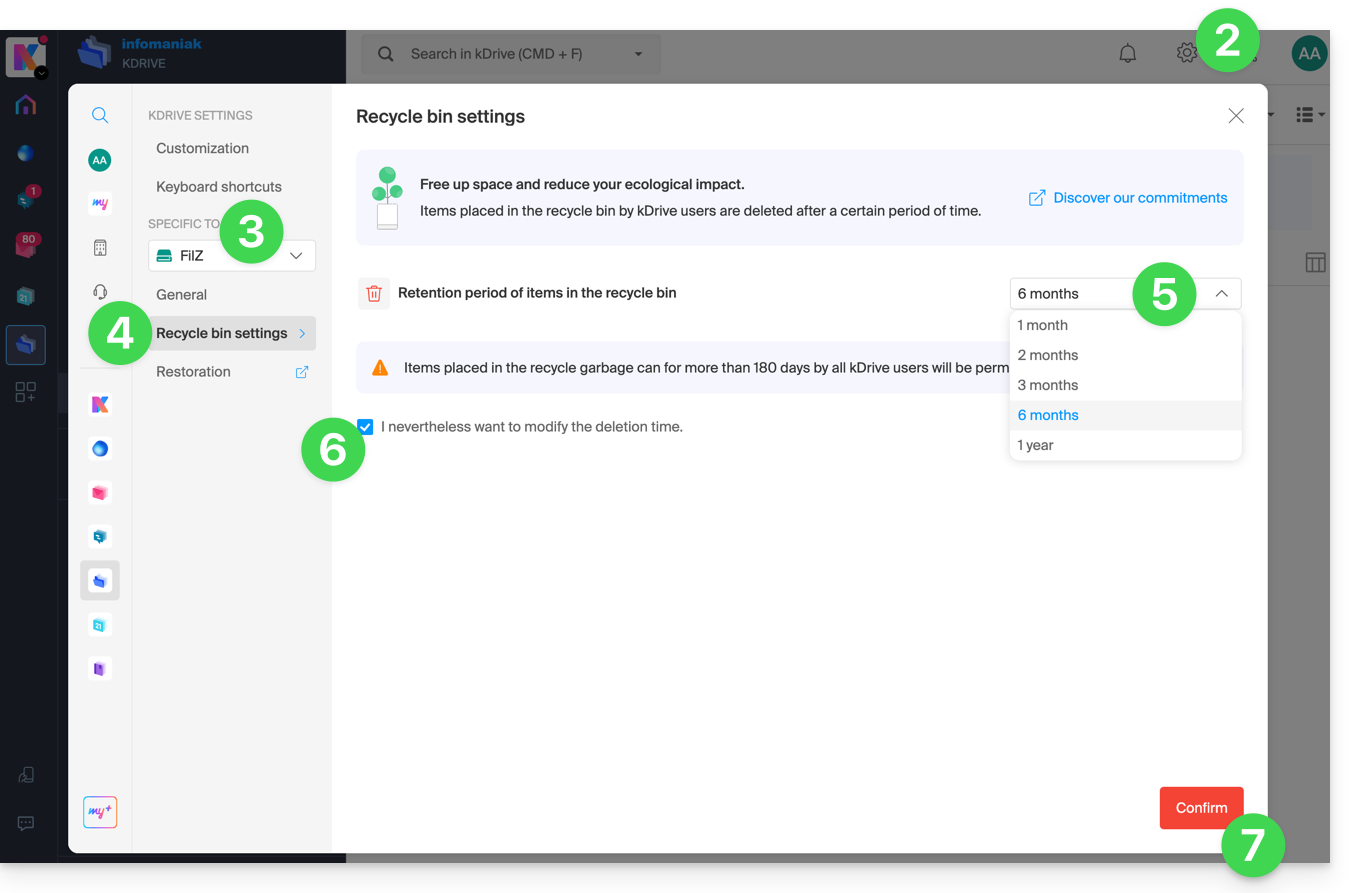
- Click on Settings in the top right corner.
- Check or select the relevant kDrive from the drop-down menu in the left-hand menu.
- Click on Trash settings.
- Choose the desired duration from the drop-down menu (between 1 month and 1 year, depending on your plan – see at the top of this guide).
- Review the information regarding the possible permanent deletion of files moved to the trash before the new deadline you wish to apply, and confirm your choice.
- Click the button to Confirm:
Disable the delete order on the desktop app
To choose whether deleting a file on the web app or the mobile app should move the file synchronized with the desktop app to the computer's recycle bin:
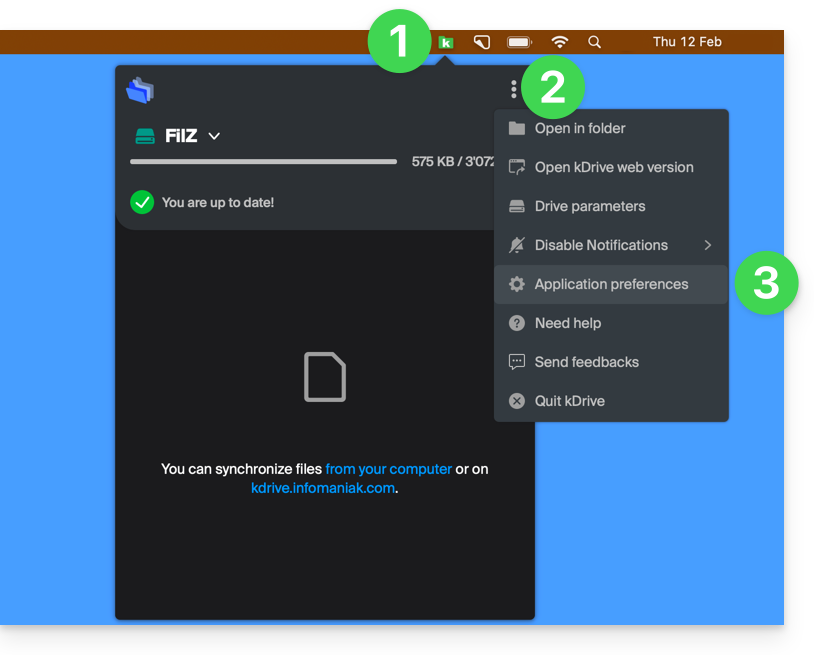
- Left-click on the desktop app icon in the notification area of your computer (top right on macOS, bottom right on Windows, and double-left-click in the taskbar on Linux).
- Click on the action menu ⋮ on the right of the window that appears.
- Click on Application Preferences:
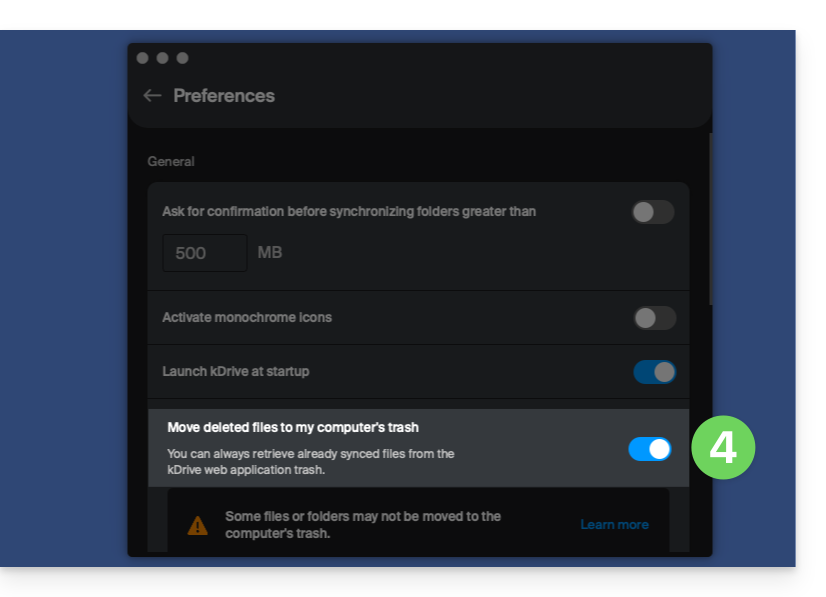
- Activate or deactivate the toggle switch to decide whether or not to send the synchronized version to the computer's trash/recycle bin:
Troubleshooting issues with moving files to the trash on your computer
In rare cases, even if you have configured the setting to move files to the trash (point 4 above), the desktop app may permanently delete the file from your computer:
- … the web app (online service ksuite.infomaniak.com/kdrive)…
- … the mobile app (application for iOS/Android smartphones or tablets)…
- … another synchronized computer…
instead of placing it in the trash, because:
- Insufficient space: the trash/recycle bin has reached its maximum configured size.
- No trash/recycle bin: on some file systems, such as network drives or removable drives (e.g., USB drives), there may be no trash/recycle bin.
This list is not exhaustive, but it covers the majority of cases that will not be reported to the user. Other issues, such as those related to the use of read-only mounted disks, will be taken into account and reported to the user.
If in doubt, also make sure that your computer does not instantly delete items that are too large when they are placed in the recycle bin, due to the size of the Windows recycle bin, for example:
Restore a file from the trash…
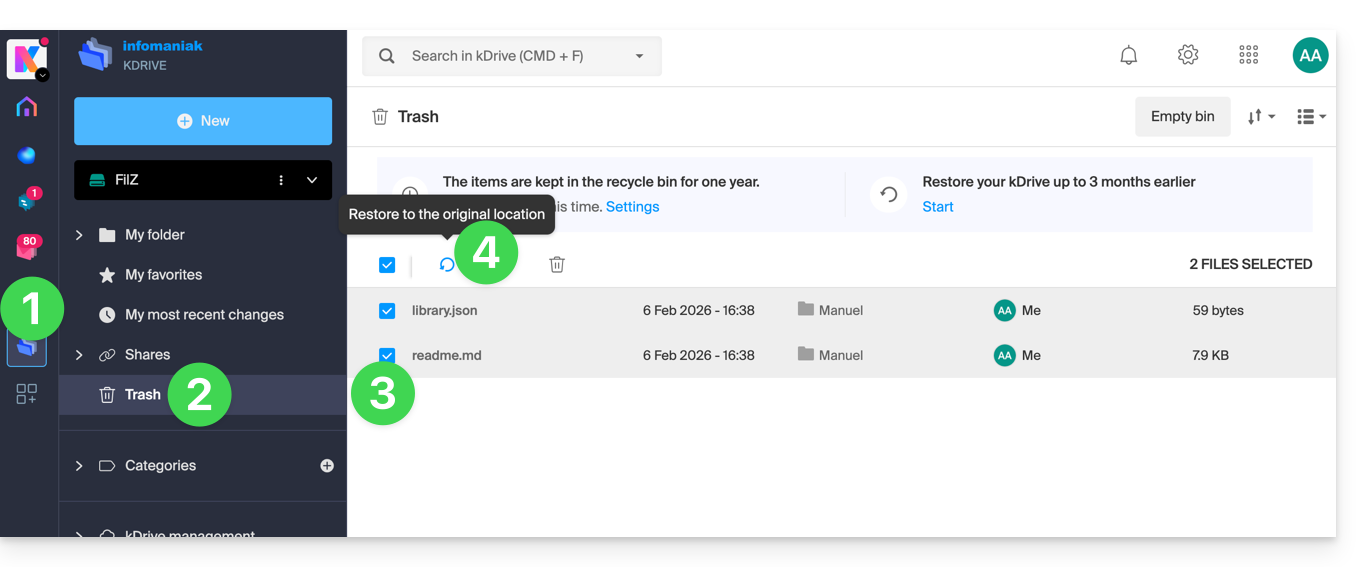
To restore a file to its original location before the trash has been emptied in the kDrive web app:
- Click here to access the kDrive web app (online service ksuite.infomaniak.com/kdrive).
- Click on Trash in the left-hand menu.
- Select the items to restore.
- Click on Restore:
To revert an entire kDrive to its state before any file movements or reorganizations, please refer to this other guide.
To restore a previous version of an existing file, please refer to this other guide.
Link to this FAQ: https://faq.infomaniak.com/2383
Has this FAQ been helpful?