Knowledge base
1000 FAQs, 500 tutorials and instructional videos. Here, there are only solutions!
Sync kDrive across different devices using the Infomaniak kDrive app
This guide explains how to install and use the kDrive app to synchronize files stored in kDrive and easily access them on all your macOS, Windows, Linux, iOS, and Android devices.
Introduction
- To ensure that any changes made to your files & folders on your workstation (Finder / Explorer) are automatically synchronized…
- on the kDrive web app (Infomaniak online service ksuite.infomaniak.com/kdrive),
- on the kDrive mobile app (application for iOS / Android smartphones or tablets),
- for all collaborators who access the data,
- and in both directions,
- … you need to install the kDrive desktop app (desktop application for macOS / Windows / Linux).
- You can customize the kDrive folders that should be synchronizedon your computer.
- You can alsoautomatically back up photos from your mobile:
- Refer to this other guide for iOS and for Android.
- Please note that there is no automatic synchronization between the rest of the content on your mobile device and kDrive; this is the same as with competing apps that do not offer this feature either, as the restrictions of mobile operating systems make it impossible.
Download the kDrive desktop app
Open the kDrive download page to download kDrive. Other versions and apps can be downloaded from the kSuite unified settings, including an iOS version optimized for iPad, adapted to the screens of these tablets.
| OS | Minimum required and supported version |
|---|---|
| Windows 10 (v10 1709 to benefit from Lite Sync) | |
| macOS 10.15, ARM OK | |
| Ubuntu 22.04 LTS, ARM OK Neither Lite Sync nor the right-click context menu is available on Linux Supported desktop environments: GNOME or KDE | |
| iOS 16.4 | |
| Android 8.1 |
Install the kDrive app
To do this:
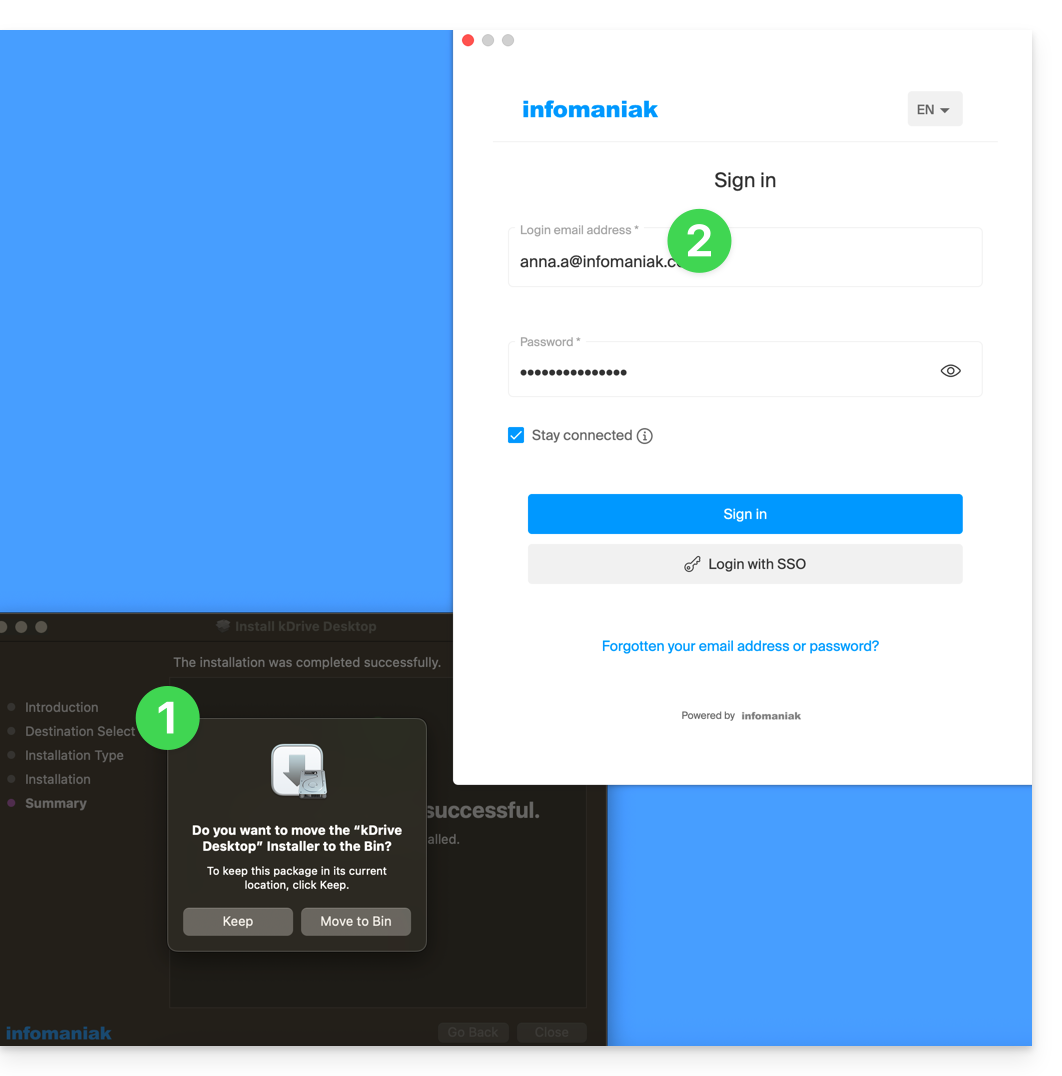
- Open the downloaded application to start the installation on your device.
- Once the installation is complete, the application should open and a form will ask you to log in to your Infomaniak account (need help?):
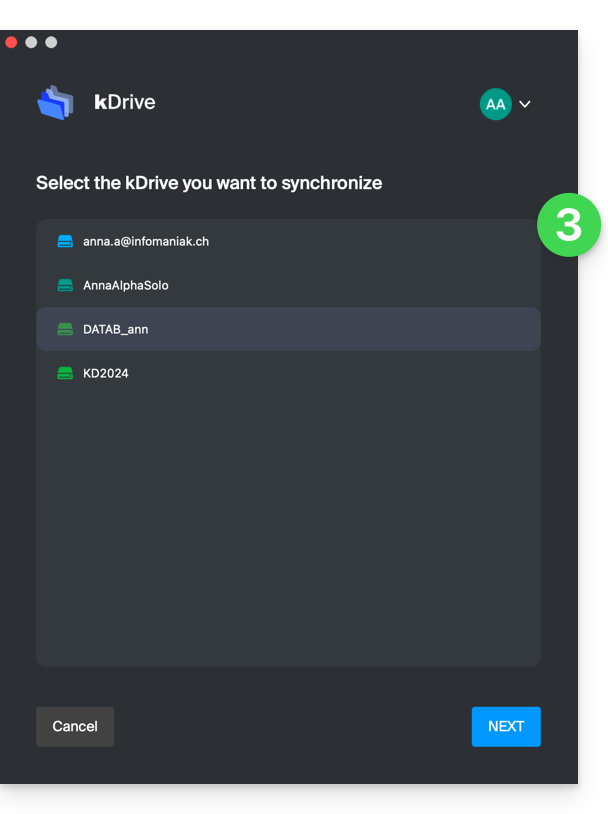
- Next, choose the kDrive you want to synchronize from the list (if your account allows access to multiple kDrives – you can link others later if necessary):
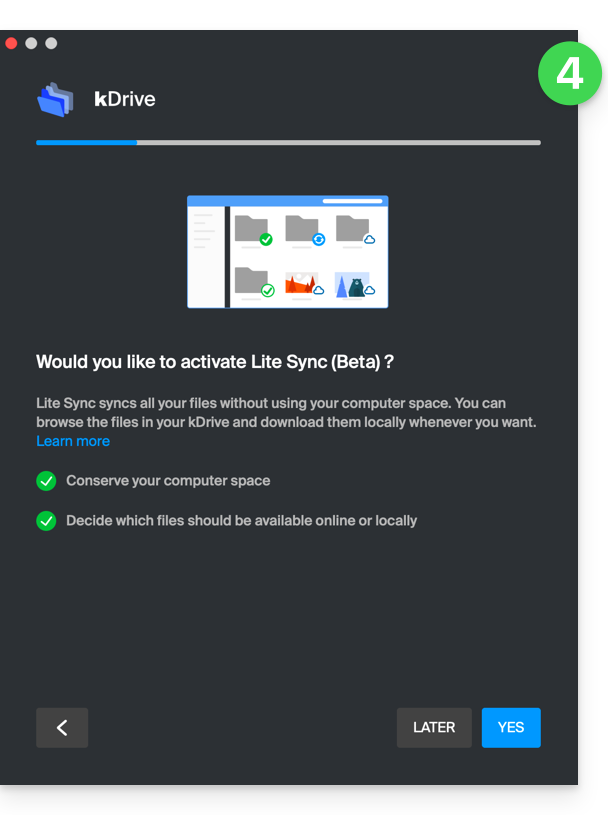
- Enable or disable the Lite Sync option (a feature of the Windows and macOS app that saves space by virtually storing your kDrive files on your computer, only downloading them when necessary):
- A kDrive folder is created on your hard drive at the specified location (it is recommended not to change this location, but if necessary, you can do so by clicking on the pencil icon ✎):
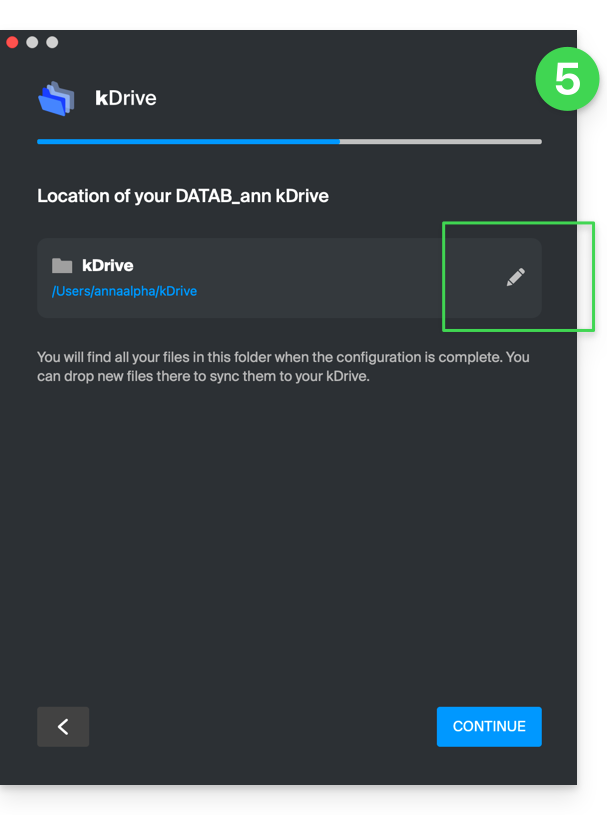
- It will contain any files that already exist on your kDrive (some folders may be ignored - see below) and will upload all files you place in it to the kDrive server in the future.
- During installation, pay attention to the permissions that may be requested (especially on macOS) and that must be granted for the application to function properly:
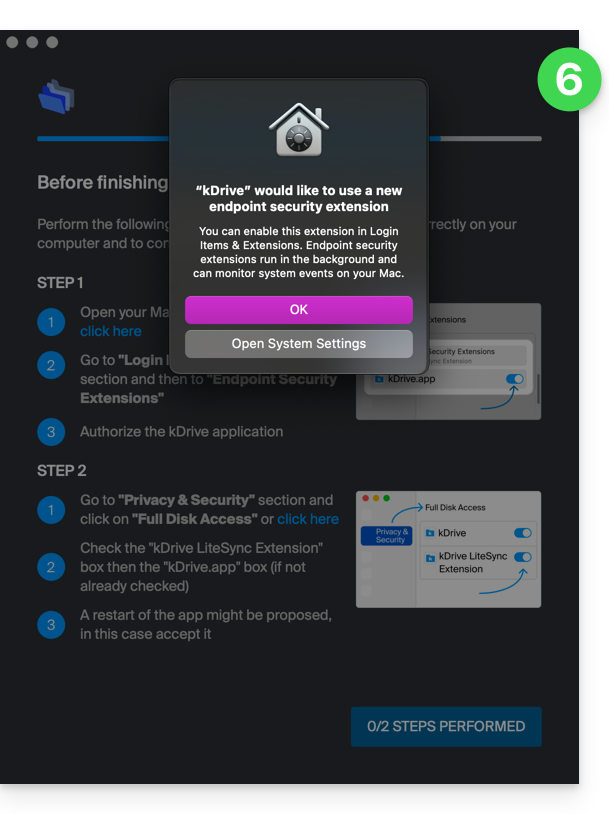
- You must enable this on macOS:
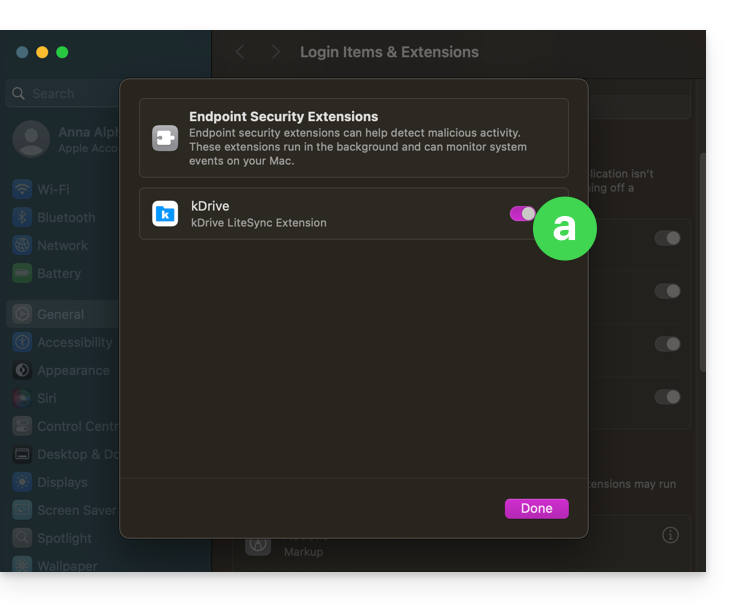
- but also this:
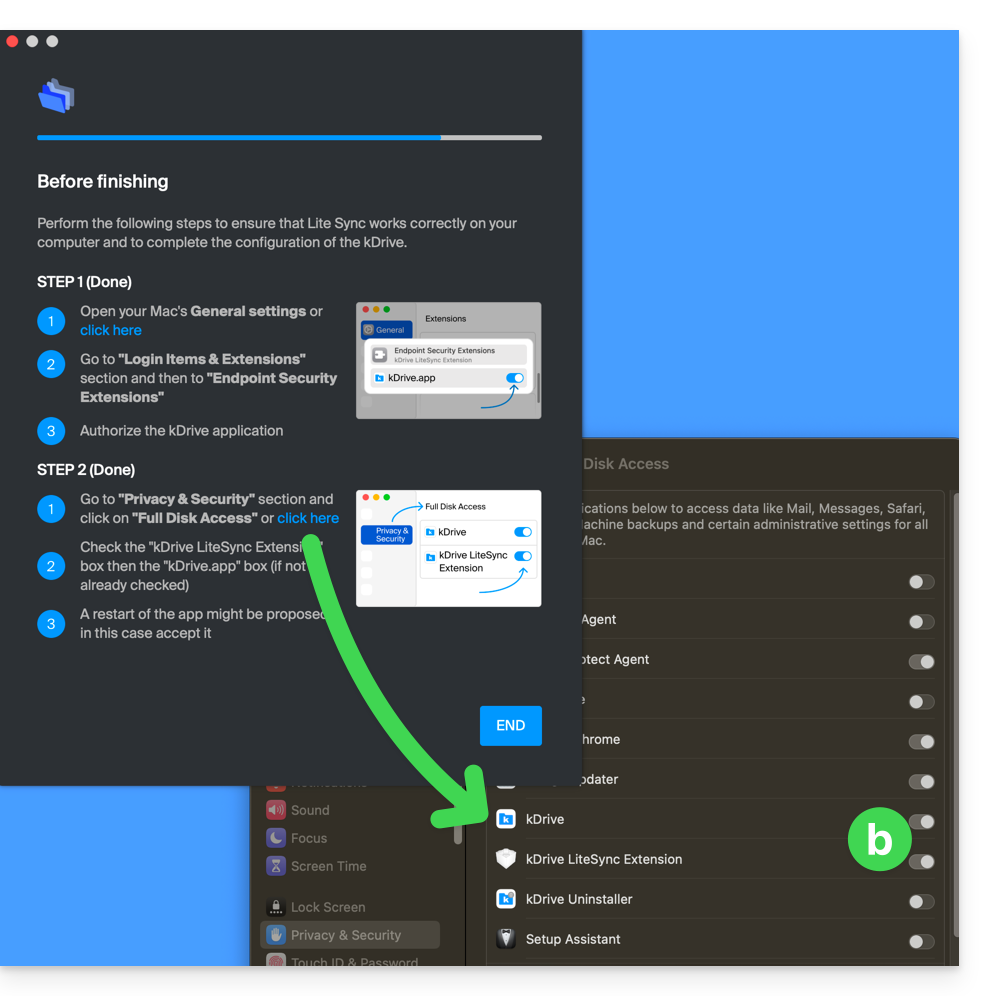
- You must enable this on macOS:
- Once the installation is complete, you can choose to open the location of the kDrive files on your hard drive:
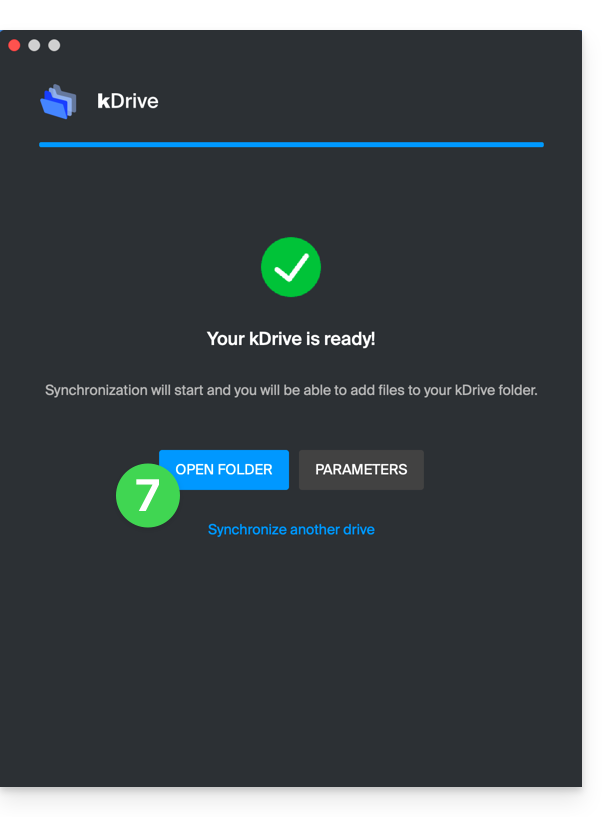
- For example, on a macOS device, it looks like this:
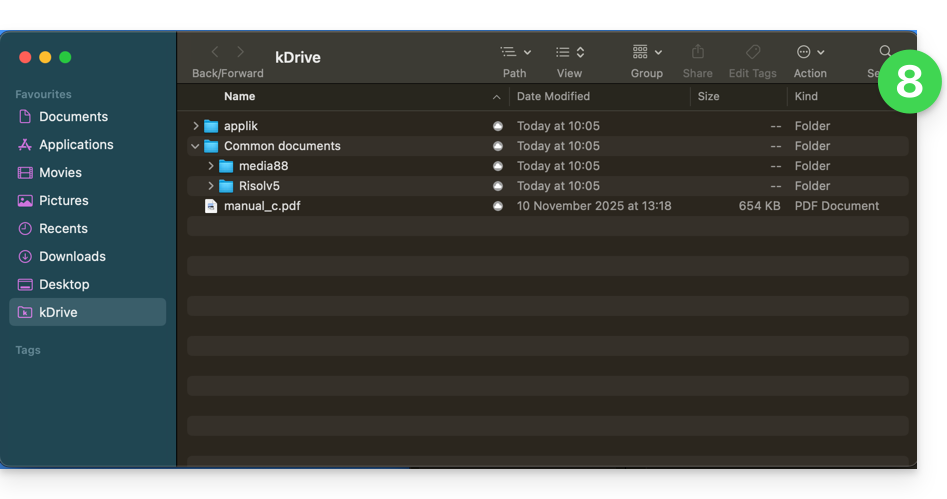
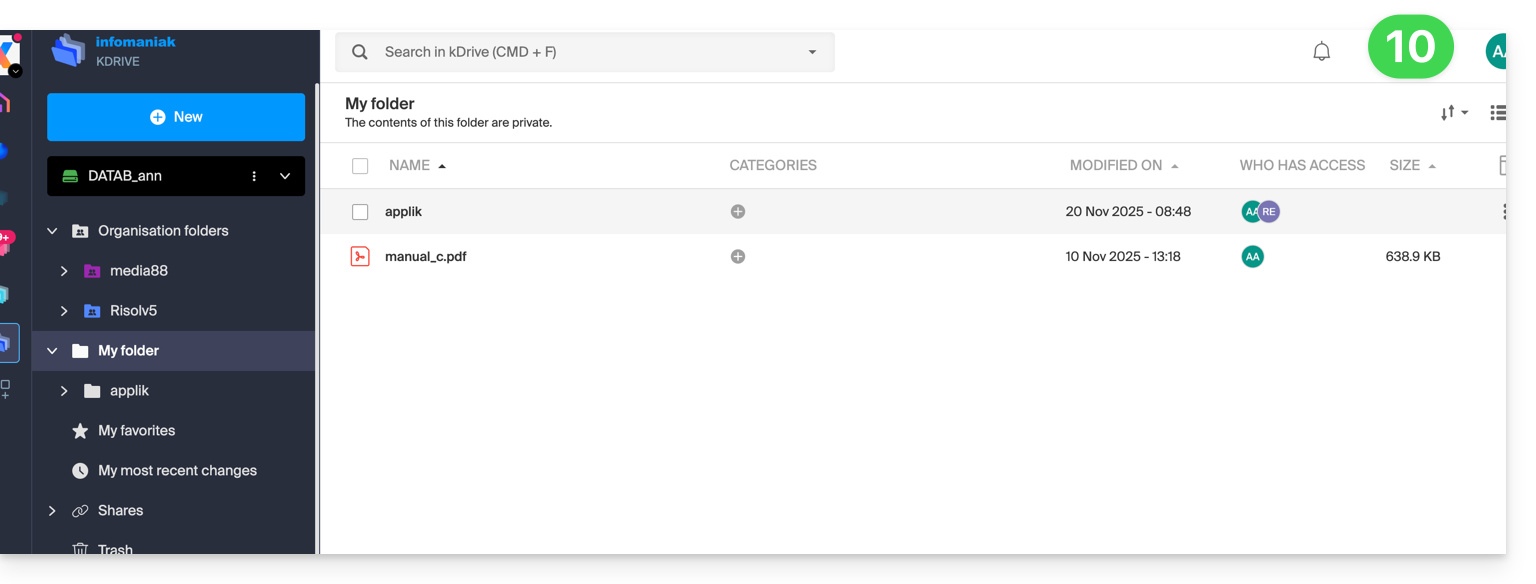
- You can compare the data on your hard drive with the data in the kDrive web app from Infomaniak (online service ksuite.infomaniak.com/kdrive):
- Click on the action menu ⋮ on the right side of the kDrive window.
- Click to open the web version:
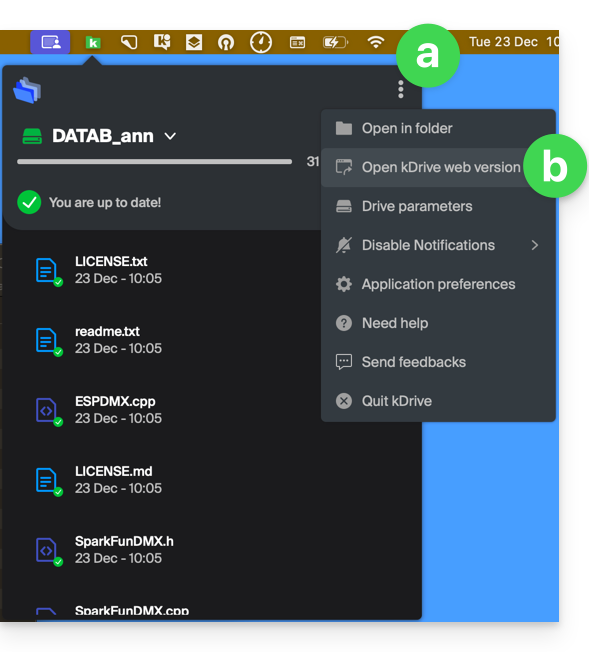
- The data appears, and you can compare it with point 8 above:
Sync files with kDrive
Once the application is installed and you are connected to your account, you have the kDrive application on your device:
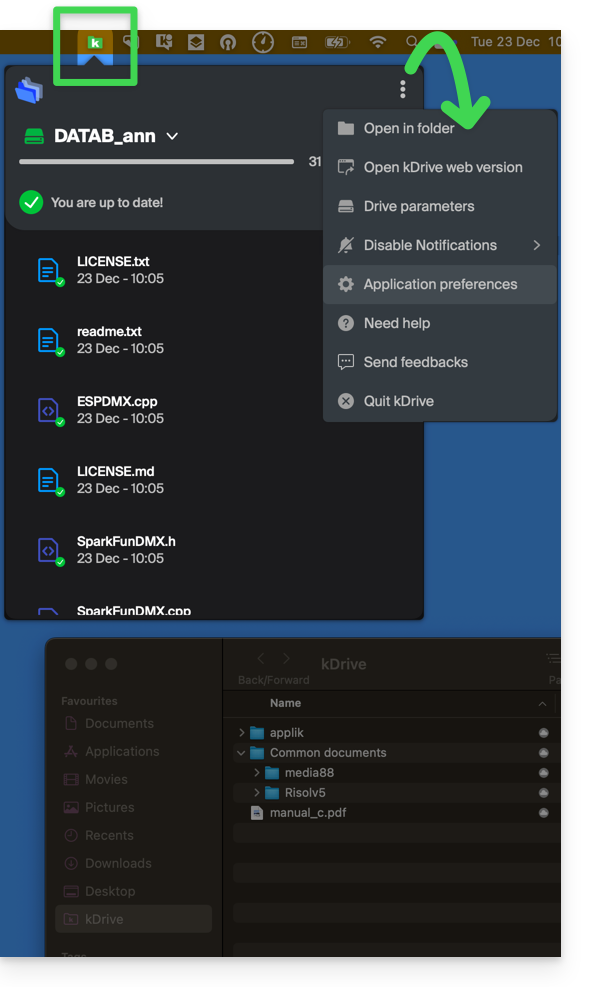
- On a computer, the app icon appears in your computer's notification area (top right on macOS, bottom right on Windows, and a double left-click in the taskbar on Linux).
- Take this opportunity to browse the app preferences and the Drive preferences, from the action menu ⋮ on the right side of the kDrive window.
Check out the other guides to continue exploring the kDrive application.
Link to this FAQ: https://faq.infomaniak.com/2374
Has this FAQ been helpful?