Knowledge base
1000 FAQs, 500 tutorials and instructional videos. Here, there are only solutions!
Sync Contacts & Calendar (iOS apps) by CardDAV/CalDAV profile
This guide explains how to connect the mobile apps Contacts and CalendariOS (iPhone, iPad, etc.) with contacts and calendars hosted by Infomaniak.
Introduction
- Your iOS device will be automatically configured via Apple-compatible .mobileconfig configuration profiles, unlike a manual configuration.
- Infomaniak contacts & calendars are linked to your Infomaniak account; when you log in to ksuite.infomaniak.com/contacts or /calendar, you will likely be asked to perform two-factor authentication (2FA) during login.
- In this case, an application password is required to establish synchronization between your device and Infomaniak tools.
- But don't worry, creating such a password is offered as part of the configuration wizard.
- It is possible to delete a configuration profile once it has been installed (scroll to the bottom of this page for instructions).
- Alternative: if you have the Infomaniak Mail mobile app on your iOS device, one of the menus provides access to a synchronization assistant to connect Contacts & Calendar automatically.
Install a configuration profile
To do this, ideally from the device you want to configure, using the Safari browser:
- Click here to access the Infomaniak configuration tool (online service https://config.infomaniak.com) – log in if necessary to your Infomaniak account for the Organization where your services are managed.
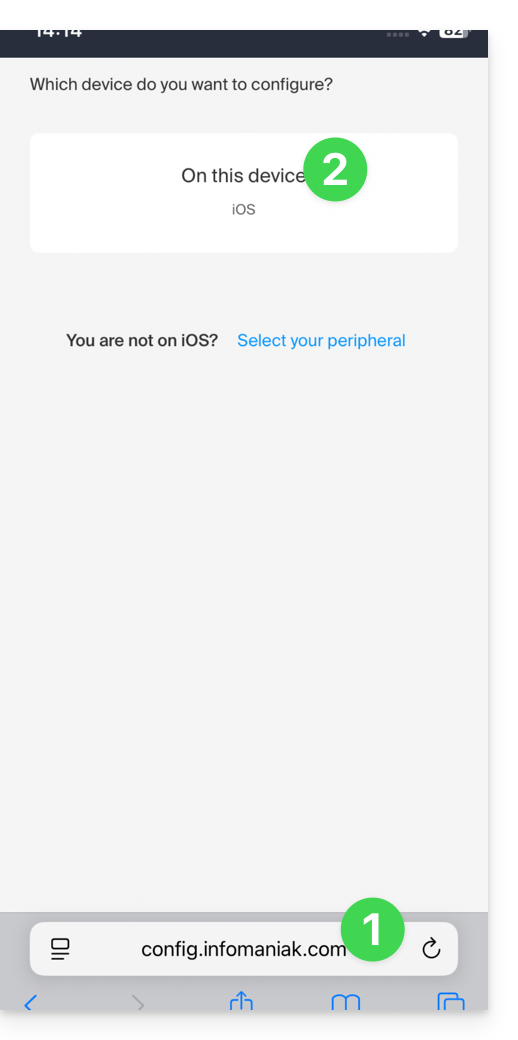
- Choose to install the profile on this iOS device:
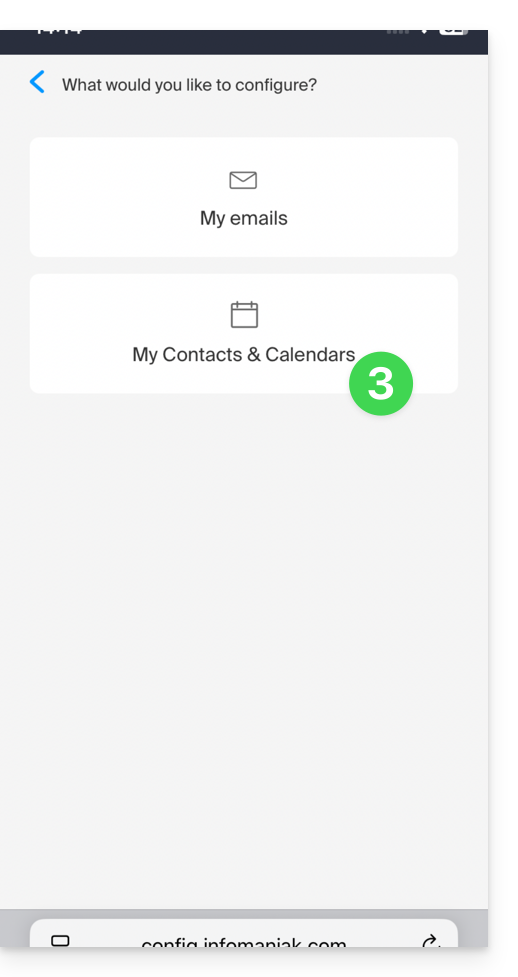
- Choose to synchronize contacts & calendars:
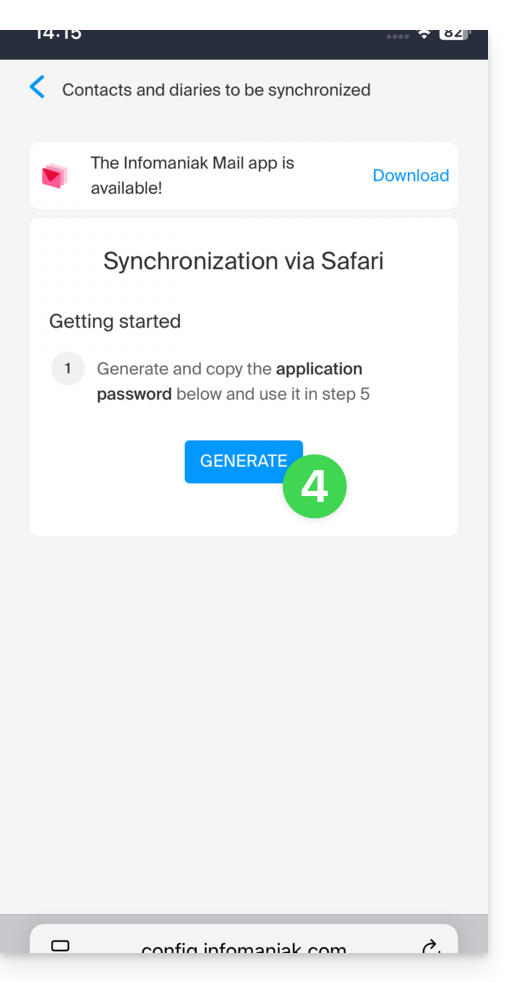
- Generate an application password dedicated to synchronization (in order to maintain the usual 2FA connection for your user account):
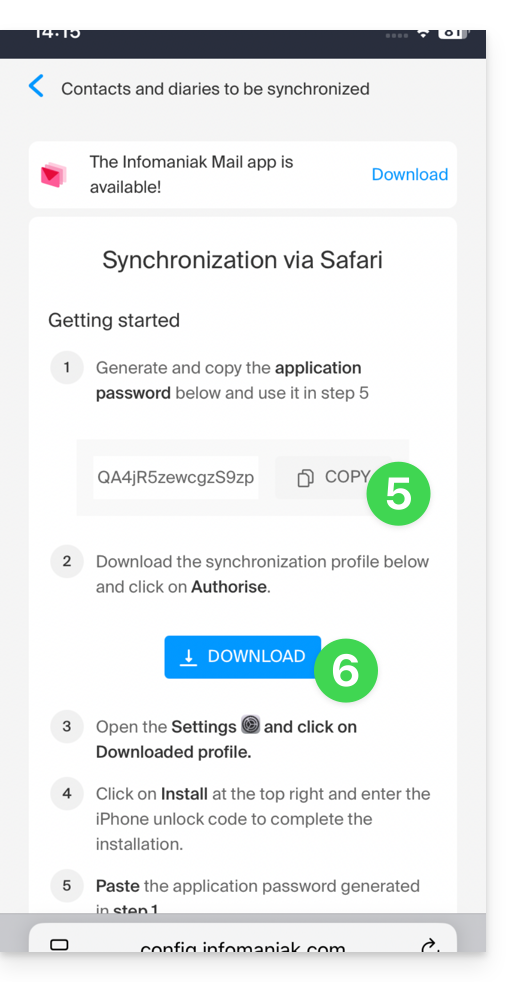
- Copy the generated application password (you will be prompted for it when installing the Apple profile).
- Download the Apple profile:
- Allow downloading to the device:
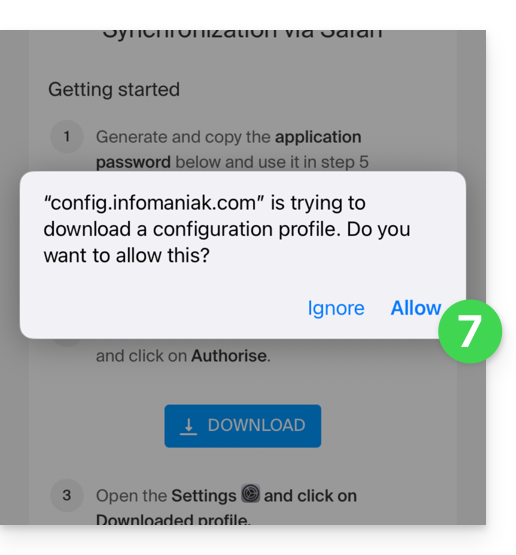
- Tap to close the message:
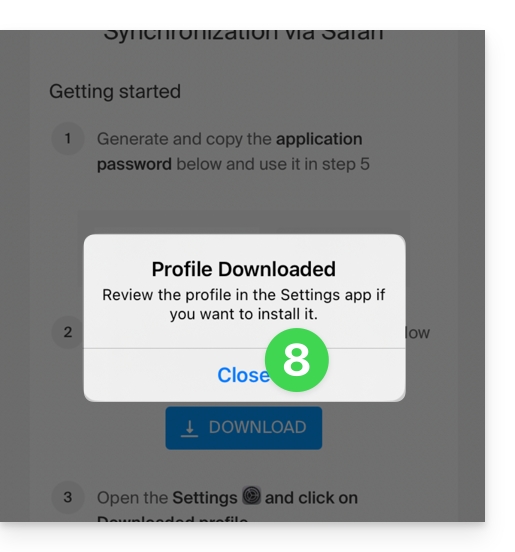
- Open the settings of your iOS device and tap on the banner at the top that informs you that a new profile has been downloaded:
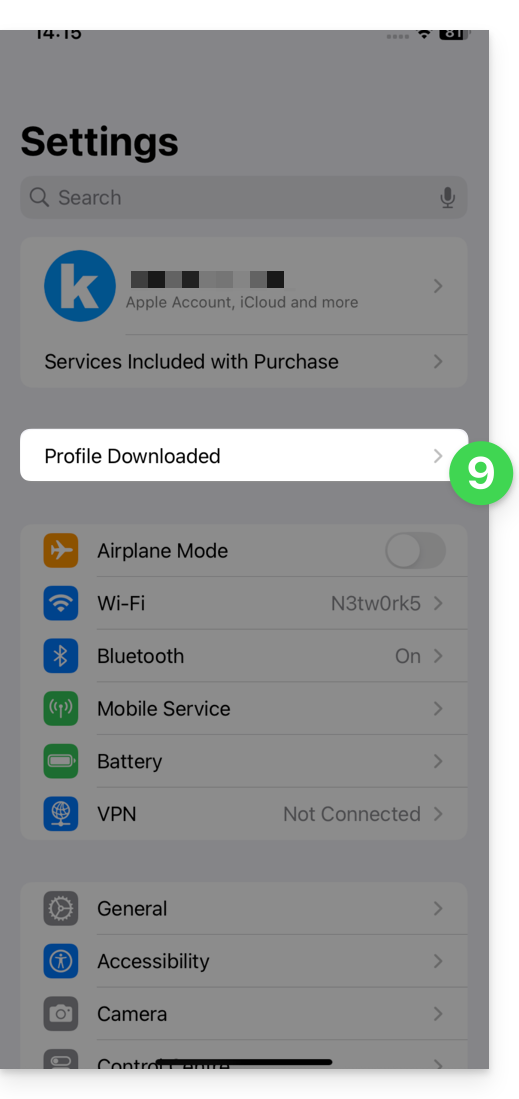
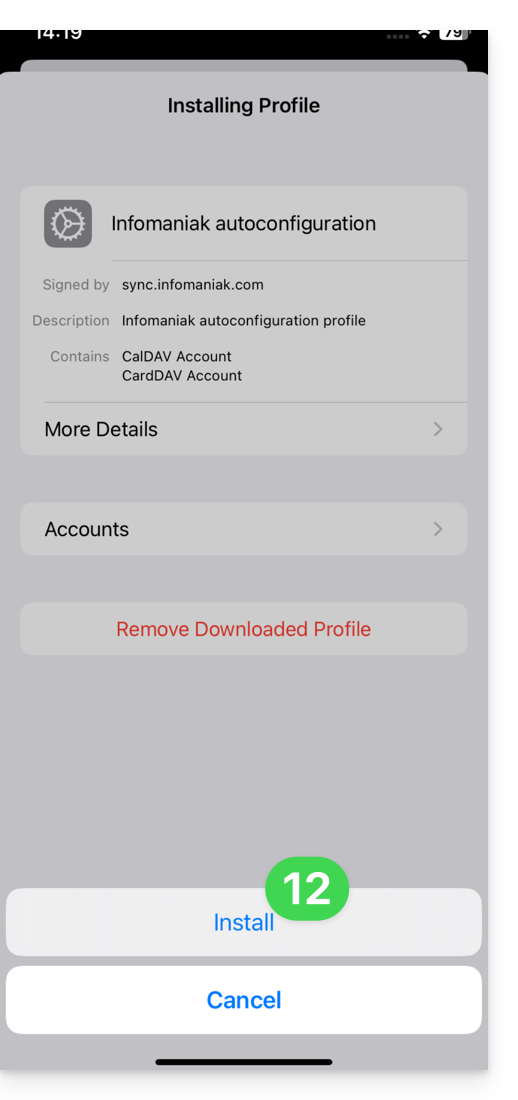
- Tap Install:
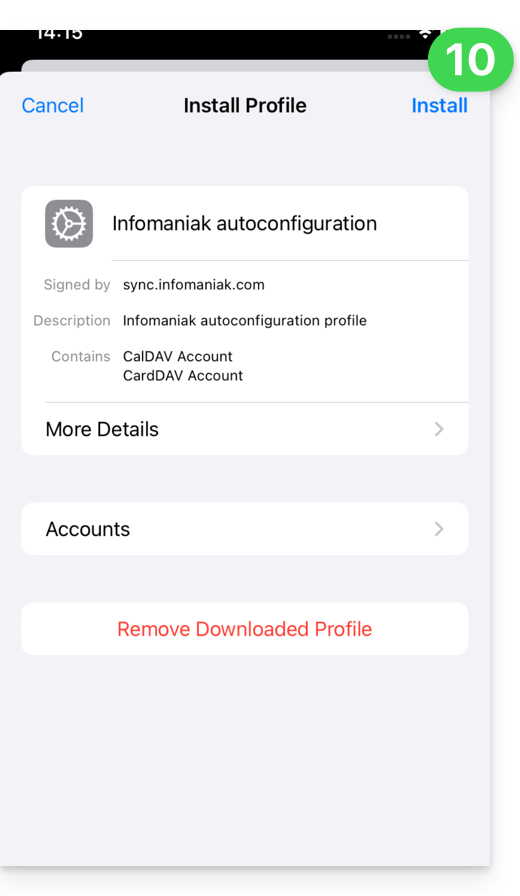
- Enter your iOS device code as if you were unlocking it:
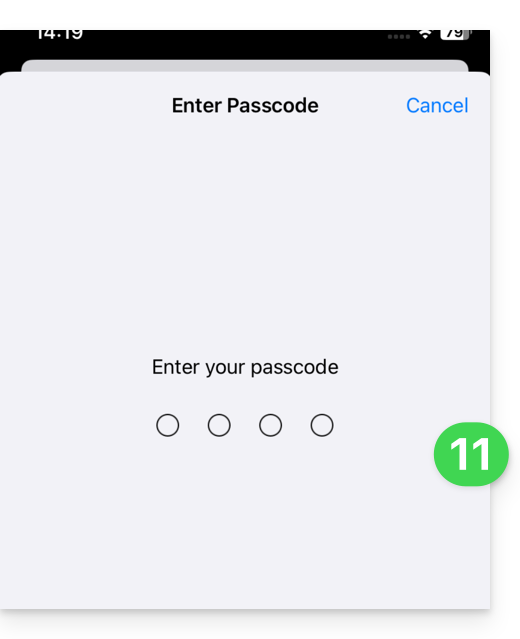
- Tap Install:
- Enter (or paste) the application password copied in step 5 above:
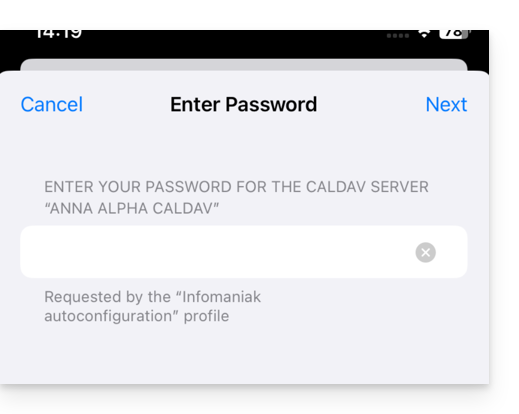
and do this twice in a row (contacts + calendars):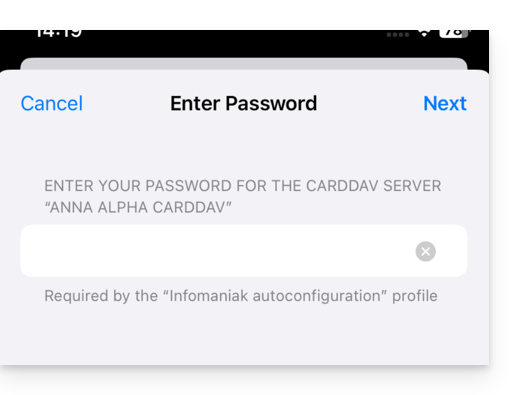
- When the message appears at the top, it is done:
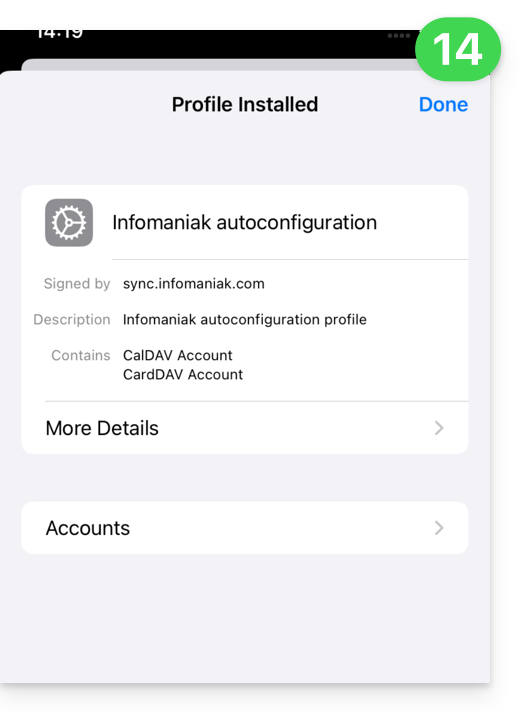
If your iOS Contacts and Calendar apps were already open, you need to restart them. You will then see the information added by the synchronization: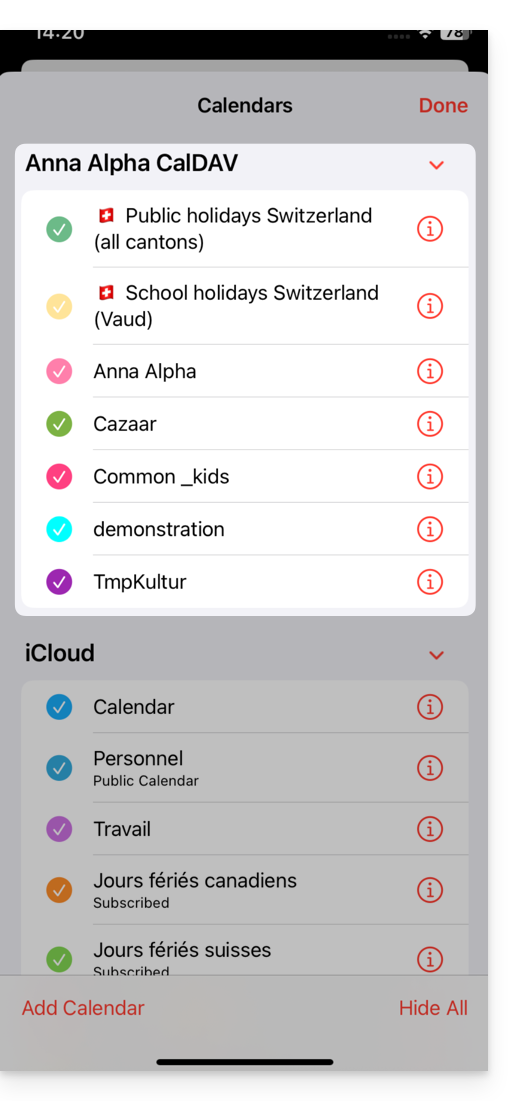
Synchronization specifics
Refer to this other guide.
Delete an Apple profile
Refer to the official documentation, and if necessary, change the version of your system at the top of the page*.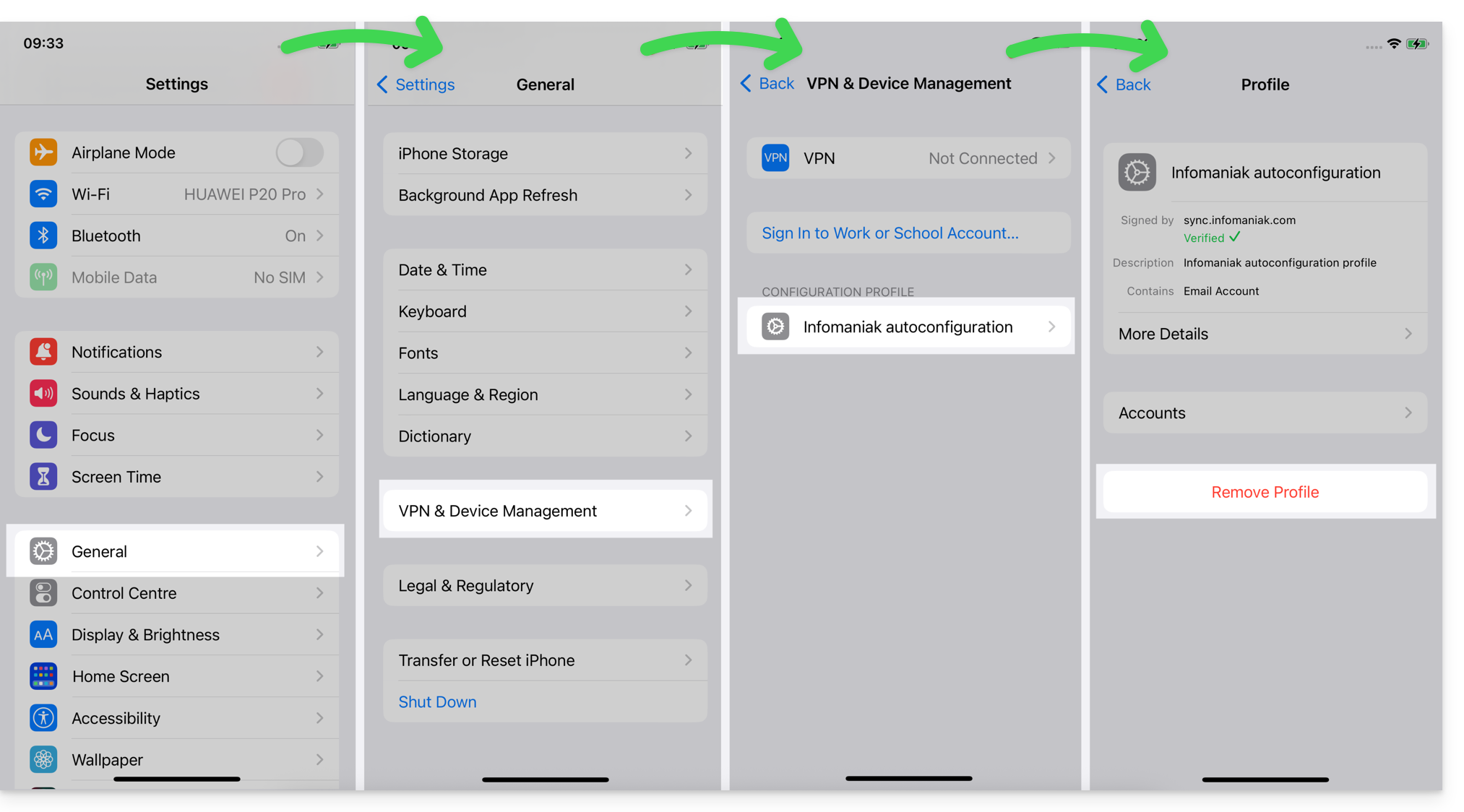
*Why is it necessary to select the guide version that exactly matches your macOS / iOS system version?Apple introduces subtle changes with each new version of its system, for example, a path on iOS 15…
… becomes this on iOS 18…
Link to this FAQ: https://faq.infomaniak.com/2370
Has this FAQ been helpful?