Knowledge base
1000 FAQs, 500 tutorials and instructional videos. Here, there are only solutions!
Manage a kDrive user's permissions
This guide explains how user permissions work on kDrive and how you can modify these access permissions.
How kDrive User Permissions Work
You can add a new user to kDrive (e.g., kDrive Pro, which is separate from kSuite) and define two levels of permissions through folder sharing…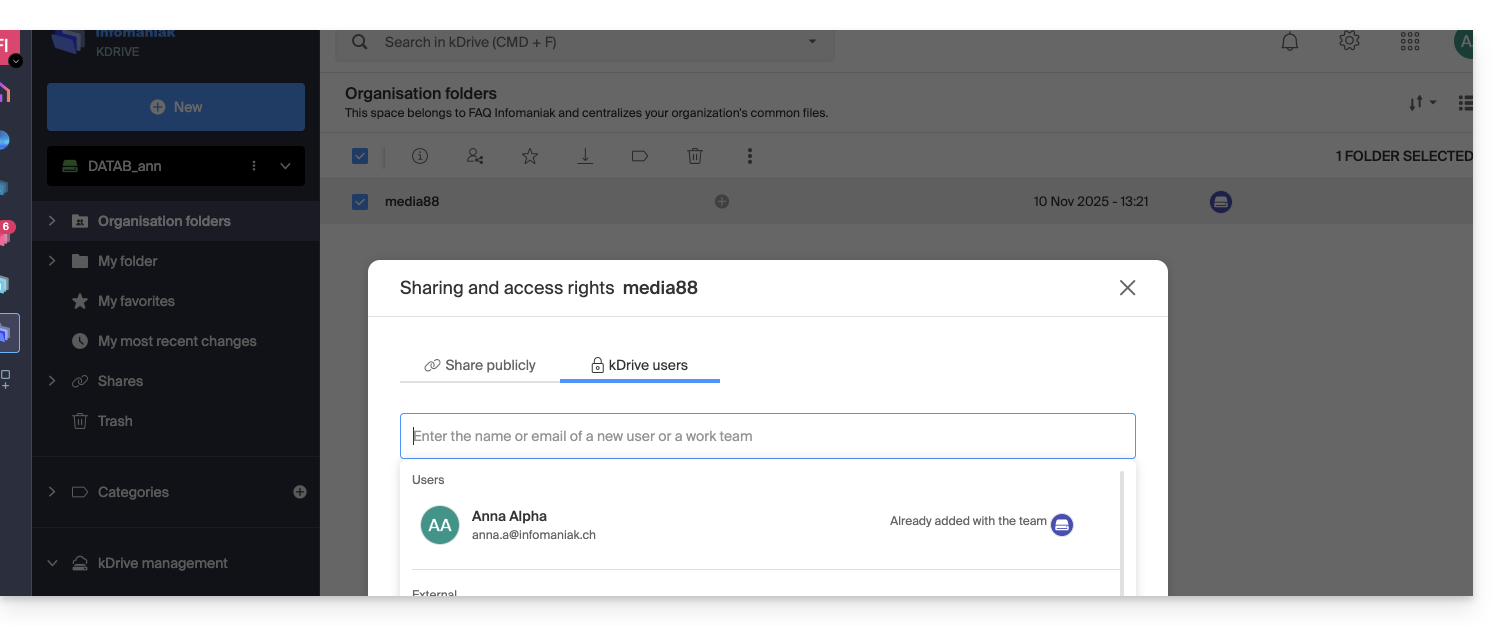
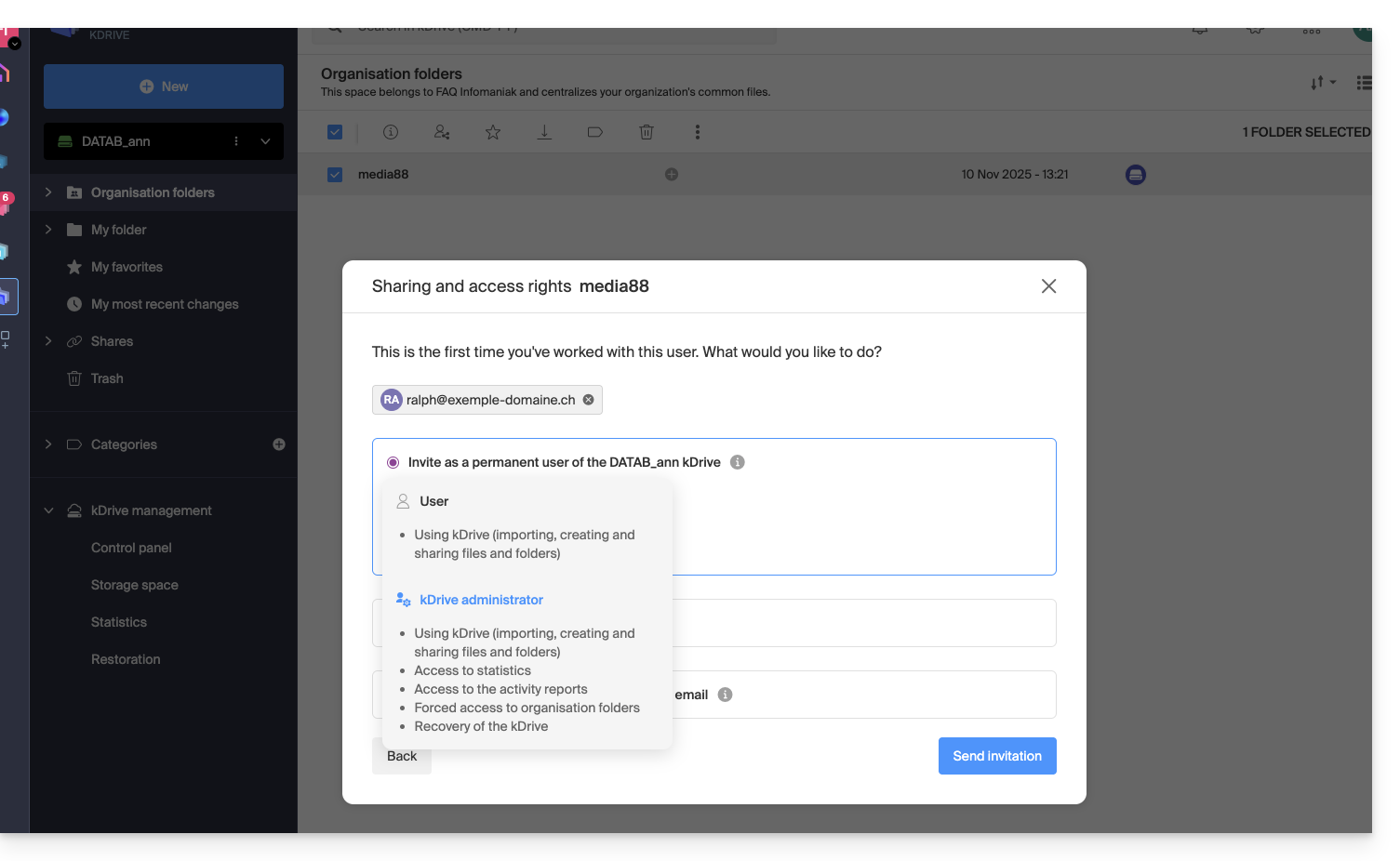
…or through kDrive user management: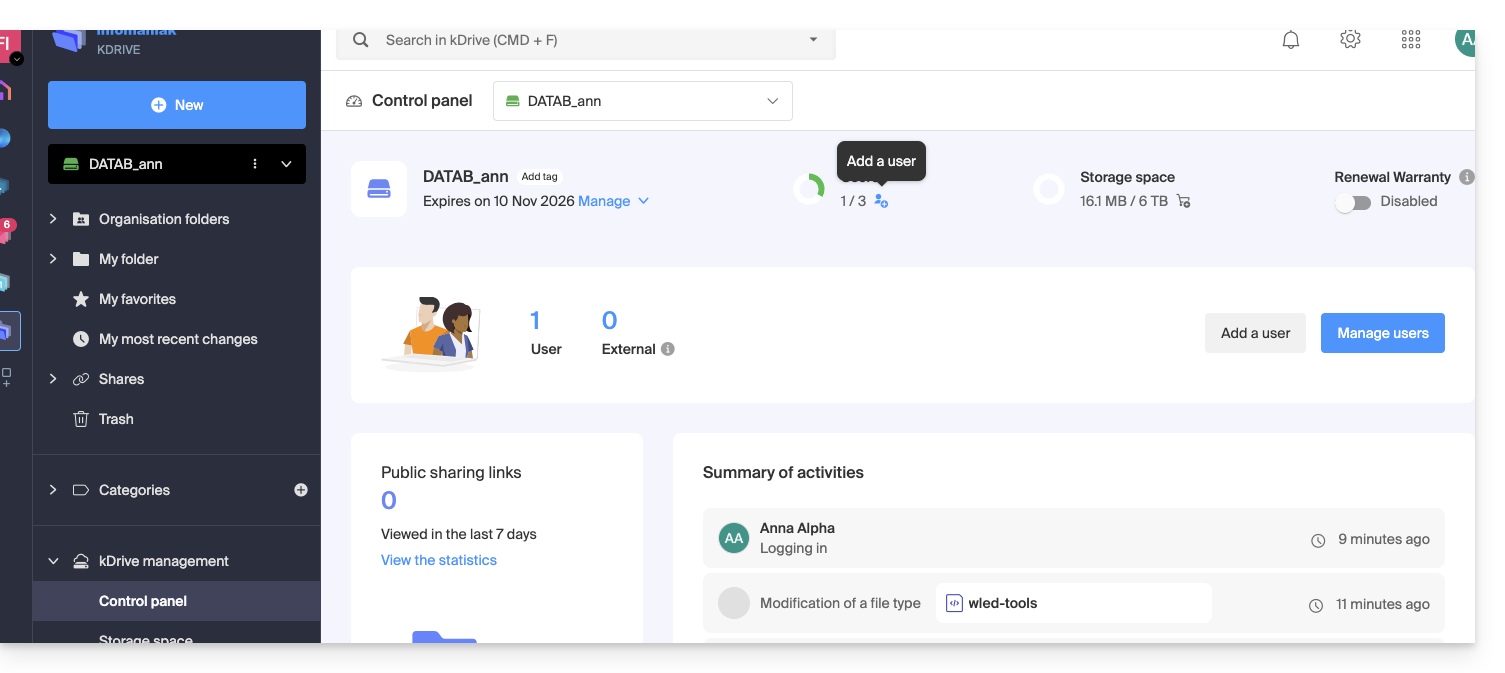
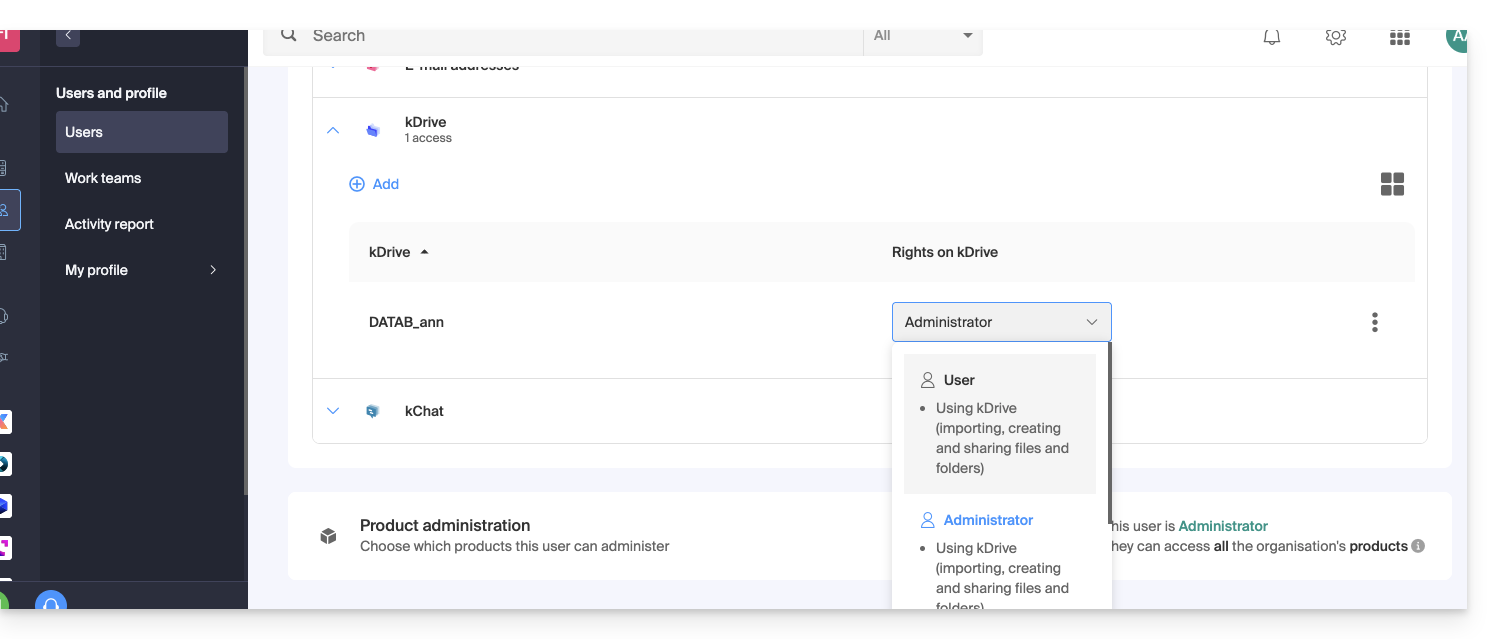
In both of these cases, 2 levels of permissions are offered:
- Administrator grants users the same rights as the kDrive owner:
- Sharing, statistics, activity reports, restoring and deleting folders, importing external data, etc., and accessing files and folders…
- User allows access to the folders located at the root of kDrive, as well as the ability to manage and freely share their content:
- Access to shared files and folders, personal directory, and creation/sharing of files…
- However, users will not be able to access the administrative management of the product (manage users, view statistics, create or delete folders at the root of kDrive, import data from an external service, etc.)…
In all cases:
- The content of the Organization Folders directory is shared and visible to other kDrive users, but sharing can be restricted.
- Content shared by other users from their private kDrive space is not listed in the Shared menu of other users.
- Any folder or file can be shared with other kDrive users and your chosen contacts.
Modify a kDrive user's permissions
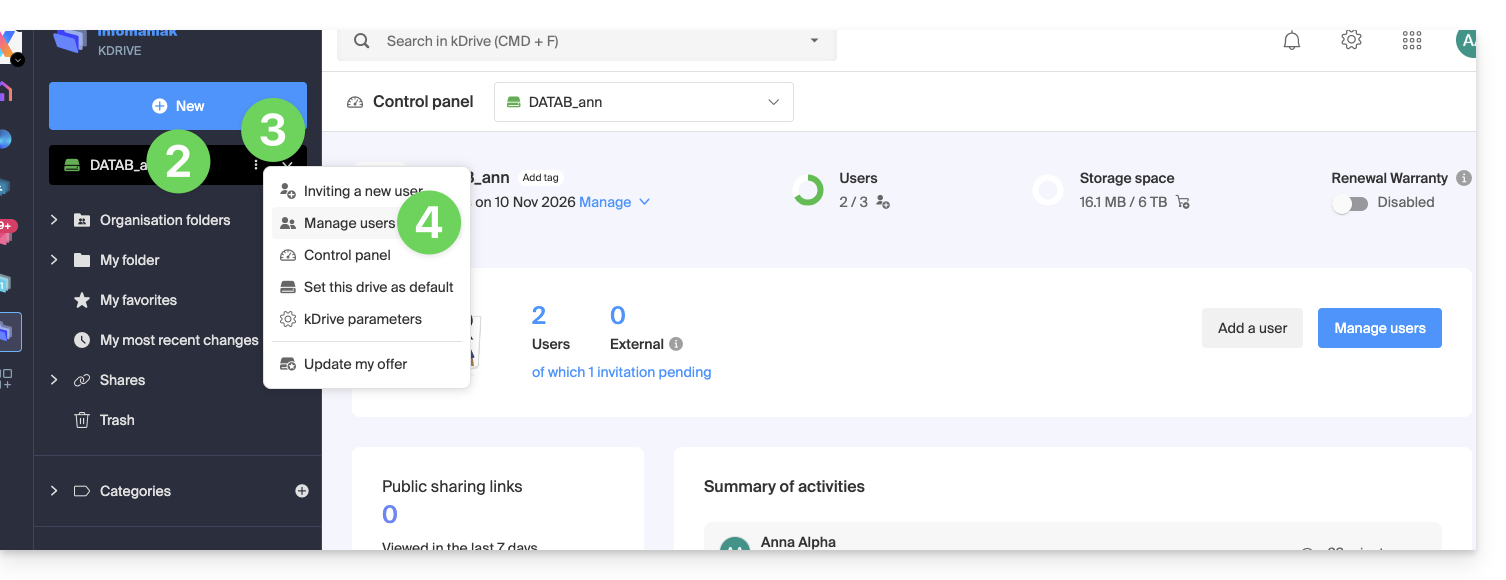
To access kDrive and manage user permissions:
- Click here to access the Infomaniak kDrive web app (online service ksuite.infomaniak.com/kdrive).
- Check or select the relevant kDrive from the dropdown menu in the left-hand sidebar.
- Click on the action menu ⋮ located to the right of the item in question.
- Click on Manage users:
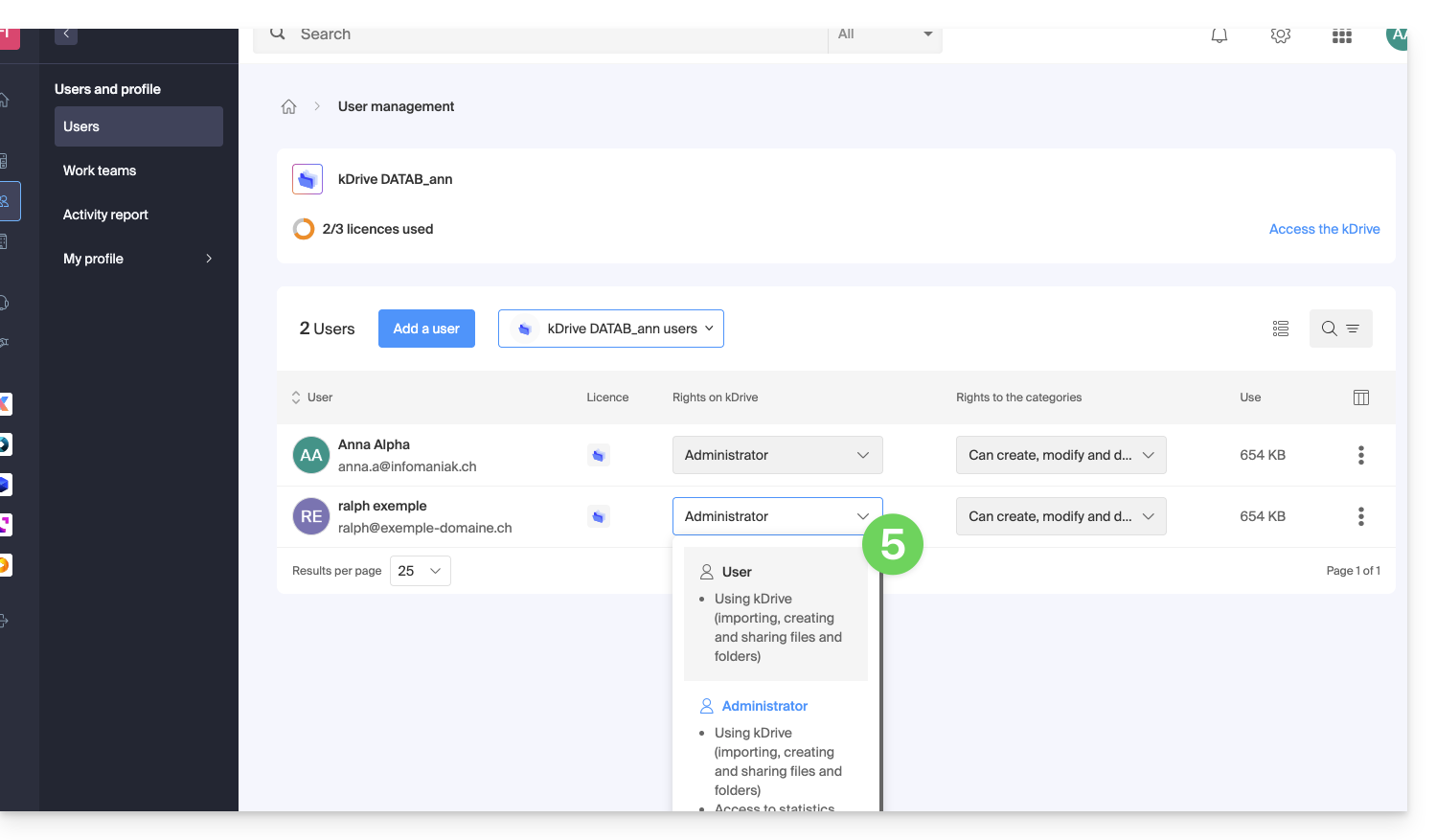
- Manage the rights of the desired user, and choose the desired access level:
In case of a problem
If a modification is not possible: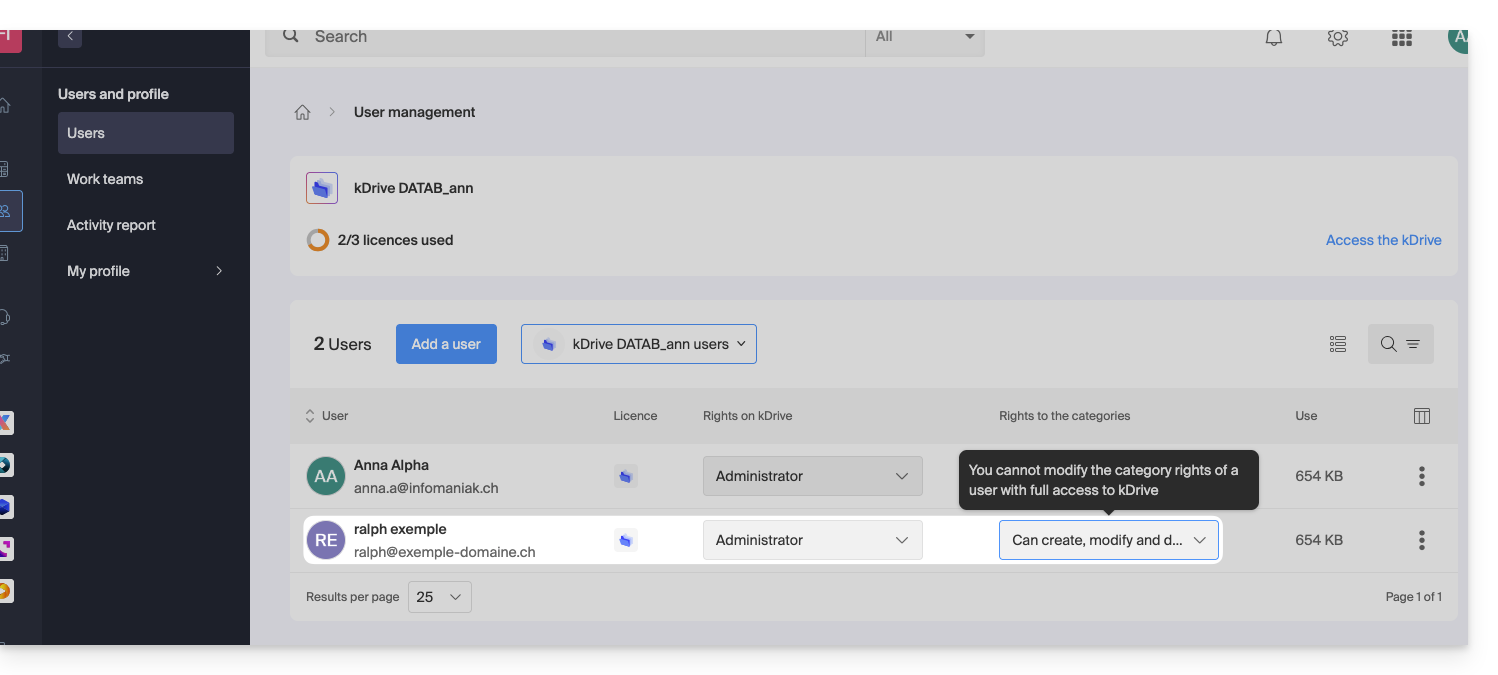
… so you must first modify the user's permissions at the Organization level: 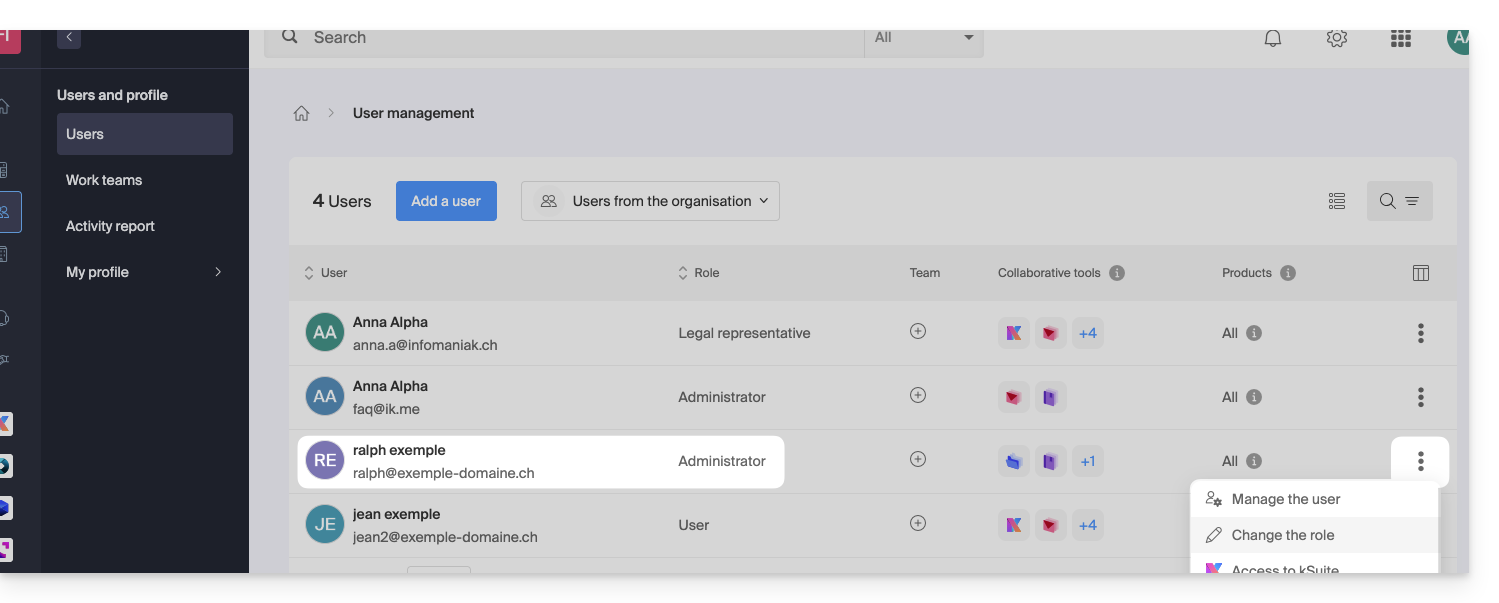
… and reduce their role from administrator to user: 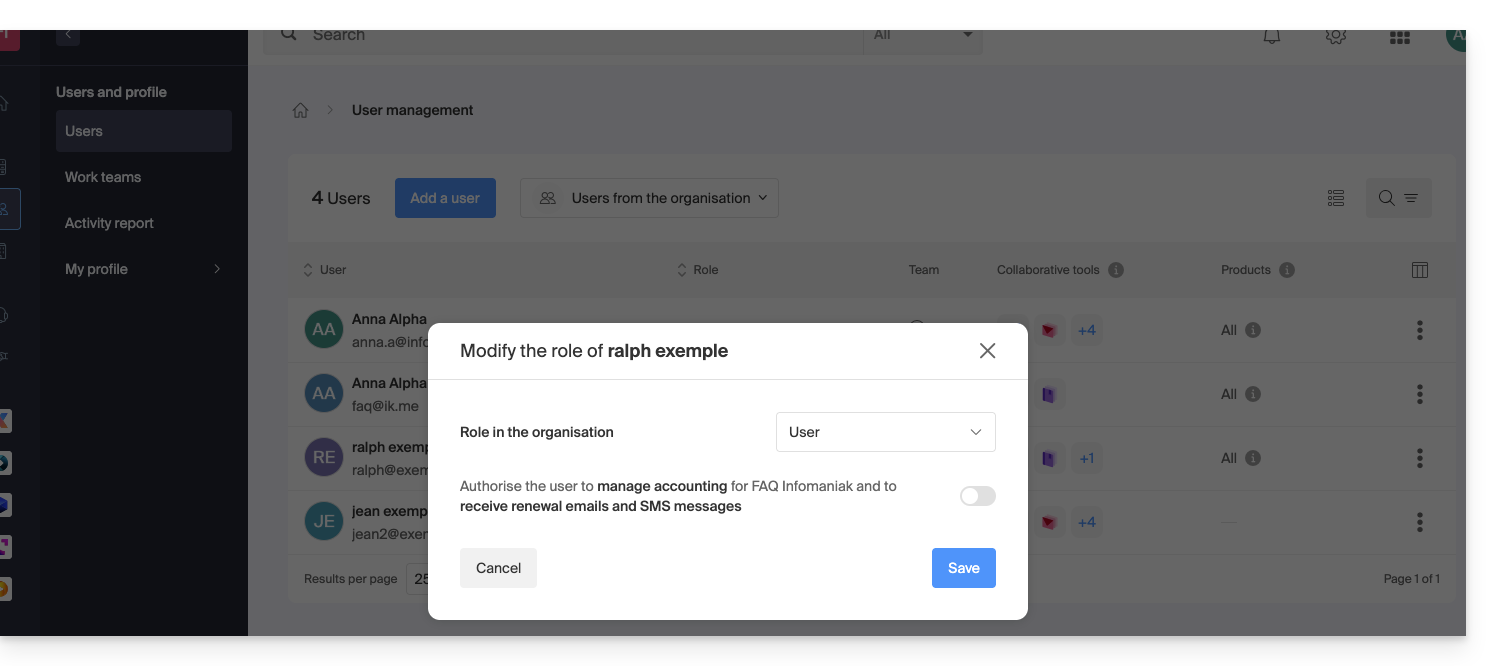
The modification proposed in point 5 above will now be accessible: 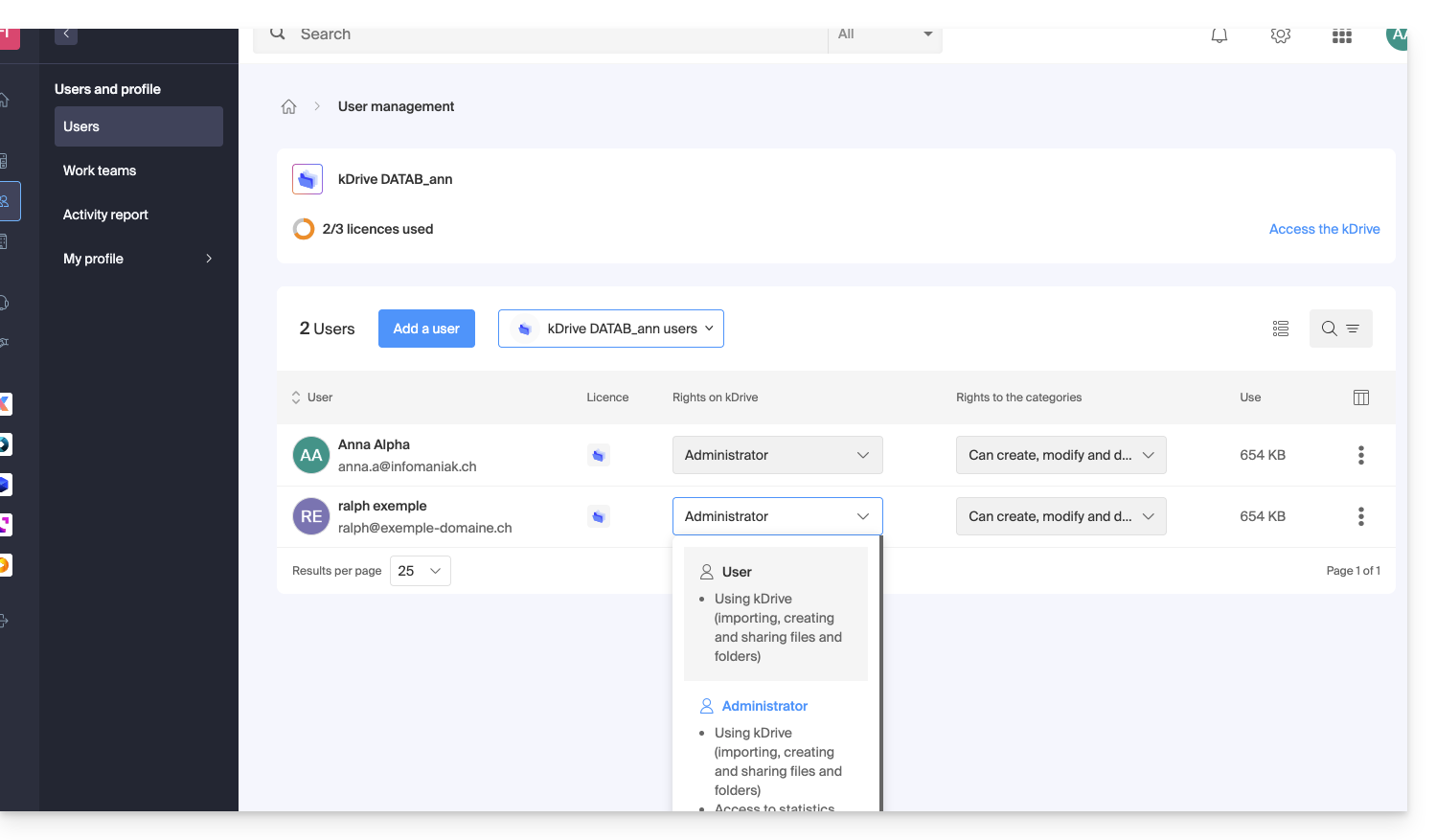
Other actions on the user
If necessary, open the action menu ⋮ for the desired user to access advanced actions: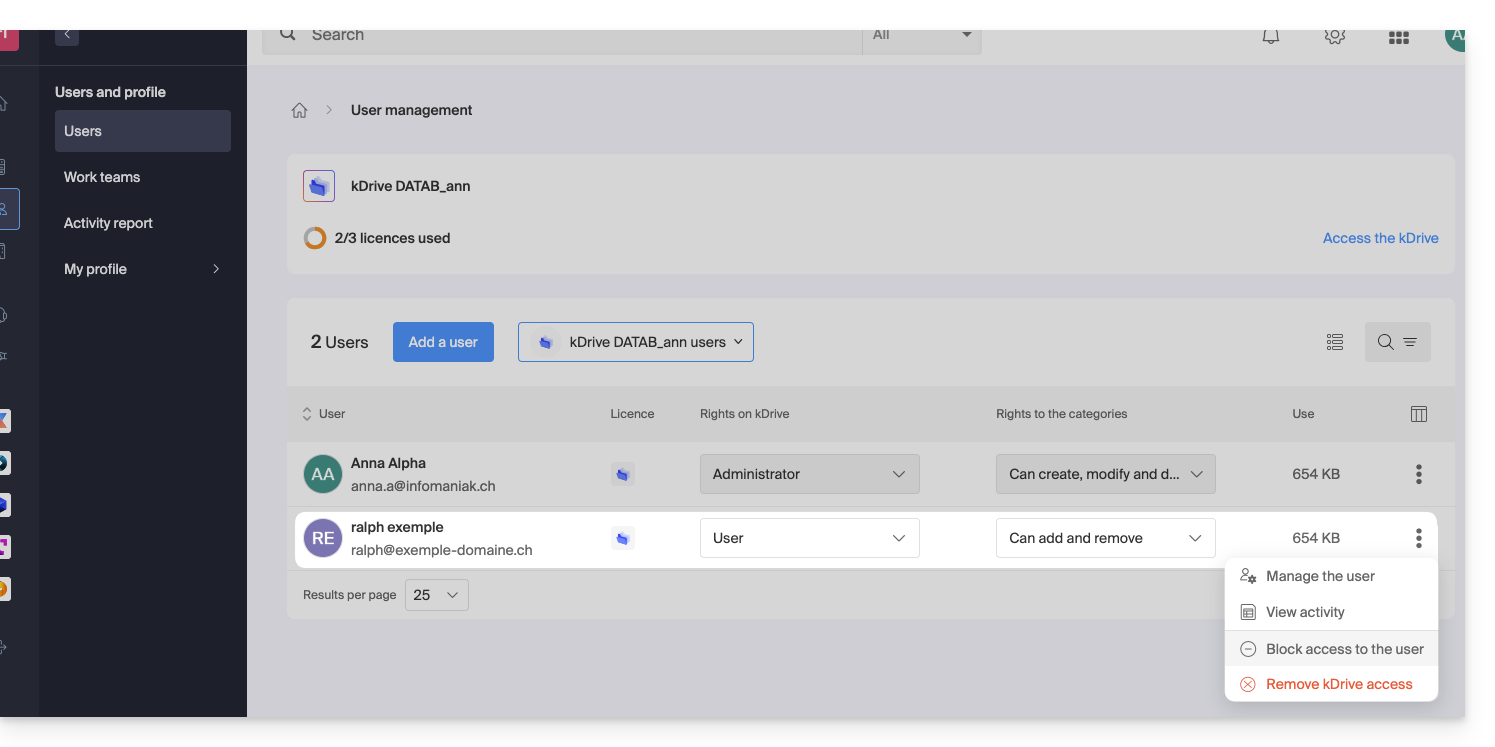
You can manage the user, view their activity, block their access, and completely remove them from kDrive.
If necessary, also manage the permissions related to actions on categories: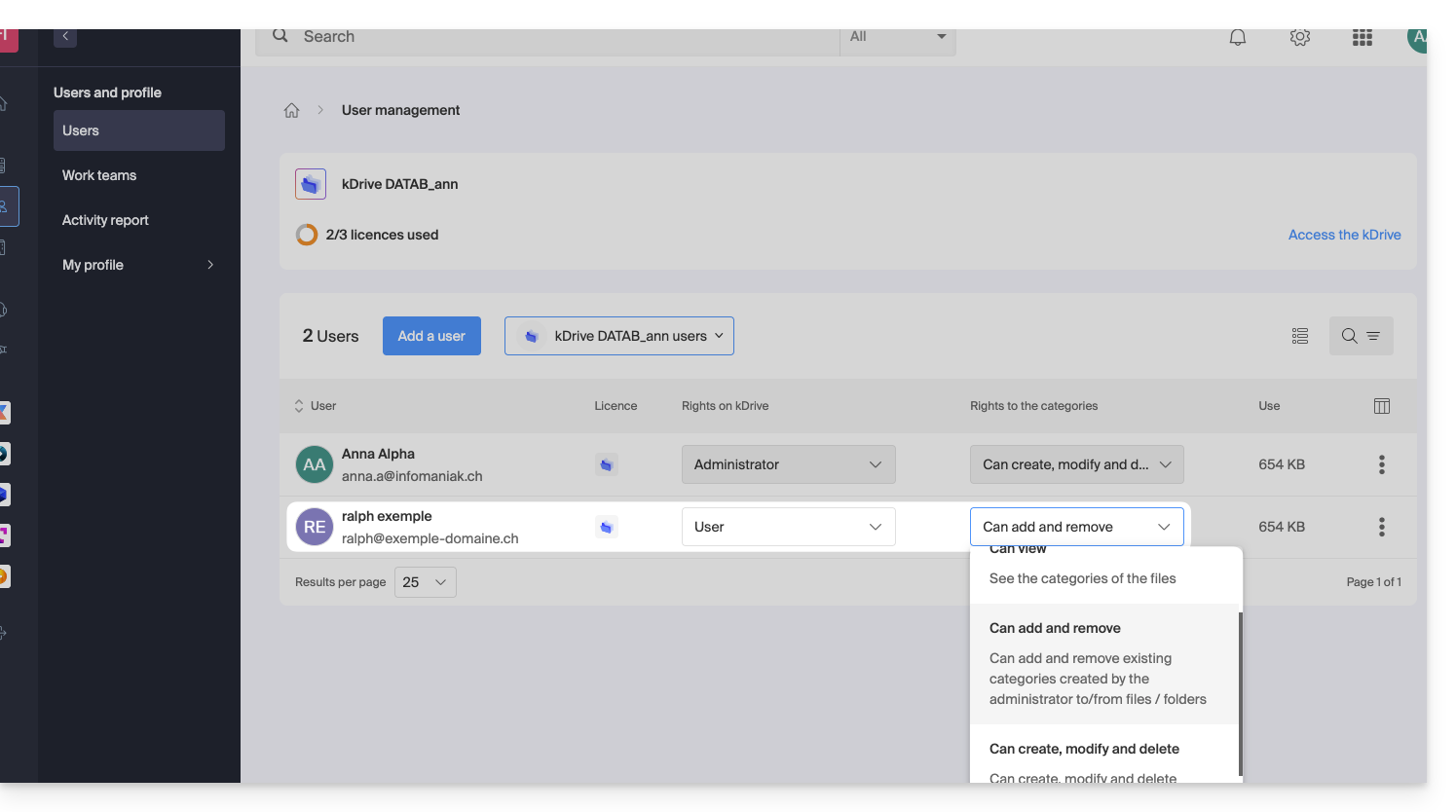
Permissions within the Organization / Permissions on kDrive
As mentioned above, it is important not to confuse or mix up:
- the permissions granted for managing the kDrive service in the Manager,
- and the permissions granted to the user within kDrive.
Indeed, a user may have limited or even no rights to the kDrive product in the Manager (they will therefore not be able to manage the kDrive product itself or have access to technical details - see below), but may have been defined as an administrator in kDrive and thus have access to all stored data.
Rights within the Organization: product management
In this example, you can manage the kDrive management rights for the user ralph from the product access settings: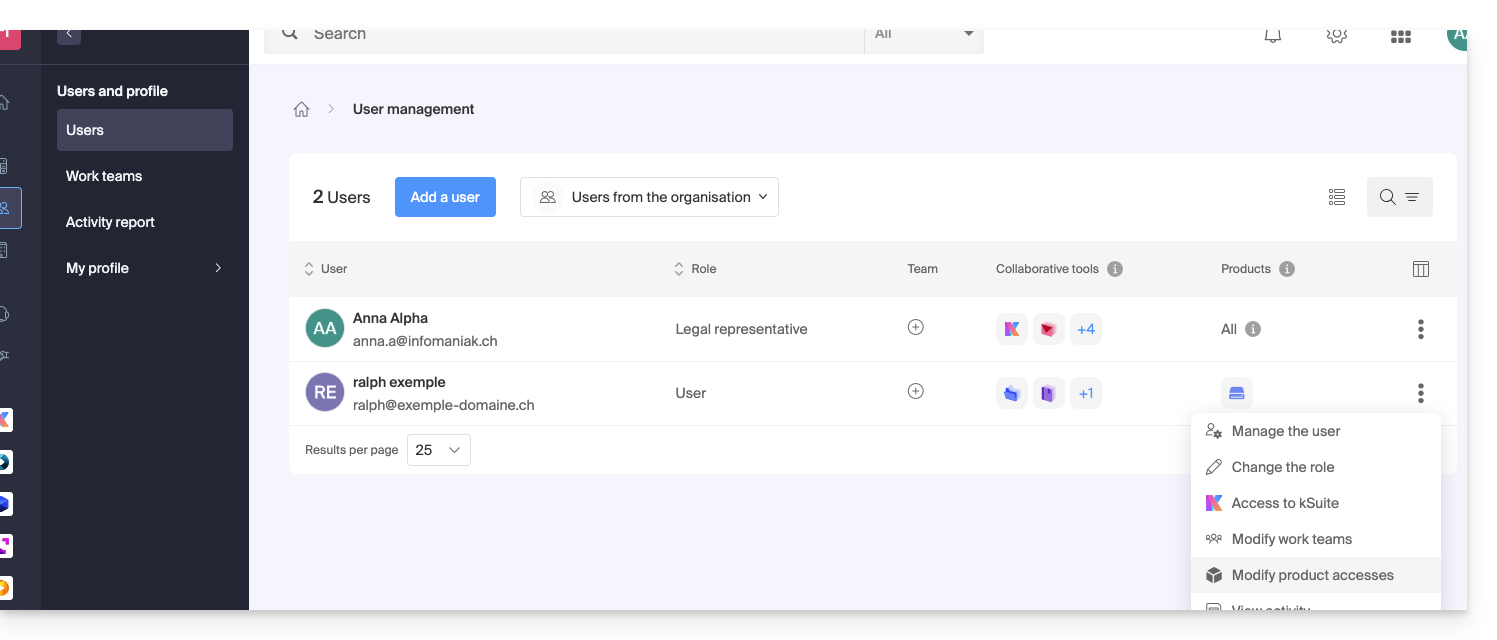
If necessary, you must specify which kDrive is concerned and, above all, what permissions (technical / statistical) it should have: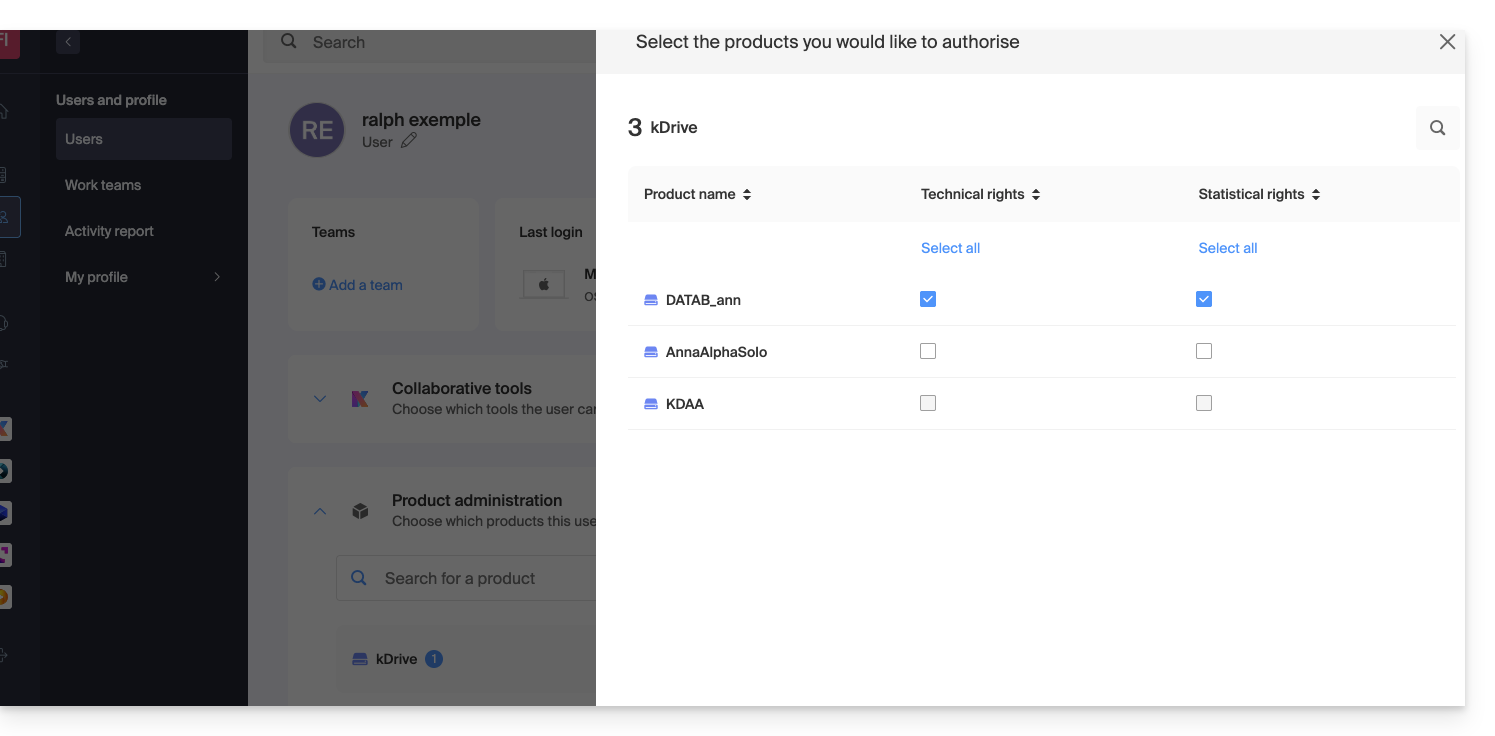
With only Technical permissions, the user will not see the Statistics item in the side menu: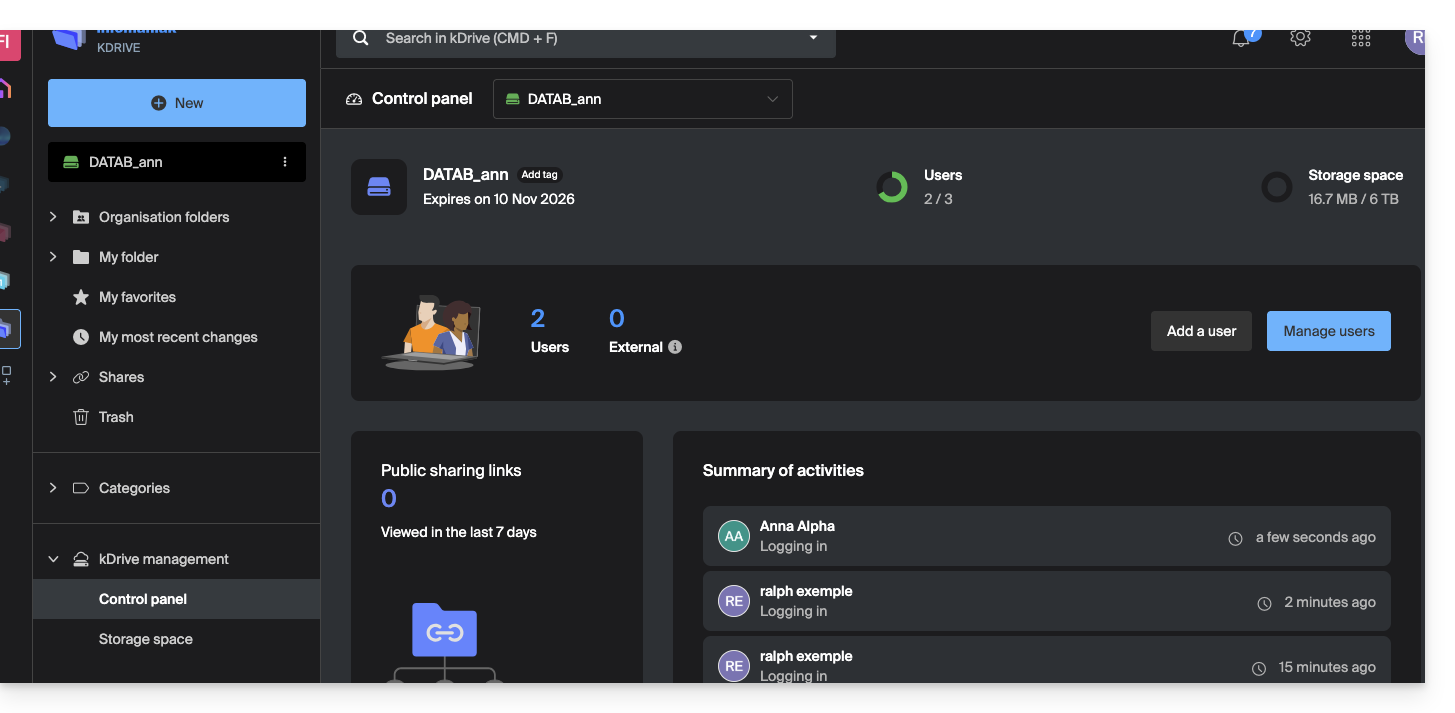
Conversely, if only the Statistics checkbox is enabled, the user will not have access to the dashboard: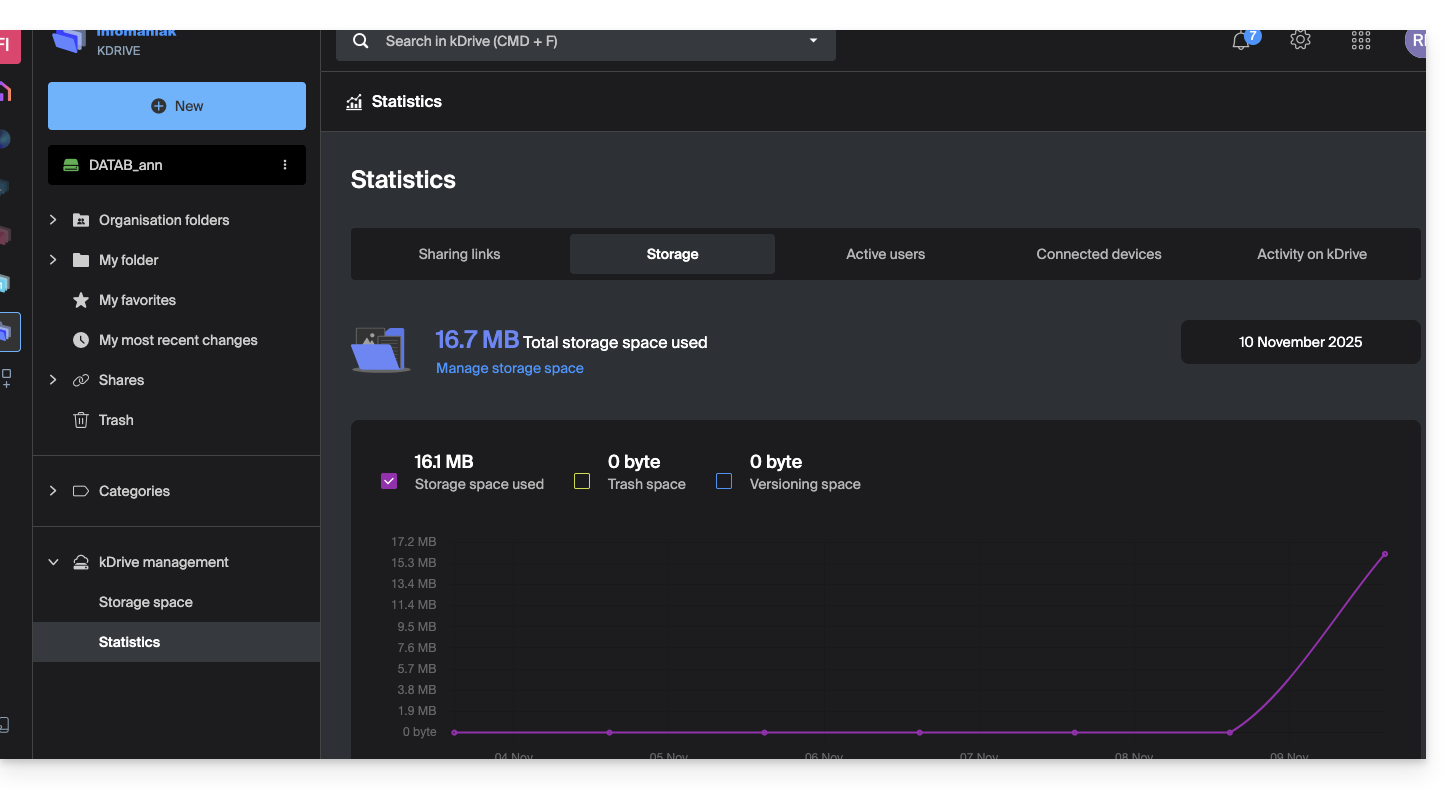
If the administrator disables both the Technical and Statistics checkboxes, only the storage information will be accessible from the sidebar: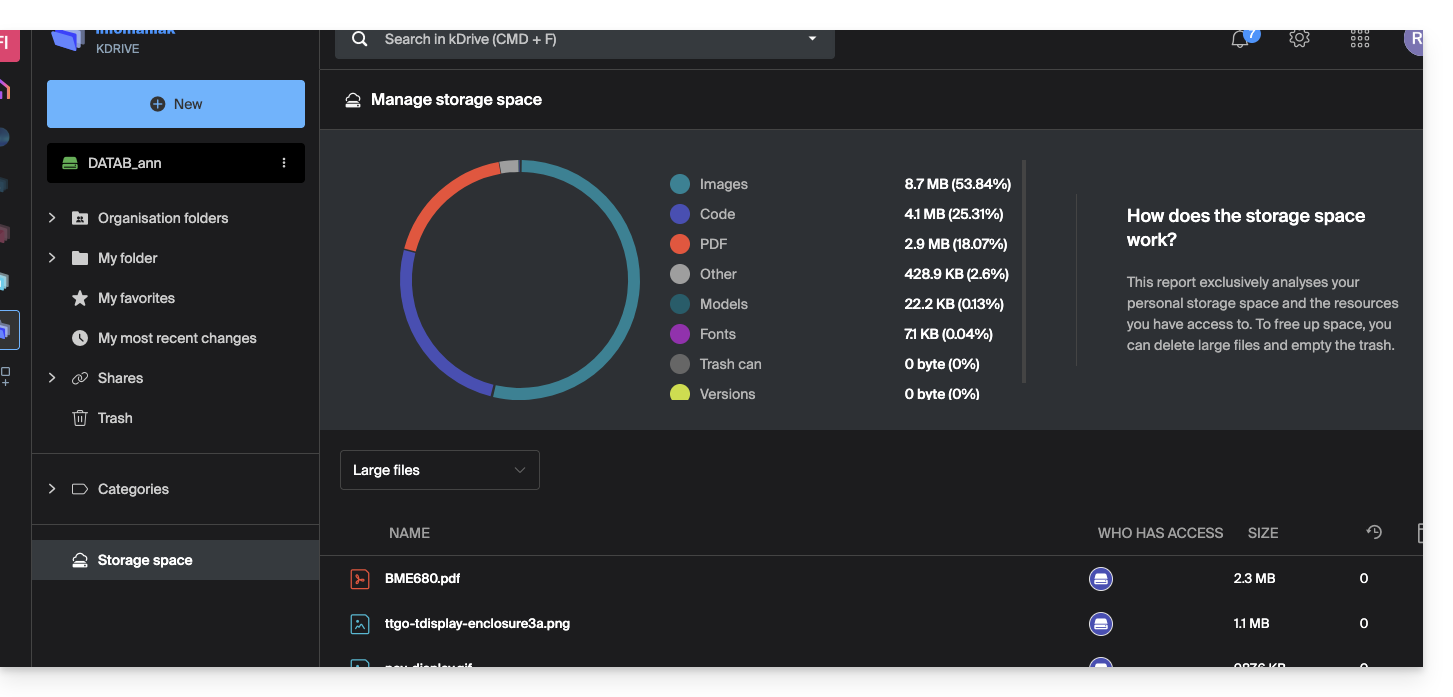
User rights on kDrive
Even with the two options (as mentioned above) Techniques and Statistics enabled, a user who only has User rights at the kDrive user management level will not be able to, among other things, create a new folder in the root of the Organization Folders: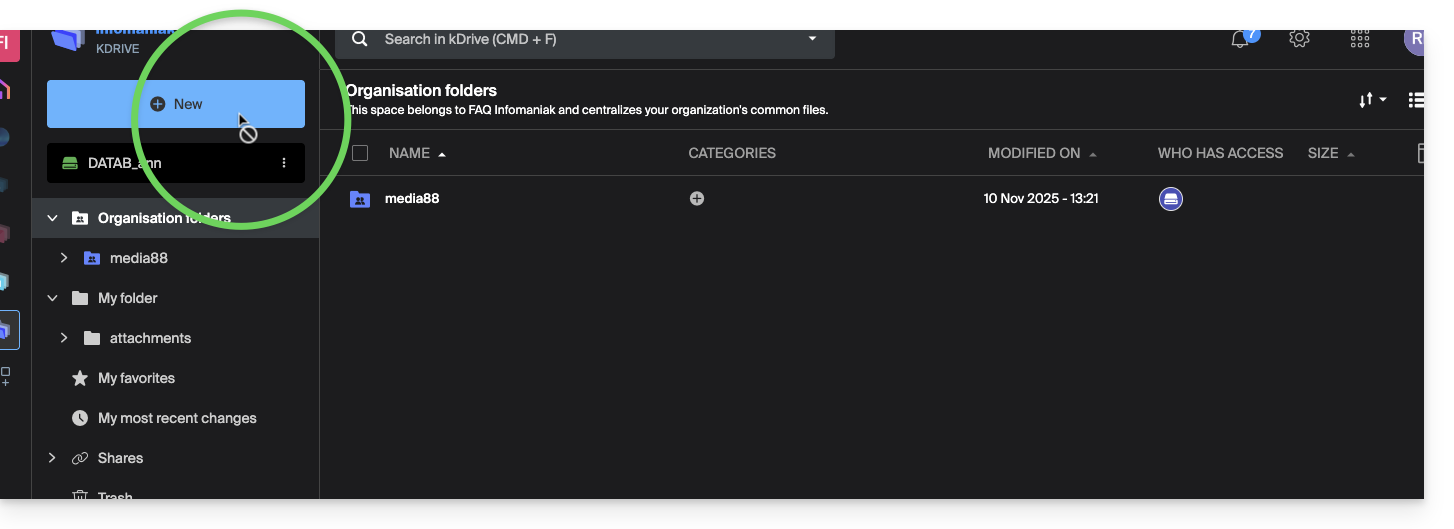
The user will need an Administrator role (see point 5 above) to access this window for creating a new Organization Folder in the root: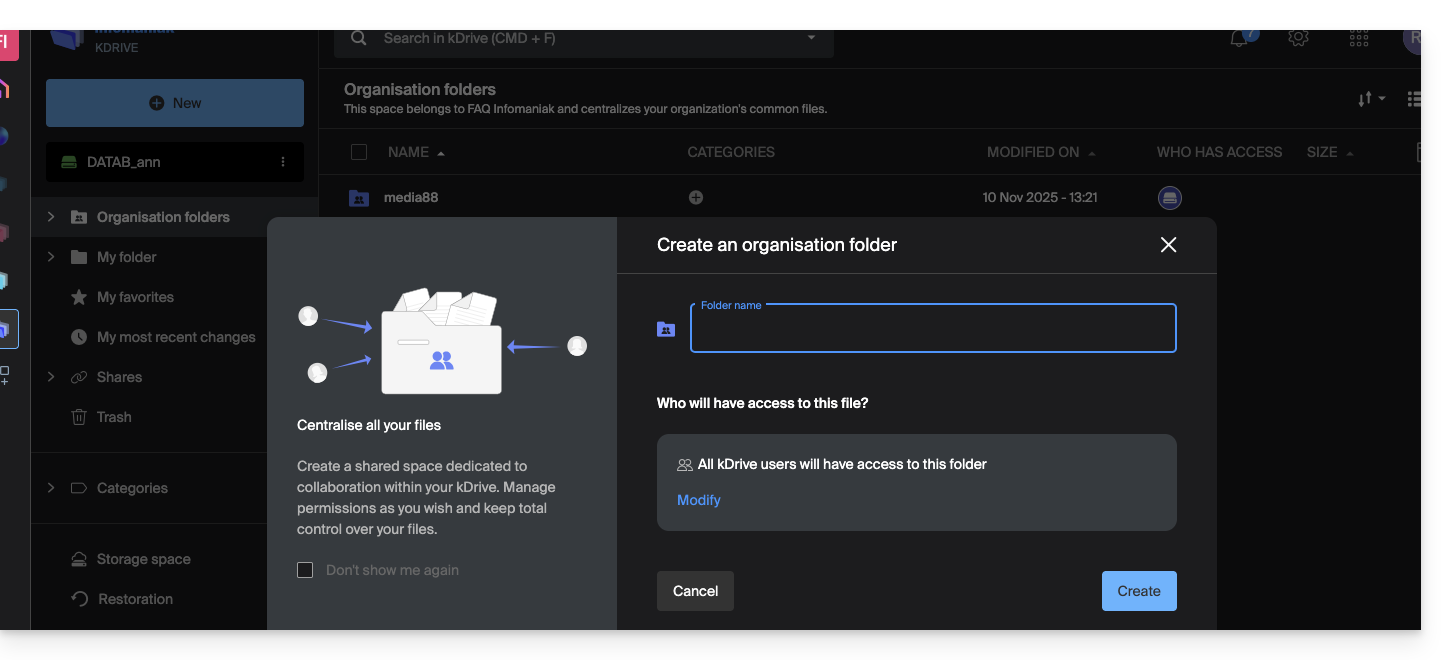
Link to this FAQ: https://faq.infomaniak.com/2365
Has this FAQ been helpful?