Knowledge base
1000 FAQs, 500 tutorials and instructional videos. Here, there are only solutions!
Remove an account from Infomaniak Authenticator
This guide explains how to remove an Infomaniak account configured in the mobile app Infomaniak Authenticator (iOS / Android app).
Introduction
- Warning: if no other method is configured to secure your account access (e.g., SMS), the two-factor authentication system will be deactivated.
- It is strongly recommended that you re-secure your account with a two-factor authentication method.
- If Infomaniak Authenticator is the most recent protection method available, and an Administrator requires users to have at least one method, you will not be able to follow this guide to the end.
Remove an account from the Infomaniak Authenticator mobile app
To remove the Infomaniak Authenticator two-factor authentication method for a specific account:
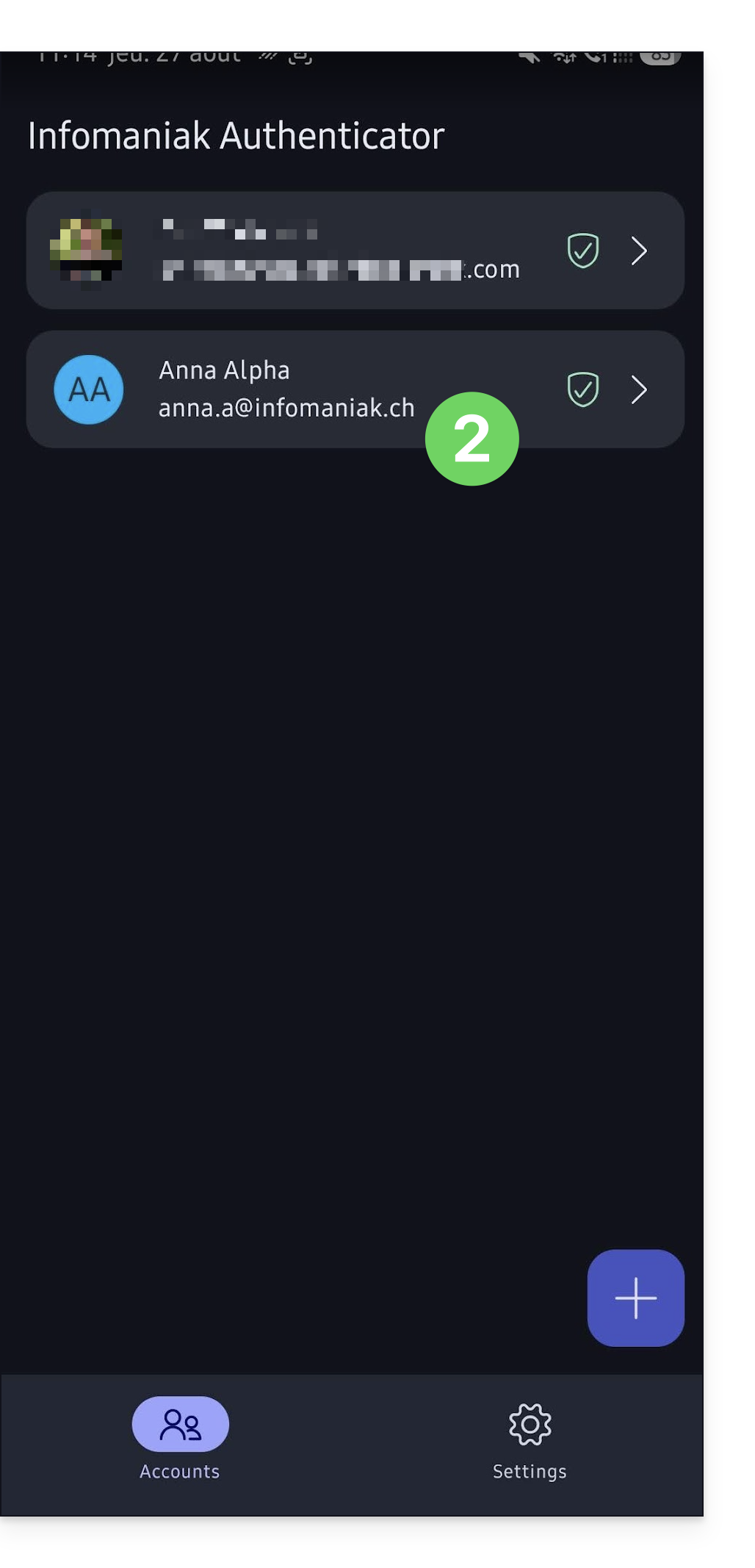
- Open the Infomaniak Authenticator app on your mobile device.
- Click on the account from which you want to remove this method:
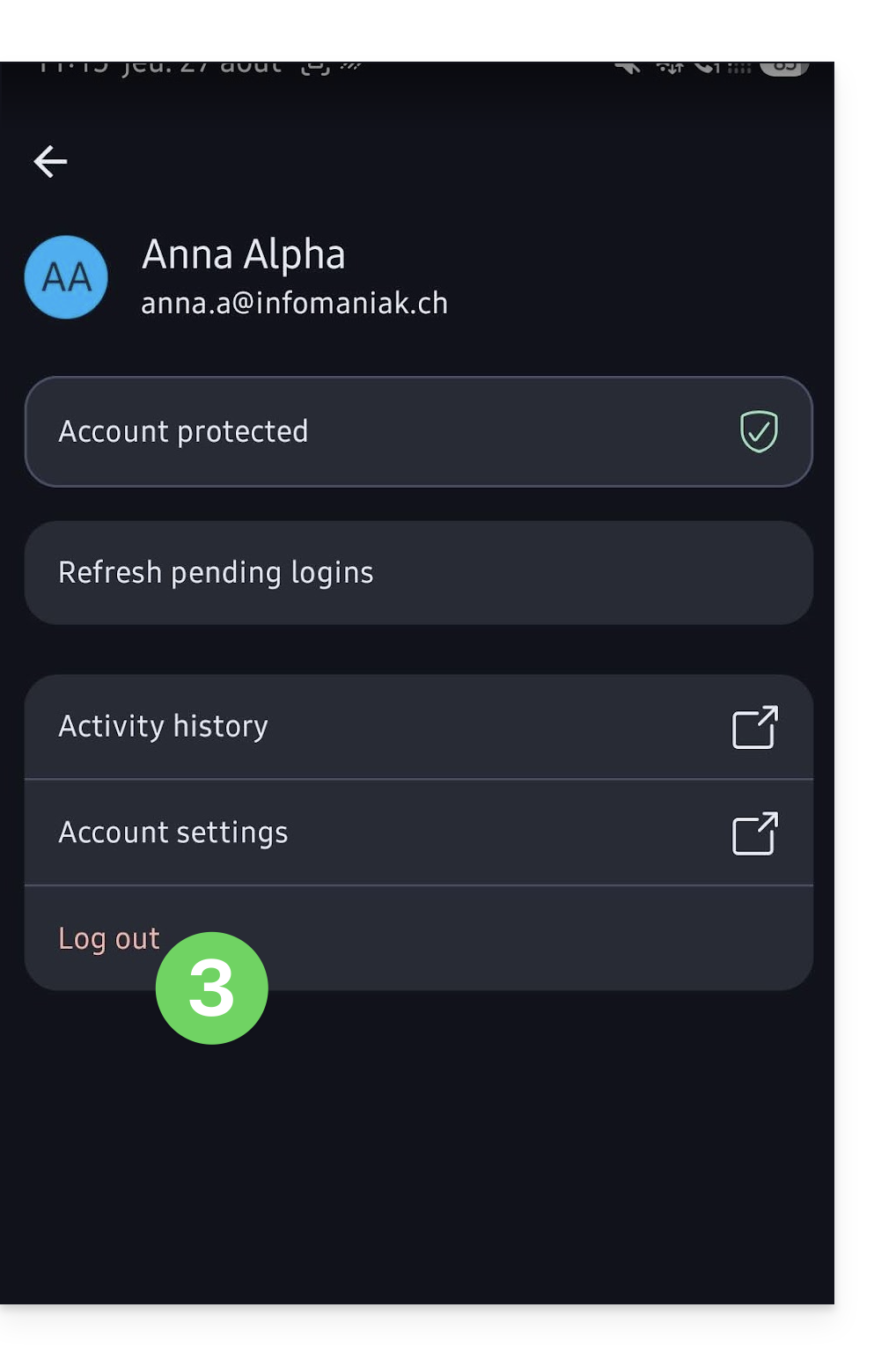
- Click on Disconnect:
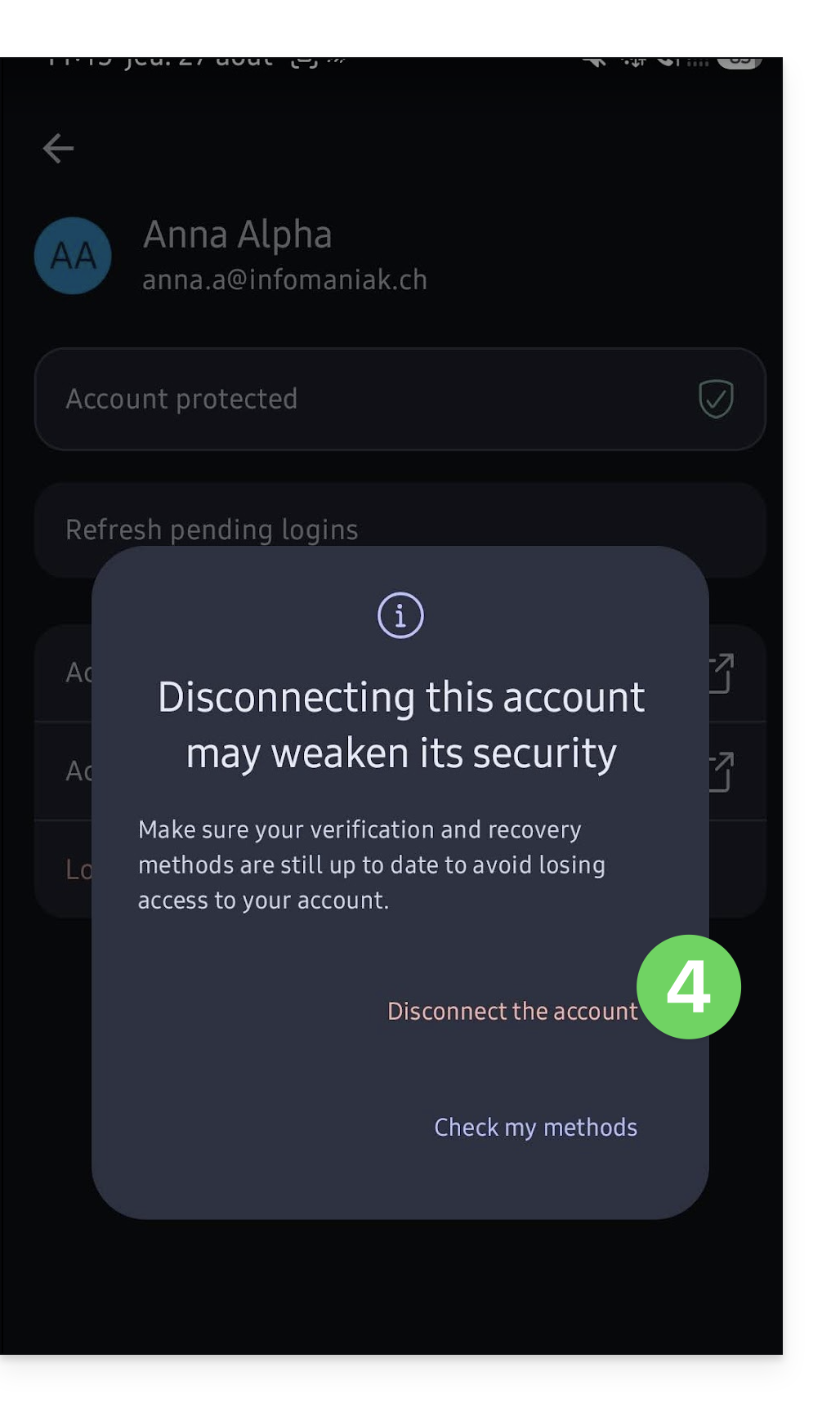
- Confirm the deletion:
- Confirm to permanently remove the account from the app and no longer use this 2FA method:
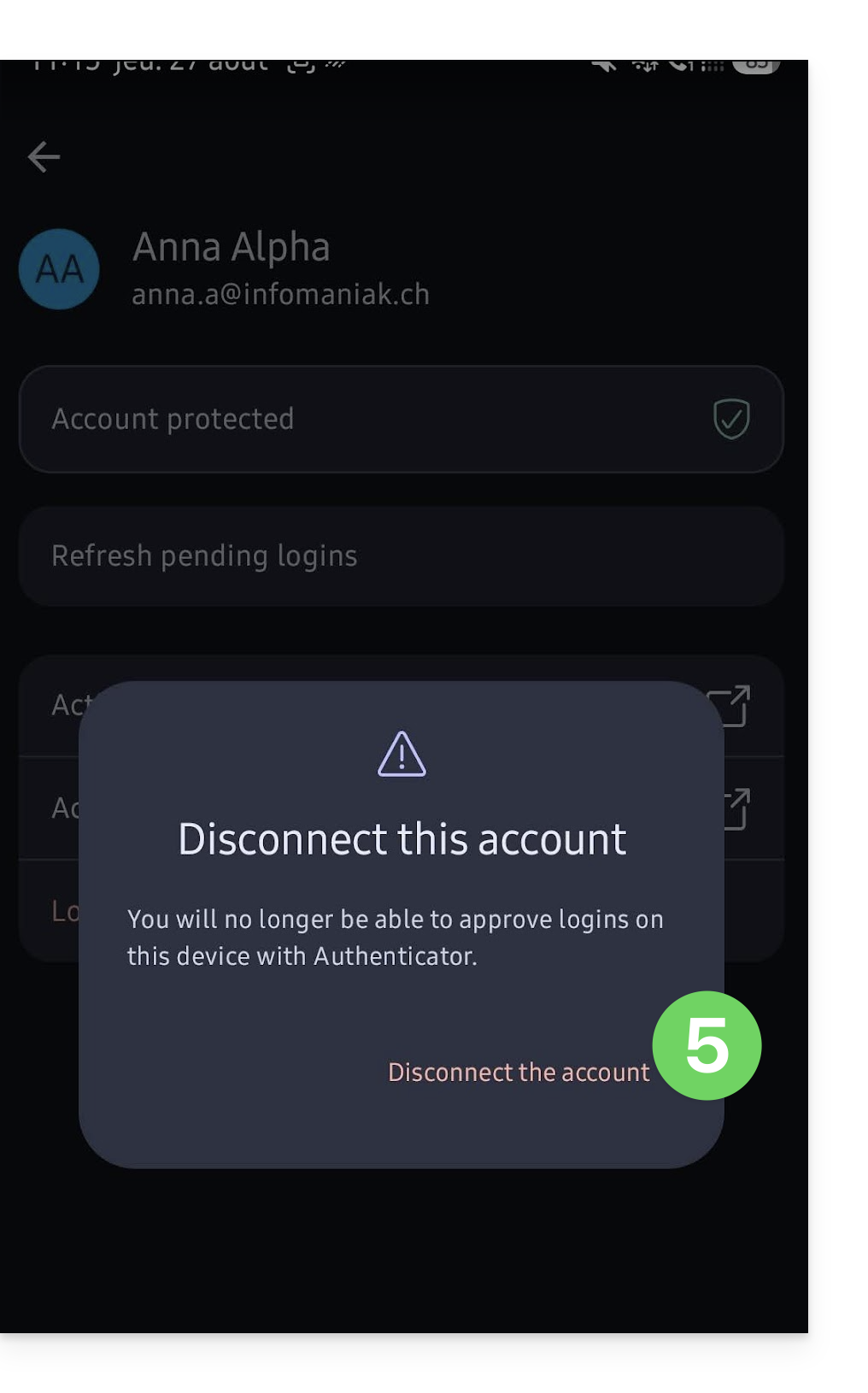
The Infomaniak account no longer appears in the app, and the account is no longer protected by this two-factor authentication method.
Link to this FAQ: https://faq.infomaniak.com/2361
Has this FAQ been helpful?