Knowledge base
1000 FAQs, 500 tutorials and instructional videos. Here, there are only solutions!
Use Infomaniak Authenticator as your Infomaniak 2FA solution
Infomaniak Authenticator is a free mobile application that enhances and simplifies the security of Infomaniak accounts protected by two-factor authentication (or double authentication / 2FA). It is one of the methods that allows you to secure access to your Infomaniak user account.
Introduction
- Two-factor authentication protects your account and personal data when logging into Infomaniak tools (manager.infomaniak.com and ksuite.infomaniak.com) by requiring:
- your password…
- then a second security method.
- The mobile app Infomaniak Authenticator is one of these methods and allows you to receive a push notification YES / NO to authorize or deny login to your Infomaniak account.
- If another Infomaniak app (Mail, Euria, kDrive, etc.) is installed and your user ID is also connected to it, the authorization request may be made through that app; please refer to this other guide for more information.
- In all cases, it is highly recommended to carefully note the backup codes offered for download after each configuration: download and keep a copy of these codes in a safe place, as they will be the only way to access your account if you lose your credentials or to access your account without access to your phone.
Install the Infomaniak Authenticator app
Prerequisites
- Have an Infomaniak account (know your login credentials so you can log in).
- Have an iOS or Android mobile device.
- From your iOS or Android mobile device, download the Infomaniak Authenticator app here:


Install and open the application.
Add the app as a two-factor authentication method
Once the app is open, log in to the desired Infomaniak account within the app to activate Infomaniak Authenticator as a 2FA method.
How the mobile app works
When you try to log in to your account from any device and successfully enter your usual password, you receive a push notification on your mobile device asking you to authorize the login ("Approve / Decline") via the Infomaniak Authenticator app: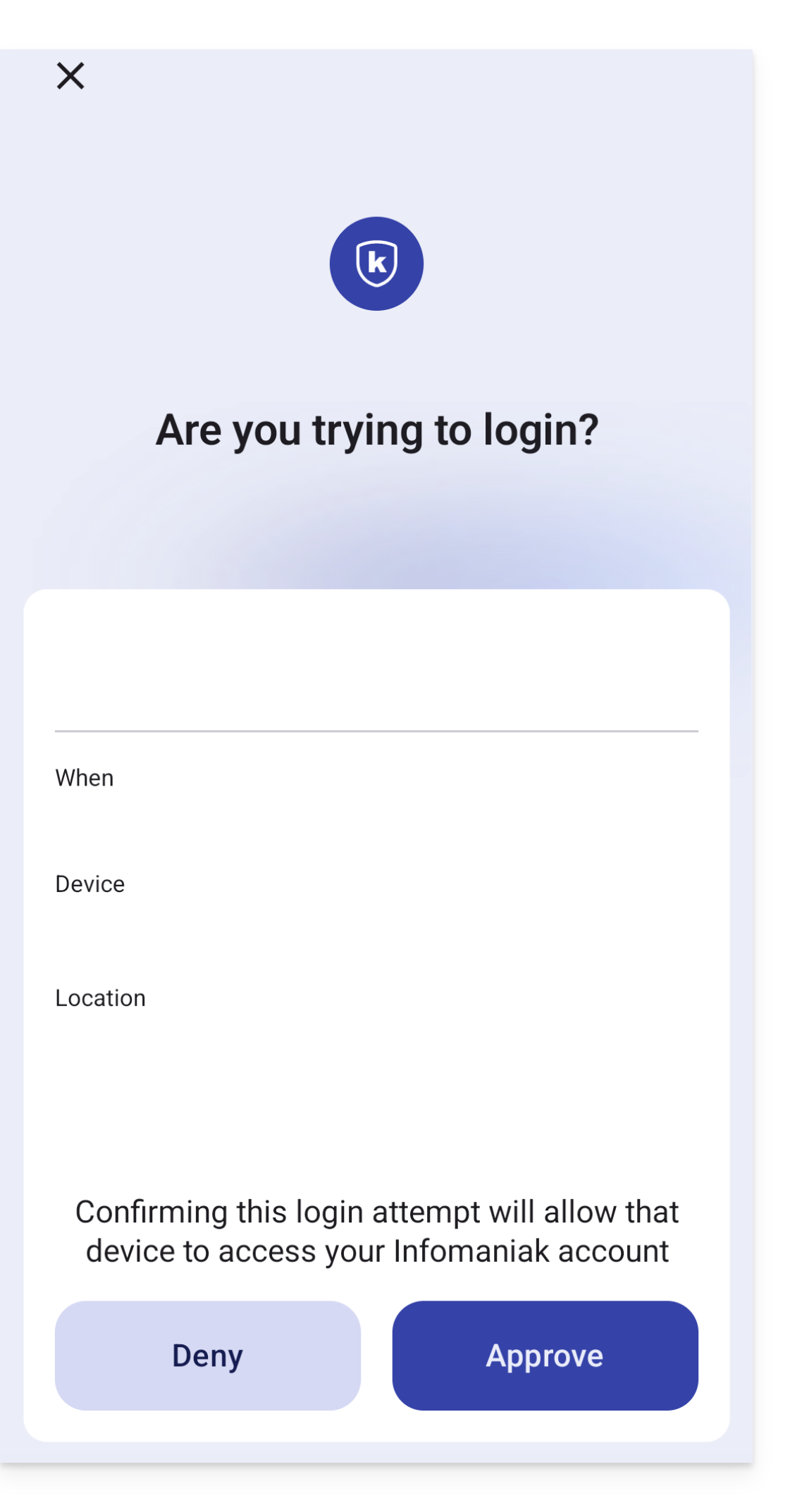
If the connection is allowed, the initial page is automatically redirected to the Infomaniak account.
Migration from kAuth to Authenticator
To do this:
- Open Infomaniak Authenticator from your mobile device.
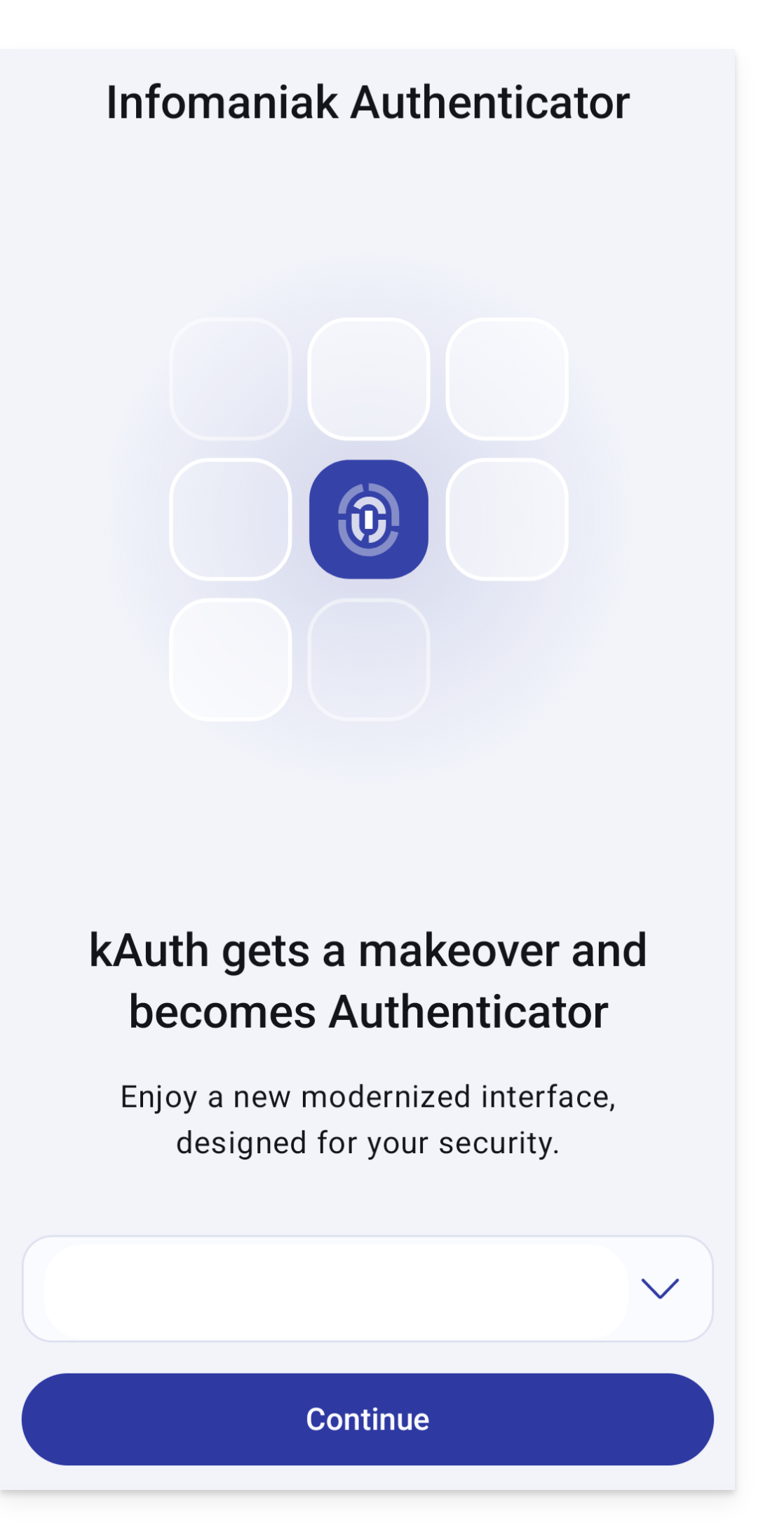
- The Infomaniak accounts that can be migrated will appear automatically; then click on Continue:
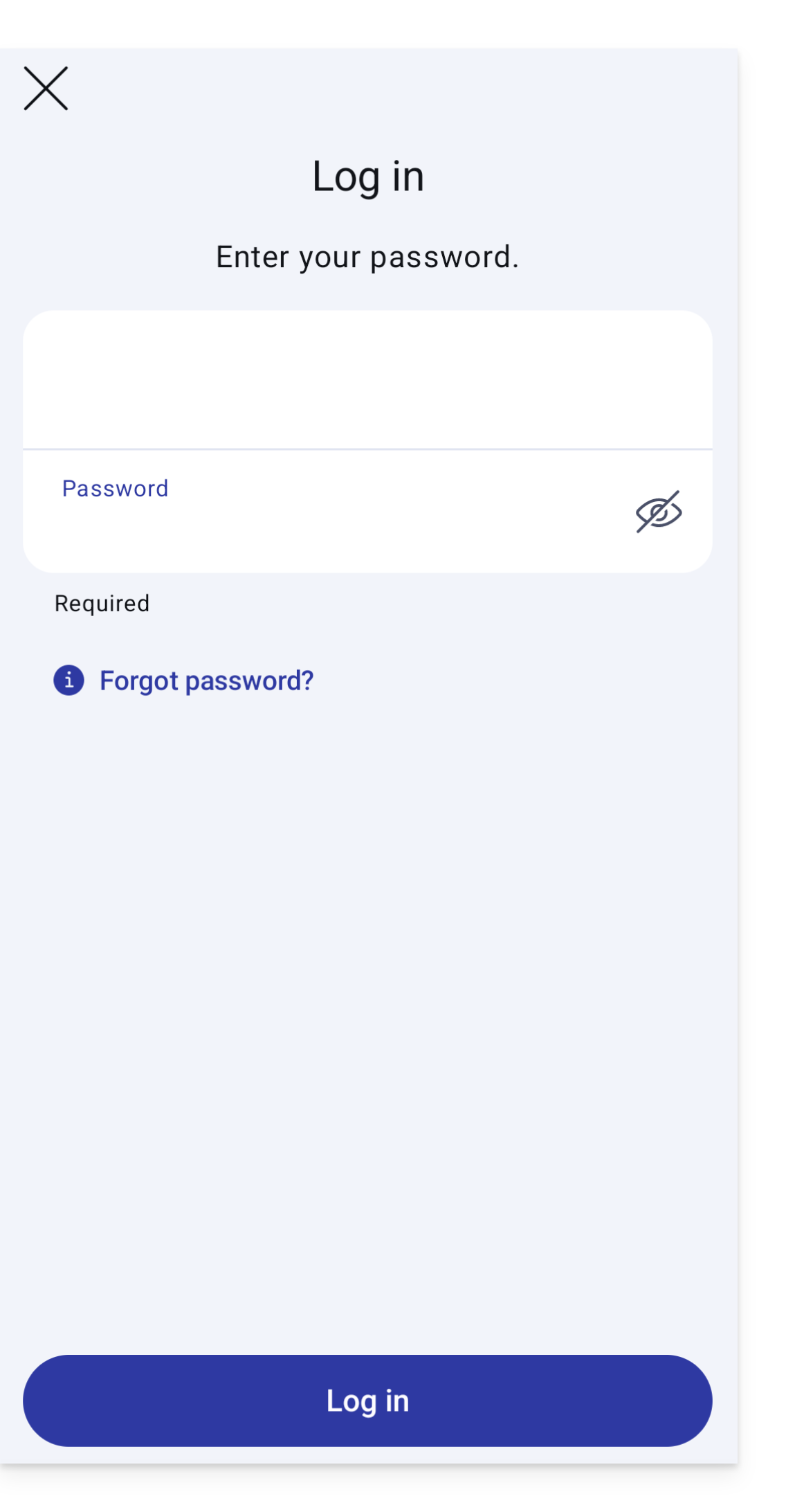
- Enter your credentials if necessary:
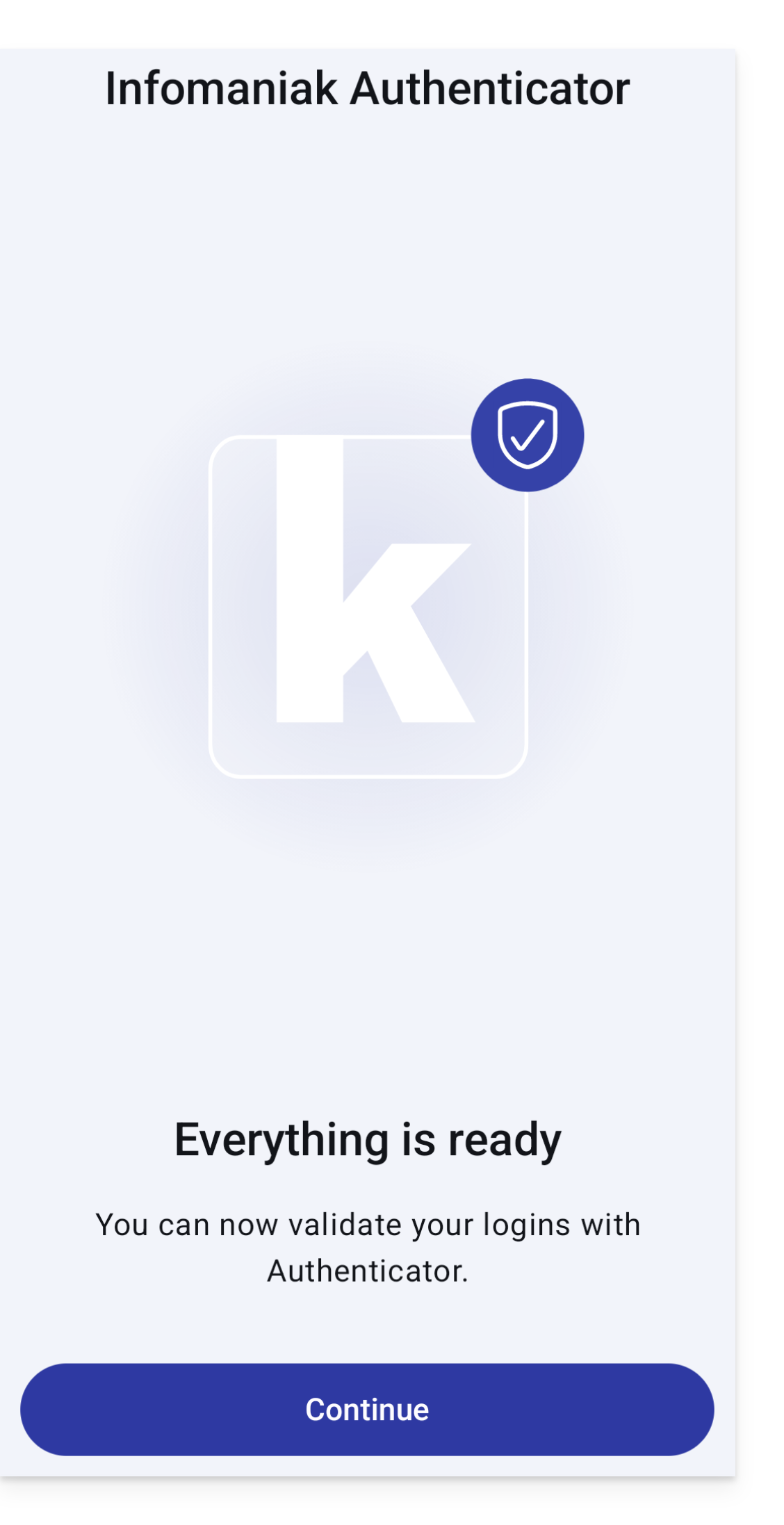
- Everything is ready, click on Continue:
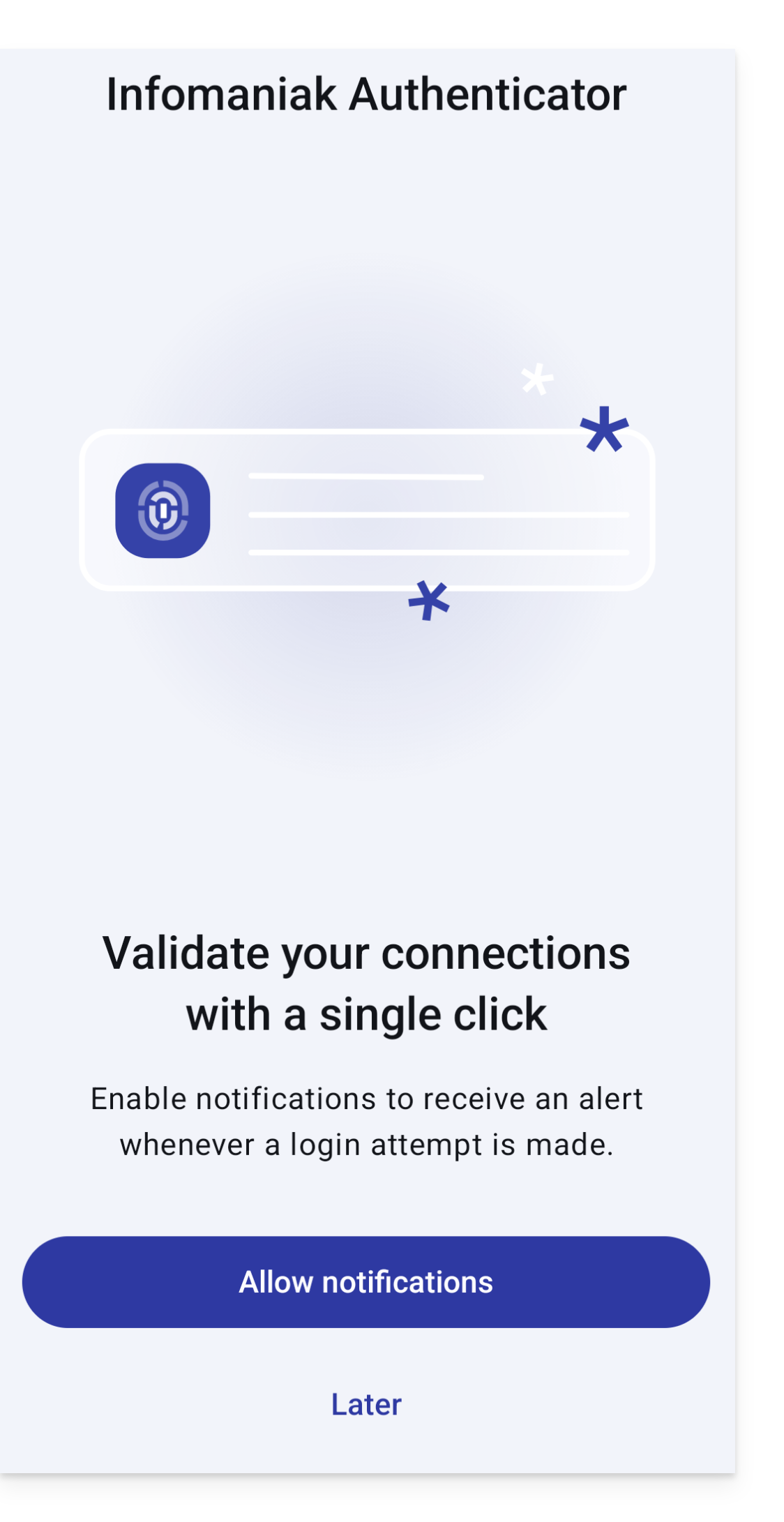
- It is recommended to allow notifications:
Add additional accounts
Infomaniak Authenticator allows you to manage multiple Infomaniak accounts:
- Open Infomaniak Authenticator on your mobile device.
- Click on the blue button :
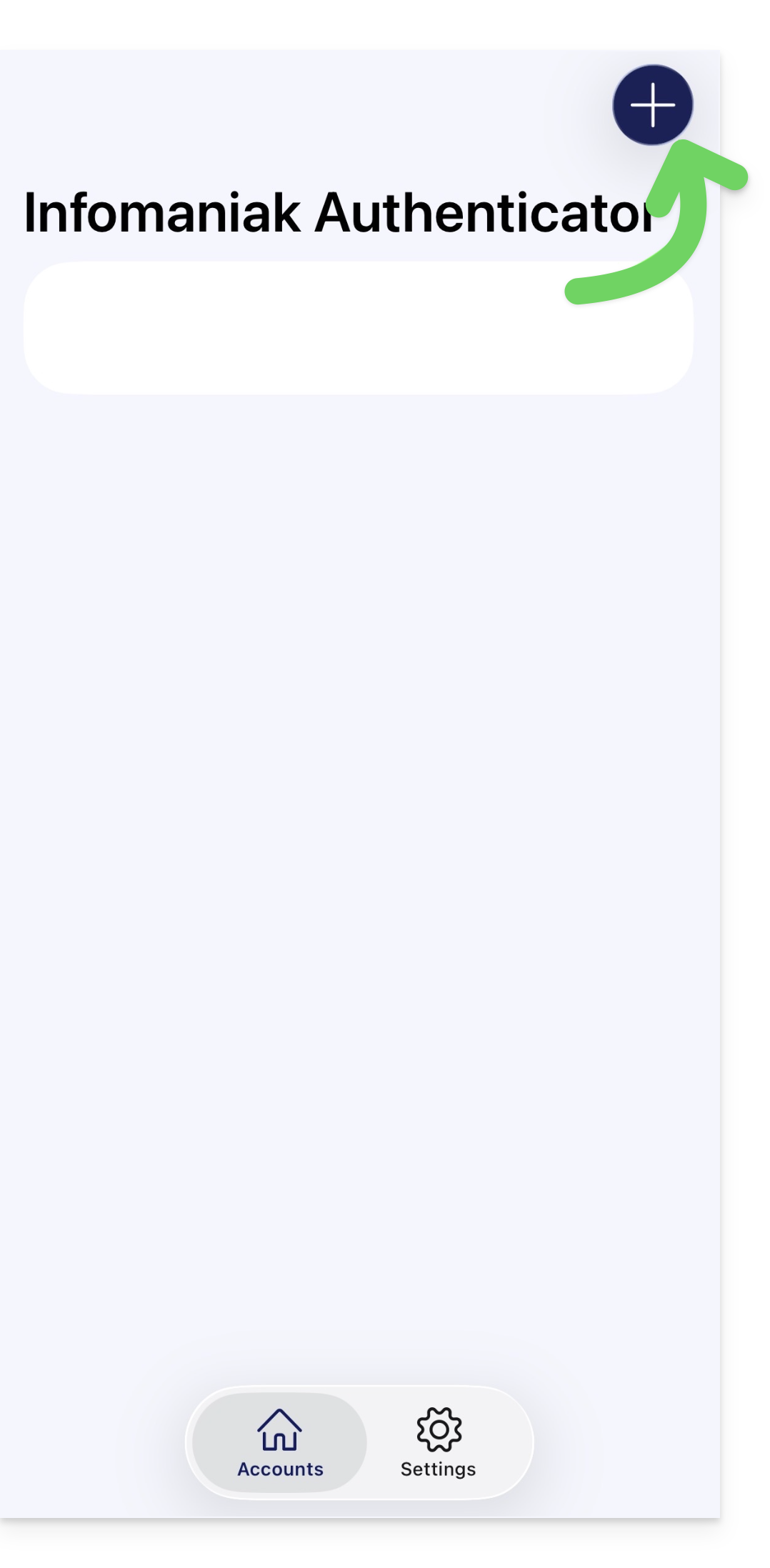
At the bottom right on Android. - Identify the account you want to add.
Remove an account from Infomaniak Authenticator
To delete your Infomaniak identity from the Infomaniak Authenticator app.
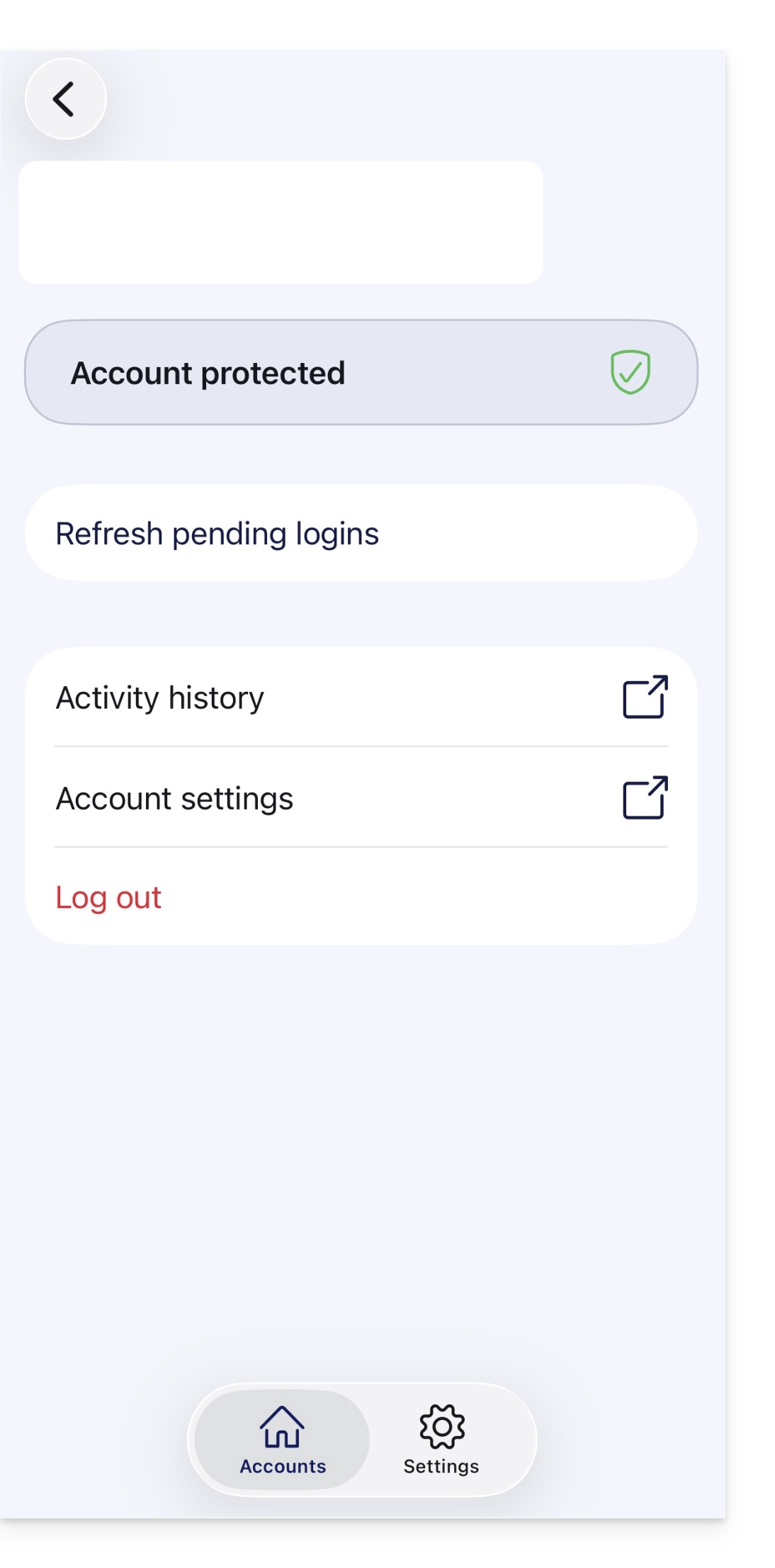
- Select the account you wish to remove.
- Click on Disconnect:
Warning
Link to this FAQ: https://faq.infomaniak.com/2358
Has this FAQ been helpful?