Knowledge base
1000 FAQs, 500 tutorials and instructional videos. Here, there are only solutions!
Configure Outlook 2019 with IMAP (email)
This guide explains how to connect the desktop app Outlook 2019 (desktop application on Windows) to an email address hosted by Infomaniak.
Add the email address to the application
Prerequisites
- Create the email address (❓: help my kSuite | Mail Service/kSuite).
- Create a device password (❓: help my kSuite | Mail/kSuite Service).
- Verify that the domain is configured correctly (❓: help).
To configure the email application:
- Open the application.
- If the wizard starts automatically, go to step 5.
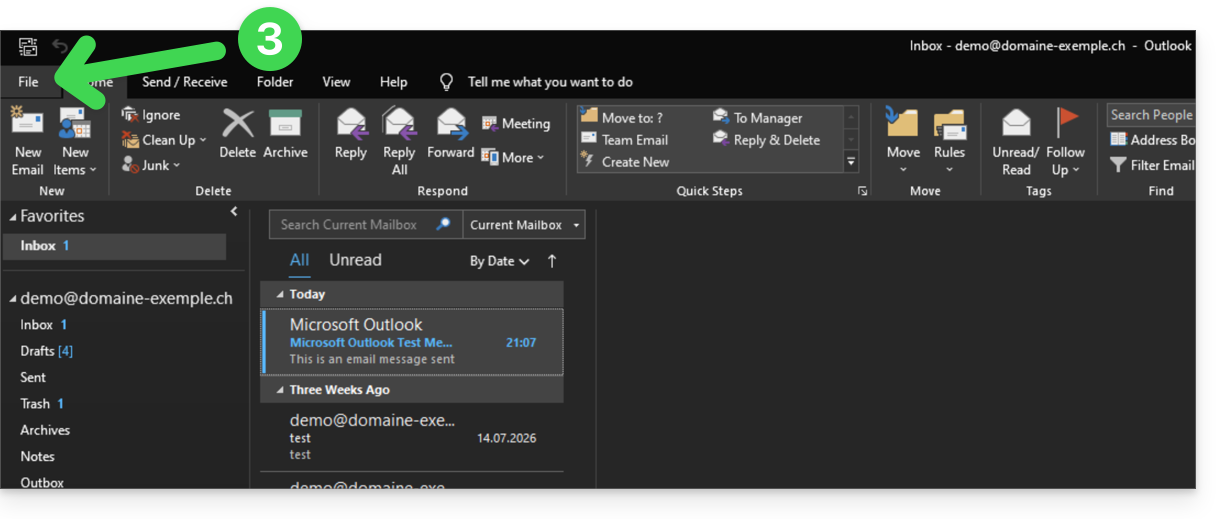
- If the wizard does not start automatically, click on the File menu:
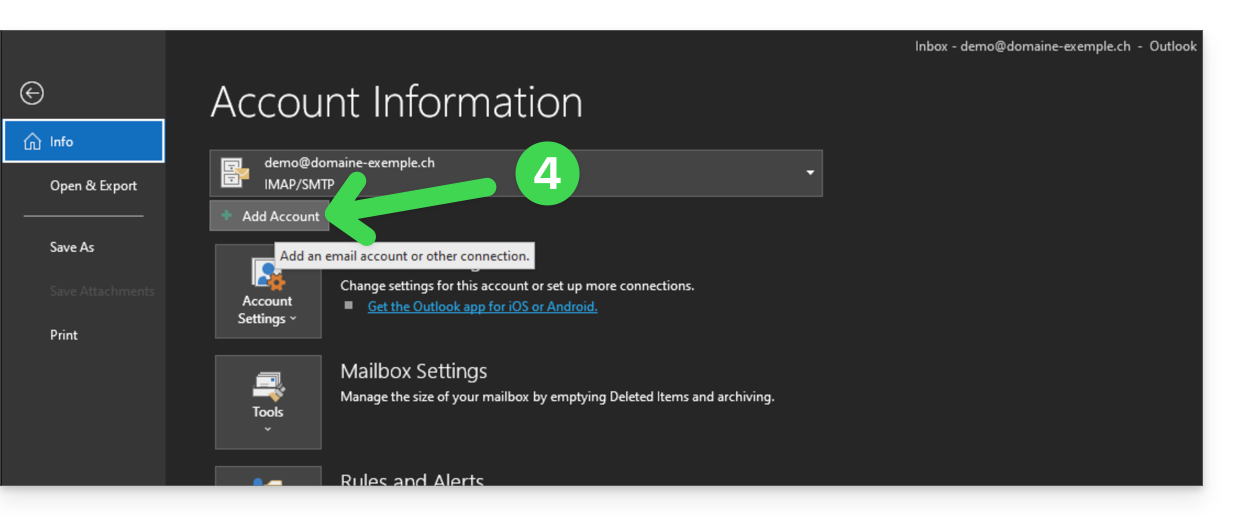
- Click on Add account:
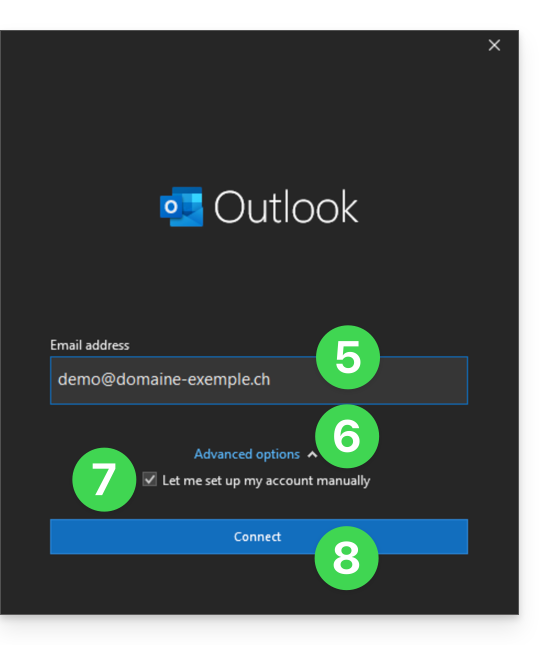
- Enter the email address to connect.
- Click on the chevron Advanced options.
- Activate the checkbox to configure your account manually.
- Click on the Connect button:
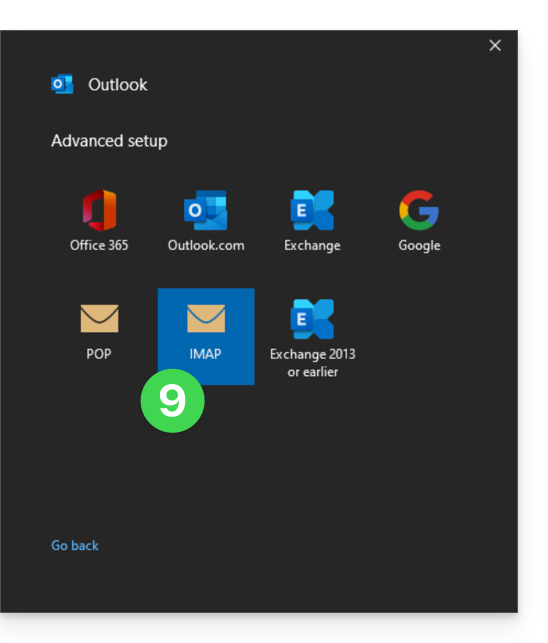
- Click on IMAP:
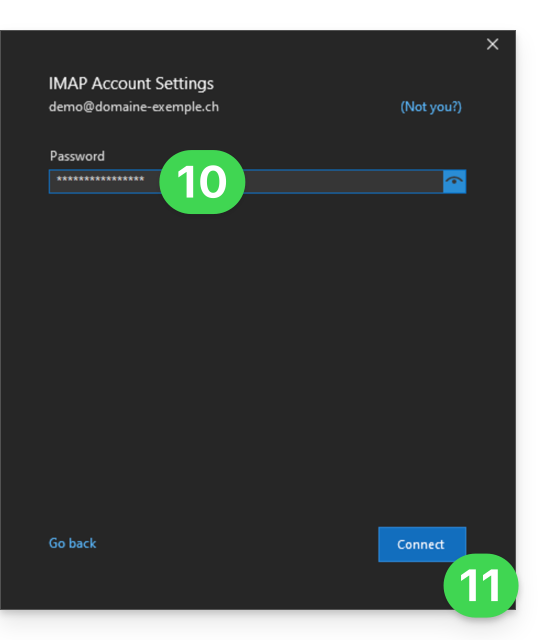
- Enter the password for the email address you want to connect (❓: help).
- Click the blue Connect button:
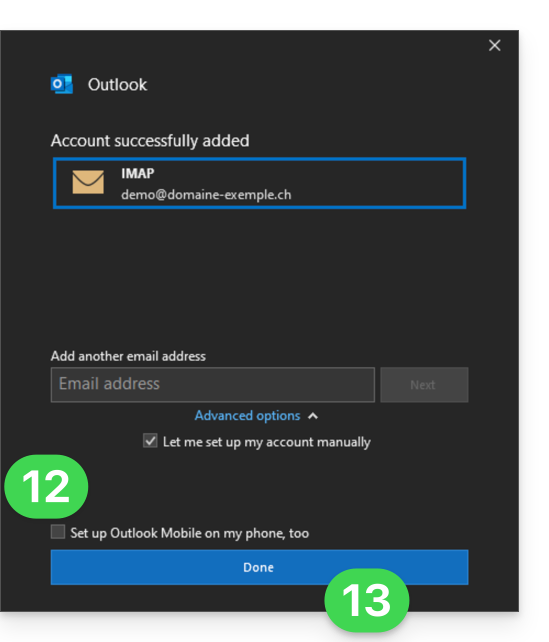
- Uncheck the additional settings box for mobile devices, if necessary.
- Click the blue Finish button:
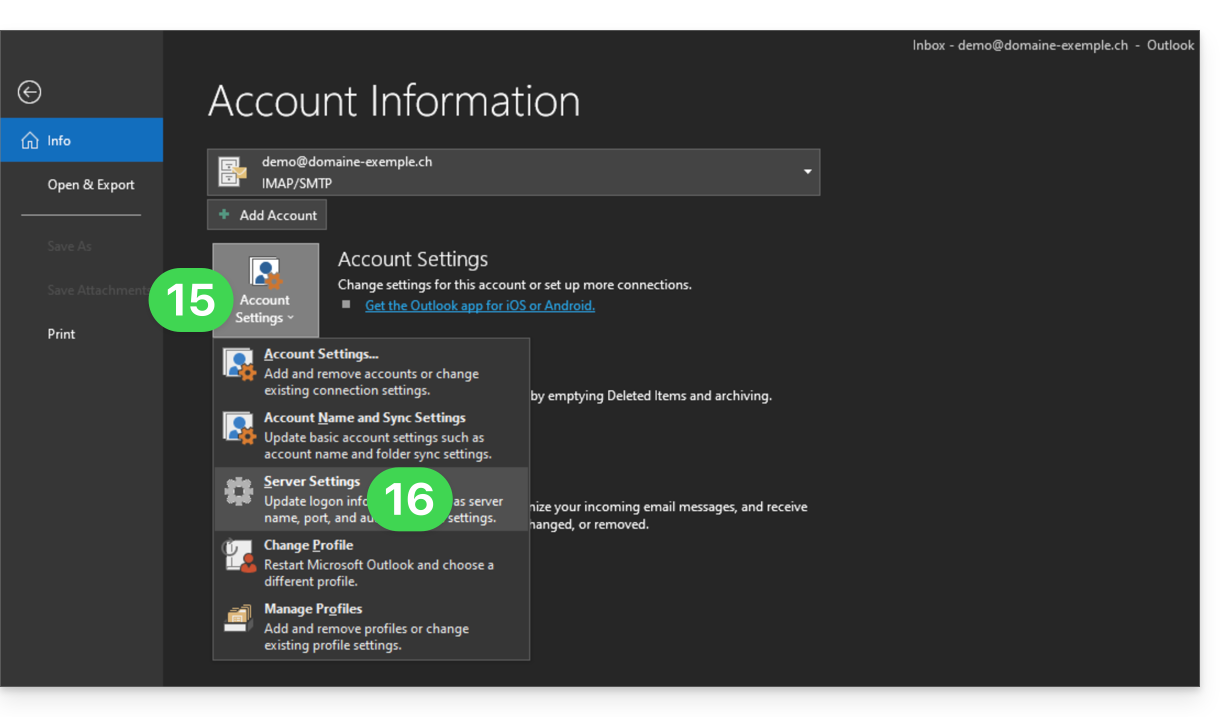
- Stay in or return to the File menu.
- Click on Account Settings to correct certain information that was added automatically but is incorrect.
- Click on Server Settings:
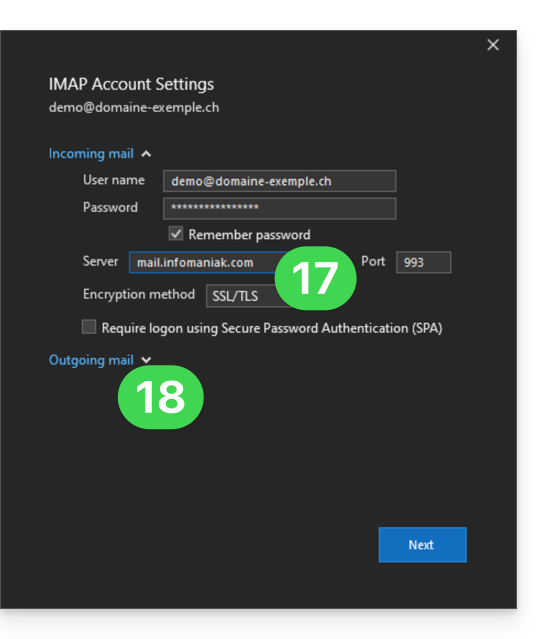
- Check and complete any missing information (❓: help).
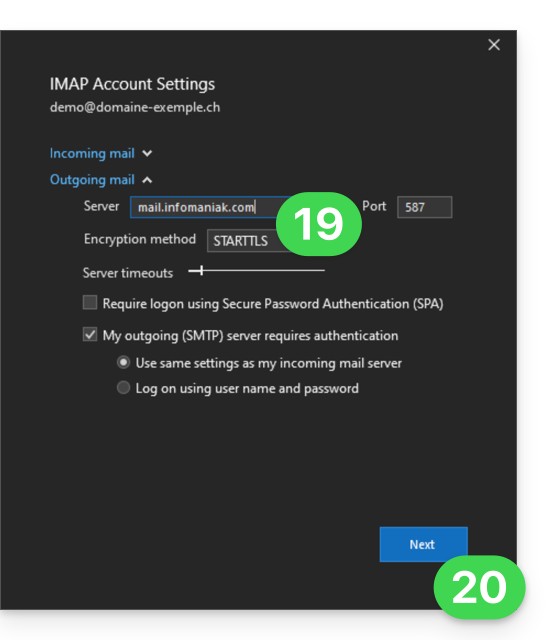
- Click on the downward-pointing chevron Outgoing Mail:
- Check and complete any missing information (❓: help).
- Click on Next:
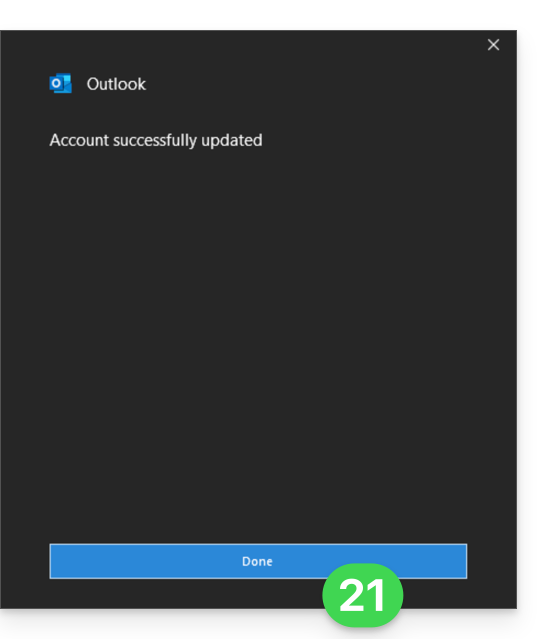
- Click on Finish:
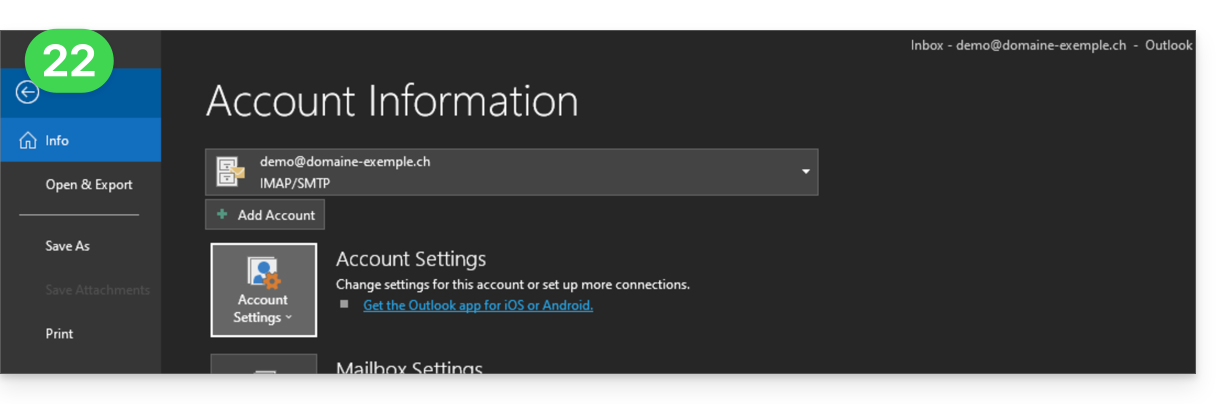
- Go back to the home page; your email address is now correctly configured in the application:
Recommended settings
- Incoming IMAP server =
mail.infomaniak.com - IMAP port =
993(with SSL) - Outgoing SMTP server =
mail.infomaniak.com - SMTP port & encryption protocol and command/method to activate this protocol:
587+ STARTTLS - Username = the complete email address (❓: help)
- Password = the password generated for the email address you want to access (❓: help my kSuite | Mail Service/kSuite).
- Mandatory authentication for sending emails:
- Enable this in the SMTP settings of your application.
- Check "use the same settings as the incoming server" or, depending on the software/email client, enter a username (i.e., the complete email address) and the generated password.
Refer to this other guide if you are looking for information about other compatible email ports and protocols (SSL / TLS, for example).
In case of a problem
Make sure the Mail service is configured optimally (❓: help).
You do not need to contact Infomaniak Support if your email address works correctly outside the application. The most common error involves using an incorrect password. The troubleshooting guides will help you resolve any potential issues:
- Refer to the solutions provided in this other guide regarding email in general.
- This other guide is specifically about Outlook.
… and if your Outlook is no longer working after a change of your email password, please refer to this other guide.
Link to this FAQ: https://faq.infomaniak.com/2354
Has this FAQ been helpful?