Knowledge base
1000 FAQs, 500 tutorials and instructional videos. Here, there are only solutions!
Undo an automatic fix from the vulnerability scan
Update 10/05/2026
This guide explains how to apply or cancel a patch, quarantine, or block implemented by the vulnerability detection tool, the free and complementary protection to the antivirus that automatically protects your Web Hosting against malware and security vulnerabilities.
Introduction
- Unless you take action, the tool will automatically correct detected vulnerabilities within 7 days.
- It is strongly recommended not to undo a patch or quarantine unless you are sure of what you are doing.
Apply or cancel a correction
To do this:
- Click here to access the hosting & website management section in your Infomaniak Manager (❓: help).
- Click on the name of the relevant hosting.
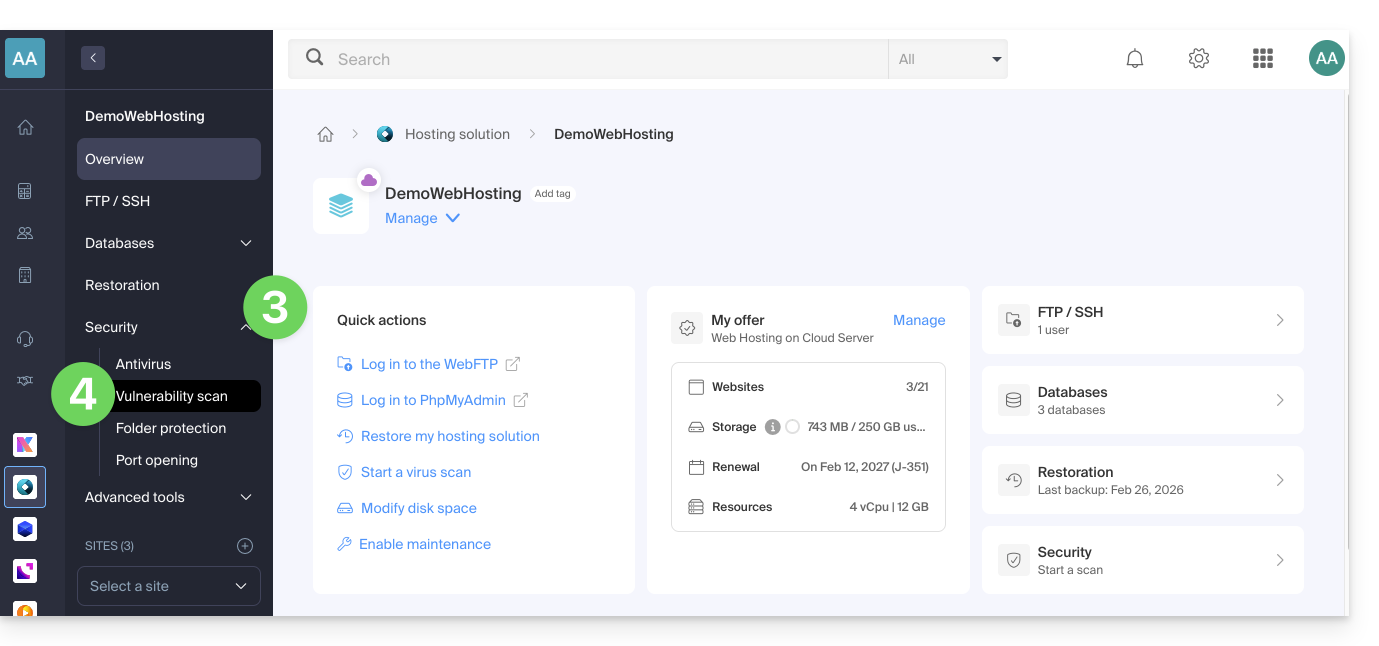
- Click on Security in the left-hand menu.
- Click on Vulnerability Scan in the left-hand menu:
- If nothing is displayed, first click the button to View History.
- If an event history exists, click the action menu ⋮ to the right of the vulnerability in question in the table that is displayed.
- Click on Cancel the fix.
- In some cases, other actions are possible:
- Apply the patch: immediately fixes the vulnerability.
- Cancel the patch: cancels the fix and restores the original vulnerable file (not recommended).
- Delete the file: permanently removes the malware from your hosting (may affect the operation of your site).
- Quarantine: isolates the vulnerable file and allows you to restore it if necessary (may affect the operation of your site).
- Cancel quarantine: restores the isolated file to its original location (not recommended).
- Add an exception: allows you to indicate to the tool that the vulnerable file is safe; it will no longer be analyzed.
- Remove an exception: removes the Allowed status from the file; it will be analyzed again.
Details of the different statuses
- VULNERABLE: a vulnerability has been detected in a file; the path column indicates the file's location.
- RESOLVED : the vulnerability has been fixed by the tool.
- AUTHORIZED : the vulnerable file has been manually authorized; it will no longer be analyzed by the tool.
- RESOLVED : a manual fix, external to the tool, was applied to the file (CMS update, source code modification, manual file deletion, etc.).
- PATCH REVERTED : the tool's fix was manually reverted; it is possible to reapply the patch.
Link to this FAQ: https://faq.infomaniak.com/2343
Has this FAQ been helpful?