Knowledge base
1000 FAQs, 500 tutorials and instructional videos. Here, there are only solutions!
Back up Linux with Acronis on Swiss Backup
This guide details how to back up a computer running the Linux distribution of your choiceusing Acronis on Swiss Backup, the backup solution in a Swiss independent cloud.
It is also possible to back up (Cloud Backup) a Linux server using rClone.
Prerequisites
- Check the Linux versions supported by the Acronis Agent; use
uname -rto find out your kernel version.- Refer to this other guide regarding AlmaLinux 9.
- Own an Swiss Backup Infomaniak space with an available device quota (minimum 1) for a VM or Linux/Windows server:
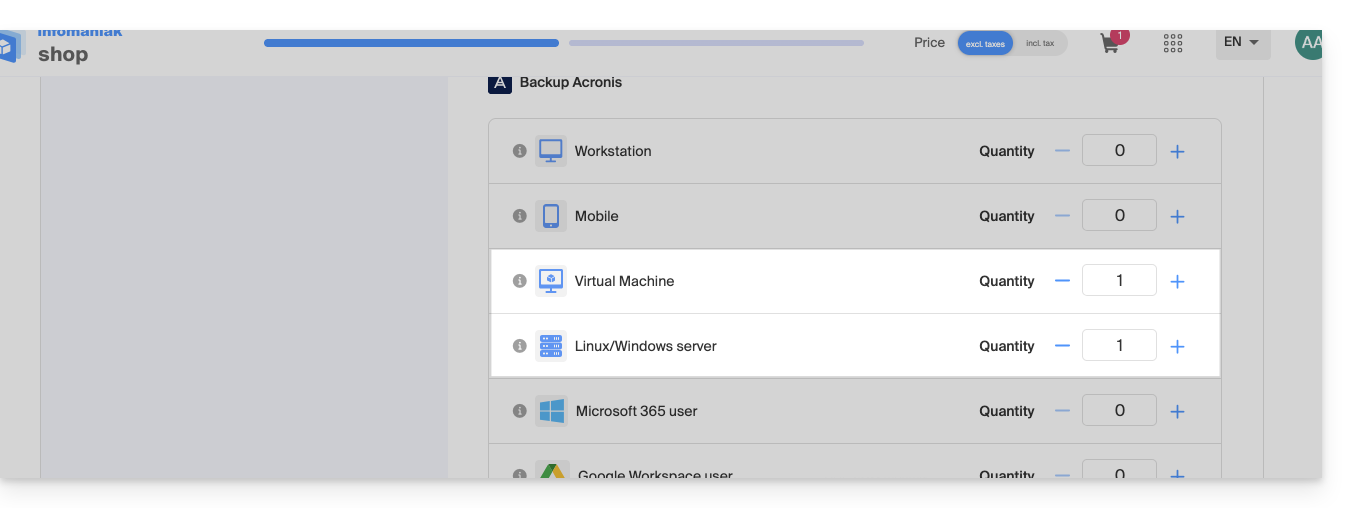
- If necessary, increase the device quota according to your needs.
- Add the device to the Infomaniak Manager to receive the login credentials.
Differences between devices
Choose Virtual Machine:
- Virtual machine hosted on a hypervisor environment (e.g. VMware, Hyper-V, Scale Computing HC3 or Virtuozzo).
- VPS server or virtual machine in an Infomaniak Public Cloud environment:
- These environments are based on virtualization technologies, and the license is designed to cover this type of configuration.
- The physical host that hosts the virtual machines must be covered by a single license, and this license includes all VMs present on that host.
- Hypervisor cluster with multiple hosts (each host requires a VM license).
Choose Linux Server:
- A physical machine or an individual virtual machine running on Linux (server operating system).
- A server-type machine (whether hosted locally or in the cloud, without a complex virtualization environment, and without a hypervisor like VMware or Hyper-V to manage virtual machines on this device).
- Each license covers a single physical or virtual machine.
- A physical server at your location or in a colocation facility.
Configure the backup
To install the Acronis Cyber Protect 15 agent on a Debian system using only the command line, without a graphical interface:
1. System update
Before installing anything, it is recommended to update the list of available packages.
sudo apt updateYou can view the list of available updates without installing them:
apt list --upgradablePartial update (optional)
If you only want to update specific packages:
sudo apt install package_name_1 package_name_2Complete system update (optional)
To apply all available updates:
sudo apt upgrade -y
2. Installing the required dependencies
The following packages are required for the Acronis agent to function correctly:
sudo apt install -y rpm gcc linux-image-$(uname -r) linux-headers-$(uname -r)
3. Downloading the Acronis agent
Download the official installer for the Acronis Cyber Protect 15 agent for Linux (full version):
wget "{{URL_8}}" -O acronis_agent.bin
4. Installing the agent
Make the file executable and start the installation:
chmod +x acronis_agent.bin

sudo ./acronis_agent.bin
The installation starts in interactive mode.
5. Registering the agent
At the end of the installation, a message will appear asking you to register the agent.
You will be provided with a registration code, such as:
Go to {{URL_9}}

Enter the code: AB12-CD34
Open the provided URL from another device with a browser (computer, tablet, or phone) and enter the displayed code to complete the registration.
Then, create a backup plan.
Link to this FAQ: https://faq.infomaniak.com/2342
Has this FAQ been helpful?