Knowledge base
1000 FAQs, 500 tutorials and instructional videos. Here, there are only solutions!
Download and configure kSync for Android
This guide explains how to download and use the Infomaniak kSync mobile app for Android devices (Samsung, Huawei, Google Pixel, etc.) which allows you to synchronize calendars and contacts between Android devices (with data stored with Infomaniak).
Introduction
- Once the kSync application is configured, the selected items are automatically synchronized with the Contacts and Calendar applications, which are installed by default on an Android device.
- You can choose to display or hide your various Infomaniak address books and calendars directly within these apps.
- Any modification (addition, editing, deletion) made on the phone is reflected in the Infomaniak interface, and vice versa.
- Data updates are performed continuously according to the configured synchronization interval.
- Refer to this other guide for an example of how to use kSync:synchronizing an Infomaniak calendar with a Google calendar.
Configure kSync
Prerequisites
- Download the Infomaniak kSync mobile app (application for Android smartphones or tablets) here:

- The kSync application is also available on F-droid.
- Install kSync.
Next, launch the kSync app on your Android device. A step-by-step assistant will help you configure the app according to your needs:
- Decide whether you want to synchronize tasks.
- Allow kSync to access the required items on the device, primarily the calendar.
- Allow the application to run in the background for better synchronization (uses more battery); settings can also be configured within the app itself:
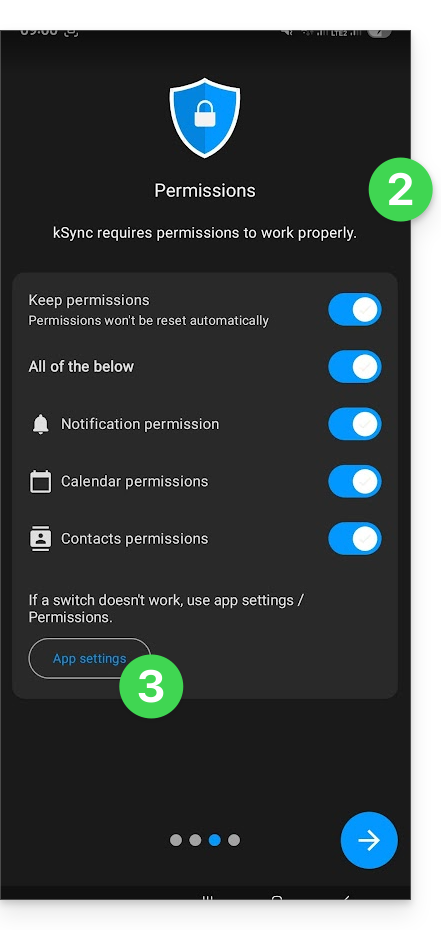
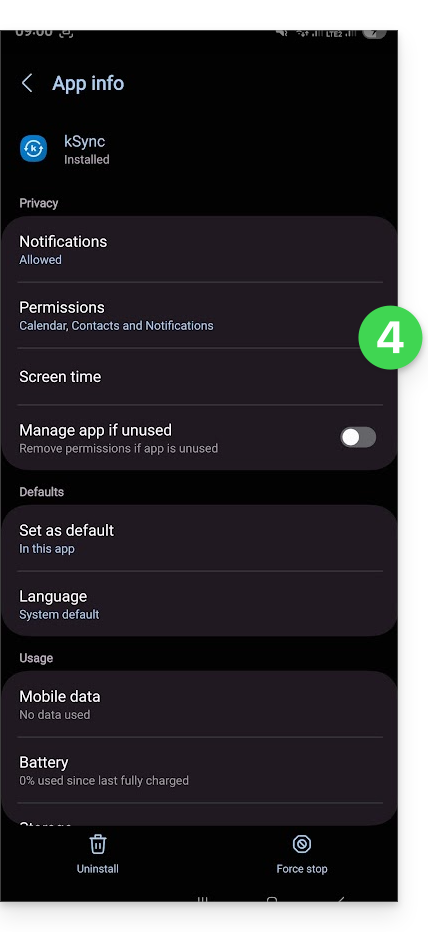
- The key is to grant access rights to the services you need to synchronize:
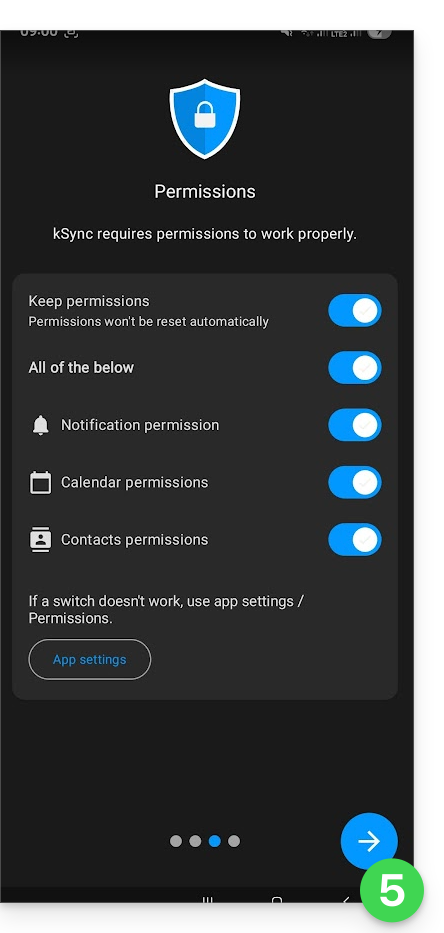
- Go back to the kSync app and continue the configuration:
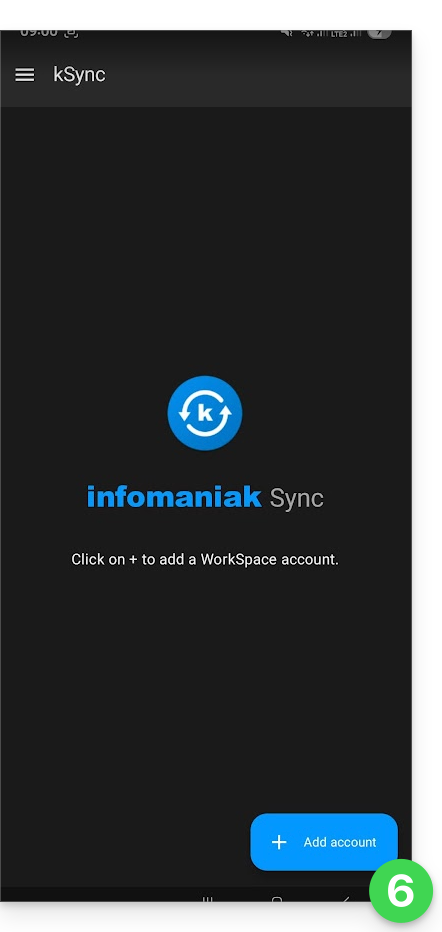
- Tap to add an Infomaniak user account (the one you use to log in to your Infomaniak services):
- For example, in the Calendar web app, the user menu in the top right corner shows the login email address.
- You can then access the calendars of the Organization to which the current user belongs:
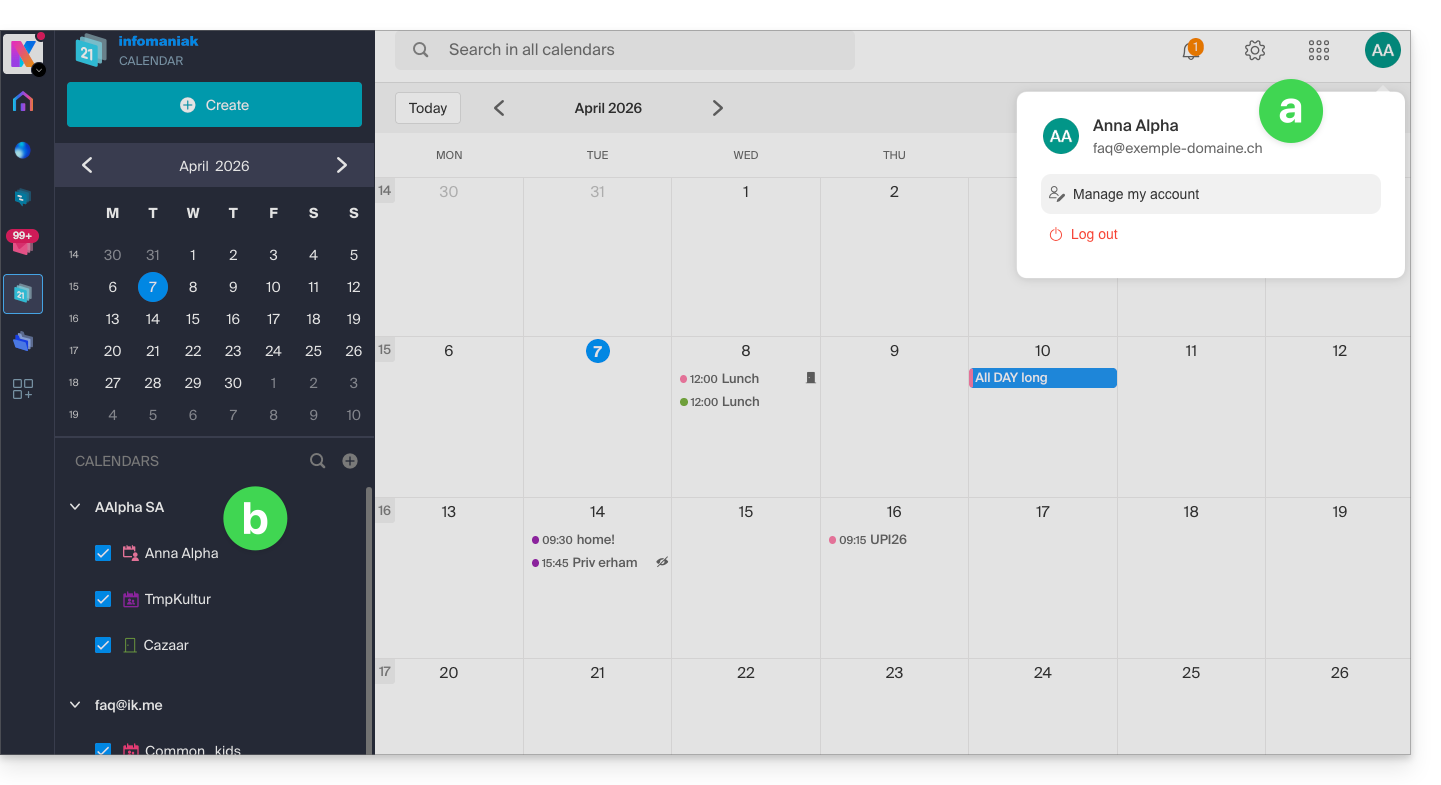
- This is the data that will be synchronized to your device when you log in to the same Infomaniak account on kSync…
- Enter your Infomaniak login credentials (see point a above).
- Tap the button to log in:
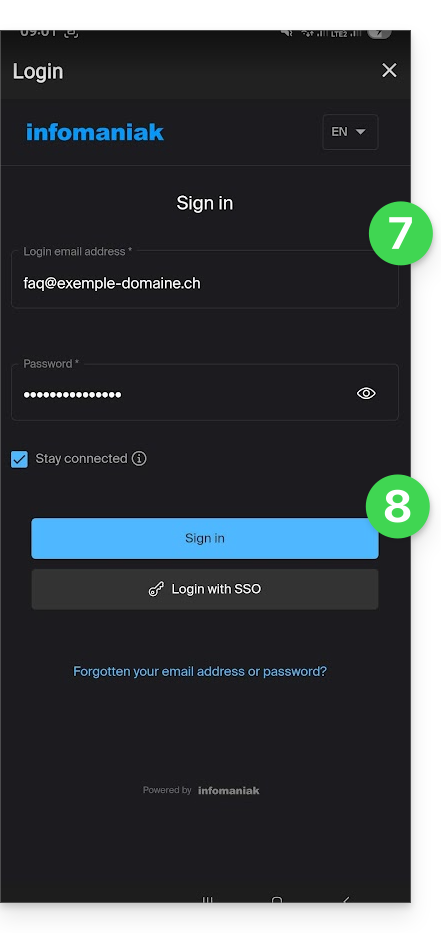
- Complete the two-factor authentication steps as you normally would when logging in.
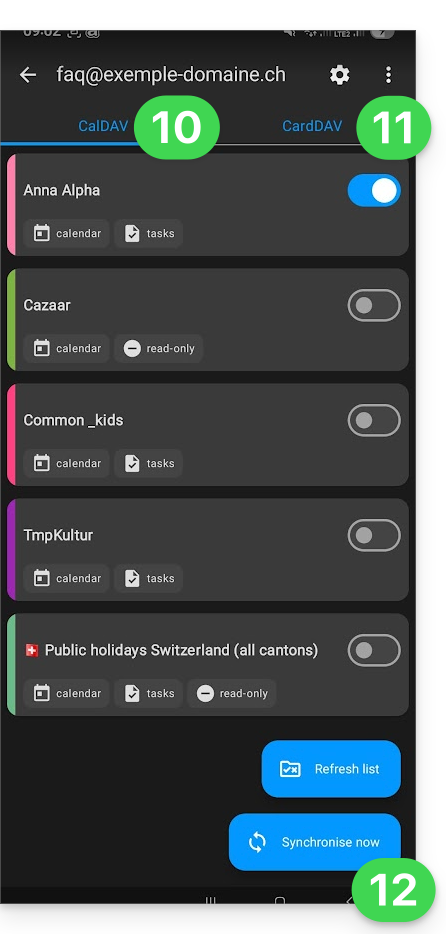
- Once logged in to kSync, under the Calendars CalDAV tab, choose the calendar(s) that should be displayed on your device.
- Under the Address Books CardDAV tab, choose the address book(s) that should be displayed on your device.
- Start the synchronization using the button located in the bottom right corner:
kSync synchronization settings
Click on Settings in the top right corner to adjust some important kSync settings:
- Synchronization interval: you can change the frequency of synchronizations (15, 30, 60 minutes, etc.) for each type of information (address books, calendars, tasks).
- Synchronization via Wi-Fi only (and if so, with which networks...).
- Limit the display of past events.
- Receive a notification for each event that does not have a specific reminder, with a notification delay defined in advance (in minutes).
- Display event colors and persistently synchronize the colors or not.
- Displaying contact groups.
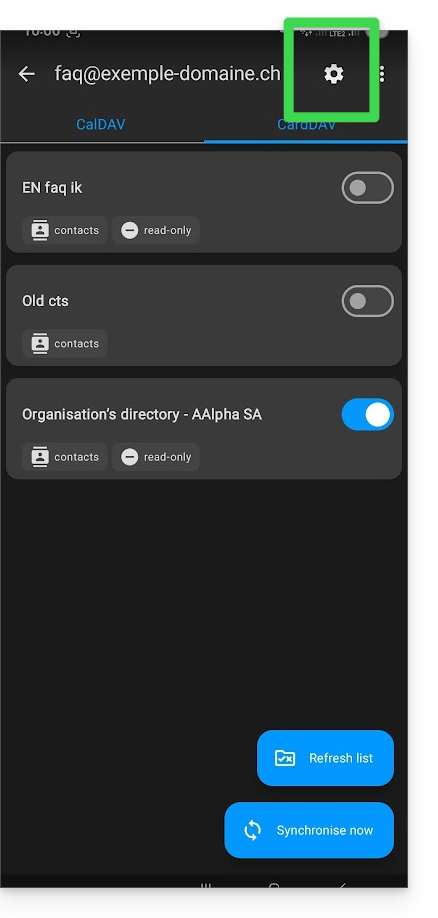
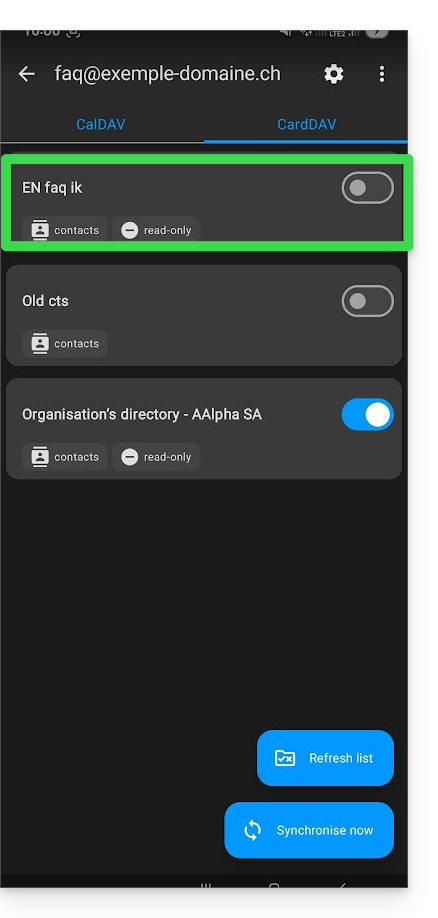
You can also tap on the address books or calendar to configure certain elements:
- It is possible to force read-only mode via kSync, which means that items are synchronized but cannot be modified by the device.
- You can also delete a calendar or address book (excluding the Organization's directory):
Rename/remove the Infomaniak account from kSync
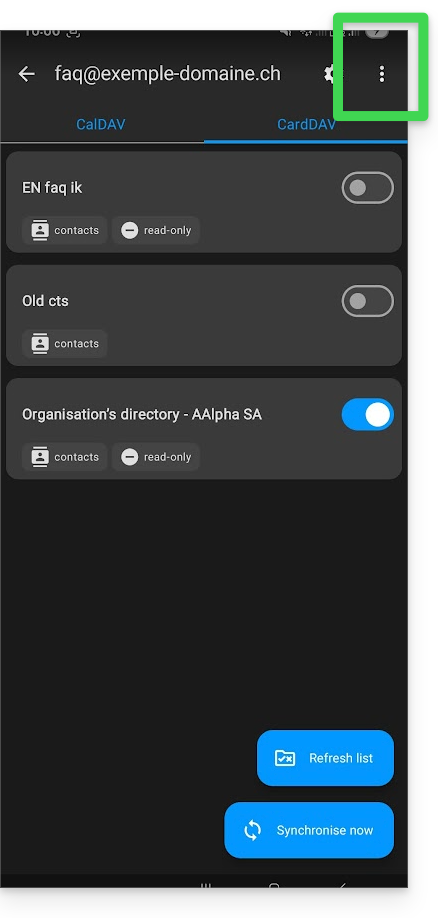
Tap the action menu ⋮ located to the right of the account in question:
- You can create a new address book or calendar.
- You can rename or delete the account linked to kSync:
General kSync app settings
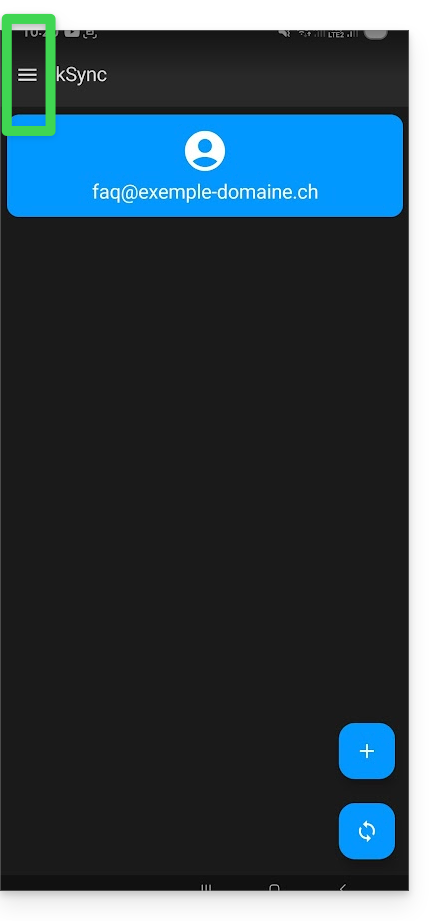
Tap the back arrow in the top left corner of the screen to return to the home page.
- Then, tap the menu button with three horizontal lines ☰ and then tap the “Settings” menu item:
Link to this FAQ: https://faq.infomaniak.com/2298
Has this FAQ been helpful?