Knowledge base
1000 FAQs, 500 tutorials and instructional videos. Here, there are only solutions!
Order a Swiss Backup storage space
This guide explains how to obtain a backup space with Swiss Backup, the backup solution in an independent Swiss cloud.
Prerequisites
- Determine which type of device needs to be backed up to Swiss Backup:
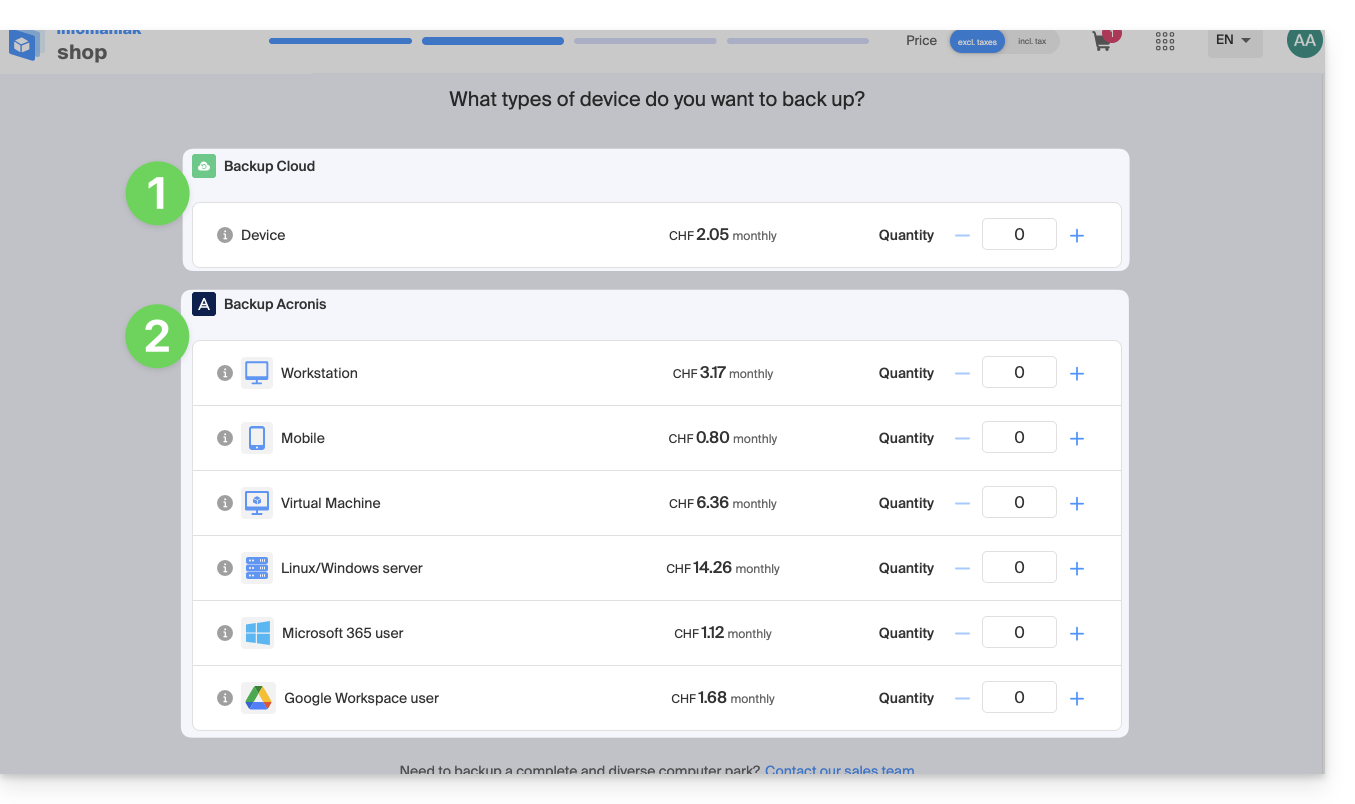
CLOUD backups - allows you to back up and synchronize files via the following protocols:
- Swift (recommended)
- FTP / SFTP
- S3 Compatible
- Synology NAS system
using the application of your choice…
ACRONIS backups - the ideal solution for backing up:
- Windows / macOS workstations
- Android / iOS (iPhone) mobile devices
- Windows / Linux servers
- VMware, Hyper-x, Virtuozzo virtual machines...
- Microsoft 365 / Google Workspace spaces…
using the Acronis Cyber Protect Cloud software, which allows you to store backup data using Swift in the backend and create "protection plans" where you can choose between:
- backing up the entire machine (all hard drives attached to the machine via SATA)
- backing up files / folders (of your choice specifically)
- backing up volumes / disks (if you have external disks)
- scheduling backups
- backup retention period
- restoring backups
- encrypting backups
Get Swiss Backup
To order Swiss Backup storage space:
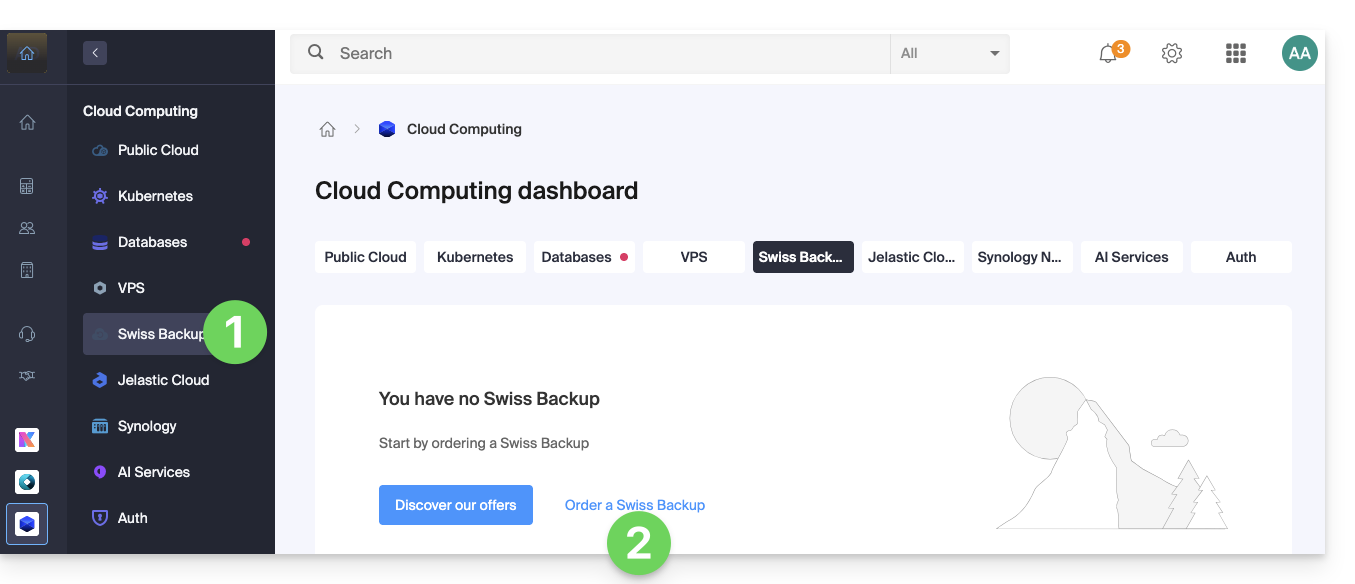
- Click here to access the management of your product in the Infomaniak Manager (need help?).
- Click on Order:
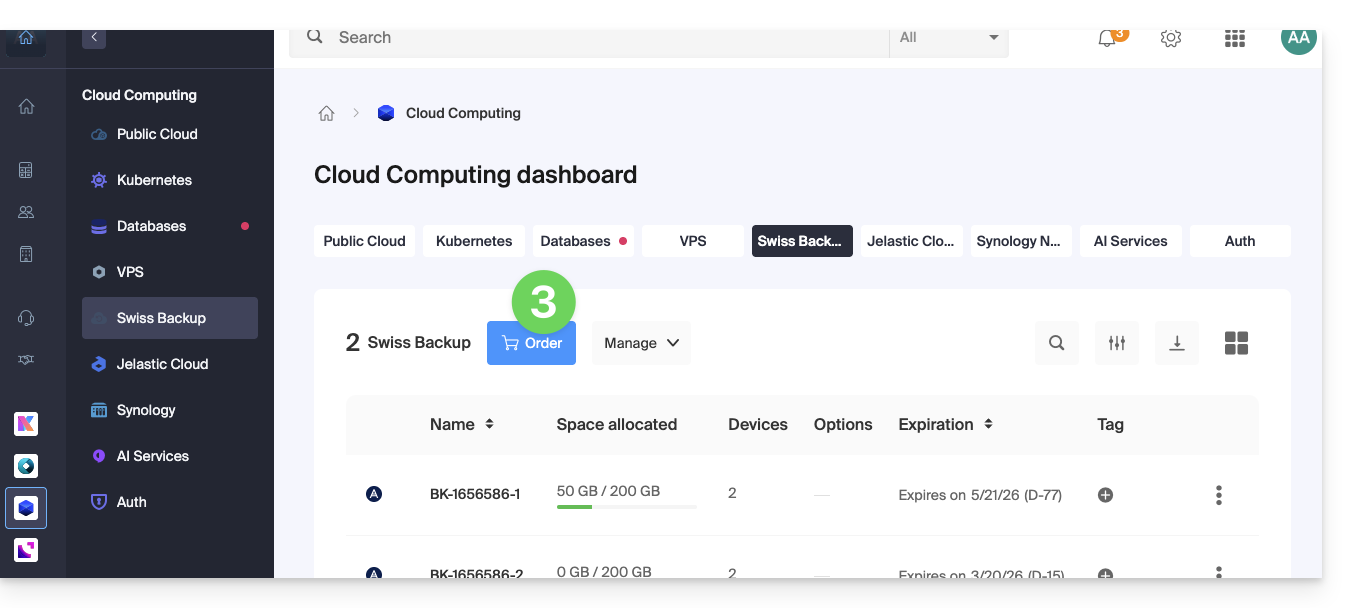
- or on the shopping cart icon if a Swiss Backup product is already active on the Organization and you want to order an additional one:
- Choose the maximum size of all the storage space needed for your project(s), regardless of the number and type of backups you will perform:
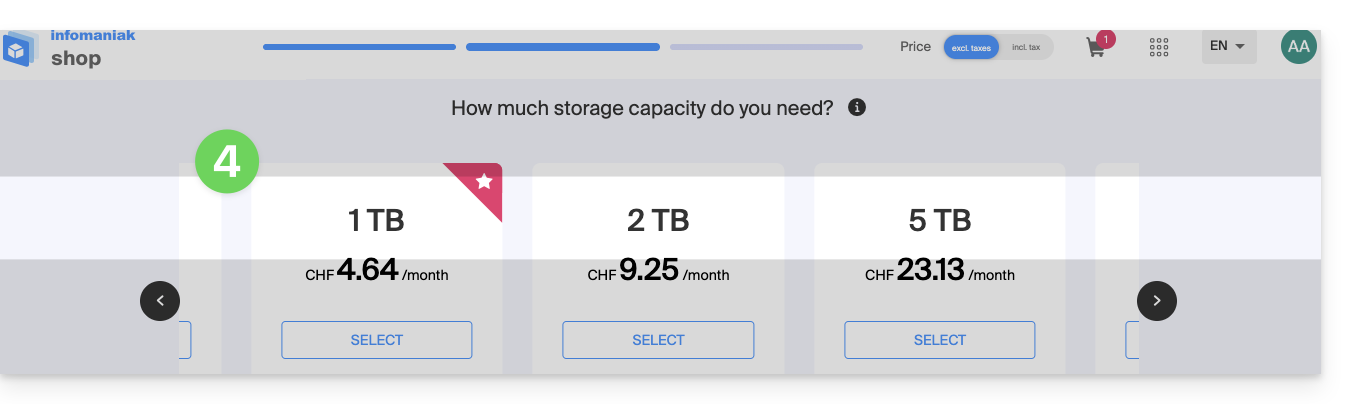
- Here, the example project involves backing up two things:
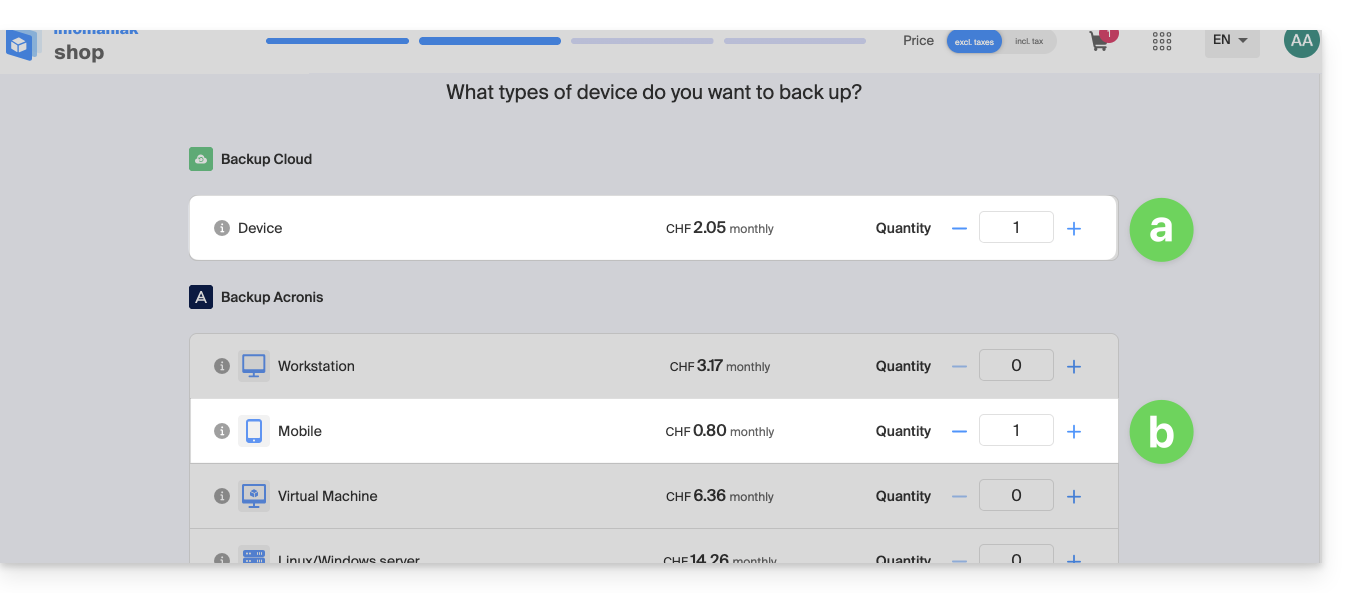
- important and large documents located on 1 NAS
- photos/videos from an Android mobile device
- Complete the order and pay.
- The Swiss Backup product is displayed in your Manager, showing the disk space and quotas selected during the order:
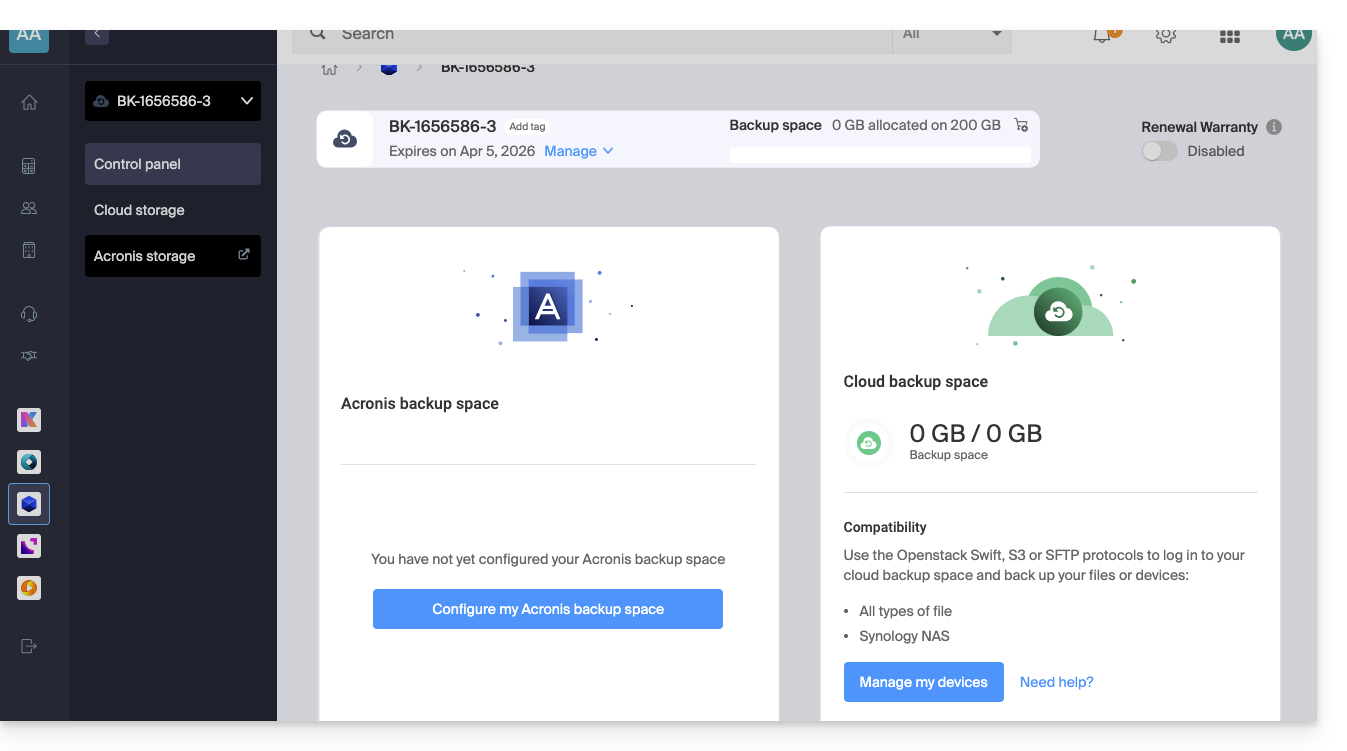
- You can now add the desired devices to your Swiss Backup interface: refer to this other guide.
Link to this FAQ: https://faq.infomaniak.com/2291
Has this FAQ been helpful?