Knowledge base
1000 FAQs, 500 tutorials and instructional videos. Here, there are only solutions!
Restore macOS with Acronis from Swiss Backup
This guide details how to restore an Apple macOS computer using Acronis on Swiss Backup, the backup solution in a Swiss independent cloud.
Prerequisites
- The Acronis application must be installed on the computer on which you want to perform the restore; use the same credentials as those used to back up the machine when registering the agent:
- Click here to access the Acronis Console with the credentials obtained after adding the device (need help?).
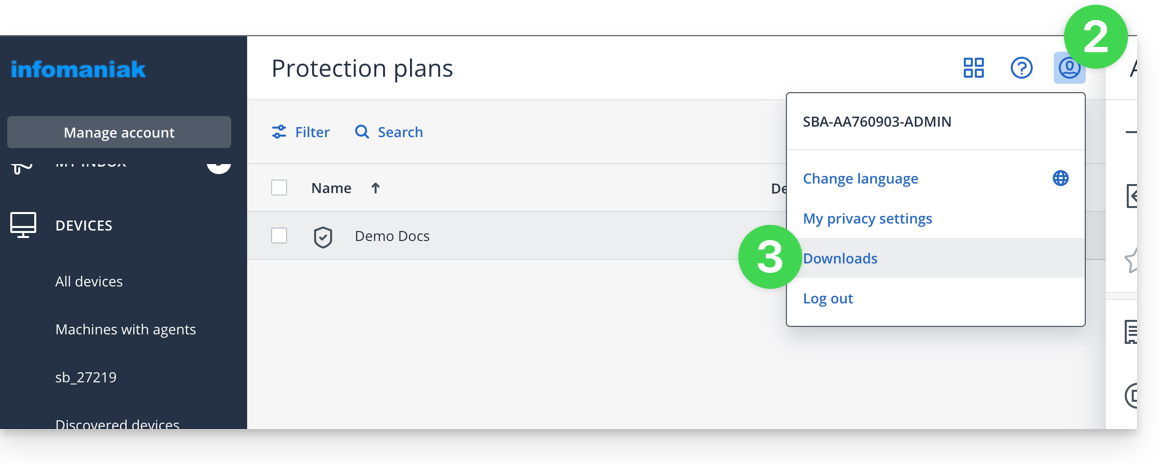
- Click on the user icon at the very top right.
- Click on Downloads:
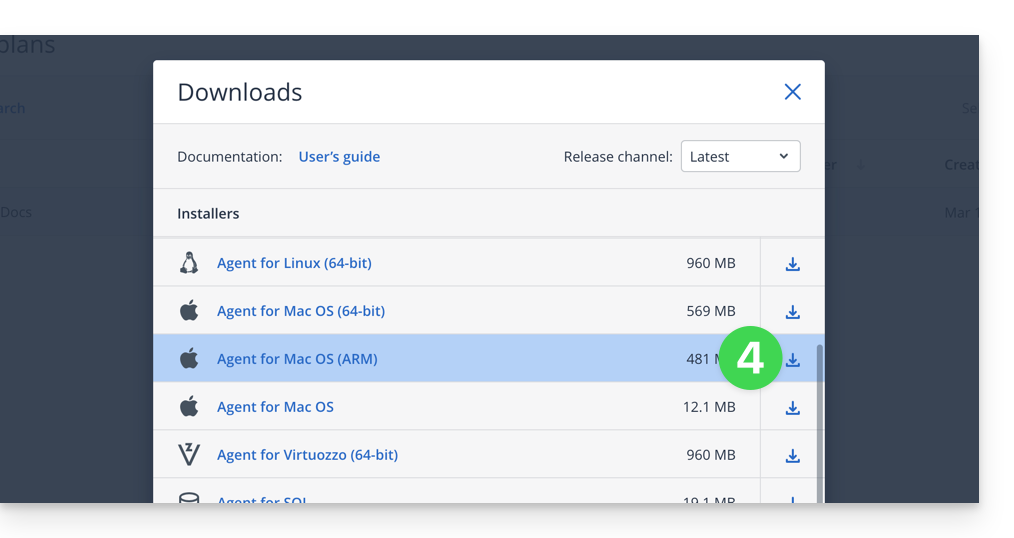
- Choose the client suitable for your macOS machine:
Create a bootable USB drive
To do this:
- Insert an empty USB drive of at least 4 GB into your computer (please note: the data contained on the drive will be deleted).
- Open the Rescue Media Builder application from the Applications folder in your macOS Finder. This application is automatically installed with the Acronis application.
- Check the detected USB drive and click Create Media.
Start the restoration process
To do this:
- Restart your macOS computer using the bootable USB drive.
- Depending on the macOS version, press and hold a key on the keyboard (refer to this Apple guide to find out which one) during the restart.
- If necessary, click on the bootable USB drive to start from it.
Configure and start the restore
To do this:
- Select your key in Rescue Media Builder:

- Click on Bootable recovery media:

- Click on Recover:

- Click on Select data:
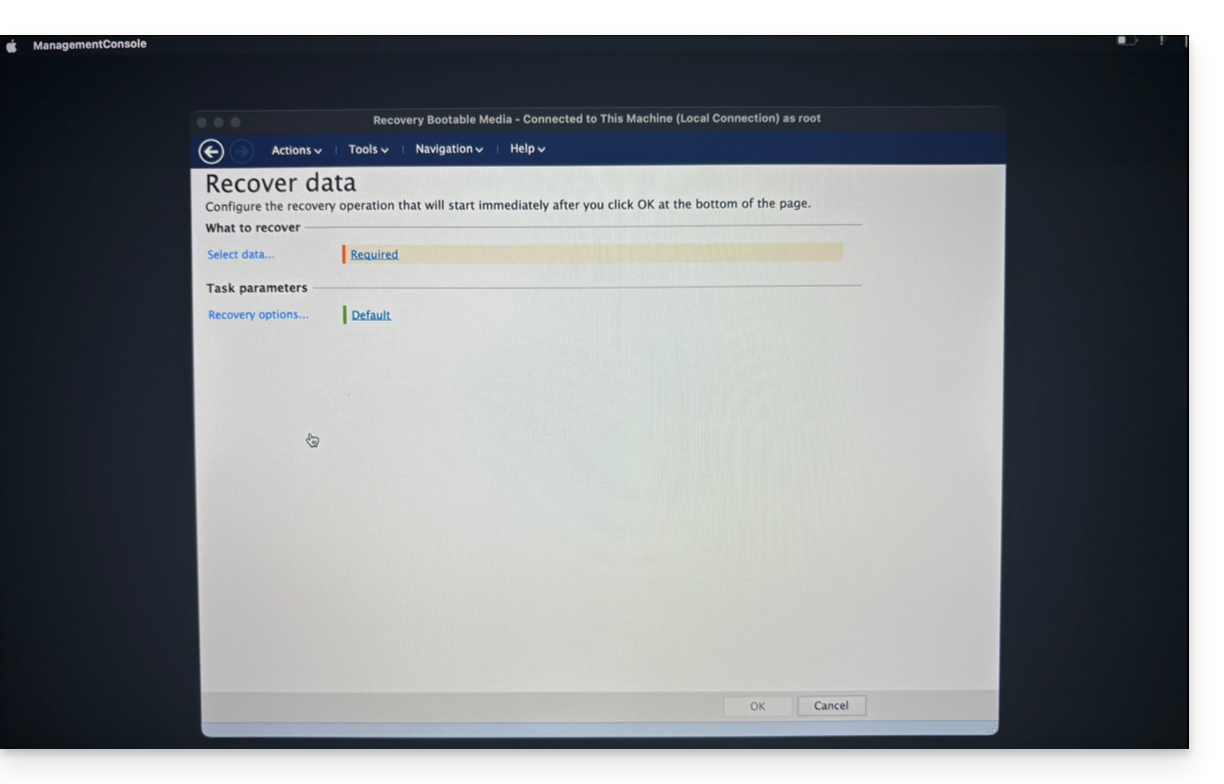
- … then click on Browse:

- and select Cloud Storage; then click the Log In button:

- Use the device credentials to authenticate:

- Choose the macOS device to restore, then click OK to start the restoration:

- If you chose to encrypt your backups, you will be prompted for the backup password:

- In the upper part of the screen, select the available backup you want to restore:

- Once the backup is selected, you can select the type of item to restore and which ones you want to restore in the lower part of the screen; it is recommended to select the Volumes type and restore all available volumes, in order to restore all of your hard drives... then start the restoration by clicking the OK button:

- The restoration process will then begin, and you can monitor its progress via the Progress tab:

Once the process reaches 100%, the macOS machine will restart several times in a row (this is normal) until the entire procedure is complete.
Link to this FAQ: https://faq.infomaniak.com/2289
Has this FAQ been helpful?