Knowledge base
1000 FAQs, 500 tutorials and instructional videos. Here, there are only solutions!
Restore Windows with Acronis from Swiss Backup
This guide details how to restore a Windows computer using Acronis on Swiss Backup, the backup solution in a Swiss independent cloud.
Prerequisites
- Have a backup of your computer on Swiss Backup (refer to this other guide).
- Refer to the Acronis documentation regarding the restoration of physical machines.
- The computer to be restored must be connected to the internet via an Ethernet cable (or Wi-Fi, depending on the computer's capabilities).
Restore the backup
To get started, from the computer in question or any other device:
- Click here to access the Acronis Console using the credentials obtained after adding the device (need help?).
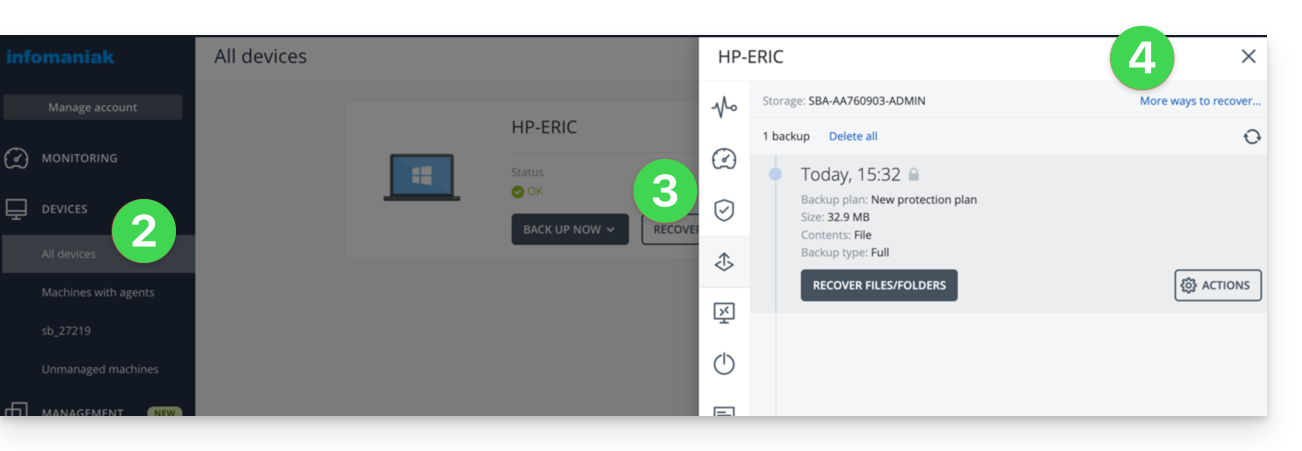
- Click on Devices in the left-hand menu.
- Click on the Restore button for the relevant backup plan.
- Click on other ways to restore at the top of the interface:
Navigating through saved files
If necessary, you can first simply restore the files you need, either locally or remotely:
- Click on the Upload files button (in the Browse Cloud storage section).
- Open the relevant backup.
- Enter the encryption password if required.
- Browse the file system and select your files:
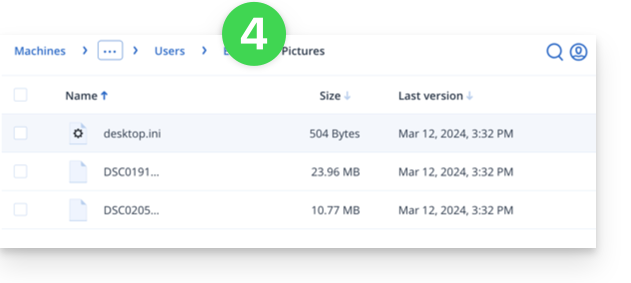
- Click on Download to obtain a
.zipfile containing your selected files.
You can also consult this other guide.
Create a bootable disk (e.g., on a USB drive)
To create a Windows bootable disk and enable computer recovery:
- Click on the Upload an ISO image button (in the Restore an entire machine section):
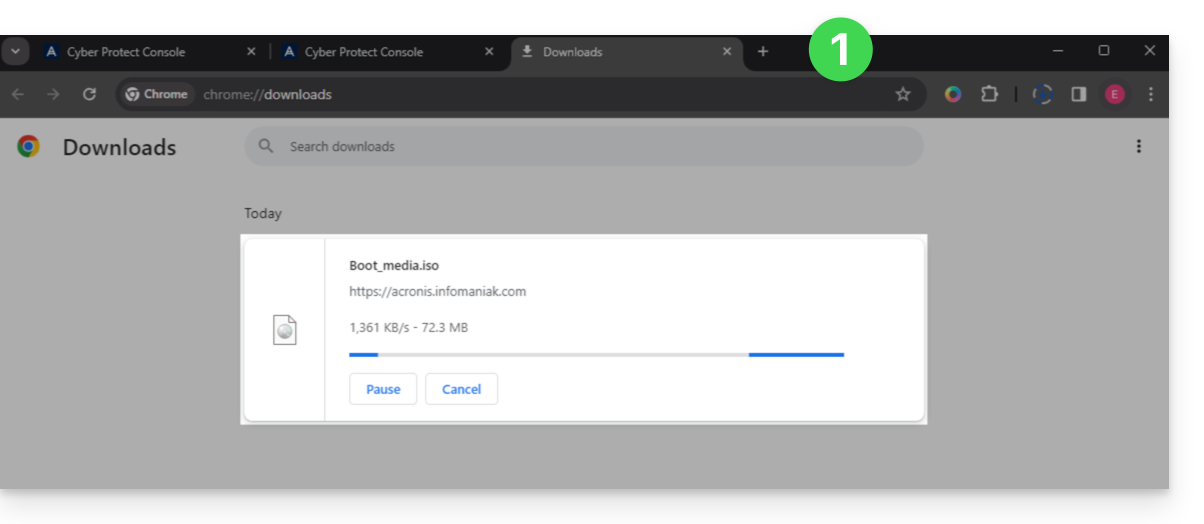
- Note down the code in a safe place, which is in the format
AA11-BB22-CC33and appears on the screen (more information). - Use software like Etcher to create a bootable disk from the downloaded
.isofile.
Boot the computer from the removable media
Start the computer from this boot disk (by pressing the required key depending on your machine: F1, F2, F10, F12, DEL, etc.) and then follow these steps:
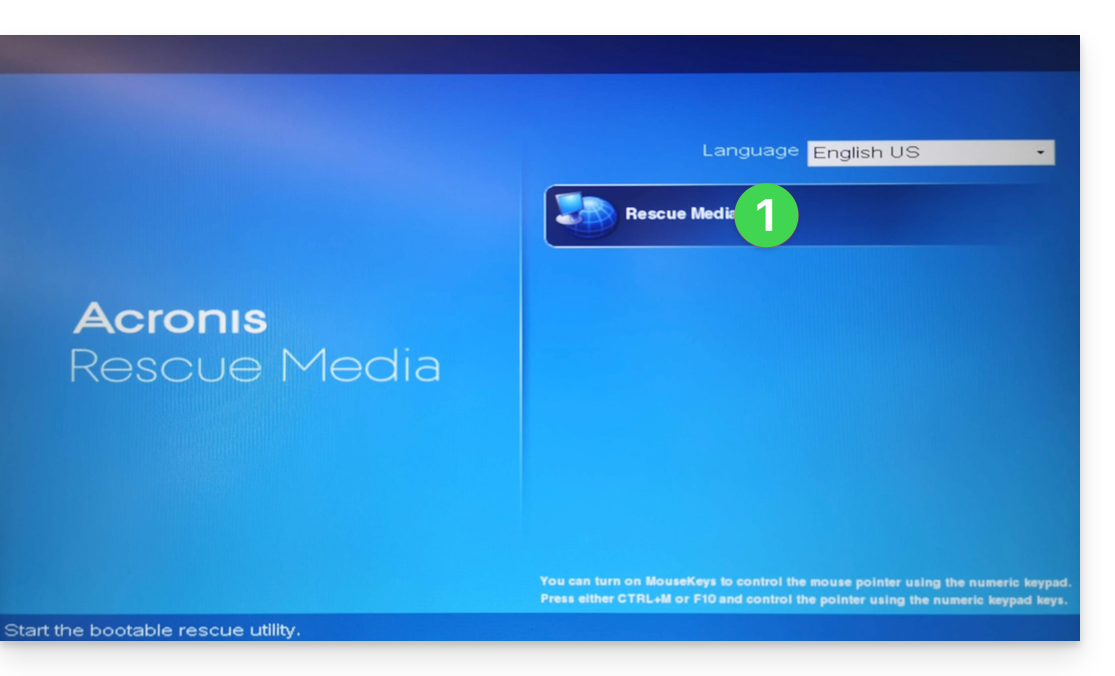
- Click on Rescue Media:
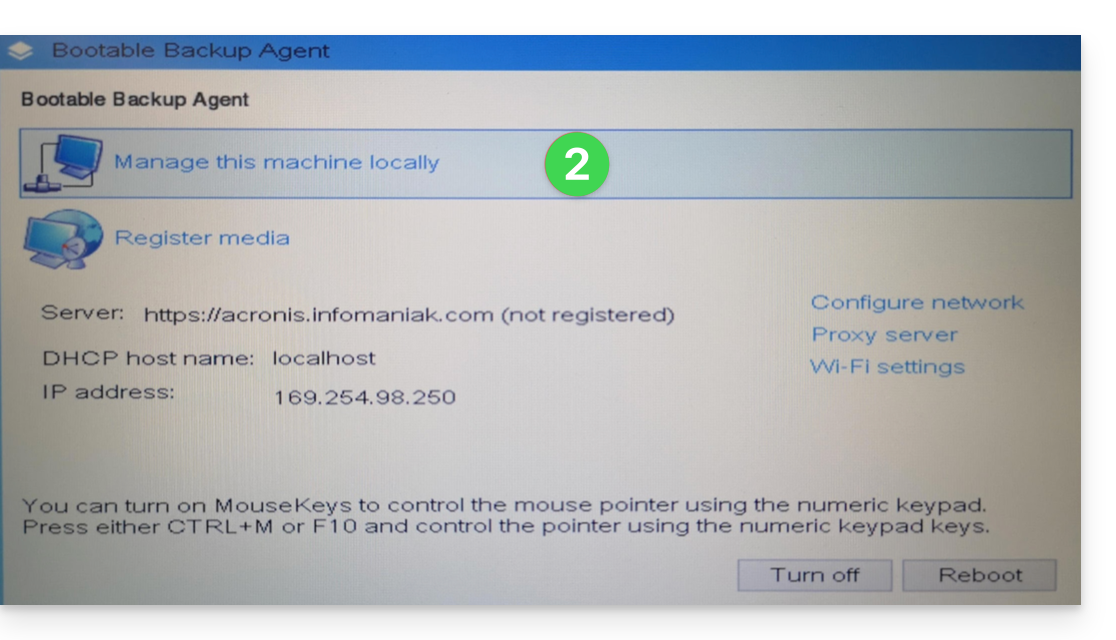
- Connect the computer via Ethernet (or, if necessary, configure the Wi-Fi using the link on the right side of the interface if the computer supports it), then click on Manage the device locally:
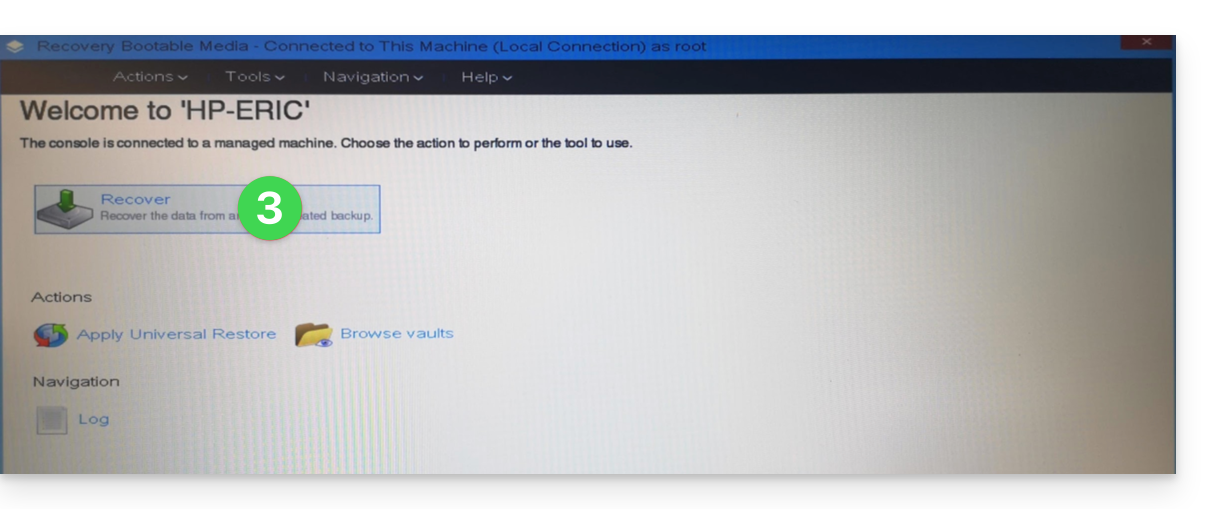
- Click on Restore:
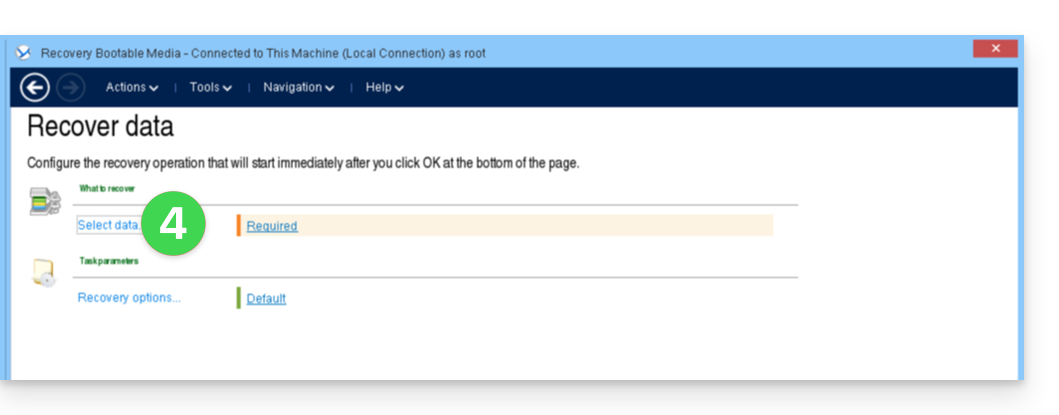
- Click on Select data...
- Click on the Browse button:
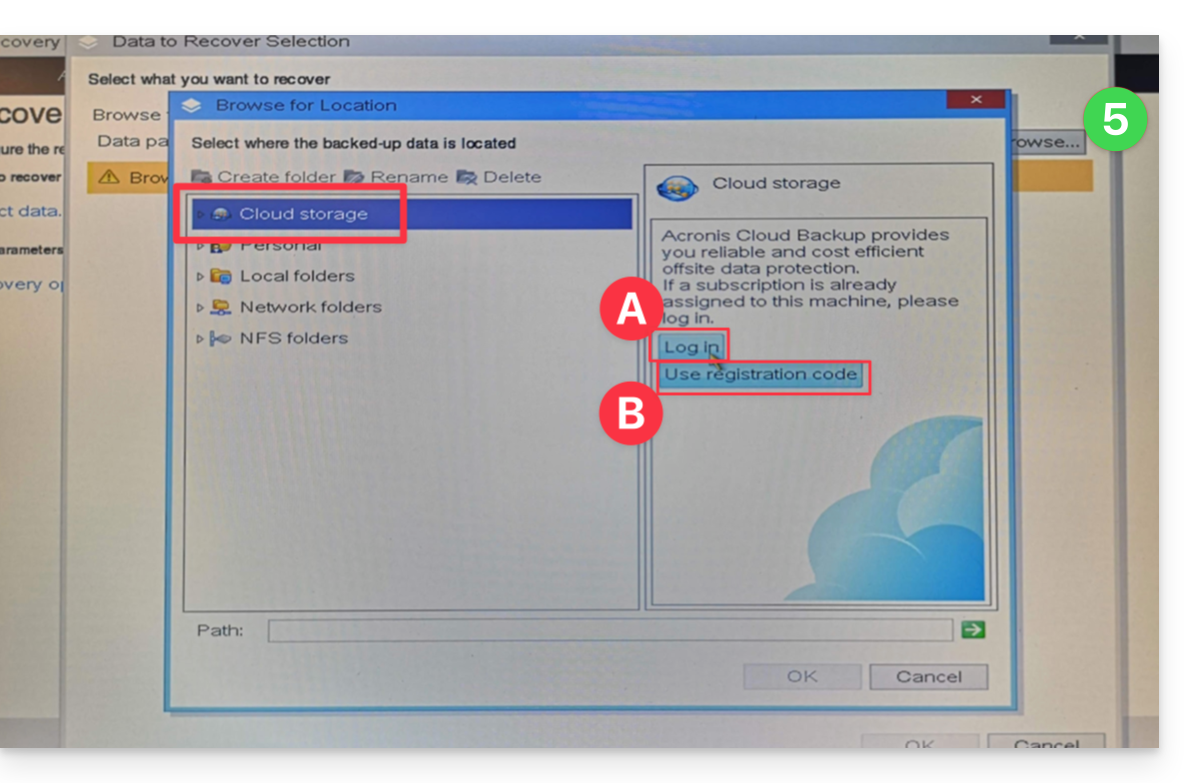
- Under Cloud Storage, click on either:
- Log In and use your Acronis credentials (in the format
SBA-XXXX-ADMIN) to authenticate (the keyboard is set to EN-US by default, so make sure to type the password clearly so you can verify it if necessary):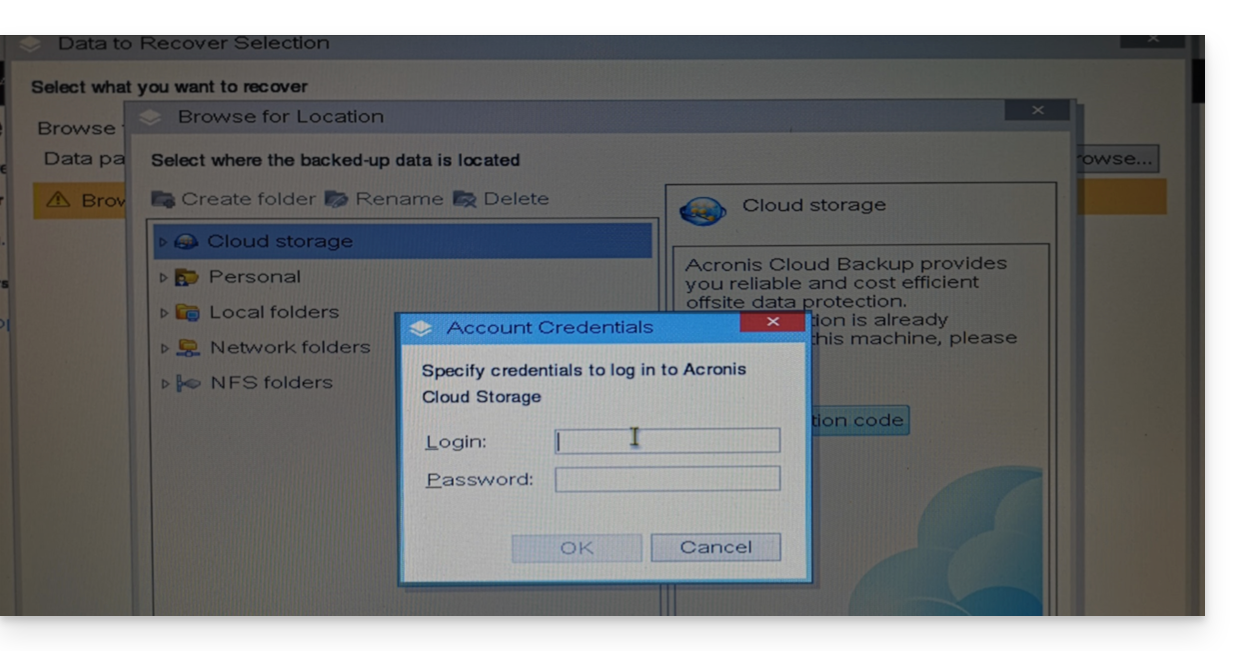
- OR Use the registration code if you have 2FA enabled, by following the proposed procedure (which involves requesting a temporary code (in the format ABCD-ABCD) and then going to the
https://acronis.infomaniak.com/ui/#w=agentRegistrationpage to enter this code after logging into your Acronis account):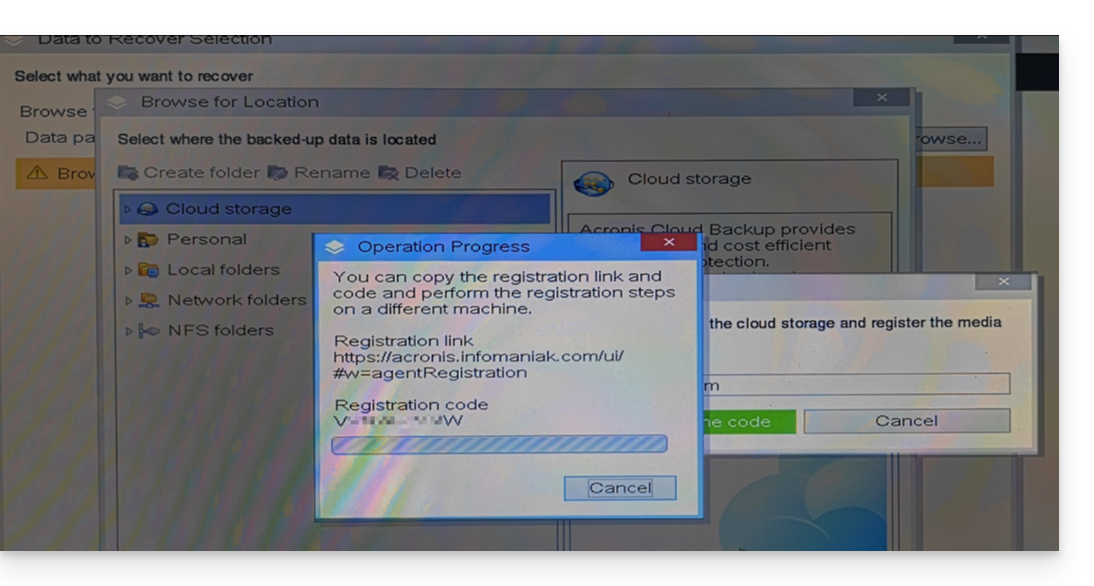
- Log In and use your Acronis credentials (in the format
- Then, click on your Acronis account ID and proceed to access the backups (the encryption password will be requested if it was enabled - see point 12 of this guide).
- Choose the workstation, the restore point, and the volumes (disks) to restore:
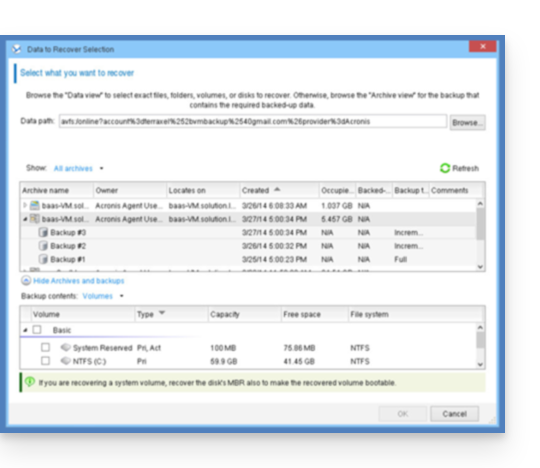
Useful information:- Use the arrow to the left of the workstation name to display the backups…
- The first table at the top allows you to choose the workstation and the backup to restore…
- The second table allows you to choose the content (the disks) of the backup to restore…
- Click OK to continue.
- Match the source and destination volumes:
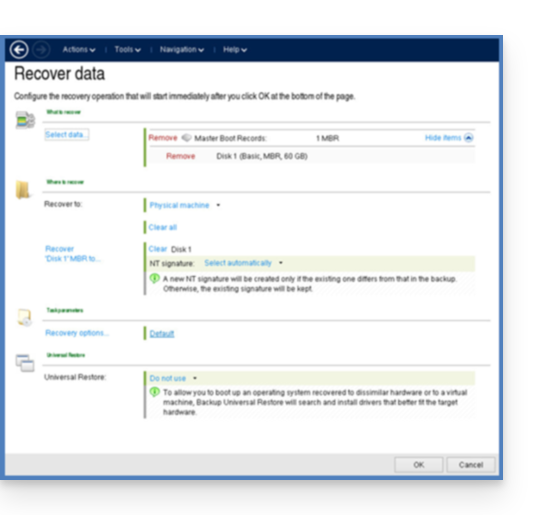
Useful information:- For each volume or disk in the source backup, click Required to choose where to restore the data.
- Under Restore Options, it is recommended to check the Automatic Restart box.
- Click OK to start the restore process.
Link to this FAQ: https://faq.infomaniak.com/2288
Has this FAQ been helpful?