Knowledge base
1000 FAQs, 500 tutorials and instructional videos. Here, there are only solutions!
Back up macOS with Acronis on Swiss Backup
This guide details how to back up an Apple macOS computer using Acronis on Swiss Backup, the backup solution in a Swiss independent cloud.
Prerequisites
- Check the macOS versions supported by the Acronis Agent.
- Have an Infomaniak Swiss Backup space with an available device quota (minimum 1) for macOS:
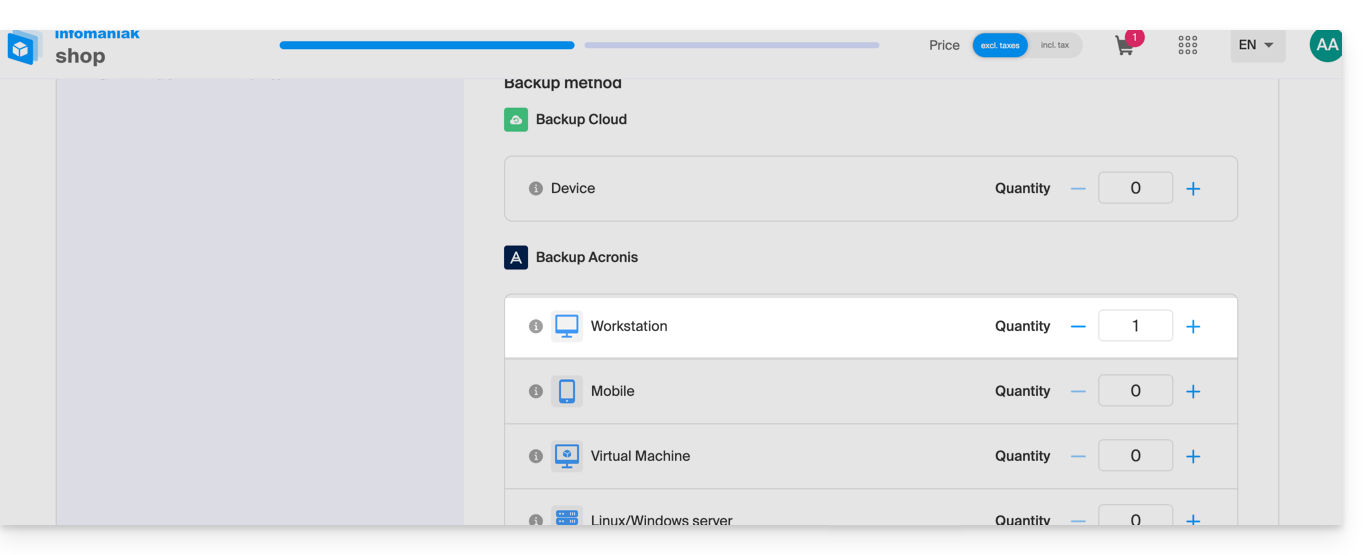
- If necessary, increase the device quota according to your needs.
- Add the device to the Infomaniak Manager to receive the login credentials.
Configure the backup
To configure the backup with Acronis:
- Click here to access the Acronis Console using the credentials obtained after adding the device (need help?).
- Download and install the Acronis Agent for macOS (need help?):
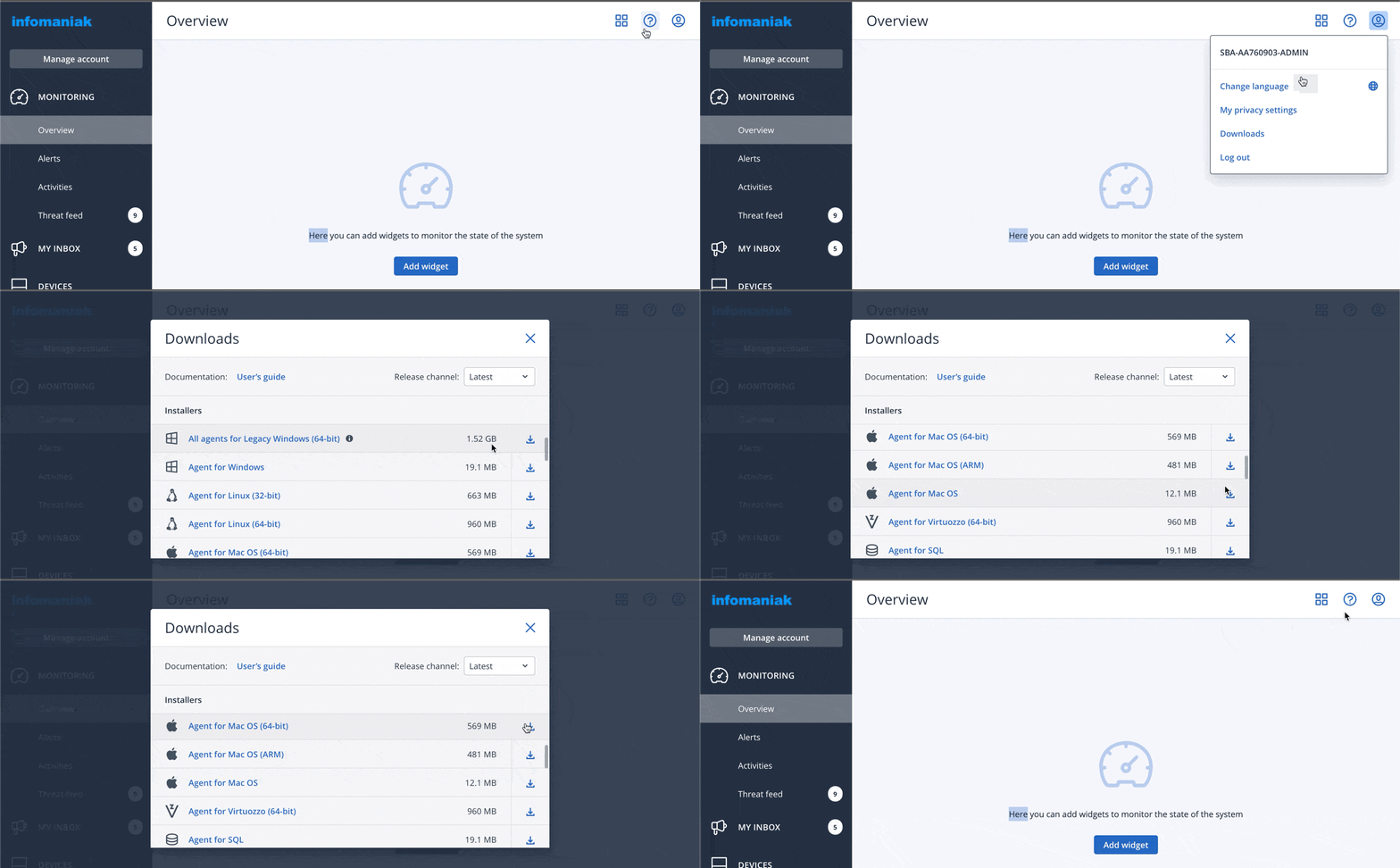
- Also, refer to the chapter below regarding disk access requested by the installer.
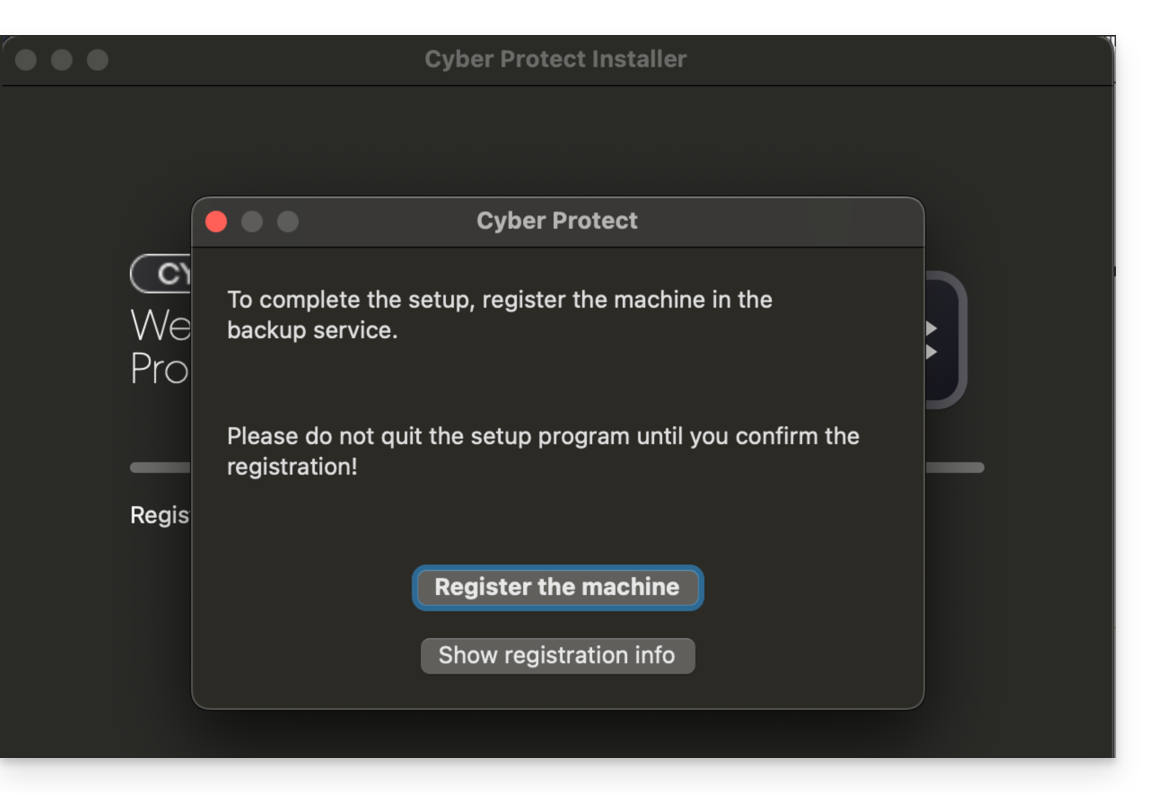
- Click on Register Machine at the end of the Cyber Protect installation:
- Do not modify the code provided, select the relevant user if necessary, and click on Verify Code:
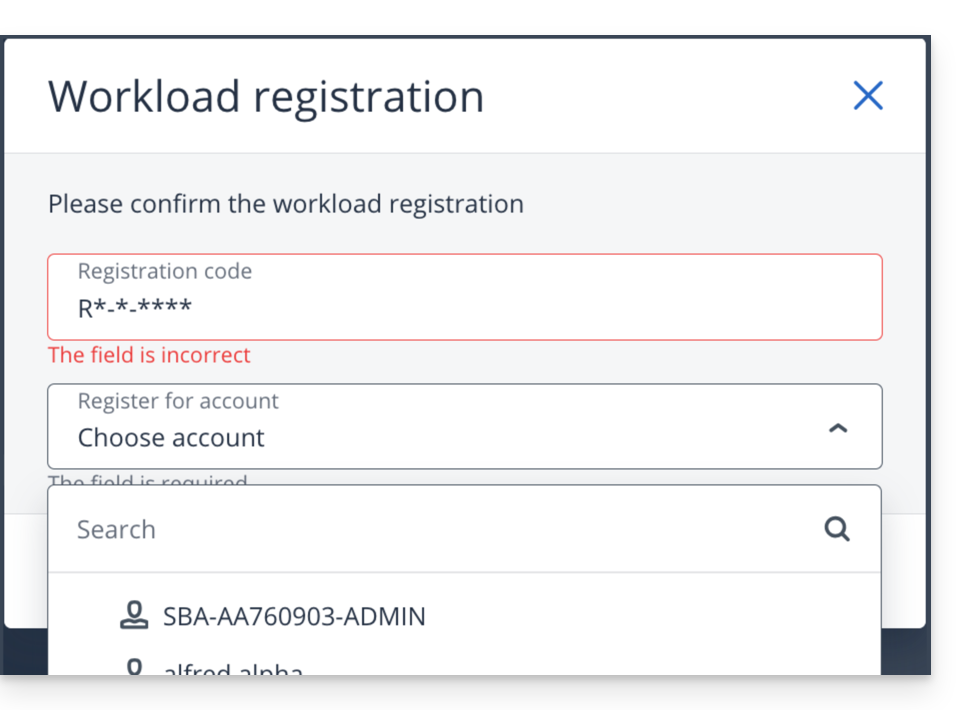
- Refer to this other guide if machine registration fails.
- Create a backup plan.
Password and access permissions
When installing the desktop app (point 2 above), the password required is that of your Mac (user account).
You will also need to grant (from macOS settings) full disk access to the Acronis Cyber-Protect-Service agent: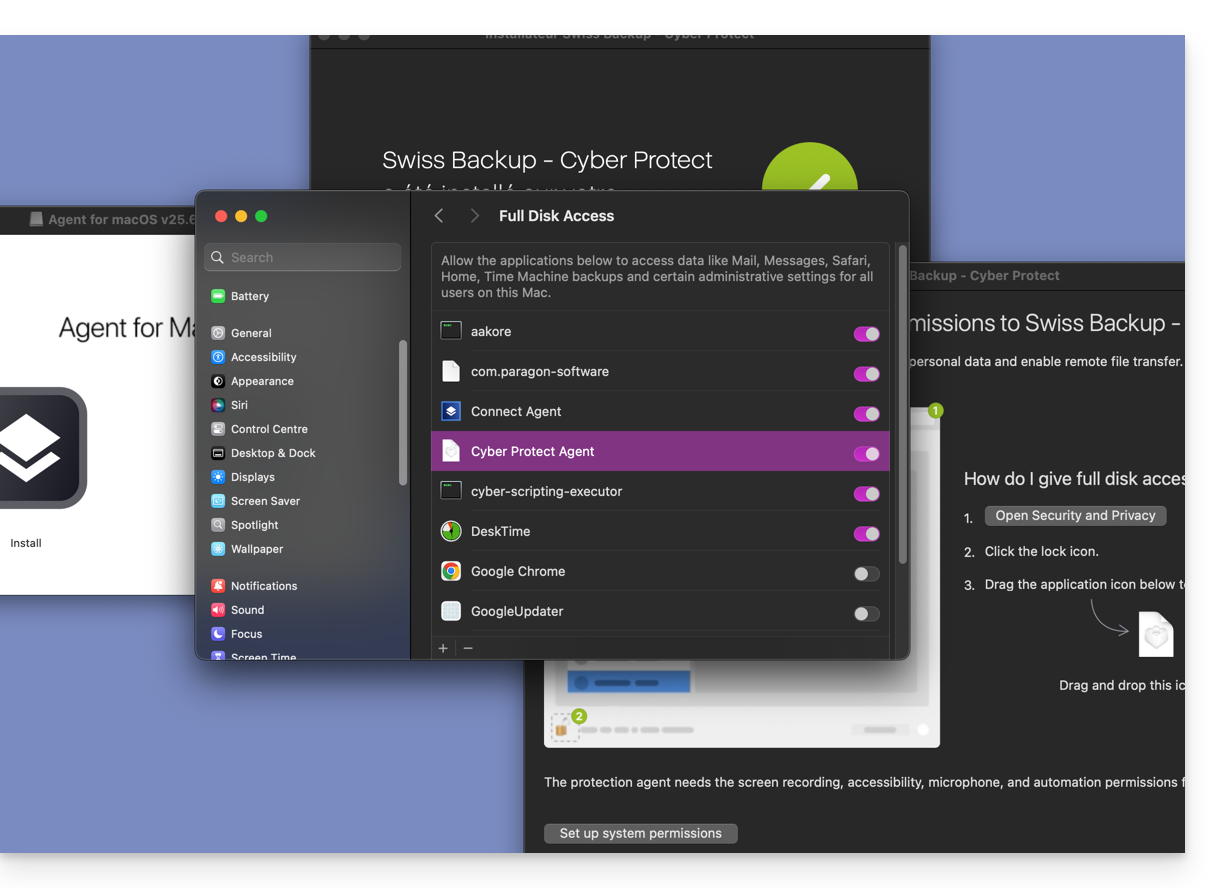
Access and restore your backed-up files
Refer to this other guide for restoring your data.
Link to this FAQ: https://faq.infomaniak.com/2281
Has this FAQ been helpful?