Knowledge base
1000 FAQs, 500 tutorials and instructional videos. Here, there are only solutions!
Back up Windows with Acronis on Swiss Backup
This guide details how to back up a computer running Microsoft Windows using Acronis on Swiss Backup Infomaniak, the backup solution in a Swiss independent cloud.
It is also possible to back up Windows installed on a virtual machine such as VMware, Virtuozzo, or Microsoft Hyper-V.
Prerequisites
- Check the Windows versions supported by the Acronis Agent.
- Have a Swiss Backup space with an available device quota (min. 1) for Windows (see below).
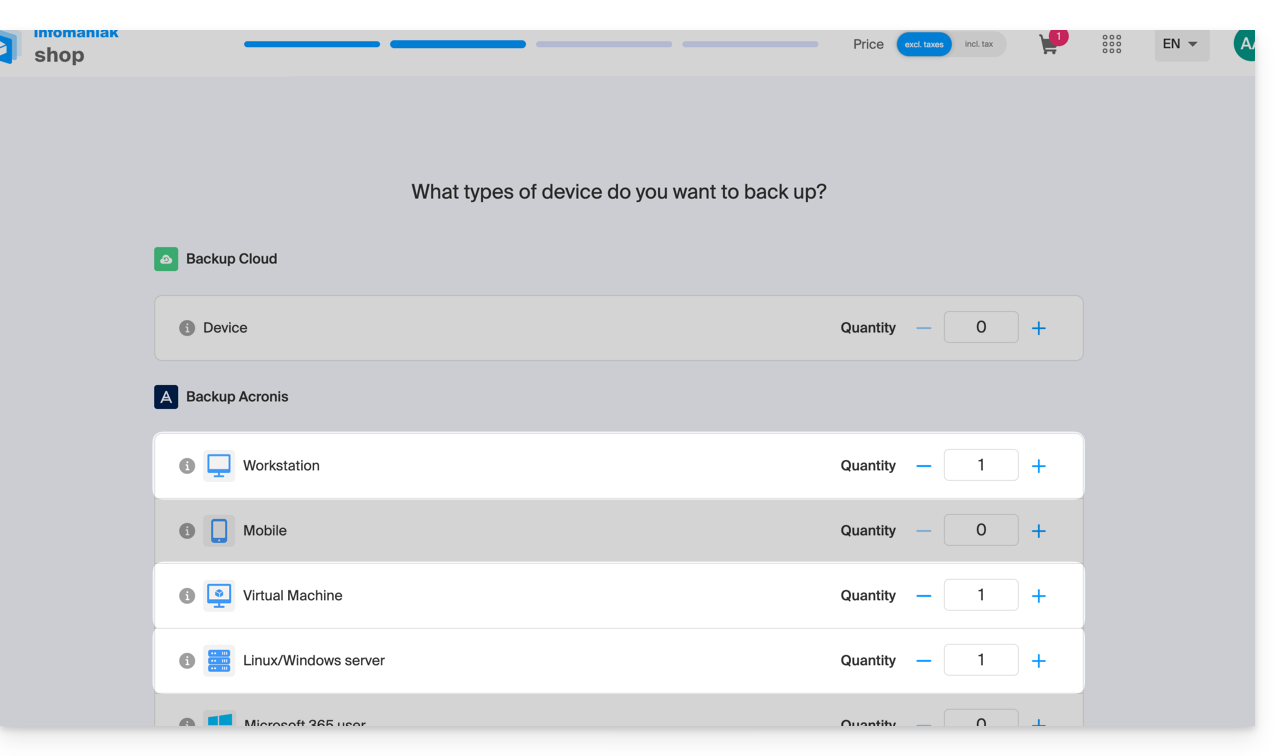
- If necessary, increase the device quota according to your needs.
- Add the device to the Infomaniak Manager to receive the login credentials.
Differences between devices
Workstation
- 1 license per physical machine to be backed up.
- Note: This license does NOT support backups of Microsoft Exchange Server, Microsoft SQL Server, or Active Directory.
- If you wish to back up Microsoft applications installed on a workstation operating system, a server license is required.
Virtual Machine
- 1 license per virtual machine to be backed up.
- Supports Microsoft SQL Server, Microsoft SharePoint, and Active Directory.
- When Acronis is installed on a cluster (e.g., Hyper-V), each host in the cluster requires a VM license.
- If you installed Windows in a virtual machine, you need to add a device of this type.
Server
- 1 license per physical or virtual machine running Windows.
- Supports Microsoft SQL Server, Microsoft SharePoint, and Active Directory.
- Supports backing up a server acting as a virtualization host (Hyper-V, VMware ESXi, etc.).
Configure the backup
To configure the backup with Acronis:
- Click here to access the Acronis Console using the credentials obtained after adding the device (need help?).
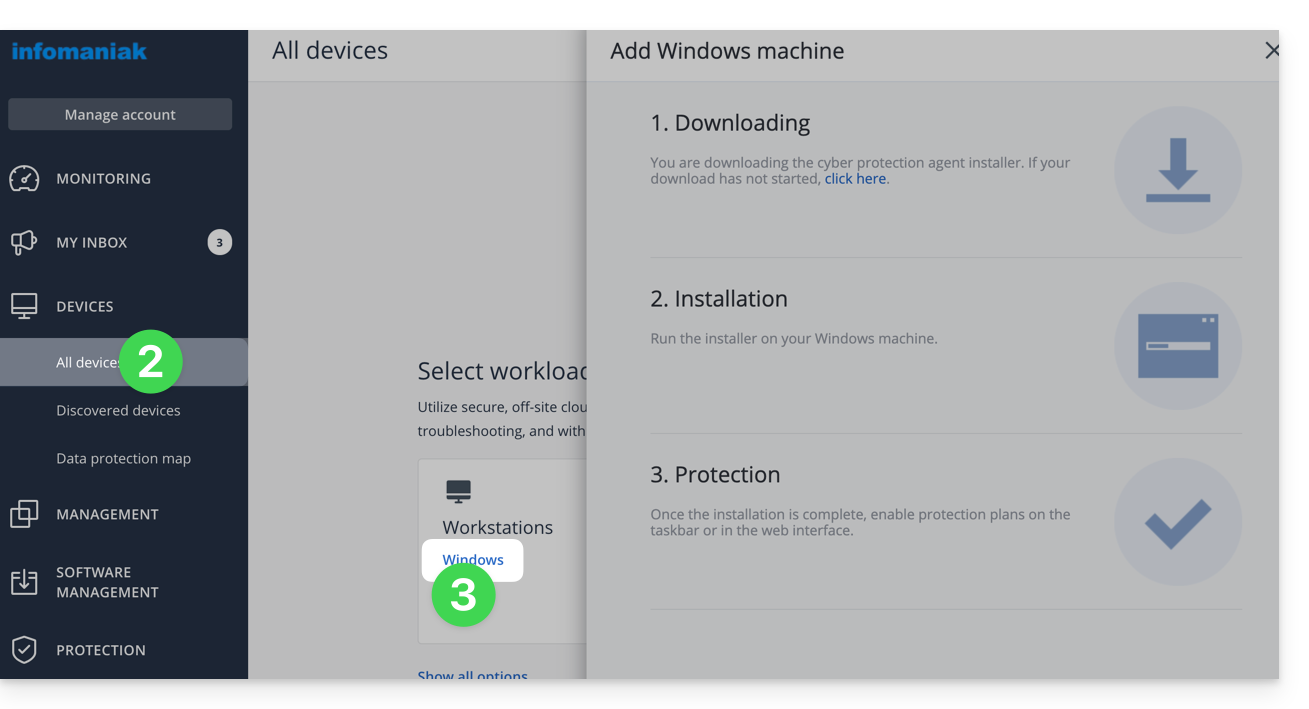
- Click on Devices in the left-hand menu.
- Choose the agent for Windows:
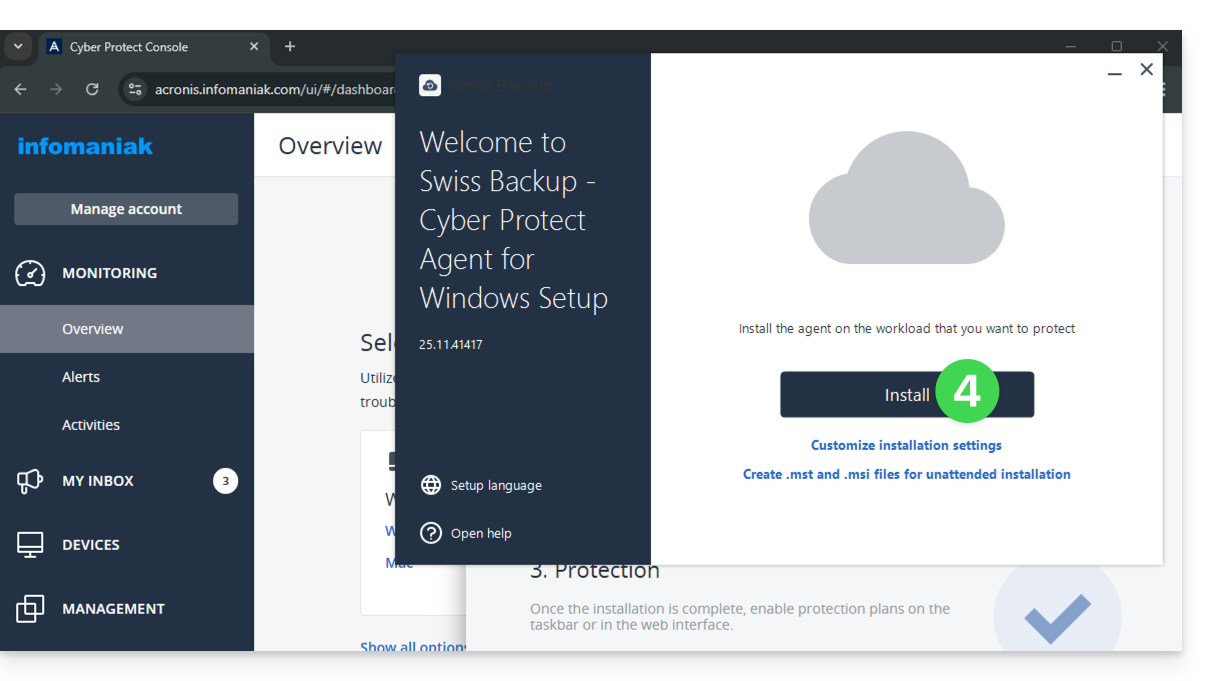
- Next, install the Acronis application for Windows:
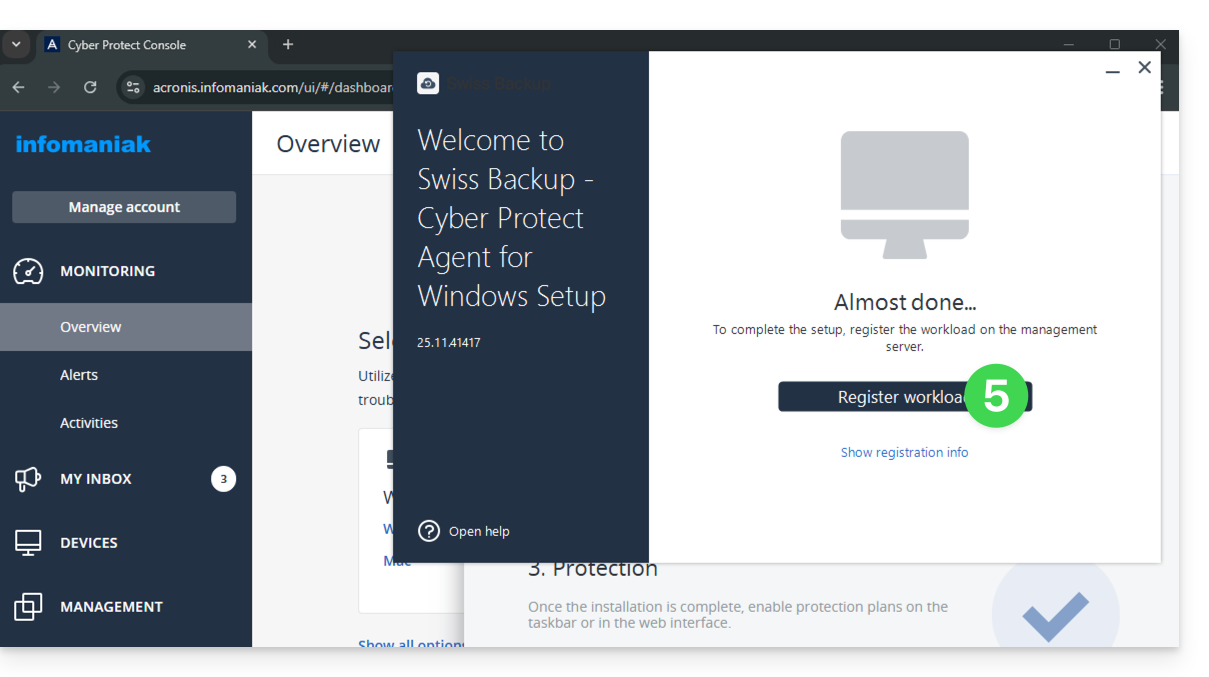
- Click the Save workload button:
- If necessary, select the user to which this backup applies:
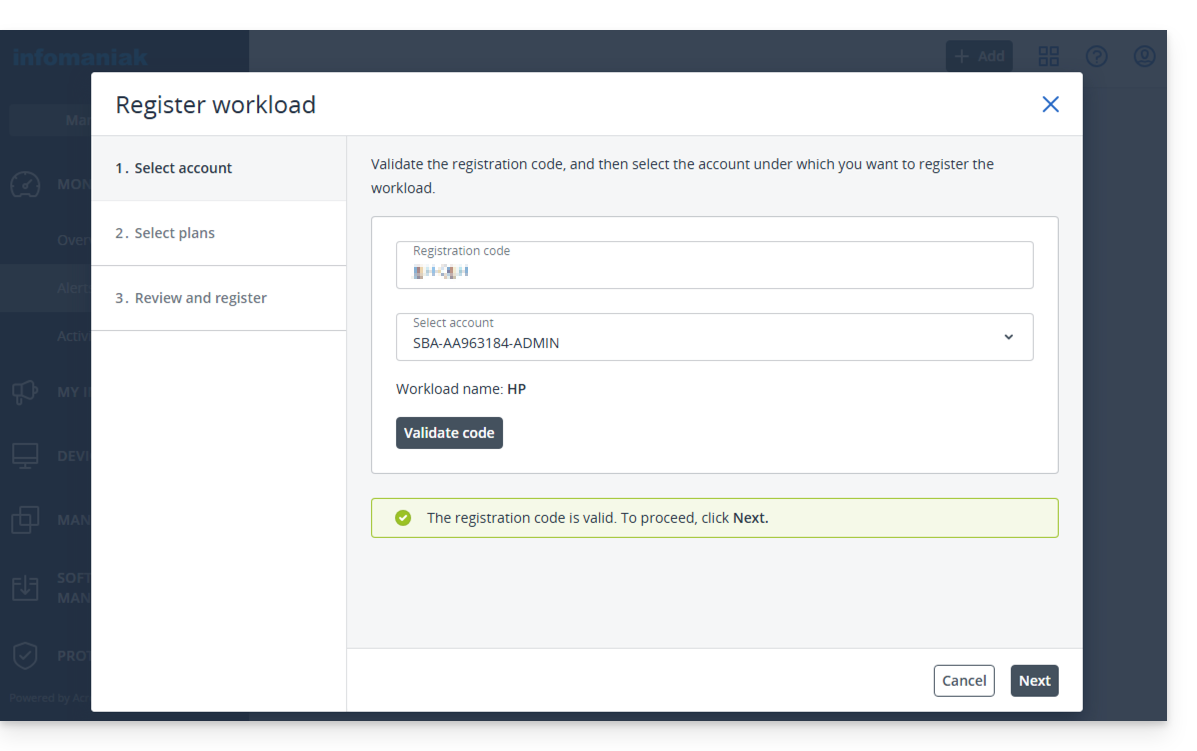
- Continue to complete and activate the selected protection plan:
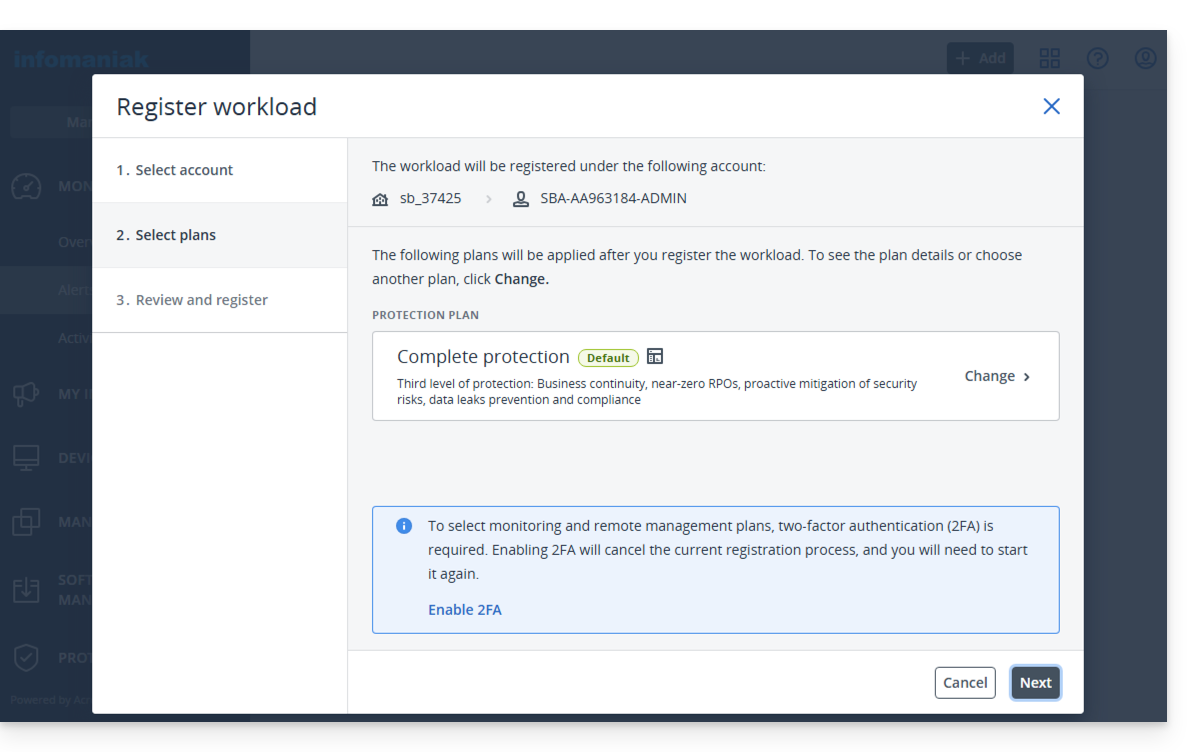
- Wait for the Acronis interface to display your new machine:
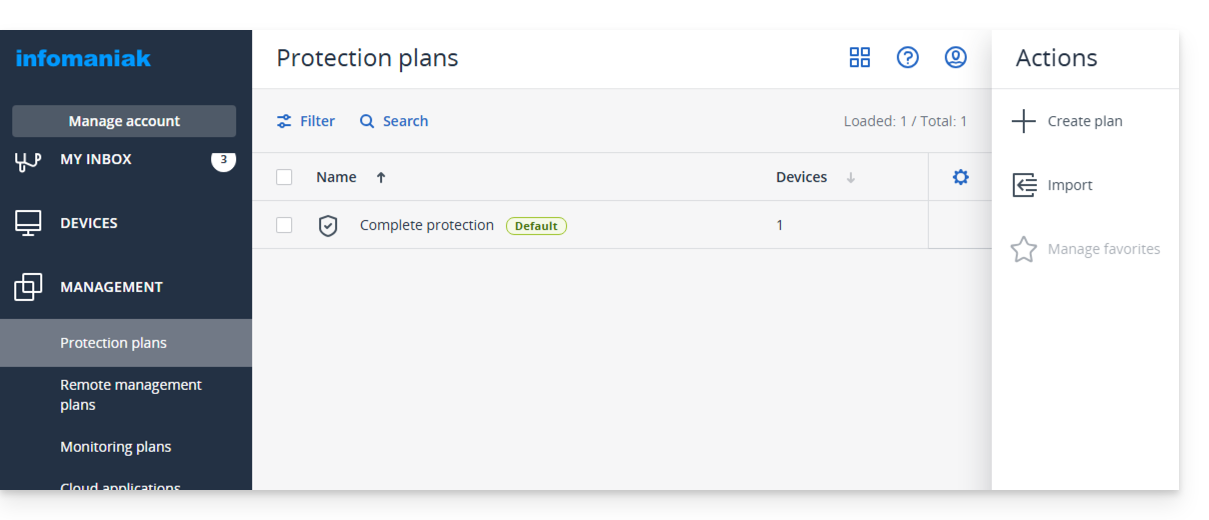
- Check the active backup plan or replace it with a new one to enable encryption for the backup, if necessary, by setting a password that you must never lose, otherwise you will not be able to restore your machine.
- Downloading a boot file in
.isoformat is not necessary (you can always do this from another computer in case your machine becomes unusable in the future). - The protection will run in the background according to the schedule configured in your backup plan.
Restore the backup
For a (partial or complete) restoration, please refer to this other guide.
Link to this FAQ: https://faq.infomaniak.com/2280
Has this FAQ been helpful?