Knowledge base
1000 FAQs, 500 tutorials and instructional videos. Here, there are only solutions!
Create an event reminder in Infomaniak Calendar
Update 10/13/2026
This guide explains how reminders and event alerts work in the Infomaniak Calendar web app (online service ksuite.infomaniak.com/calendar).
Add a reminder or alert to an event
To add a reminder to an event (e.g., an appointment):
- Click here to access the Infomaniak Calendar web app (online service ksuite.infomaniak.com/calendar).
- Click the Create button in the top left corner.
- Click on Event:
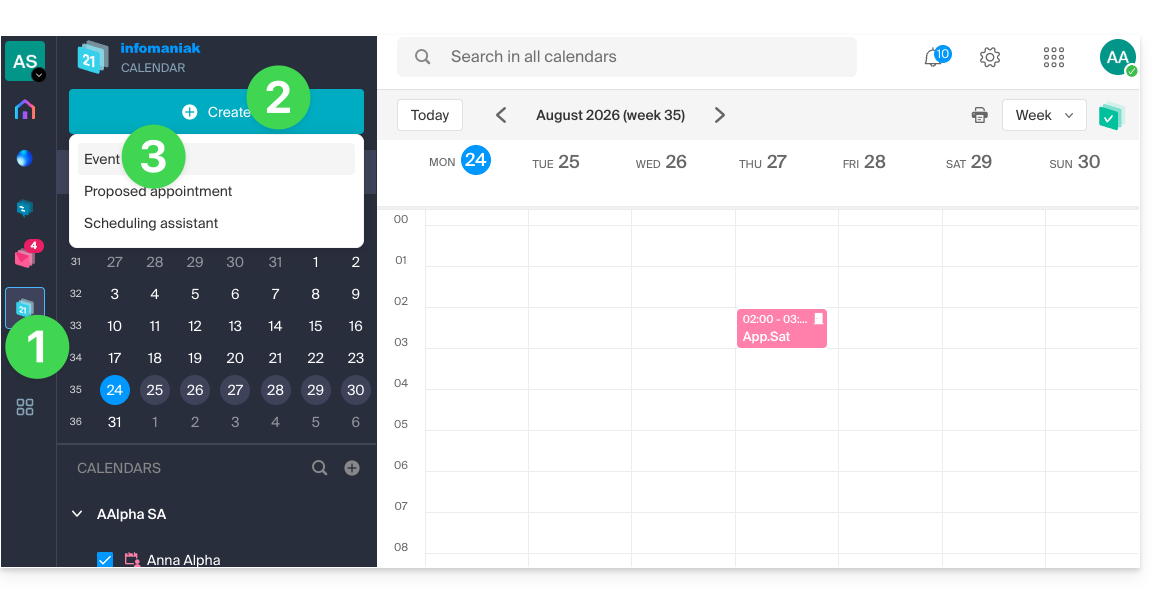
- You can also click on an existing event in the calendar to edit it.
- Click on Add a reminder to configure it:
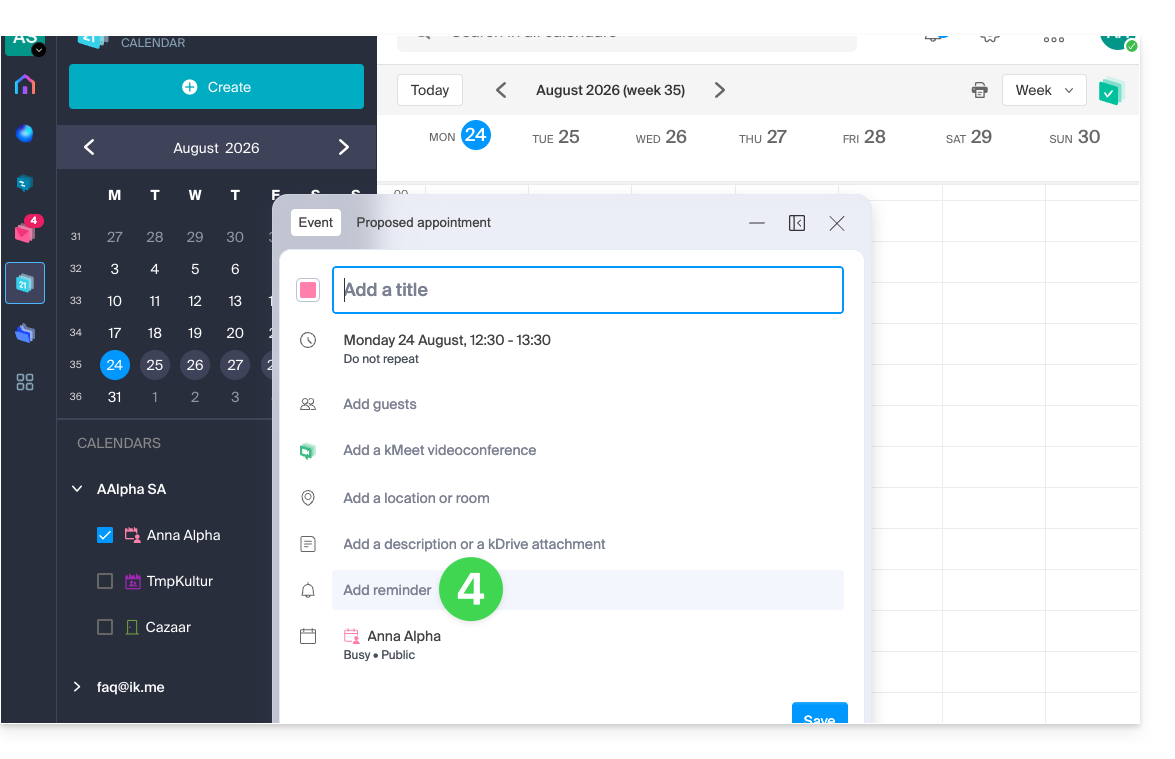
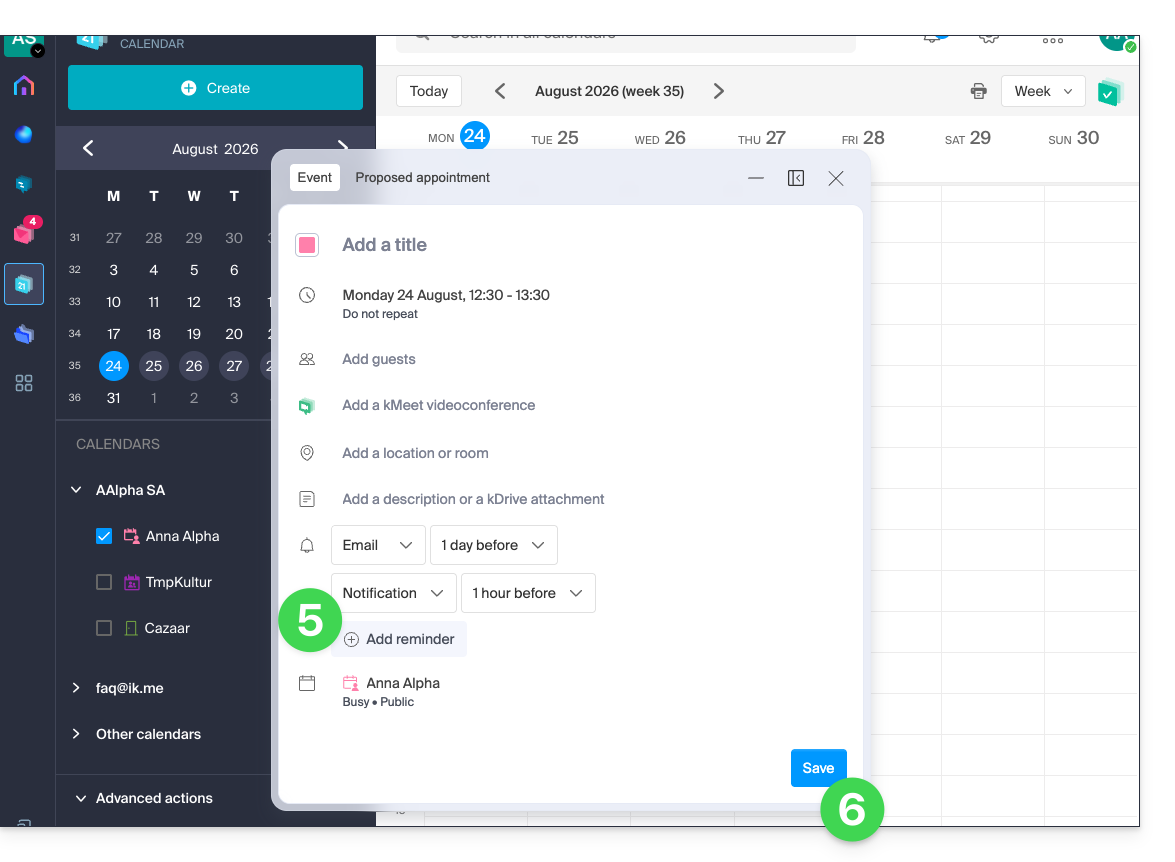
- To receive multiple notifications, you need to add multiple reminders (tap on ).
- Save the event at the bottom of the page:
Reminder types
You can be notified via 3 different channels:
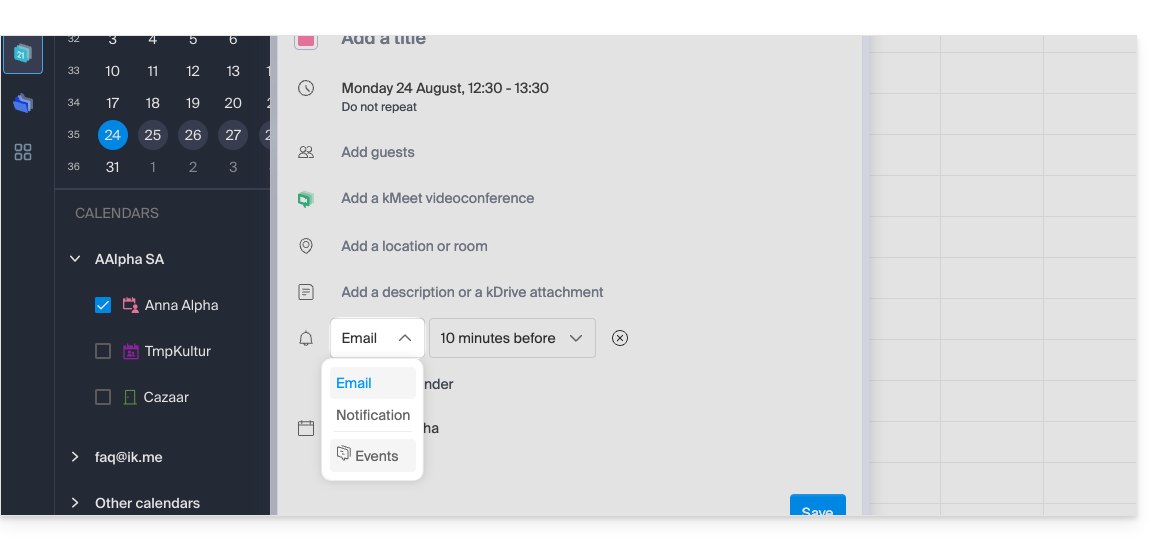
- Via email: the reminder will be sent by email at the chosen time.
- Via a browser notification, such as from Brave, Chrome, Edge, Firefox, Opera, Safari…: the reminder will be displayed via a notification managed by your browser, provided that kSuite is connected; this is also the option to choose if you synchronize your calendar with your phone to receive an alert on your device.
- Via a chat system like kChat: the reminder will be sent to the chosen chat thread.
Event invitees will not be notified by the reminders.
Define one or more default reminders
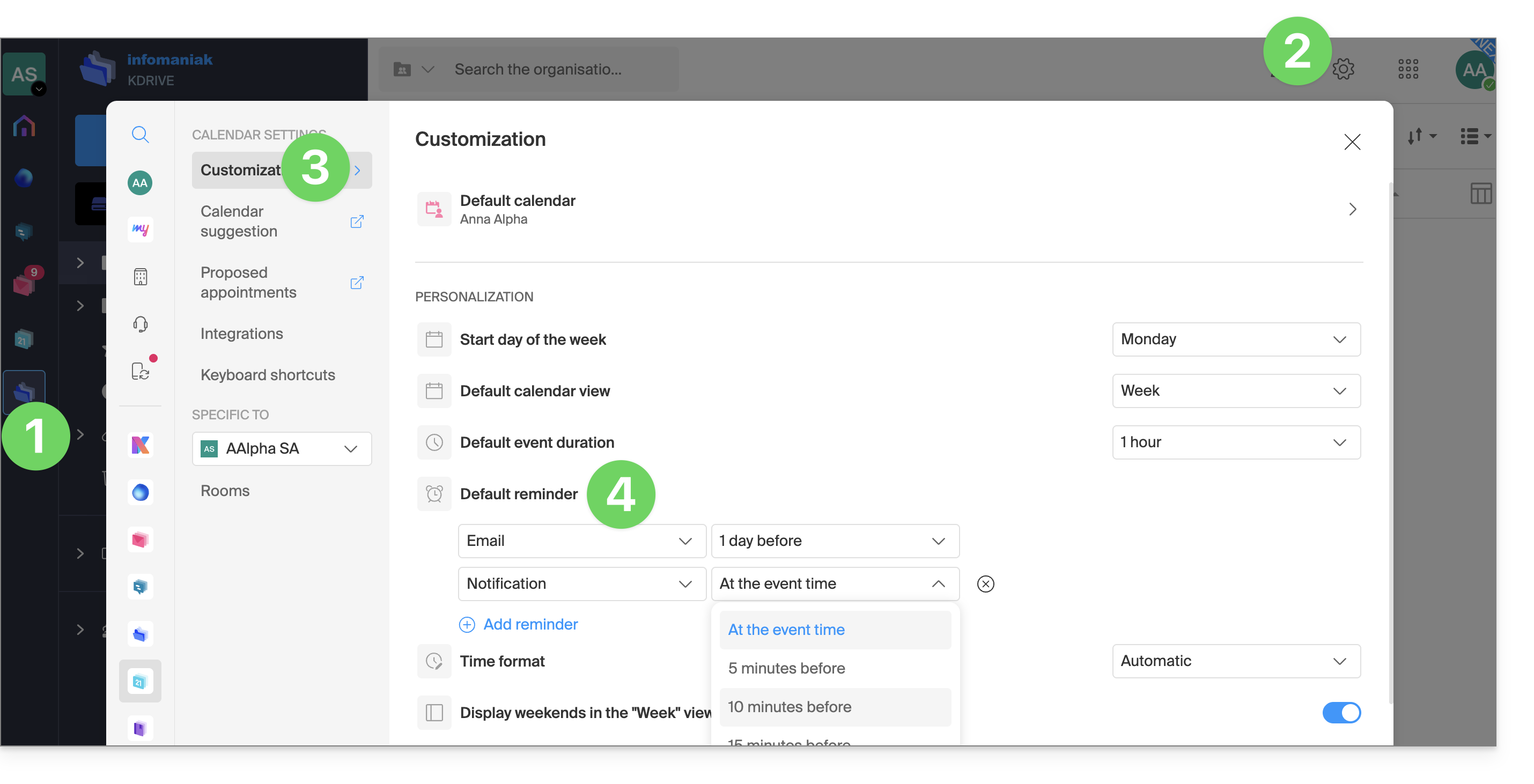
Setting up a manual alert for each event quickly becomes repetitive. Define reminders for all your appointments in your calendar settings: an email 15 minutes beforehand or a notification the day before – it's up to you. These rules apply by default and can be modified on a case-by-case basis:
- Click here to access the Infomaniak Calendar web app (online service ksuite.infomaniak.com/calendar).
- Click on Settings in the top right corner.
- Click on Customization.
- Configure one or more reminders that will then be applied to each of your newly created events:
Link to this FAQ: https://faq.infomaniak.com/2248
Has this FAQ been helpful?