Knowledge base
1000 FAQs, 500 tutorials and instructional videos. Here, there are only solutions!
Create multiple email addresses
Update 10/12/2026
This guide explains how to create email addresses in bulk instead of adding them one by one within an Infomaniak Mail Service.
Introduction
- To ensure responsible use of the services, a limit of a maximum of 50 email addresses per 24-hour period has been implemented.
- Contact Infomaniak support to remove this restriction.
Create new email addresses in bulk
Prerequisites
- Have a tool for managing CSV files (
.csvformat). - Have a Mail service on your Infomaniak Manager.
- Have available free address quota or adjust itif necessary.
Get the sample CSV file
The import process uses a CSV file (.csv format). Once filled in, this file can be imported to add the addresses to your Mail service in one go.
To download the CSV file and configure the address creation:
- Click here to access the management of your product in the Infomaniak Manager (need help?).
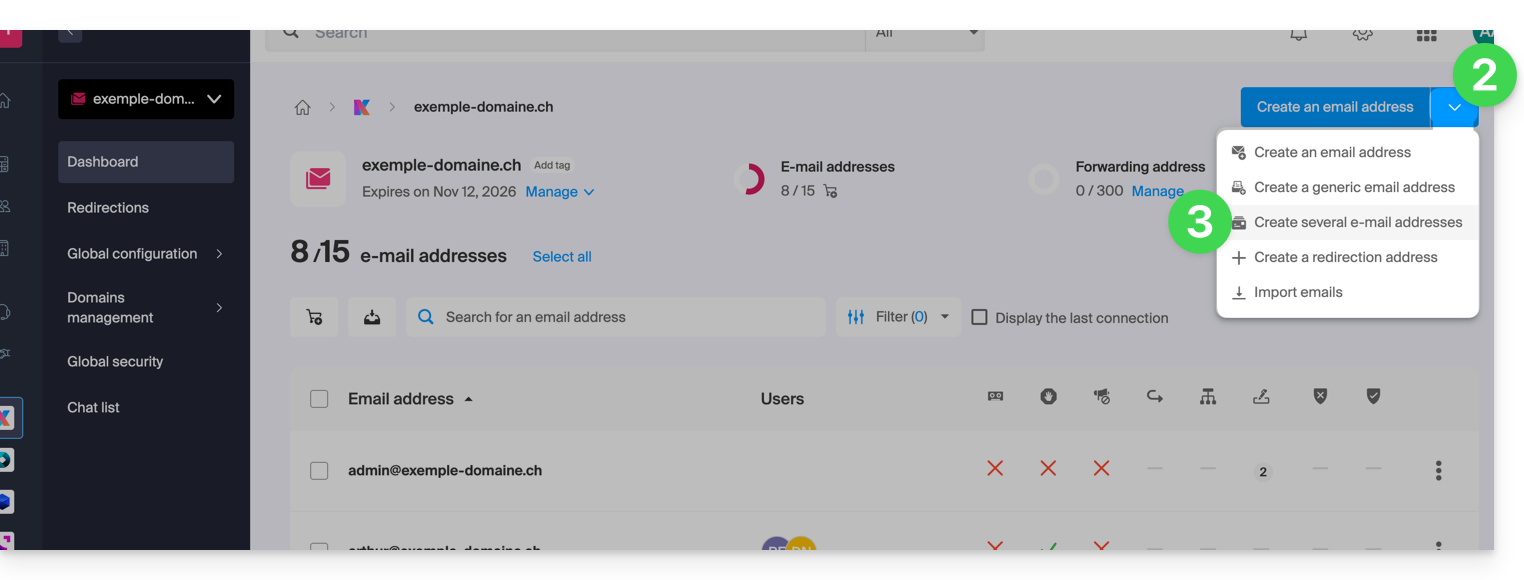
- Click on the chevron to the right of the blue "create address" button.
- Click on Create multiple email addresses
- Download the proposed template (CSV file in
.csvformat):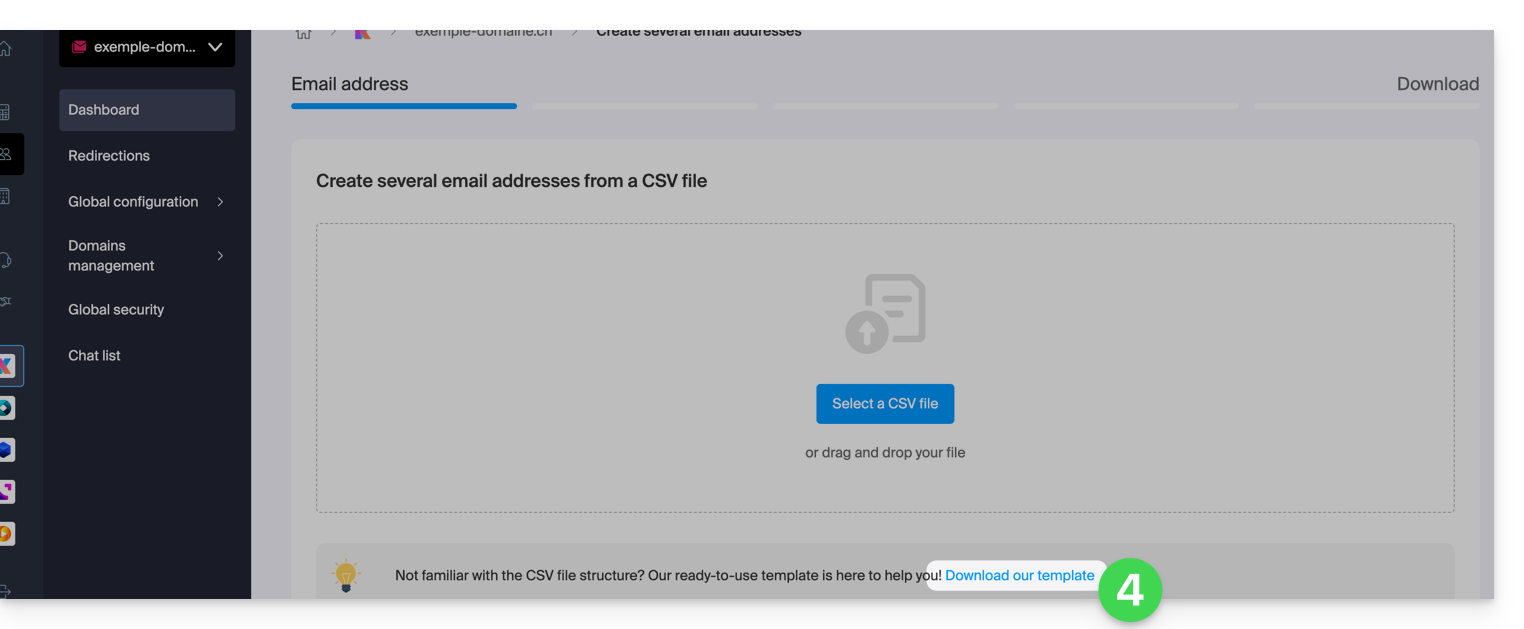
Complete the CSV file
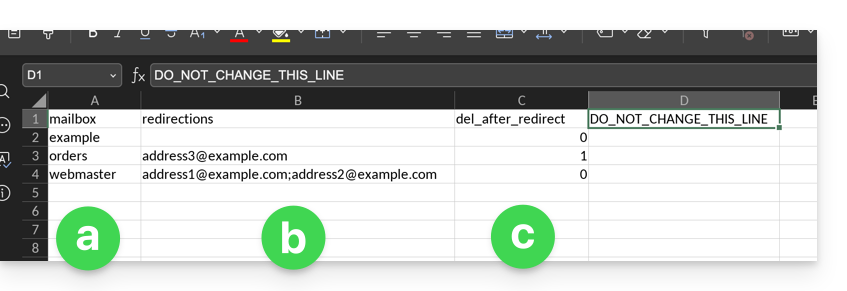
- Open the example CSV file; do not modify the first line, then starting from the second line:
- In the first column, specify the address to create (without the domain)… example:
john. - In the second column, if necessary, specify the complete email address to which emails should be redirected.
- In the third column, specify whether messages should be deleted (1) after redirection.
- In the first column, specify the address to create (without the domain)… example:
- The second and third columns are optional (you can leave them completely blank).
Import the CSV file
Once the .csv file is completed, save it in the same format as the template provided, then:
- Click on the chevron to the right of the blue "create address" button.
- Click on Create multiple email addresses.
- Click on Select a CSV file:
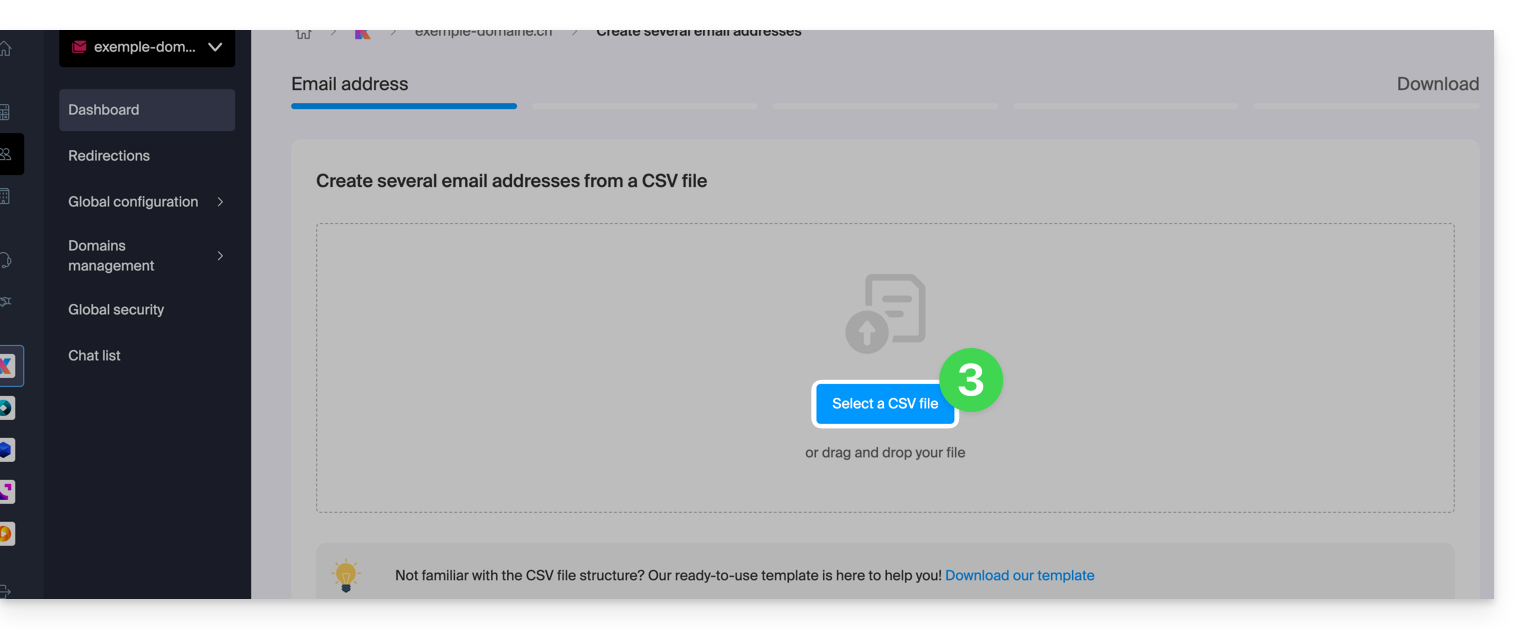
- Browse your device and select your CSV file.
- Click Continue; after a few minutes, the email addresses will be added (without any passwords being assigned to them yet), according to the instructions in the imported file.
Link to this FAQ: https://faq.infomaniak.com/224
Has this FAQ been helpful?