Knowledge base
1000 FAQs, 500 tutorials and instructional videos. Here, there are only solutions!
Restore a hosting account (fully and automatically)
Update 10/05/2026
This guide explains how to automatically restore an entire web hosting from backups made by Infomaniak.
Introduction
- Infomaniak performs a daily backup, and the last 7 are available to you.quotidienne, et les 7 dernières sont à votre disposition in the Manager (or more, if you are using a Web Application).
- During the restoration, the websites will automatically be put into maintenance mode until the process is complete.
- Since automatic file backups and database backups are not performed simultaneously, it is recommended to verify that websites are functioning correctly after the restoration.
- Besides these options, there are no other backups available; therefore, there is no need to contact Infomaniak for this purpose, but consider other backup methods for the future.
Restoring a Web Hosting Account
To access web hosting:
- Click here to access the hosting & site management section in your Infomaniak Manager (❓: help).
- Click on the name of the hosting account in question.
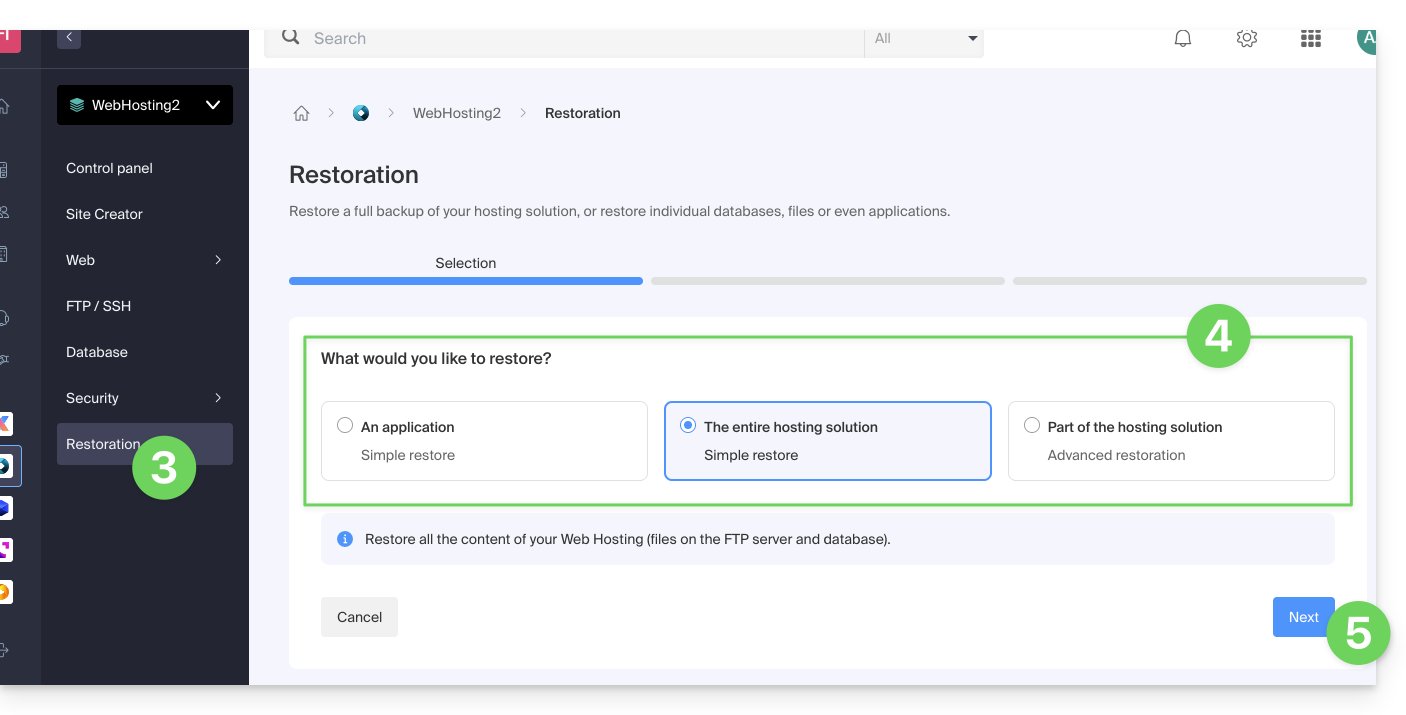
- Click on Restore in the left-hand menu.
- Choose the type of restore you want:
- Restore one of the Web Applications you have installed.
- Simple restore to restore all websites and databases on the hosting.
- Advanced restore allows you to choose which websites and databases to restore.
- Click on the Next button:
- Select the desired restoration date and complete the procedure.
Link to this FAQ: https://faq.infomaniak.com/2217
Has this FAQ been helpful?