Knowledge base
1000 FAQs, 500 tutorials and instructional videos. Here, there are only solutions!
Configure Web Application Backups
This guide explains how to modify the automatic backup configurationInfomaniak Web Applications (Joomla, Drupal, Typo3, PrestaShop, ownCloud, etc.) included in the paid Web Hosting plans.
Introduction
- This does not apply to WordPress, which can be backed up and then restored via:
- automatic backups for hosting,
- plugins that allow you to manually create a complete backup, including a file for easy reinstallation.
Configure backups
To manage app backups:
- Click here to access the hosting & website management section in your Infomaniak Manager (❓: help).
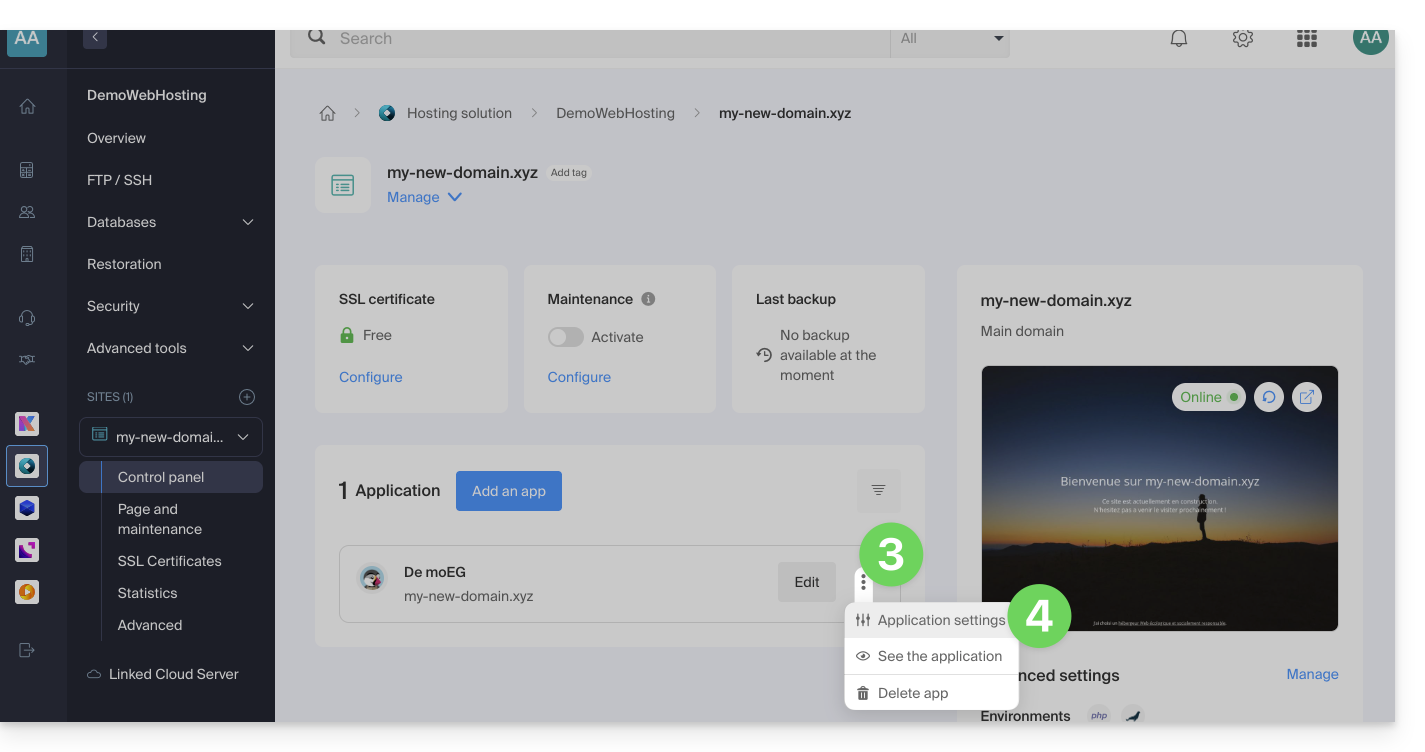
- Click on the name of the website in question.
- Click on the action menu ⋮ located to the right of the relevant Web Application.
- Click on Settings in the application:
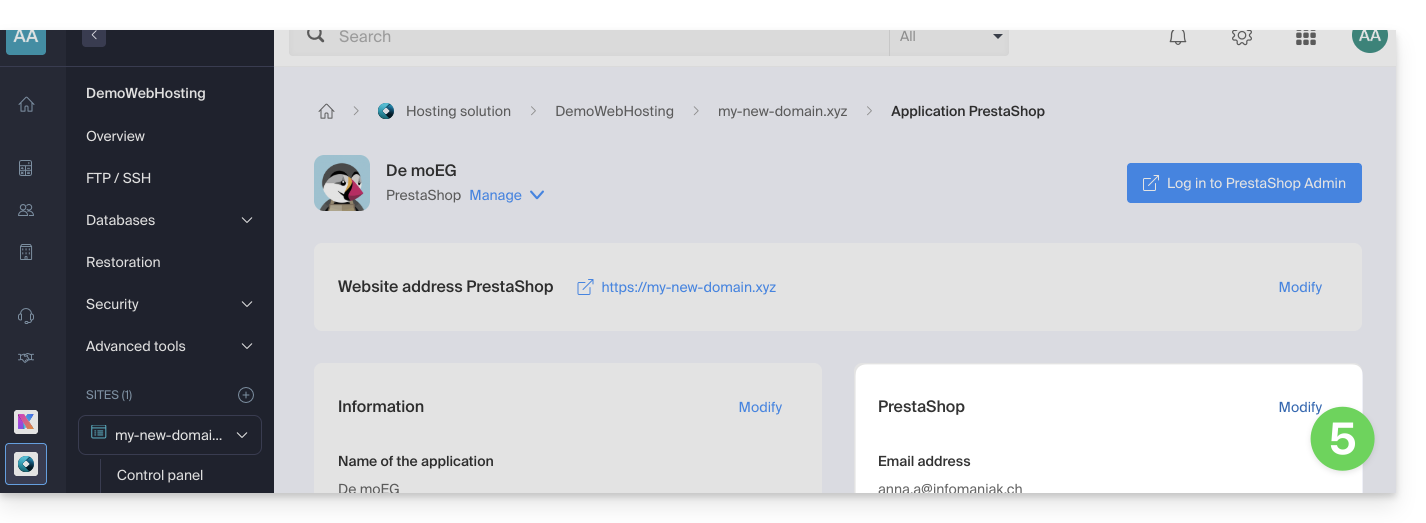
- Click on Edit to the right of the Application:
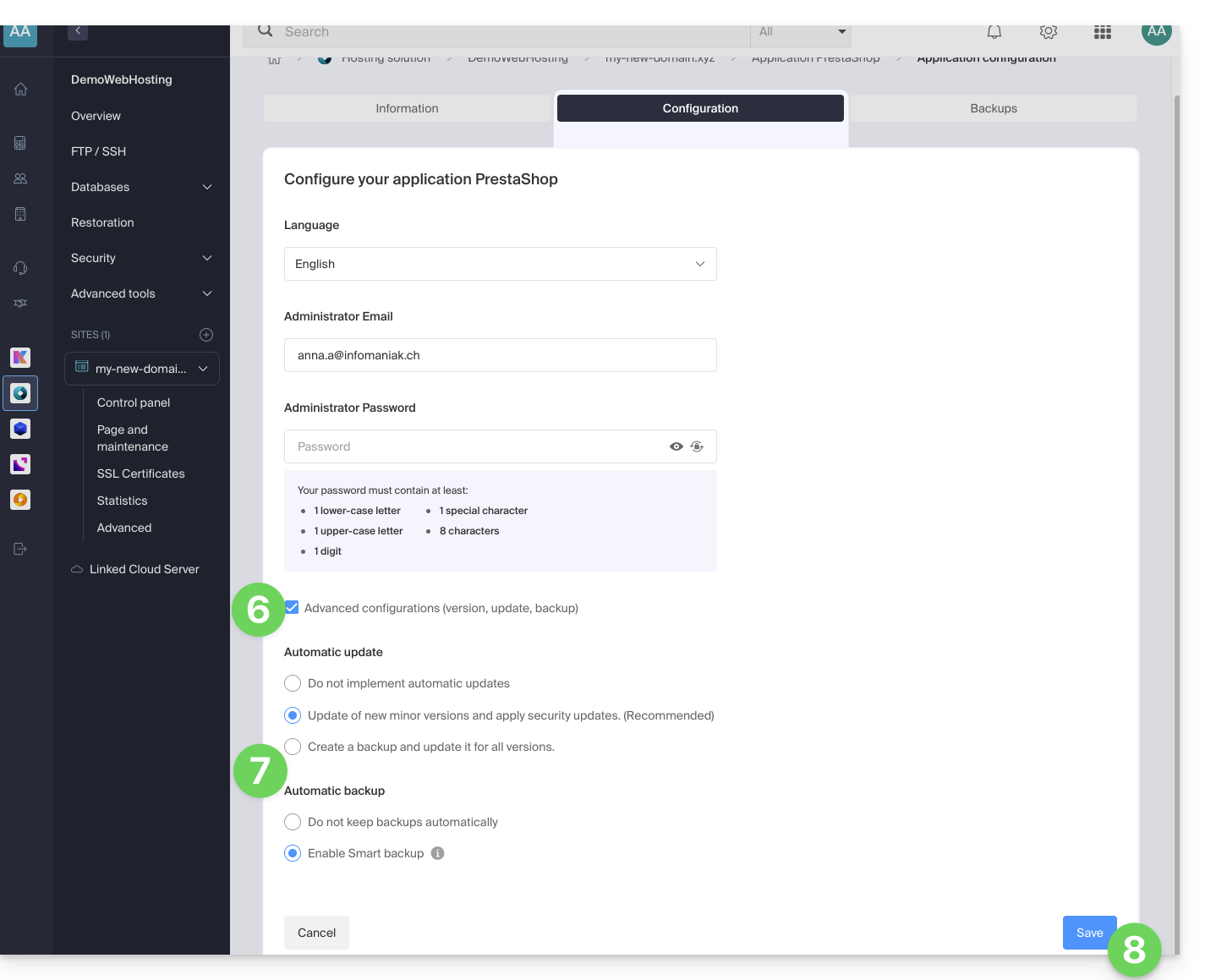
- Under the Configuration tab, click the checkbox to access the advanced configuration.
- Choose the desired update and backup modes:
- 7 recent backups are kept, as well as those from 15 and 30 days ago.
- Save your changes using the button in the bottom right corner:
Learn more
Link to this FAQ: https://faq.infomaniak.com/2196
Has this FAQ been helpful?