Knowledge base
1000 FAQs, 500 tutorials and instructional videos. Here, there are only solutions!
Change your Infomaniak Manager / Mail login ID
Update 10/19/2026
This guide explains how to view and modify the login ID for your user account in the Manager, the management interface and dashboard for your Infomaniak products. This same ID also allows you to log in to Mail Infomaniak and various iOS/Android applications such as kDrive, Infomaniak Mail, etc.
Introduction
- To manage your Infomaniak account details, please refer to this other guide.
- To change your phone number, please refer to this other guide.
- To manage the details of the Organization you belong to, please refer to this other guide.
View the currently logged-in ID
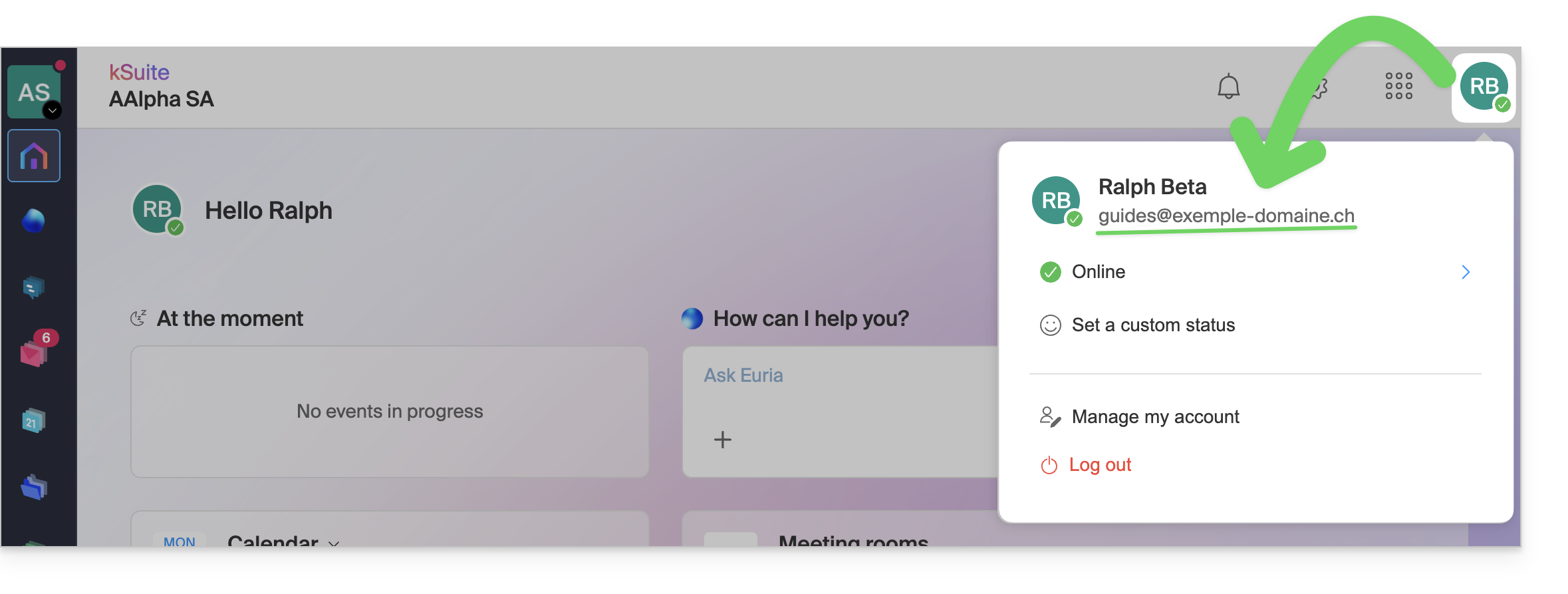
The email address used for the current login is displayed in your user menu + on the profile page:
- Click on your initials / avatar in the top right corner to note the login ID currently in use:
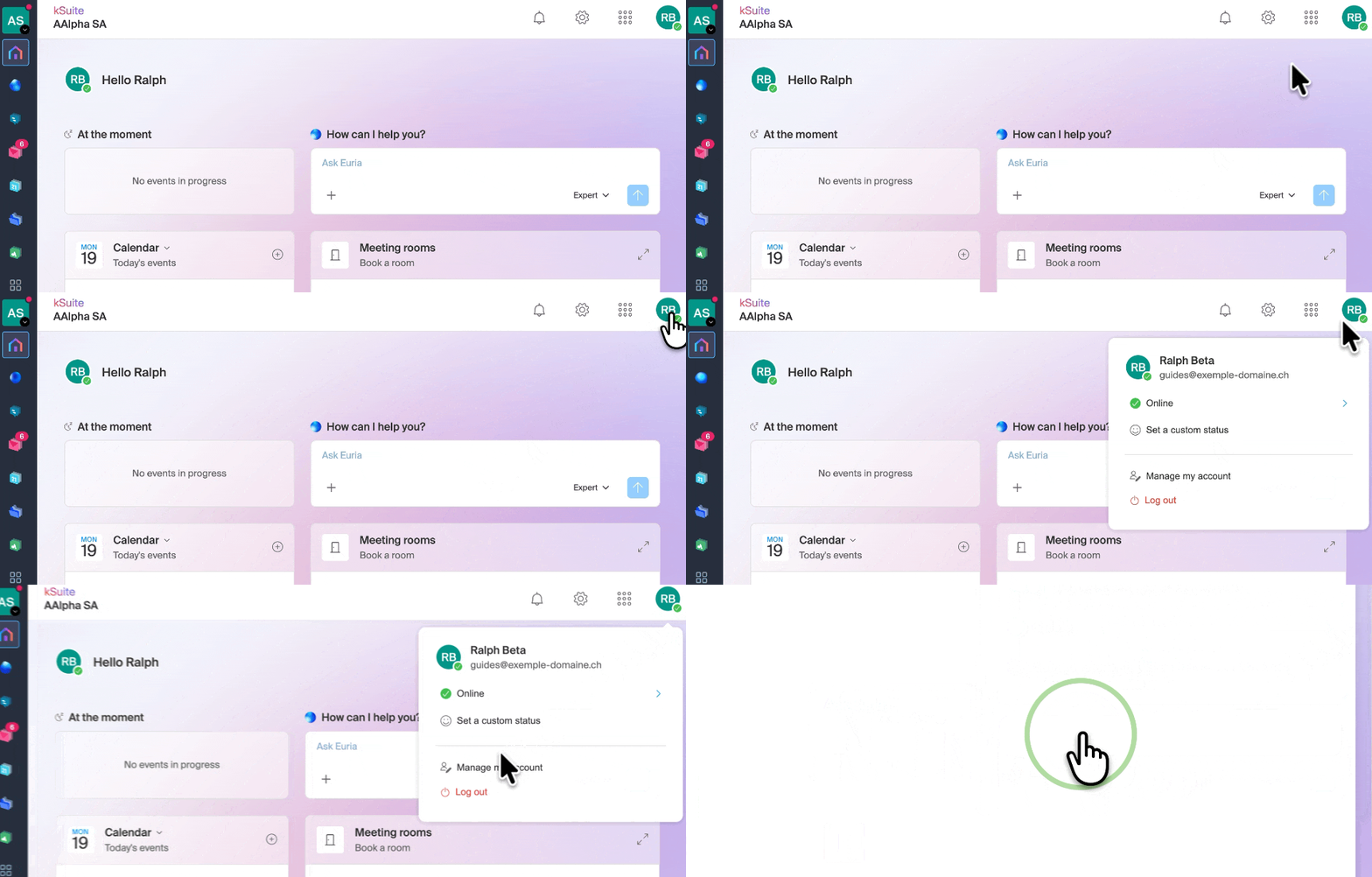
- Click on Manage my account just below to access your profile management in the Infomaniak Manager:
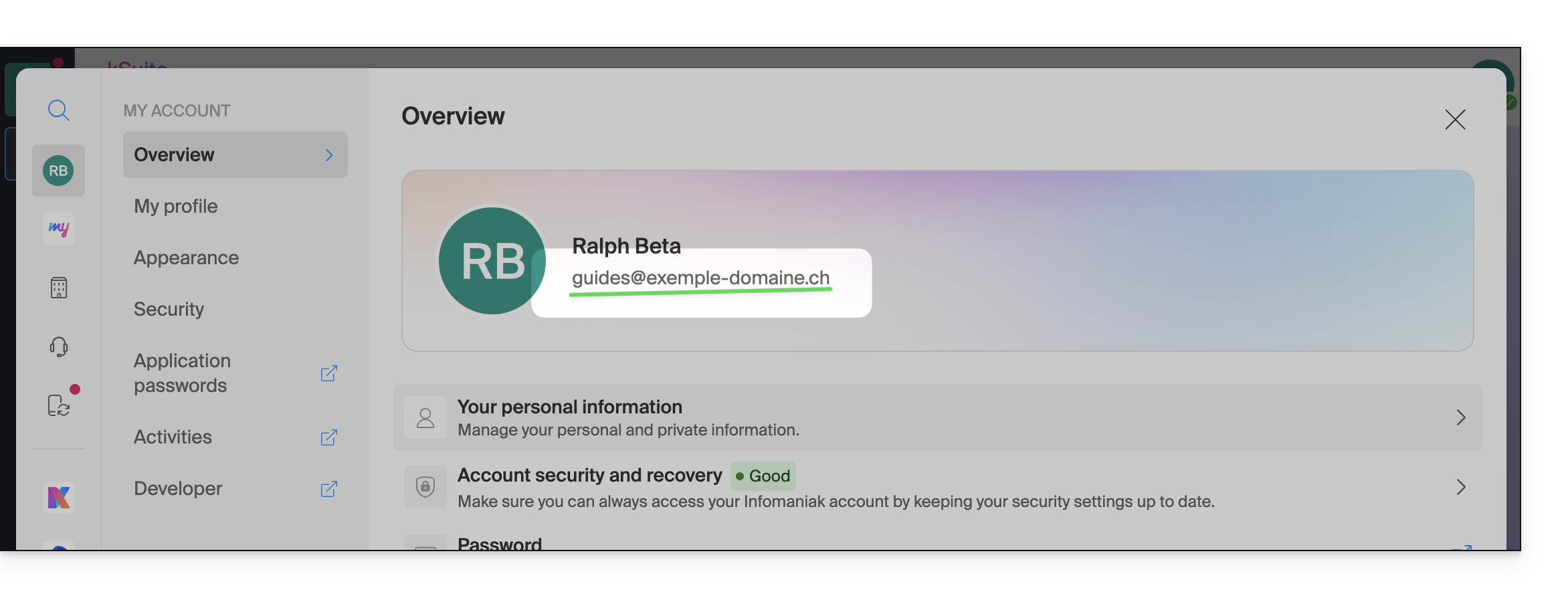
- Your current login ID is also displayed on the page:
Change the identifier (login email)
Prerequisites
- The login ID is an email address that must exist and that you must be able to access.
- The new email address must be different from the recovery email address.
- The new email address must not already be used as a login ID for another user account (if this is the case, you should first invite the user to the Organization to grant them all the necessary rights, and then you can remove the old account with the old login ID).
To change the login ID for your Infomaniak account:
- Click here or at the top right, on your initials/avatar, to "Manage my account":
- From the My profile menu, click on your login email address:
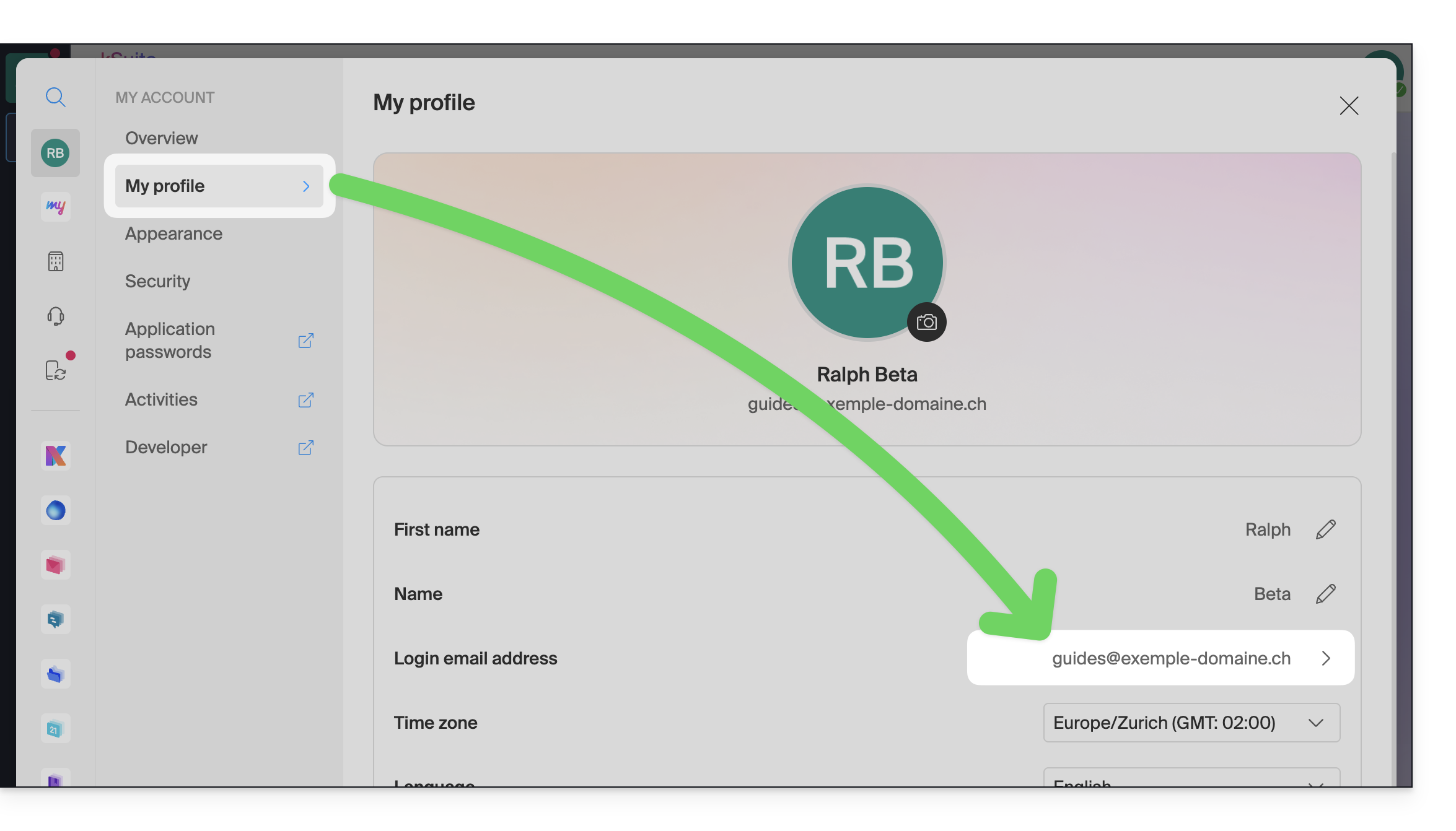
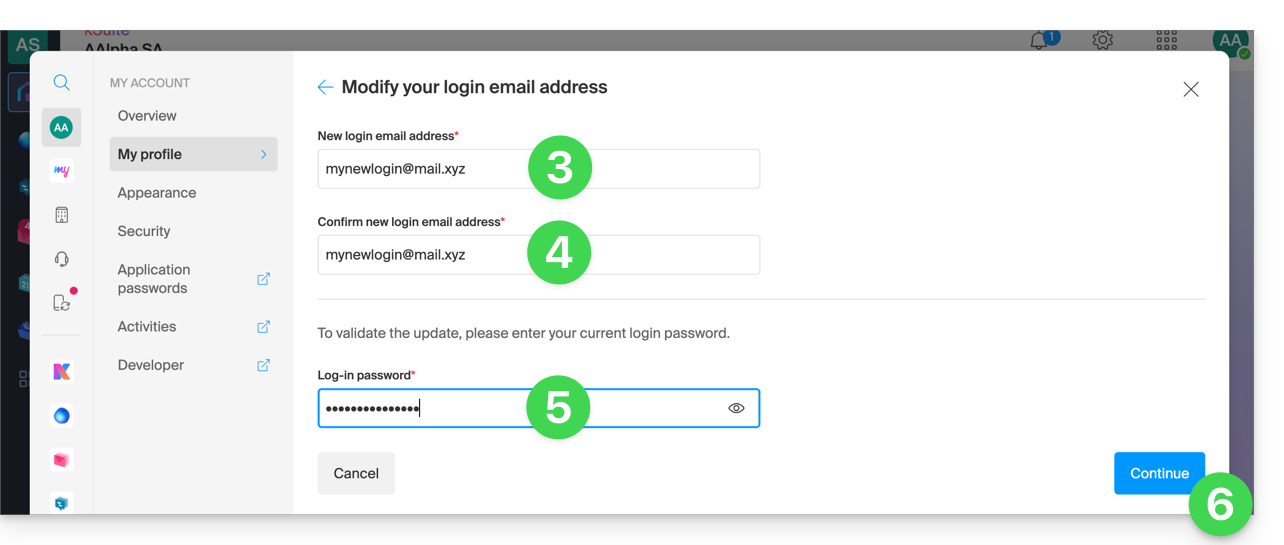
- Enter a new email address for login.
- Confirm your new address by entering it again.
- Enter the login password for your Infomaniak account.
- Click on Continue:
Link to this FAQ: https://faq.infomaniak.com/2193
Has this FAQ been helpful?