Knowledge base
1000 FAQs, 500 tutorials and instructional videos. Here, there are only solutions!
Force the activation of two-factor authentication (2FA) for users in the Organization
Update 09/28/2026
This guide explains how to require users in your Organization to enable the two-factor authentication feature (2FA❓: help) and then verify that it remains enabled.
Introduction
- Every Infomaniak user can enable two-factor authentication for access to their account, which significantly increases the security of all the Organization's services...
- A legal representative can require this activation, otherwise the user will no longer be able to access the Manager and web apps.
- Access to desktop apps (desktop application on macOS / Windows / Linux) and mobile apps (application for iOS / Android smartphones or tablets) will always be possible without 2FA.
- It is recommended to inform the users of your Organization in advance, so that they can continue to use the services.
- If an external user does not wish to perform the action requested by an organization administrator, they can choose to leave the organization instead of enabling it.
Identify and prevent users without 2FA
You can easily identify and contact users who have not yet enabled this security feature on their account:
- Click here to access the user management section for your Organization.
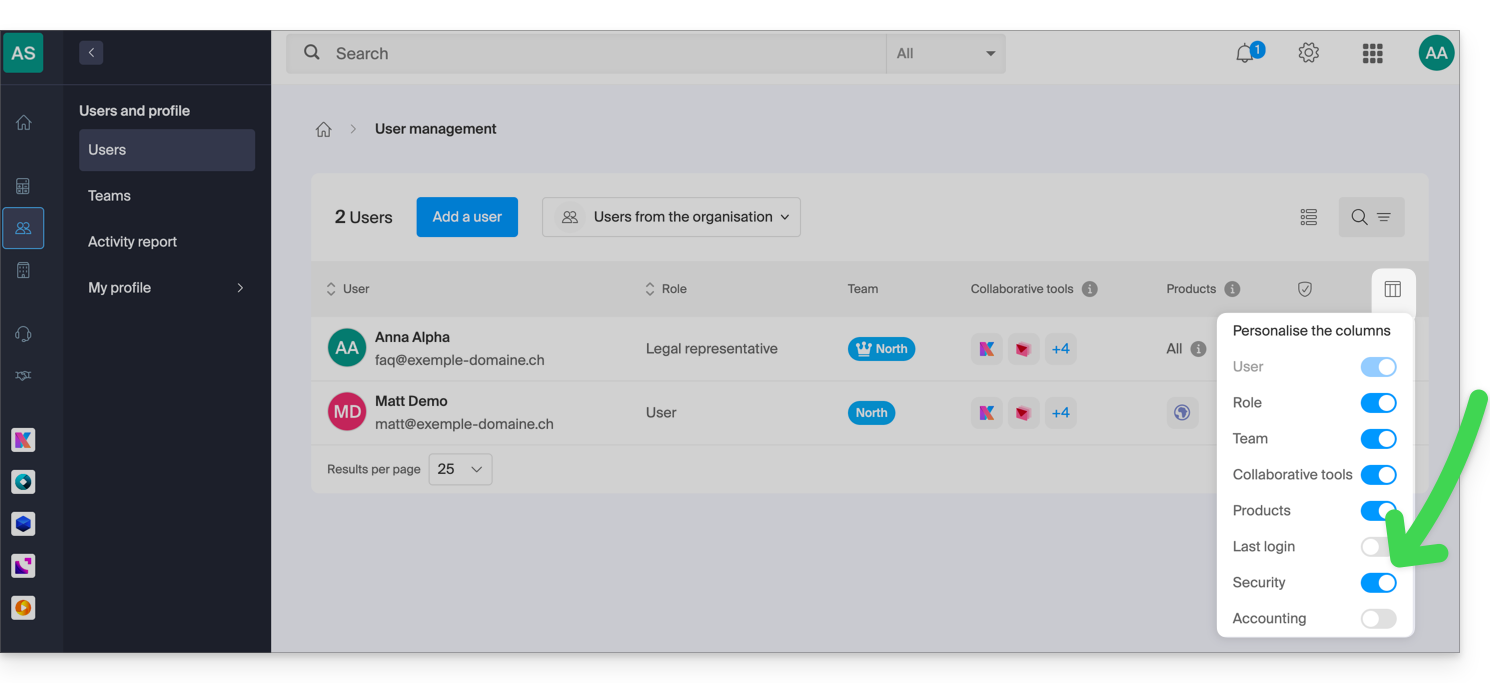
- If necessary, enable the Security column:
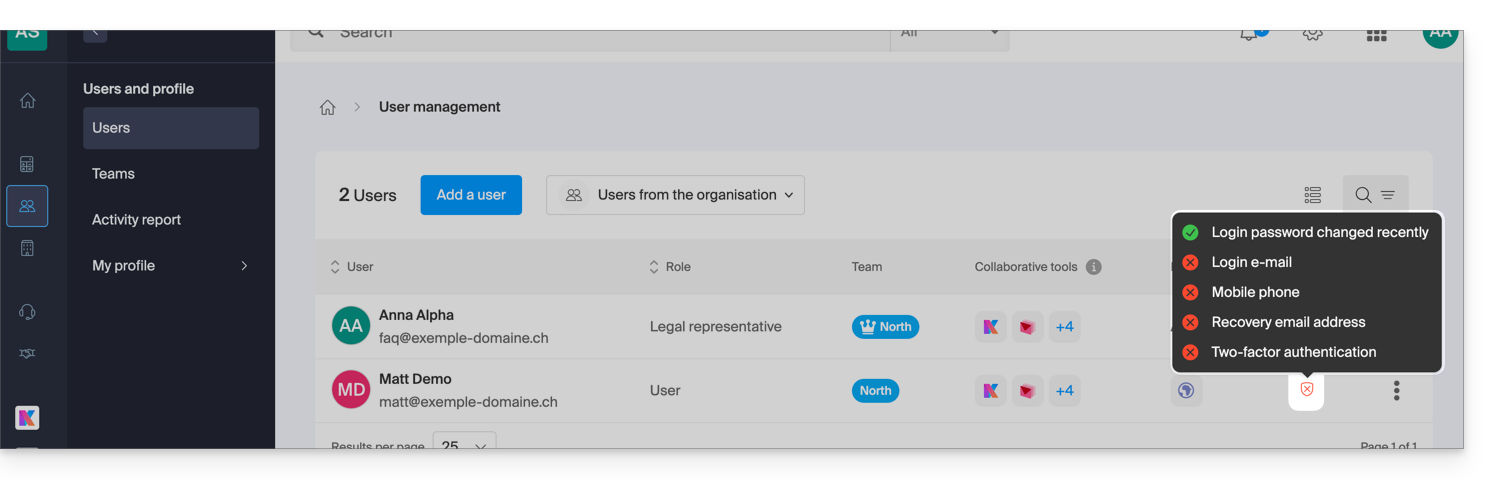
- In this Security column, the red symbol indicates that 2FA is not enabled:
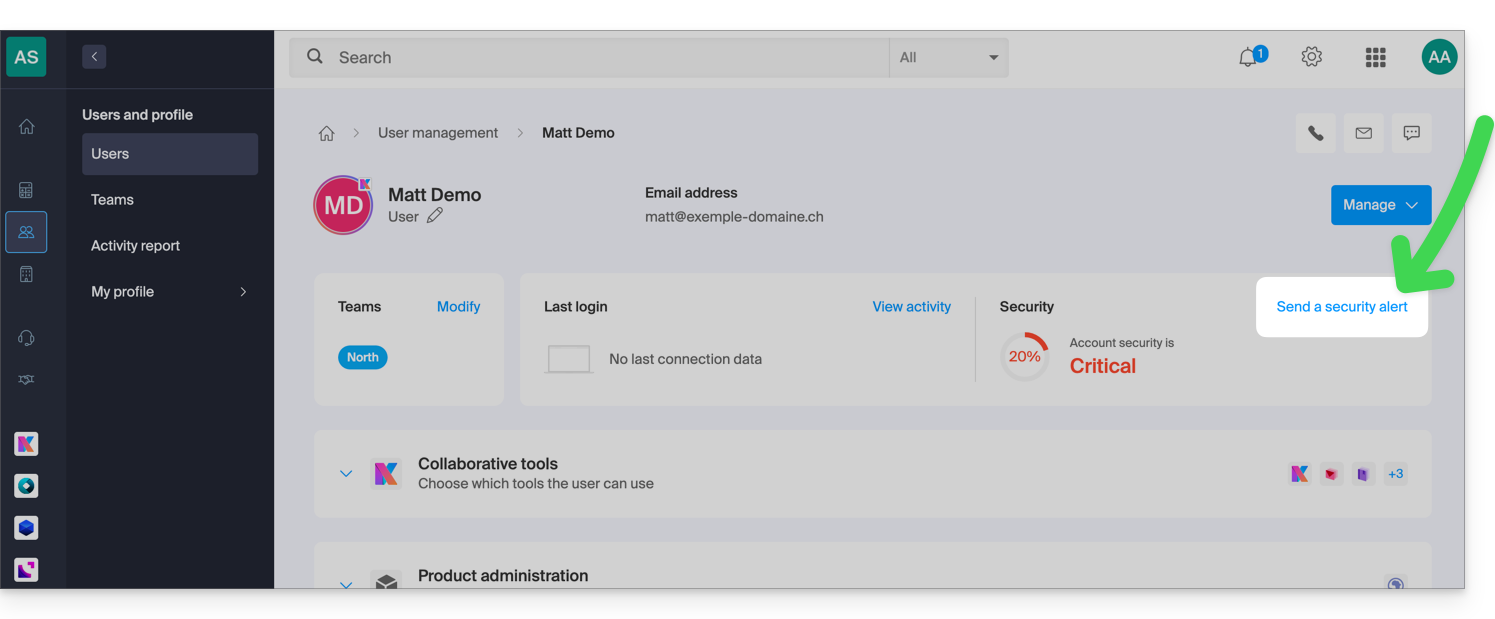
- Click on the user in question to access the alert sending feature:
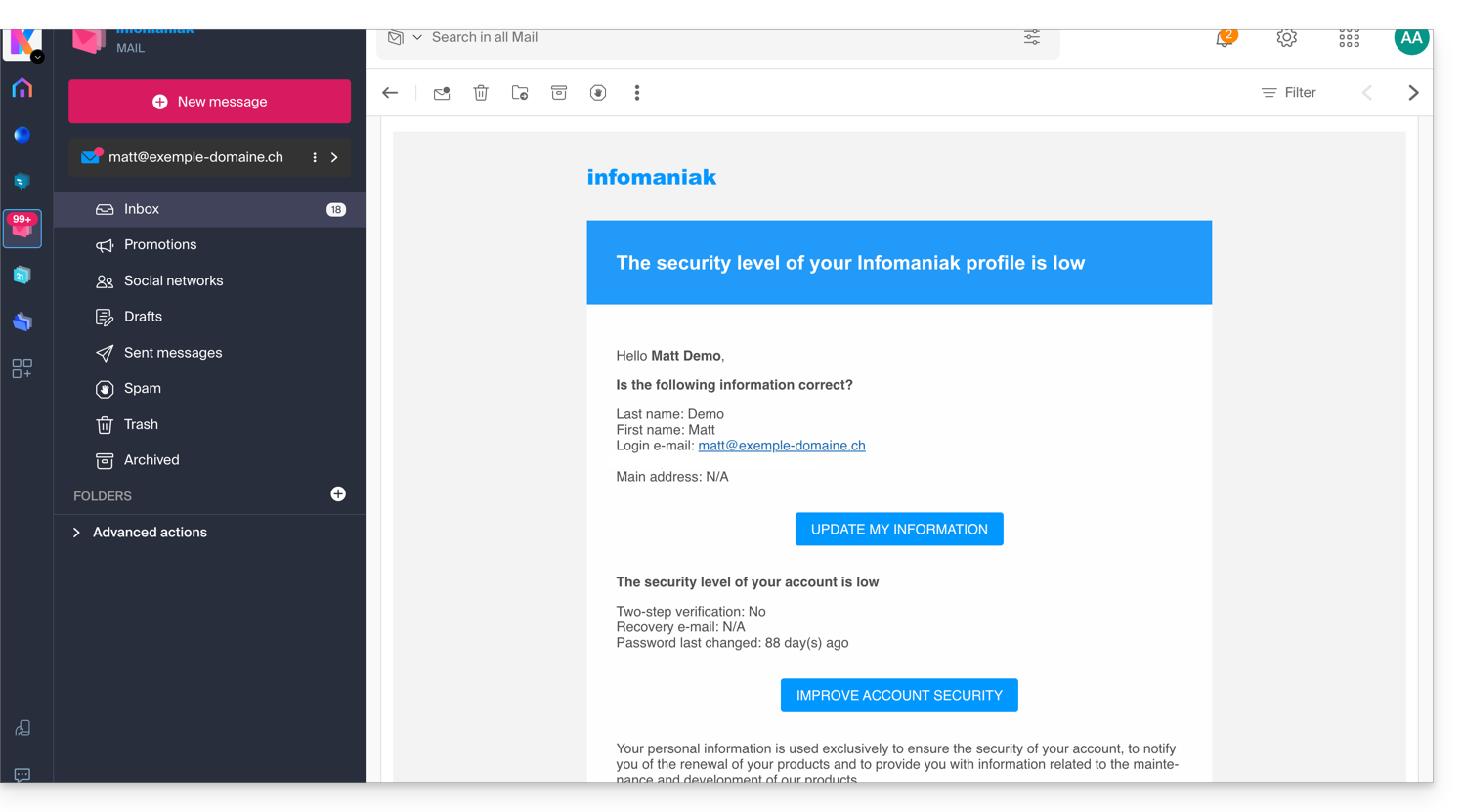
- After your confirmation, an alert email will be sent from a no-reply address to the user in question:
Require 2FA activation
Prerequisites
- Be an Administrator or Legal Representative within the Organization (❓: help).
To access the settings:
- Click here to access the organization's security management in the Infomaniak Manager (❓: help).
- Click the toggle switch to enable a requirement for all users in the Organization to undergo an additional connection verification:
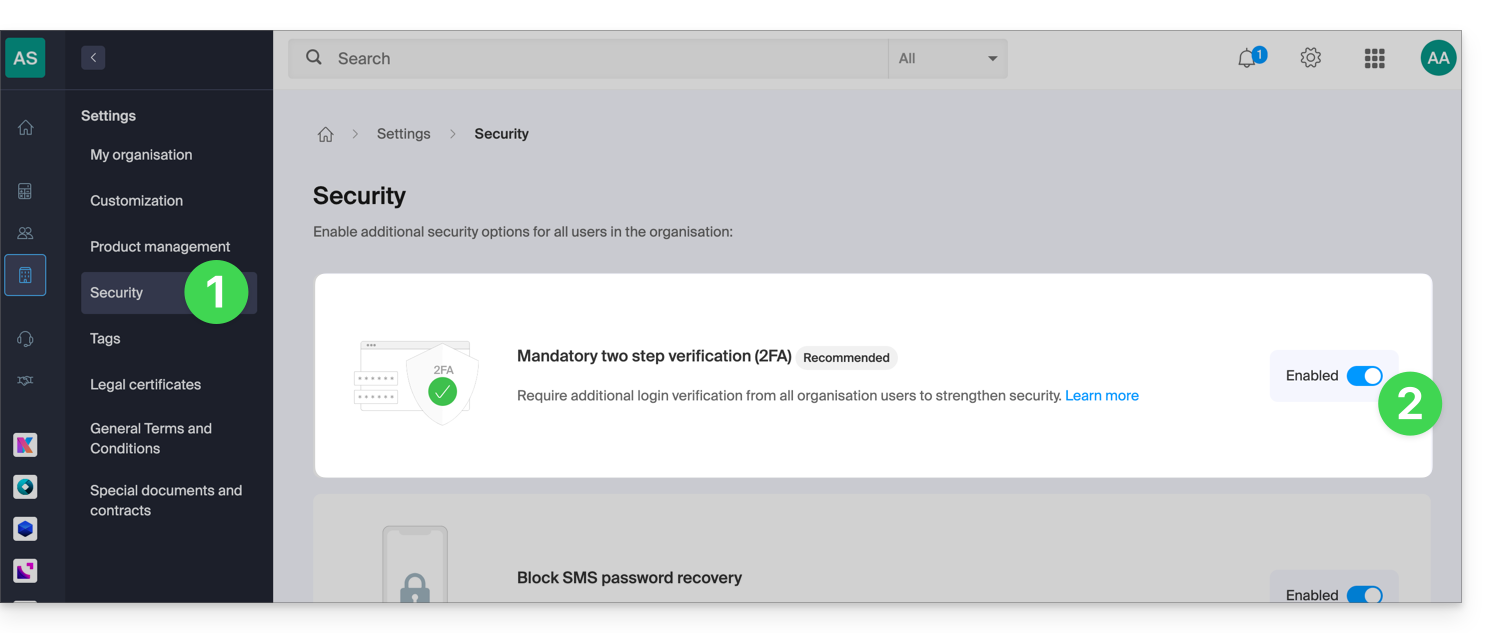
- Confirm the activation of the feature in the window that appears.
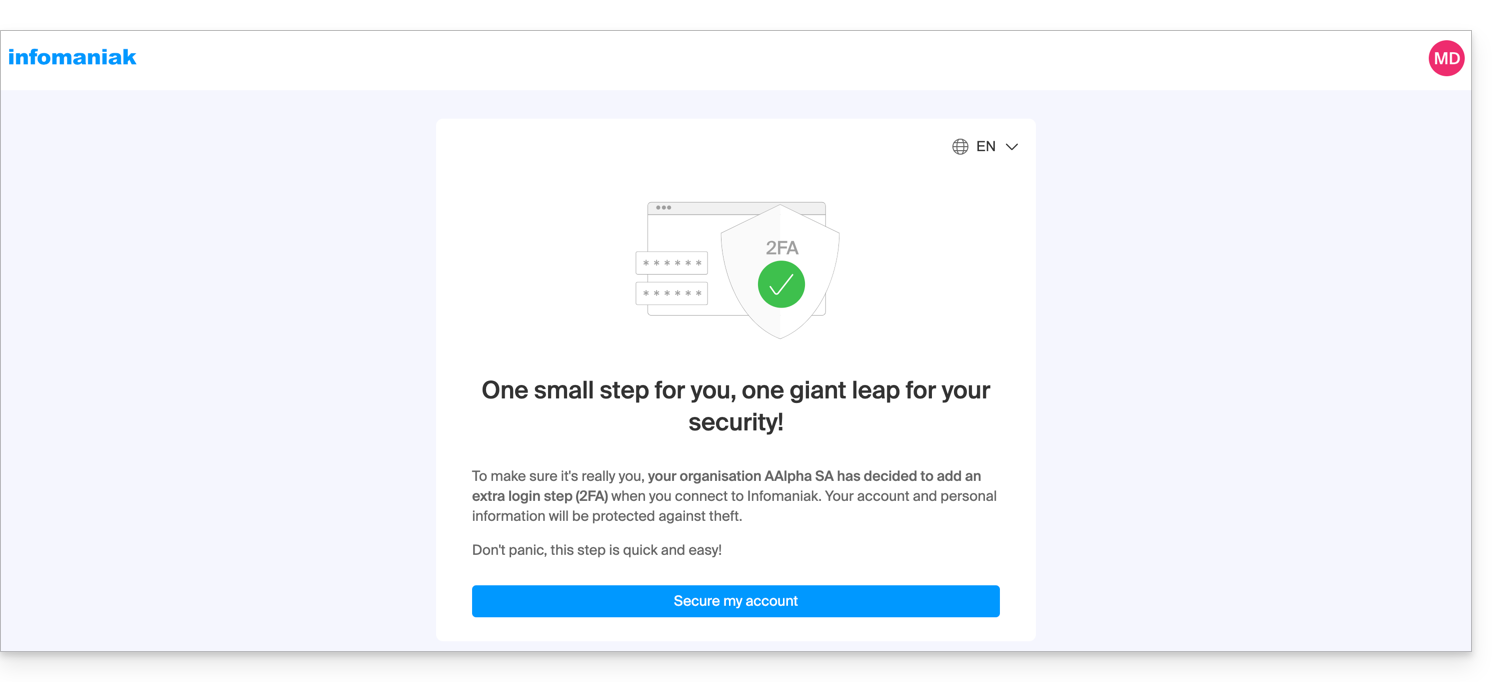
- Once the feature is enabled, users in the Organization who have not yet enabled 2FA will receive a message (the next time they take action on their account) prompting them to configure an additional authentication method from the available options (❓: help) and preventing them from taking any other action until they do so:
Link to this FAQ: https://faq.infomaniak.com/2192
Has this FAQ been helpful?