Knowledge base
1000 FAQs, 500 tutorials and instructional videos. Here, there are only solutions!
Restore a Web Application
Update 10/05/2026
This guide explains how to restore an automatic backup of an Infomaniak Web Application (Joomla, Drupal, Typo3, PrestaShop, ownCloud, etc.) included in the paid Web Hosting plans.
Introduction
- This does not concern WordPress, which can be backed up and then restored via:
- automatic backups for hosting,
- extensions that allow you to manually create a complete backup, including an easy-to-use reinstallation file.
- On the FTP server, the files corresponding to the different backups are available under
/application-backups/.
Restore a Web Application
To access the backups of your Apps:
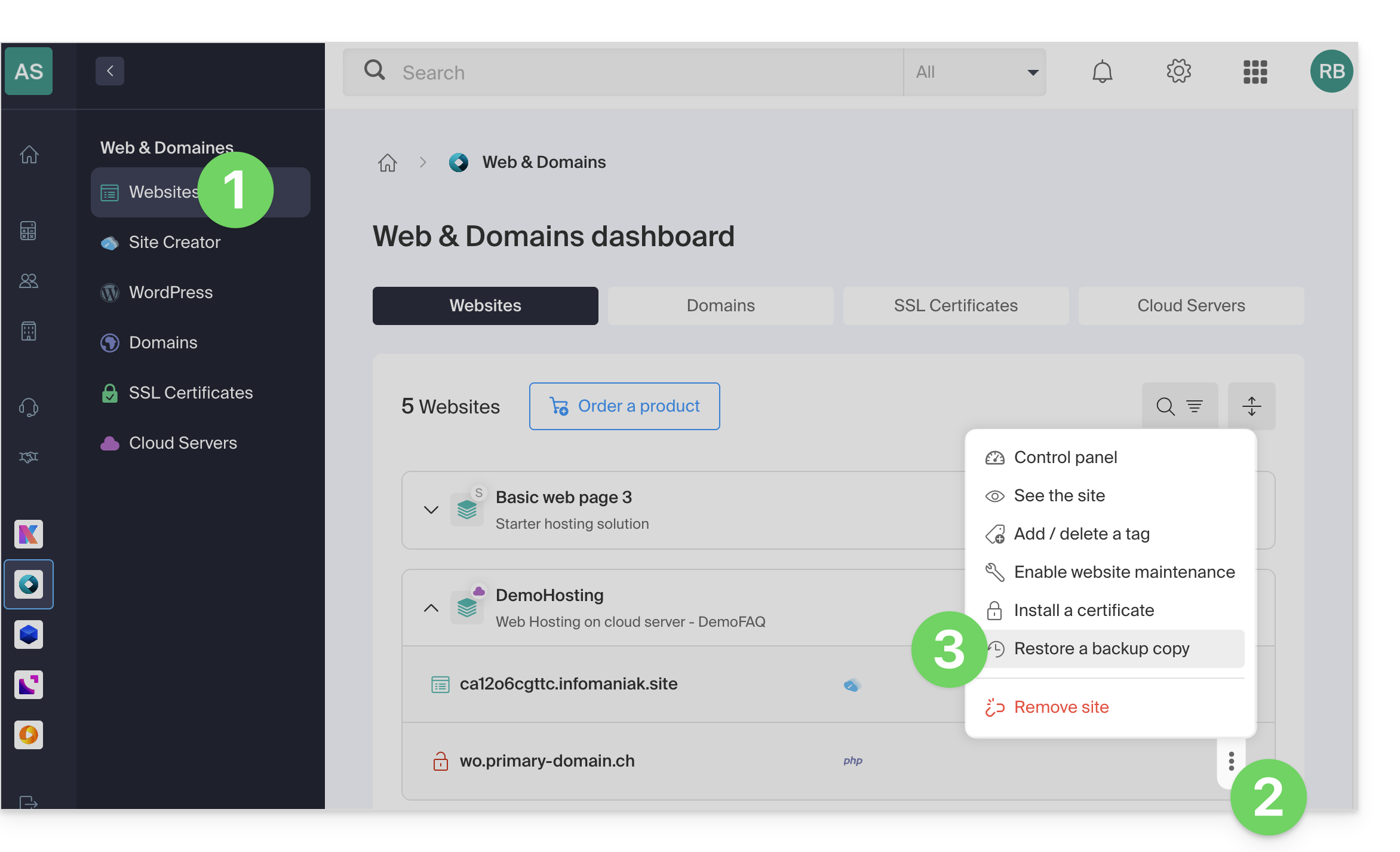
- Click here to access the hosting & website management section in your Infomaniak Manager (❓: help).
- Click on the action menu ⋮ located to the right of the item in question.
- Click on Restore a backup:
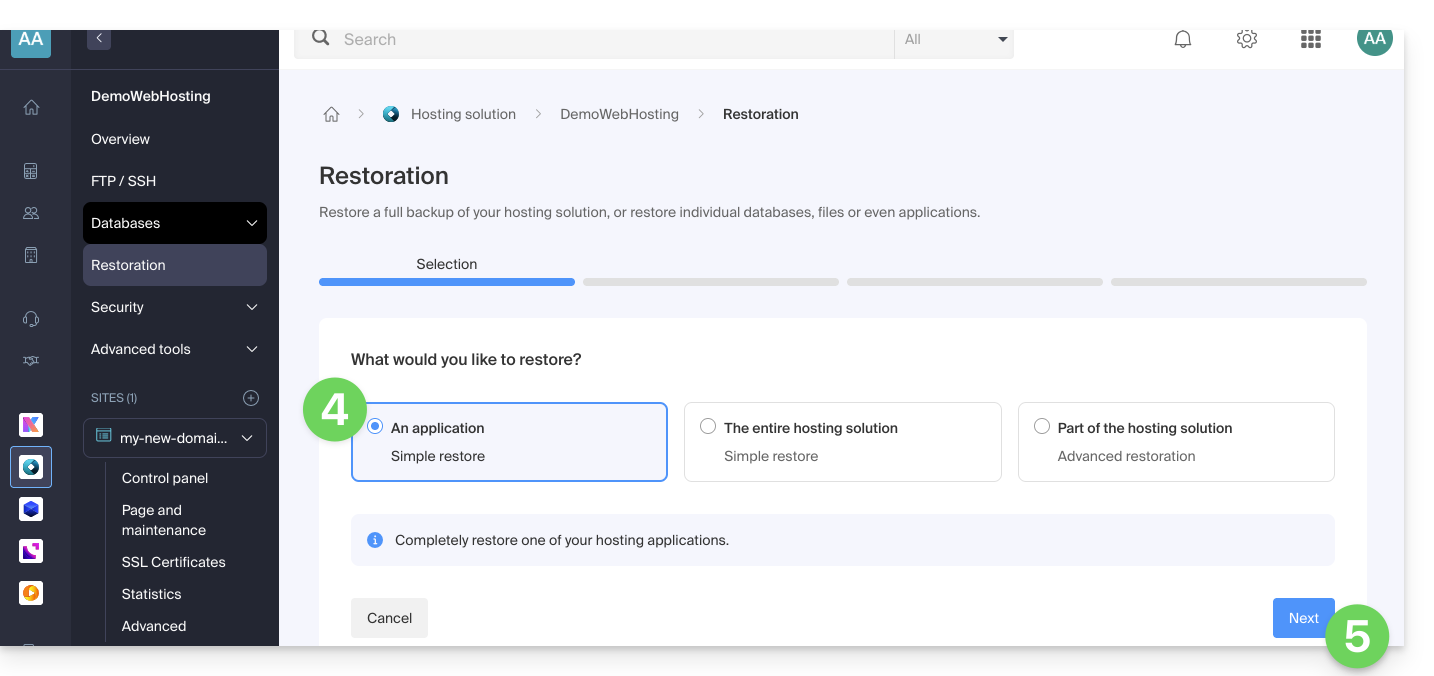
- Click on the desired type of restoration (Web Application).
- Click on the Next button:
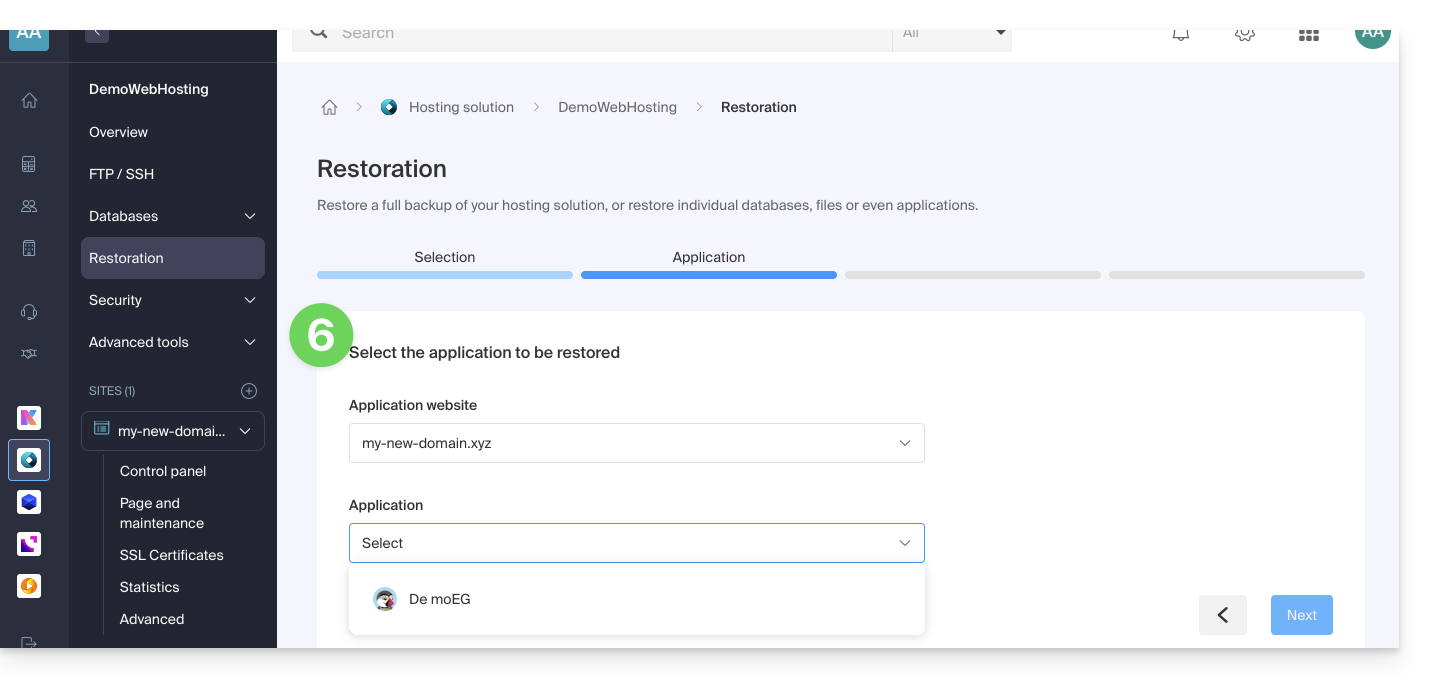
- Choose the application to restore and click on the Next button:
- Choose the date to which you want to revert and click the Next button.
- If the Backups page is empty, this probably means that backups are disabled or that the installation is too recent.
- Choose whether you prefer to…
- …delete existing files before restoring the backup (recommended).
- …replace files with the same name and keep new files created since the backup date.
- Click the Restore button to start restoring the Web Application data.
Learn more
Link to this FAQ: https://faq.infomaniak.com/2175
Has this FAQ been helpful?