Knowledge base
1000 FAQs, 500 tutorials and instructional videos. Here, there are only solutions!
Redirect web traffic to a specific port
This guide covers redirecting web traffic to a specific port, including when using a dedicated IP and a specific web application (such as Node or Varnish, for example).
Prerequisites
- Add a website to your hosting.
- Install
HAProxyon the Cloud Server.
Redirect web traffic to a specific port
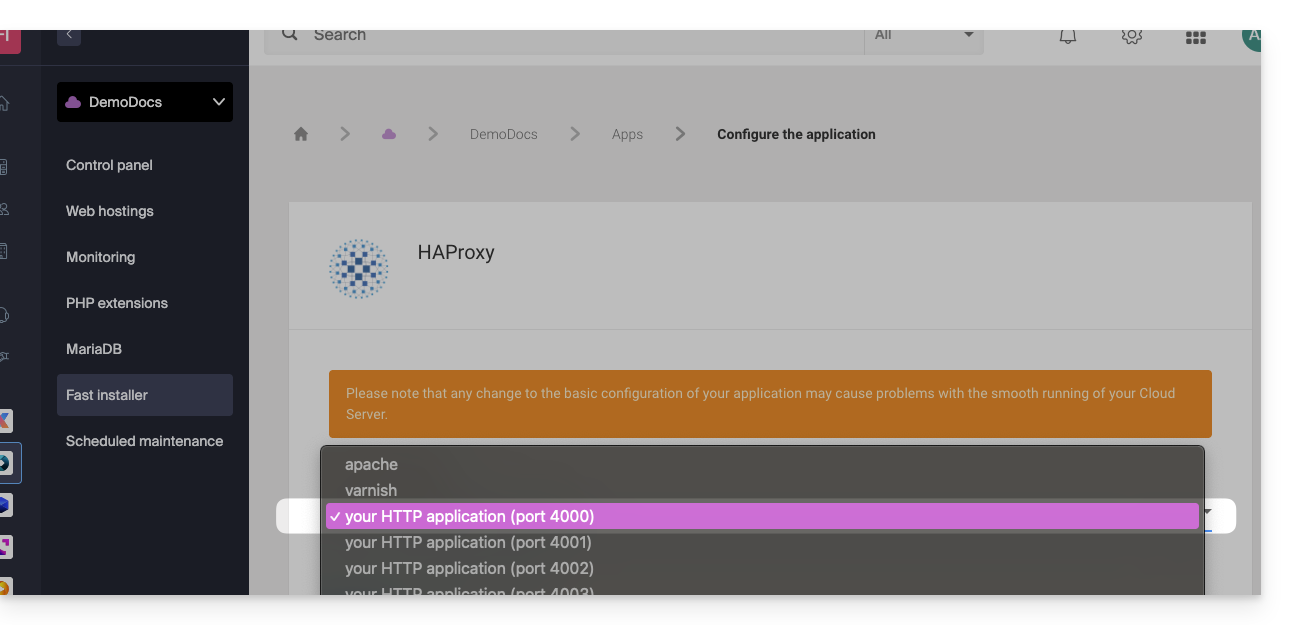
By default, on Cloud Server, web traffic is sent to Apache. To send requests to a Node script or another service (provided it "listens" on a port between 4000 and 4009), you must use HAProxy.
This applies in particular to Express, Socket.IO, Meteor.js, Nuxt.js, Flask, Ruby on Rails servers, and even possibly Java (J2E), etc.
To do this, make sure that the service is listening on a port between 4000 and 4009 (e.g., with server.listen(4000) for Express or a basic HTTP Node server, but depending on the type of project, using other means, a configuration file, in the code, or otherwise) and on all interfaces (0.0.0.0).
You will also need to configure HAProxy as shown in the following example:
- Click here to access the management of your Cloud Server on the Infomaniak Manager (need help?).
- Click directly on the name assigned to the Cloud Server in question.
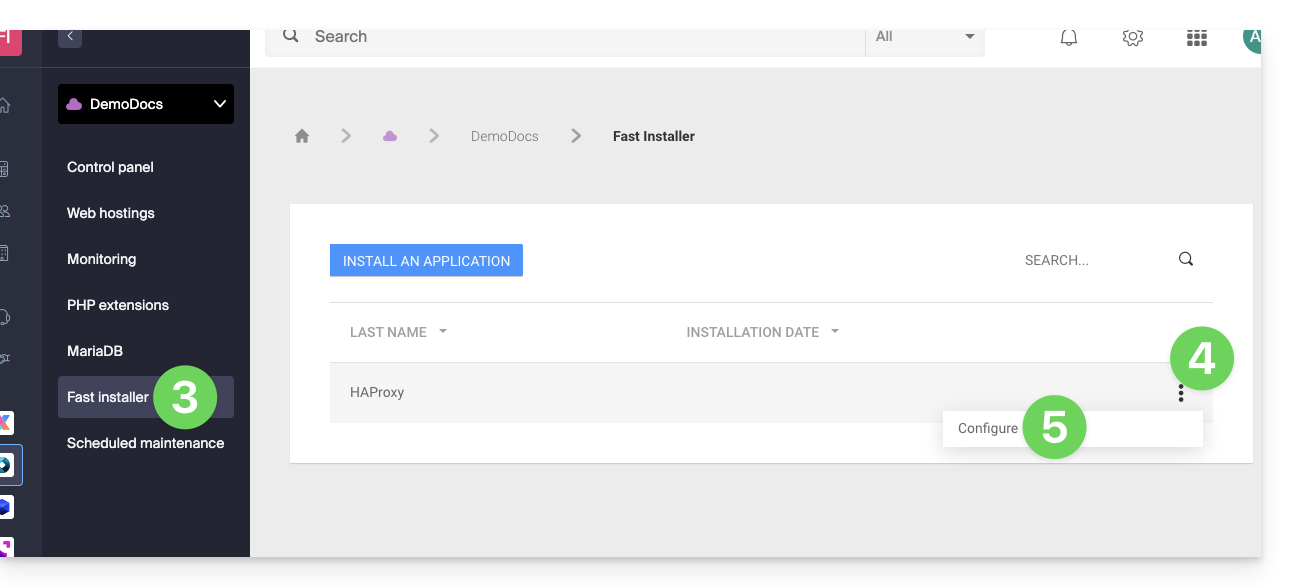
- Click on Fast installer in the left-hand menu.
- Click on the action menu ⋮ located to the right of
HAProxy. - Click on Configure:
- Select the desired information and save:
Special case for aliases and wildcards
Configuring HAProxy via the Fast Installer applies exclusively to the primary domain of the hosting.
Currently, domain aliases (whether specific or wildcard type, such as *.domain.xyz) are not natively supported by this tool.
To redirect traffic from an alias to your application (which is listening, for example, on port 4000), you must manually configure a "proxy" rule in the .htaccess file located at the root of your site:
# Redirect all traffic to the application (e.g., Node.js on port 4000)
RewriteEngine On
RewriteRule ^(.*)$ {{URL_6}} [P,L]
Without this manual directive, all requests matching your aliases or wildcards will be directed by default to Apache instead of your specific application.
Retrieving the source IP of a request
When you redirect web traffic to your web application, the request processing changes, and the request is first received by a reverse proxy (local to the server), which then forwards the request to the chosen port. As a result of this request transfer, methods that are usually used to retrieve the visitor's IP address will return the IP address of the reverse proxy instead of the visitor's IP address.
Therefore, to retrieve the actual source IP address of the visitor in these cases, you need to consult an HTTP header named X-Forwarded-For, which will contain the accumulated source IPs from each redirection. This header will therefore contain the original client IP address at the end, allowing you to identify the actual visitor.
Caution: It is important to note that HTTP headers can be manipulated, which poses security risks. To minimize these risks, it is recommended to verify that the request actually comes from a reliable server before trusting the content of the X-Forwarded-For header. This verification may involve ensuring that the request was transmitted by a trusted intermediate server, identified by a pre-established list of IP addresses. In the case where the site uses a dedicated IP, the trusted servers are:
- 83.166.133.15
- 83.166.133.17
- 83.166.133.16
- 84.16.92.5
- 84.16.92.43
- 10.2.32.255
- 10.2.34.164
Link to this FAQ: https://faq.infomaniak.com/2171
Has this FAQ been helpful?