Knowledge base
1000 FAQs, 500 tutorials and instructional videos. Here, there are only solutions!
Troubleshooting kDrive synchronization issues
This guide helps you troubleshoot cases where you notice that some kDrive data is not being synchronized across your devices.
Certain folders are missing on your computer
If everything seems to be working correctly:
- the kDrive app is running in the background and functioning,
- no synchronization is interrupted,
- no error messages are displayed,
- you have the correct access rights when viewing the files in their online version (ksuite.infomaniak.com/kdrive),
but you notice that:
- folders such as Organization Folders or other directories are not visible on your computer,
then check in the desktop kDrive app installed on your computer which folders you want to synchronize:
- Left-click on the app icon in the notification area of your computer (top right on macOS, bottom right on Windows, and double-left-click in the taskbar on Linux).
- Click on the action menu ⋮ on the right of the window that appears.
- Click on kDrive Settings:
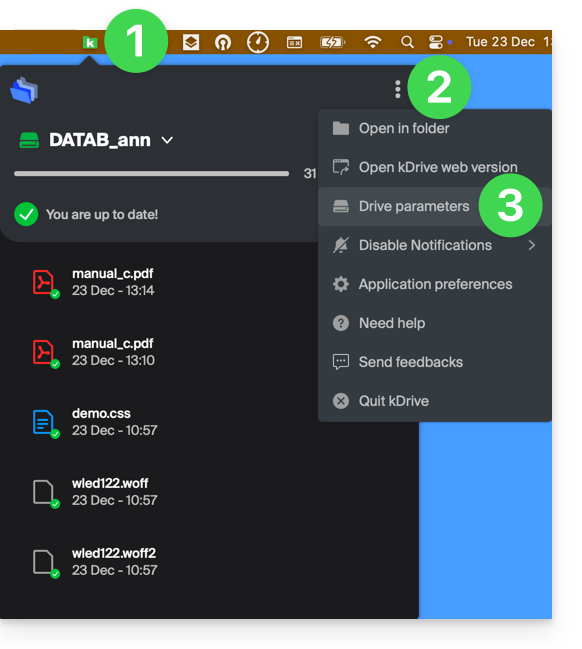
- Click on the chevron to the left of your synchronization name to display the list of folders.
- If necessary, expand the contents of the listed folders and check/uncheck the folders to be synchronized with your computer.
- Click on the blue Confirm button:
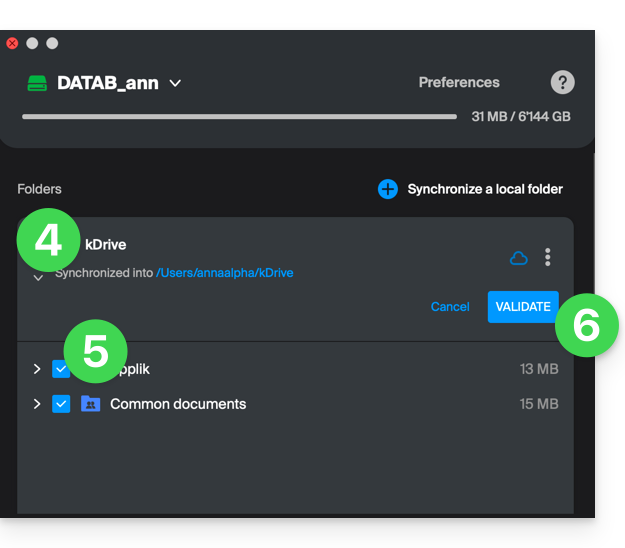
As a result, your local folder representing kDrive (named kDrive, or kDrive2, or another name) on your computer will finally display all the desired folders (after the time required for synchronization).
Synchronization in progress (0/10) then paused
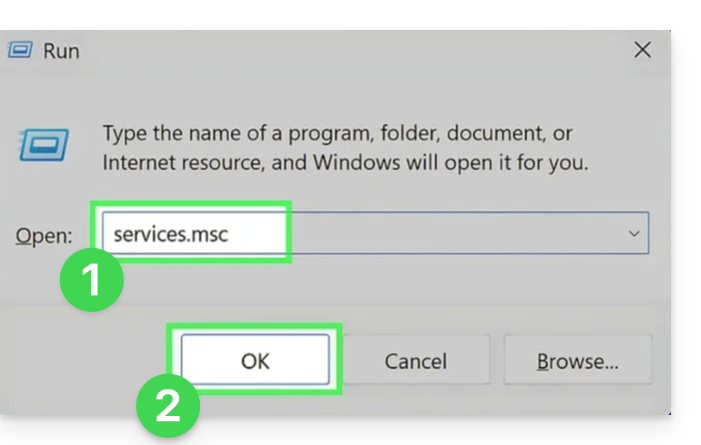
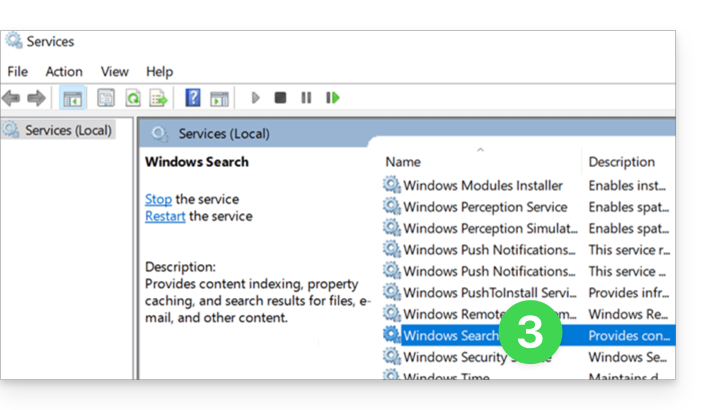
Check that the Windows Search service is not stopped. Proceed via the Run window (Win + R):
- Enter
services.msc. - Click on OK:
- Locate Windows Search in the list in the Services window and activate it if it is not already:
Continuous synchronization (files .eml)
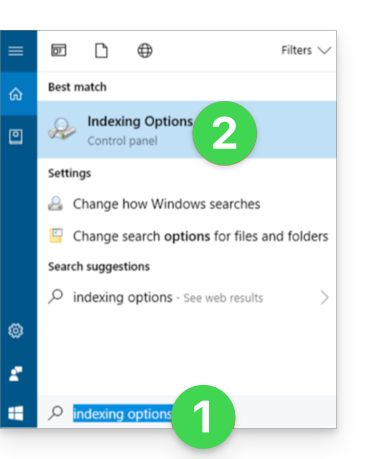
An issue related to Windows indexing may occur when synchronizing kDrive files with the .eml extension (a file type corresponding to email export/saving). It is therefore necessary to remove the eml type from the indexing options to resolve this issue:
- Open the Start menu and search for the indexing options.
- Click on Indexing Options (Control Panel):
- Click on the Advanced button.
- Uncheck the box for the
emltype: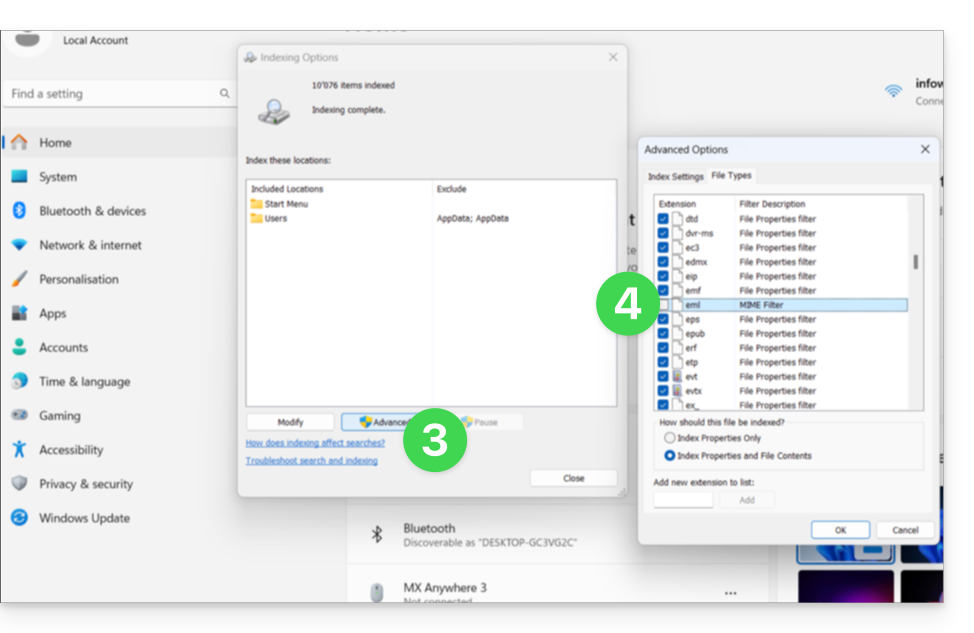
- Confirm and close the windows.
Adobe File Synchronization
Adobe applications such as Illustrator, Photoshop, Lightroom, etc., or certain architecture/3D applications, may encounter problems when saving files (error messages in the relevant software, file duplication, etc.) on kDrive. Therefore, it is best to avoid including such files in a synchronization.
Adobe explicitly states that it does not support synchronization with the cloud, external drives, and network drives.
Issues Related to File Names
Recommended Structure
- Use only standard alphanumeric characters.
- Replace trailing spaces with underscores (_) or hyphens (-).
- Limit the total length of the path (folder name + file name) to less than 255 characters.
The following characters should be avoided as they are reserved by the Windows file system or cloud storage servers:
- < (less than)
- > (greater than)
- : (colon)
- " (quotation marks)
- / (slash)
- \ (backslash)
- | (vertical bar)
- ? (question mark)
- * (asterisk)
The location of the space is often more critical than the character itself for synchronization:
- Space at the end of the name: a file named "
project .pdf" causes major synchronization errors on Windows. - Space at the beginning of the name: may make the file invisible or difficult to index.
- Trailing period in file name: Windows rejects folders ending with a period (e.g., "
Archives."). - Unicode spaces (non-breaking): invisible characters often generated on macOS that appear as spaces but are technically special characters not supported by Windows.
File names reserved by the system
The following terms should not be used as file names, as they are reserved for Windows' internal communications:
- CON, PRN, AUX, NUL
- COM1, COM2, COM3, COM4, COM5, COM6, COM7, COM8, COM9
- LPT1, LPT2, LPT3, LPT4, LPT5, LPT6, LPT7, LPT8, LPT9
Also, please refer to this other guide.
Link to this FAQ: https://faq.infomaniak.com/2153
Has this FAQ been helpful?