Knowledge base
1000 FAQs, 500 tutorials and instructional videos. Here, there are only solutions!
Manage variables in a Newsletter
This guide explains how to add tags (codes and variables) in the body of your text to customize your sends with Infomaniak Newsletter.
Preamble
- A subscriber exists in the form of an email address, but not only:
- You may have additional details about them, which must be included in the file you import so that you can define a custom field associated with each of these additional details.
- Many other details can be collected during the subscription of a subscriber via a form.
- You can add many other details manually at any time.
- The information associated with each subscriber can be used to segment your audience, send targeted messages, and improve engagement.
- By leveraging these additional details, you increase the chances of conversion and loyalty, thus creating a stronger and more personalized relationship with each subscriber.
Manage custom fields
To view the content of each field for each subscriber, refer to this other guide (under Edit a subscriber's record).
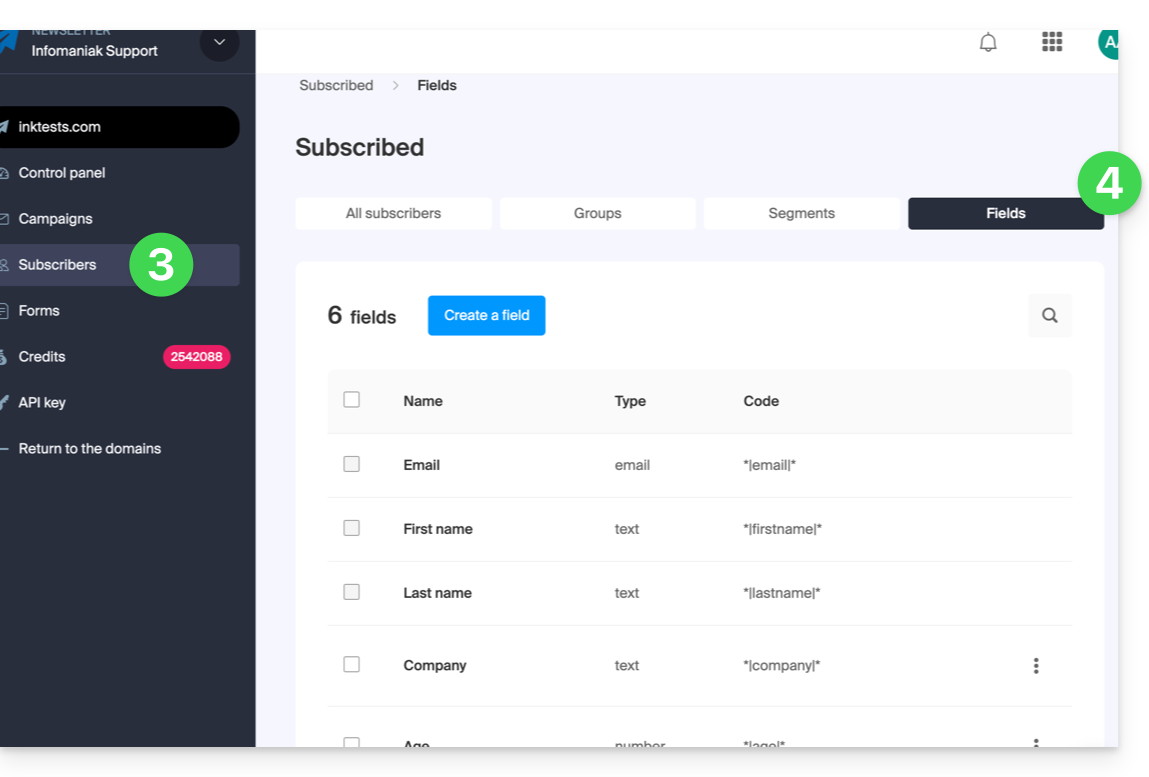
To manage the names of these fields, or simply delete or add them, go to the Subscribers section:
- Click here to access the management of your product on the Infomaniak Manager (need help?).
- Click on the domain name concerned in the table that appears:
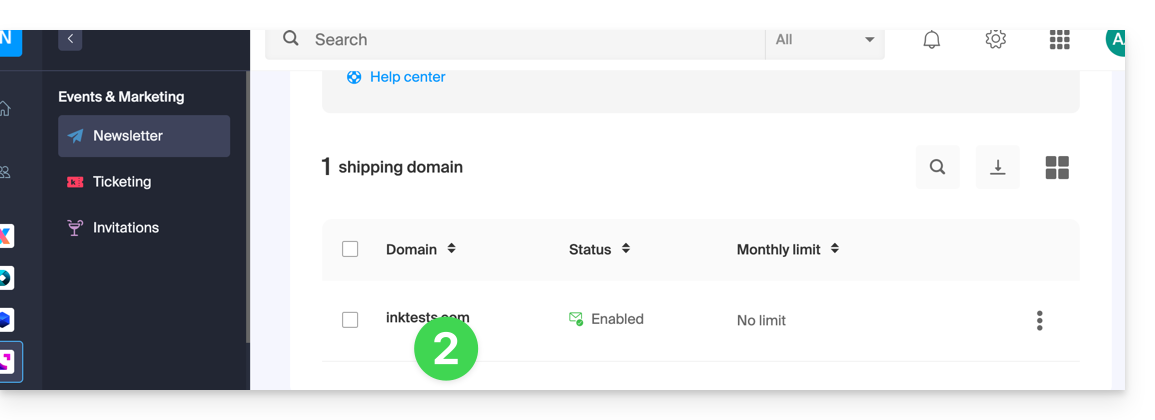
- Click on Subscribers in the left sidebar menu.
- Click on the Fields tab:
Insert a variable...
... in the Newsletter title
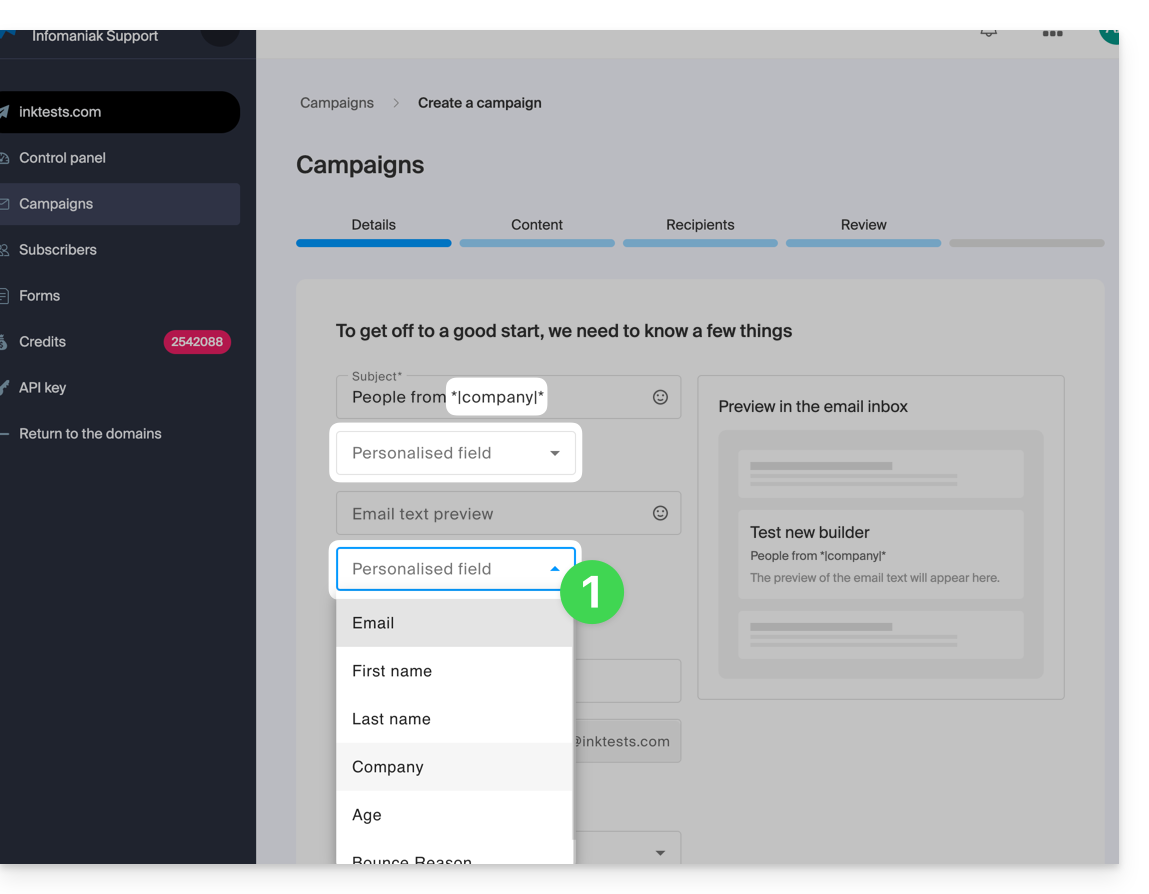
When you create a new Newsletter, insert the custom fields in the subject and preview text:
- In the very first step of creation, click on the drop-down menus dedicated to this use:
... in the body of the email
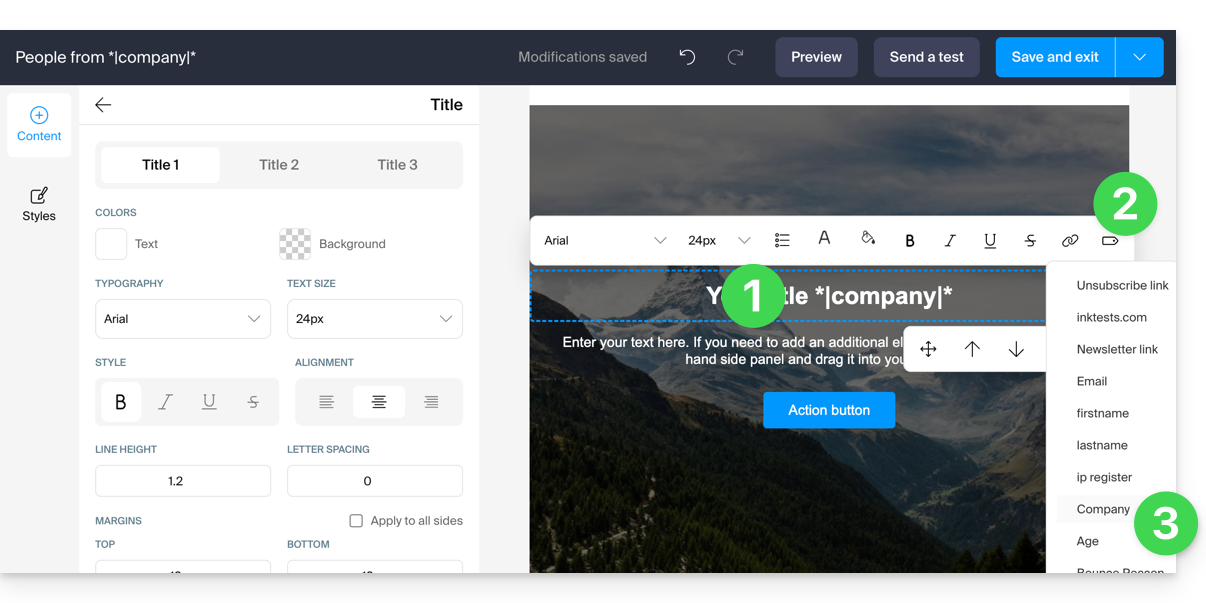
When you build your Newsletter with the block editor:
- Click on the text where you want to insert your variable.
- Click on the Tag / Label icon in the toolbar.
- Choose the variable to insert:
You can also simply insert the variable name surrounded by asterisks and separators: *|VARIABLE|*
List of basic variables
*|FIRSTNAME|* | first name |
*|LASTNAME|* | last name: this variable can also be integrated into a link href for example https://domain.xyz?name=*|LASTNAME|* |
*|EMAIL|* | email address |
*|DOMAIN_NAME|* | Newsletter domain name |
*|IP-REGISTER|* | user's IP address when registering |
Unsubscribe link | To place an unsubscribe link ('unsubscribe') at the desired location without any action on your part, this link is automatically inserted at the bottom of your Newsletter |
Newsletter link | To manually add a link to an online version of your Newsletter without any action on your part, this link is automatically inserted at the top of your Newsletter |
Link to this FAQ: https://faq.infomaniak.com/2137
Has this FAQ been helpful?