Knowledge base
1000 FAQs, 500 tutorials and instructional videos. Here, there are only solutions!
Export a database
Update 10/06/2026
This guide explains how to back up or export a MySQL/MariaDB database via the Infomaniak Manager or via SSH.
Export a database via the Manager
To export an Infomaniak database:
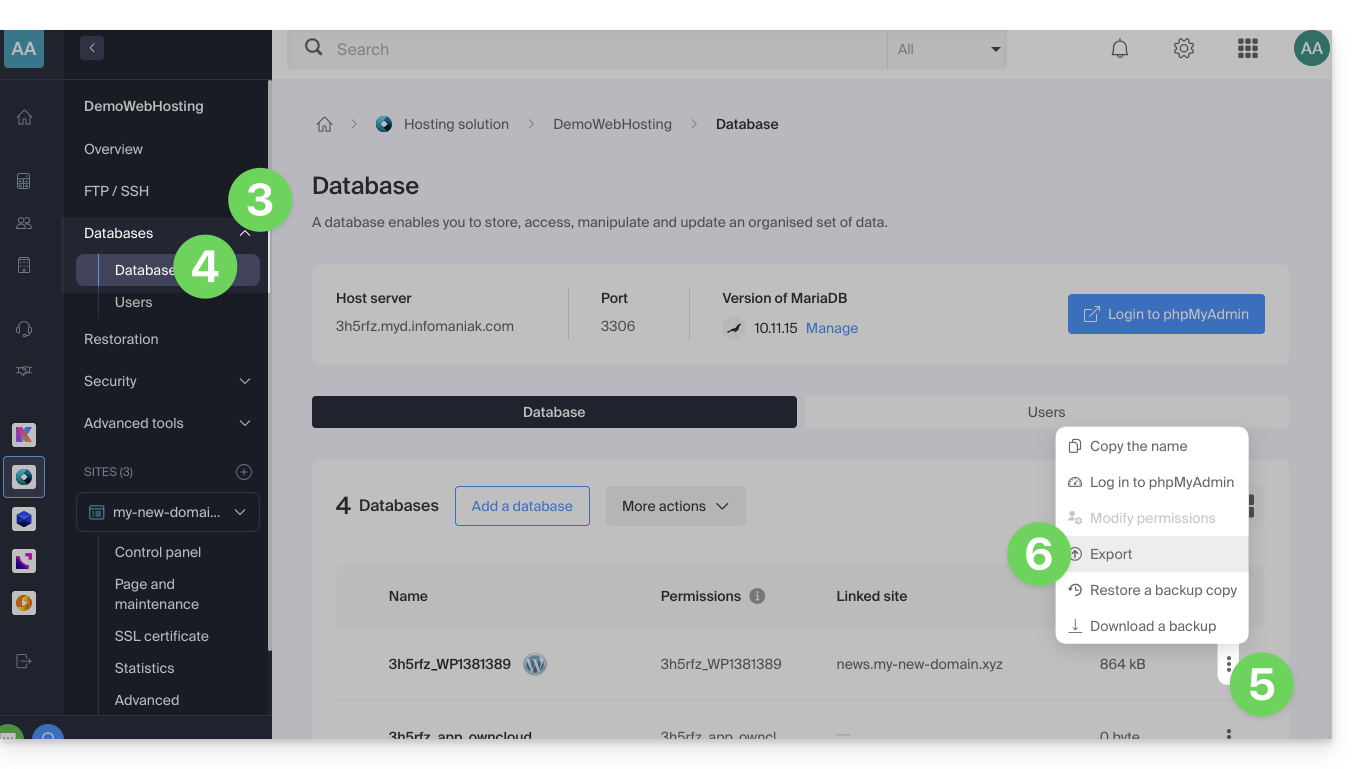
- Click here to access the hosting & website management section in your Infomaniak Manager (❓: help).
- Click on the name of the website in question.
- Click on the chevron to the right of Databases in the left-hand menu.
- Click on Databases in the left-hand menu.
- Click on the action menu ⋮ to the right of the relevant item in the table that appears.
- Click on Export (or on Download a backup):
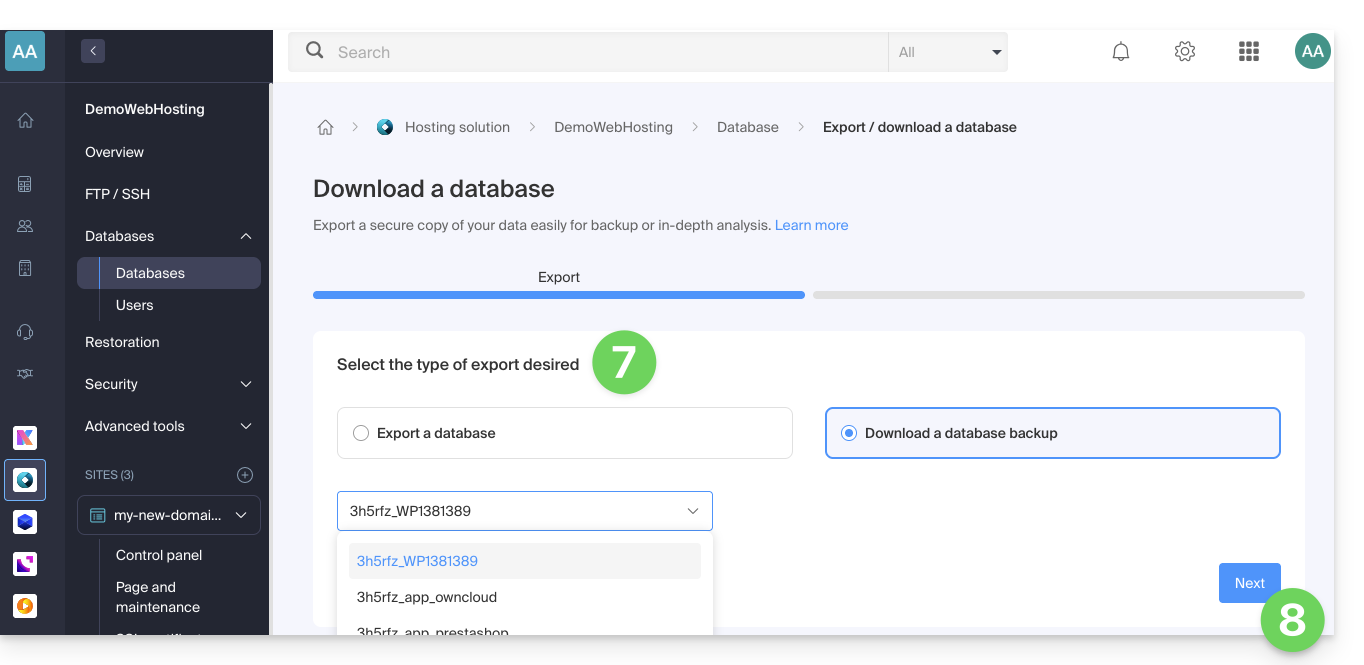
- Click on the export method and choose the database to download from the drop-down menu.
- Click on the Next button:
- Click on any desired instructions:
GzipcompressionDrop TableCreate Table if not existsInsert ignore into
- Click the Export button.
Export a database via SSH
If you are unable to export the database via the console, or if the database is very large:
- If necessary, create an SSH FTP account.
- Connect to the server via SSH (need help?).
Adapt and execute the following SSH command:
# Usage: mysqldump --host=[hostname] -u [username] --password=[password] [database_name] --no-tablespaces > [output_file.sql] mysqldump --host=db_host -u db_user --password=db_password db_name --no-tablespaces > backup.sql- Wait for the SSH command to complete (the terminal may freeze for a few seconds).
- Connect to the server using an FTP software/client.
- Download the generated SQL file.
Further assistance
Example command to execute in step 3 of the second procedure:
# Example with standard credentials mysqldump --host=abcd.xyz.infomaniak.com -u abcd_test --password=your_secret_password abcd_test --no-tablespaces > backup.sql- Refer to this other guide if you are looking for information related to the MySQL server, the database username, and password.
Link to this FAQ: https://faq.infomaniak.com/2128
Has this FAQ been helpful?