Knowledge base
1000 FAQs, 500 tutorials and instructional videos. Here, there are only solutions!
Migrate a shared web hosting to a Cloud Server
Update 10/05/2026
This guide explains how to migrate a shared web hosting account to a Cloud Server while recovering all its data, websites, databases, etc.
Introduction
- Please note:
- Database names and database user names are retained.
- FTP accounts are retained with the same names, but the host server changes to an address of the type
xxxx.ftp.infomaniak.com. - Website IPs will change, except for dedicated IPs.
- During this operation, statistics are reset.
- If you already have a Cloud Server, go directly to step 2 of this guide.
- To migrate a web hosting from a Cloud Server to another Cloud Server, please refer to this other guide.
- To migrate a web hosting from a Cloud Server to a shared web hosting, please refer to this other guide; please note that this is an operation you will need to perform manually.
1. Order a Cloud Server
To do this:
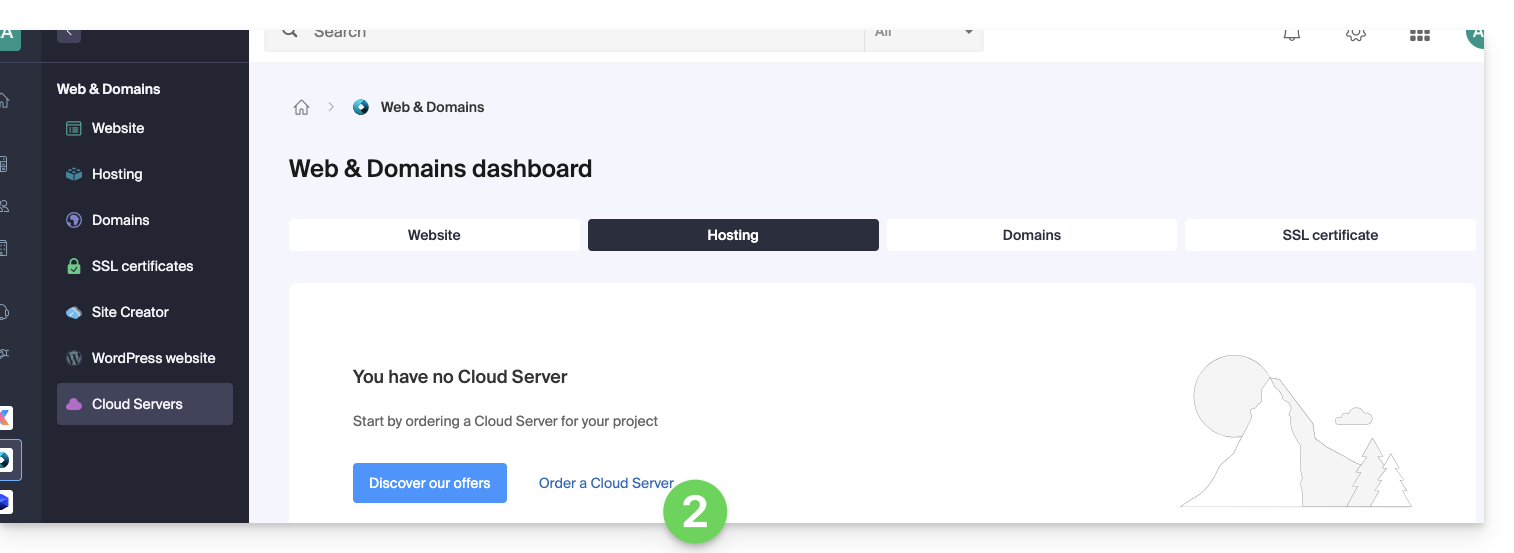
- Click here to access the Cloud Server management section in the Infomaniak Manager (need help?).
- Click on Order, choose a Managed Cloud Server, and follow the wizard to complete the order:
2. Migrate your hosting to the Cloud Server
Once the Cloud Server is up and running:
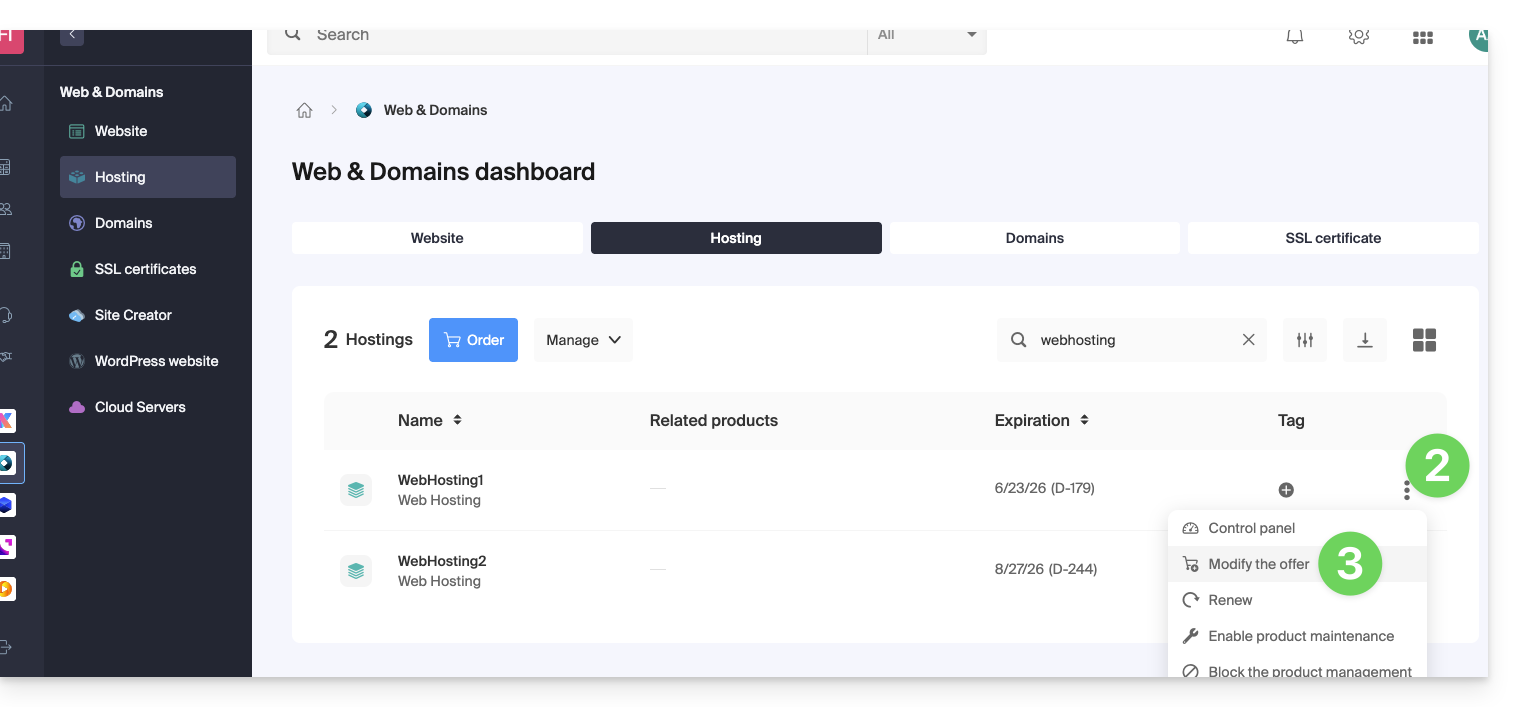
- Click here to access the hosting & website management section in your Infomaniak Manager (❓: help).
- Click on the action menu ⋮ located to the right of the item in question.
- Click on Modify offer:
- Select the free transfer offer.
- Select the Cloud Server to which you want to migrate your hosting:
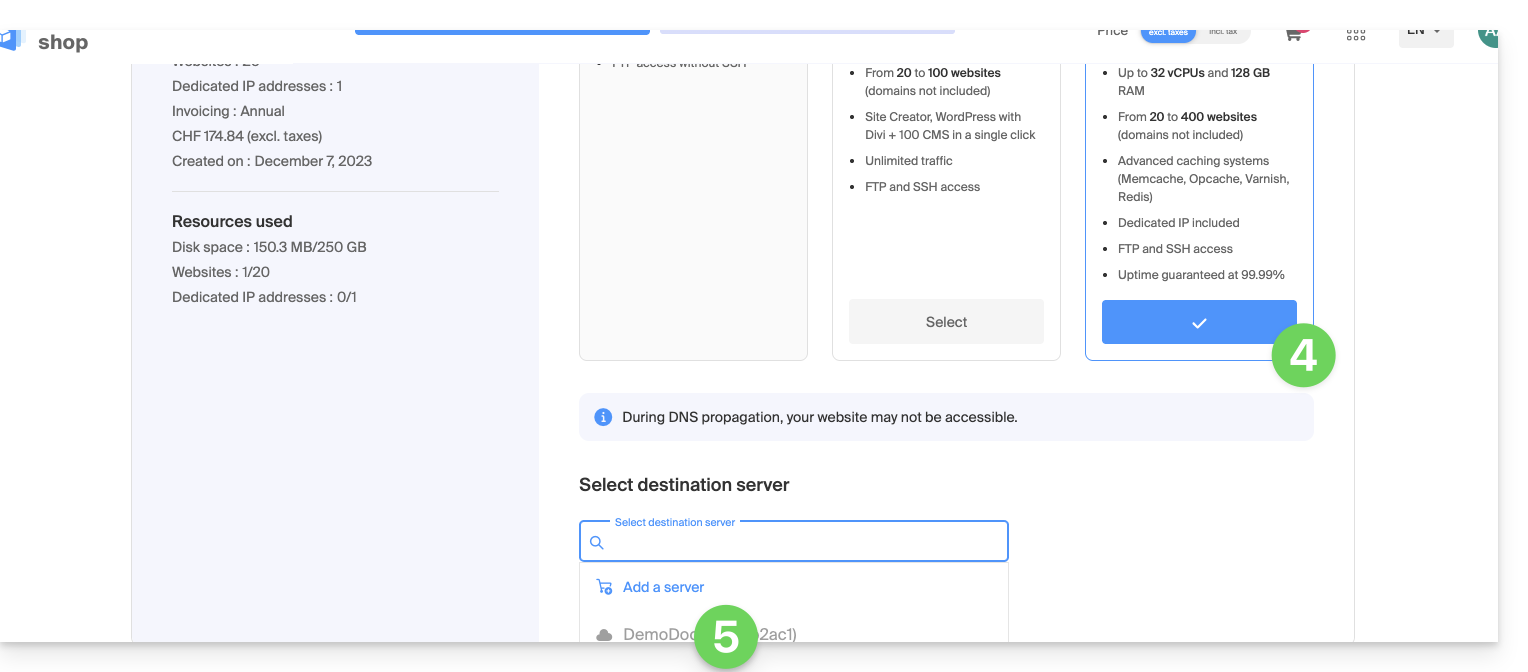
- Click the Next button at the bottom of the page and complete the procedure.
- Please wait while your hosting is being migrated; there will be a service interruption during the process.
Link to this FAQ: https://faq.infomaniak.com/2127
Has this FAQ been helpful?