Knowledge base
1000 FAQs, 500 tutorials and instructional videos. Here, there are only solutions!
Automatically check the Mail Service and Domain links (DNS diagnostics)
Update 10/12/2026
This guide presents the DNS Diagnostic tool, which allows you to verify the relationships between…
- DOMAIN NAME at Infomaniak
and - MAIL SERVICE with Infomaniak
… are correct, so that Mail traffic is directed to the right place.
Introduction
- To verify, the tool checks the MX records, SPF, etc.
- This allows you to detect and correct certain Mail issues, particularly if they are related to DNS (technical information that essentially determines where certain Mail traffic should be directed) by taking action at the domain level.
- Automatic correction is only possible when the domain name is present in the same Organization as the product to which it must be linked.
- If this is not the case, then the correction must be done manually.
Troubleshooting DNS issues
To access the DNS diagnostics for your domain name:
- Click here to access the Mail Service management in your Infomaniak Manager (❓: help).
- Click on the name of the Mail Service in question:
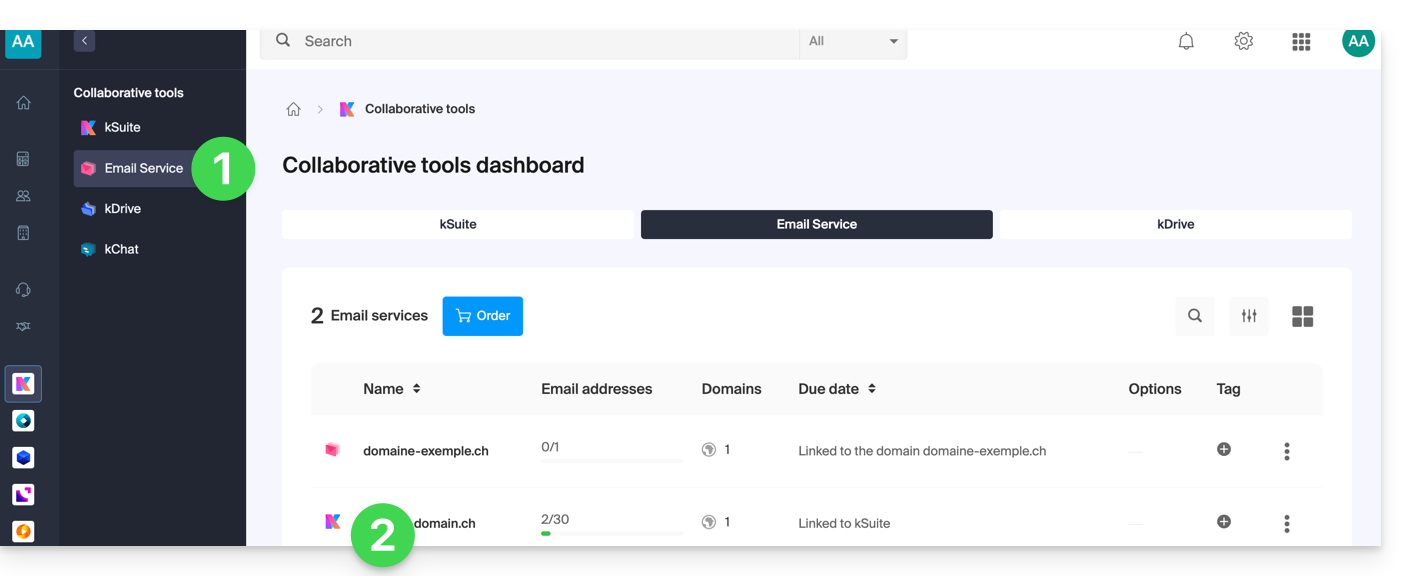
- Click on Domain Management in the left-hand menu:
- Click on DNS Diagnostics in the left-hand menu.
- Click the button if necessary to refresh the information, which should then be displayed in green.
- If DNS issues are detected, a red display in the table indicates this:
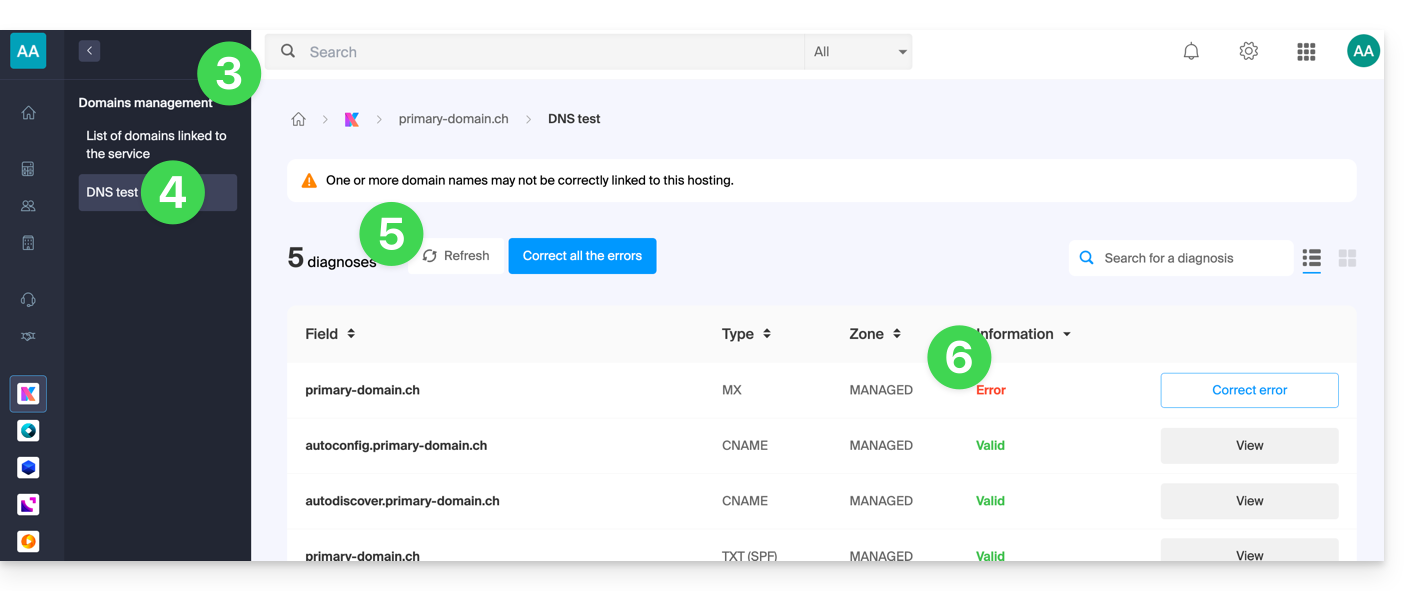
- Correct each error individually by clicking the button to the right of the item in question…
- … or correct all errors at once using the button above the table.
Refer to this other guide regarding the same automatic verification process, but for Web Hosting.
And if necessary, consult the security diagnostic related to email.
Link to this FAQ: https://faq.infomaniak.com/2124
Has this FAQ been helpful?