Knowledge base
1000 FAQs, 500 tutorials and instructional videos. Here, there are only solutions!
Manage MX records
This guide explains how to add or modify an MX record in the DNS zone of a domain name managed from the Infomaniak Manager.
Introduction
- An MX record tells mail servers to which server/provider to forward messages addressed to your domain name.
- Changes made in the Infomaniak Manager are only applied if the domain name uses the corresponding DNS zone.
- Any DNS addition/modification may take up to 48 hours to propagate (❓: help); during this period, some messages may still be routed according to the old configuration.
MX records for Infomaniak email
Infomaniak automatically configures the necessary MX record when the domain name and Mail service are created within the same organization in the Infomaniak Manager.
If your configuration requires manually adding the MX record to direct incoming messages to Infomaniak, enter the following values:
- Host / Source: leave this field blank to apply the record to the main domain
- Target:
mta-gw.infomaniak.ch - Priority:
5
The target must be entered as a hostname, without https://, without an email address, and without any additional path.
Variant specific to certain DNS interfaces
Some interfaces, notably Gandi's, require a period at the end of the target to indicate that it is a fully qualified domain name. In this case, enter:
mta-gw.infomaniak.ch.
If a different MX record is used or if multiple MX records are configured, Infomaniak cannot guarantee that messages will be received correctly.
Edit the DNS zone
To add an MX record to the DNS zone:
- Click here to access the domain management section in your Infomaniak Manager (❓: help).
- Click on the name of the domain in question.
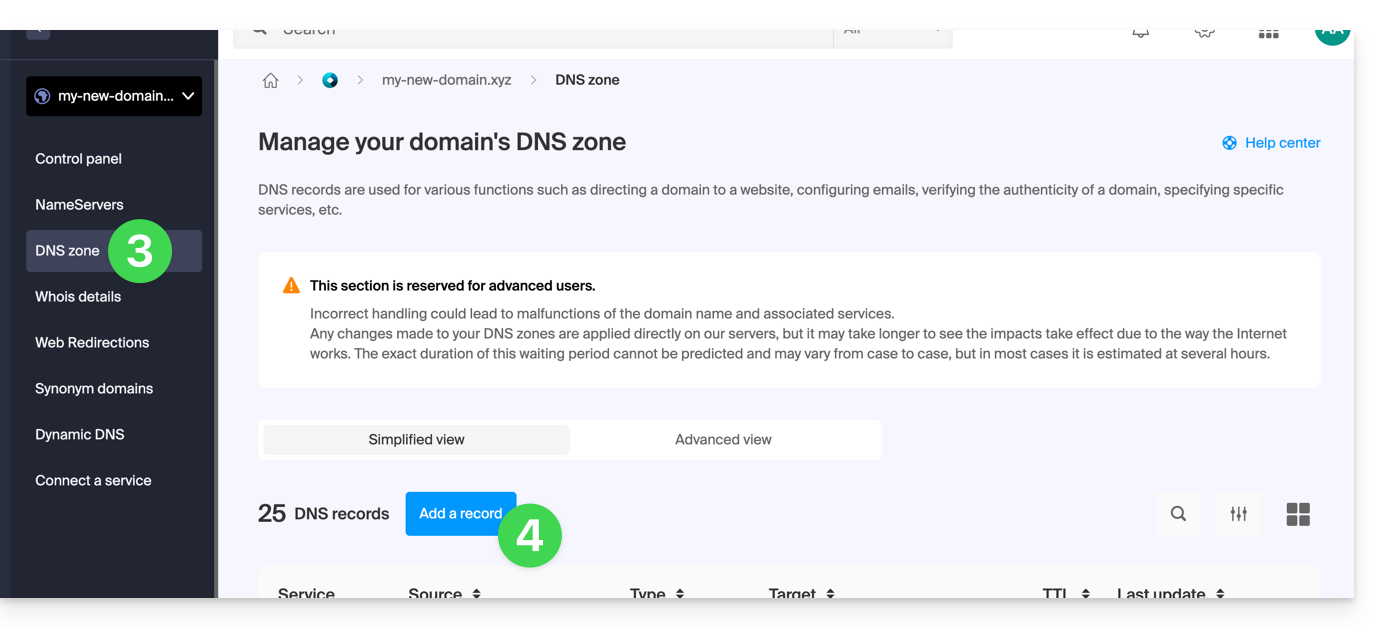
- Click on DNS Zone in the left-hand menu.
- Click on the button to add a record:
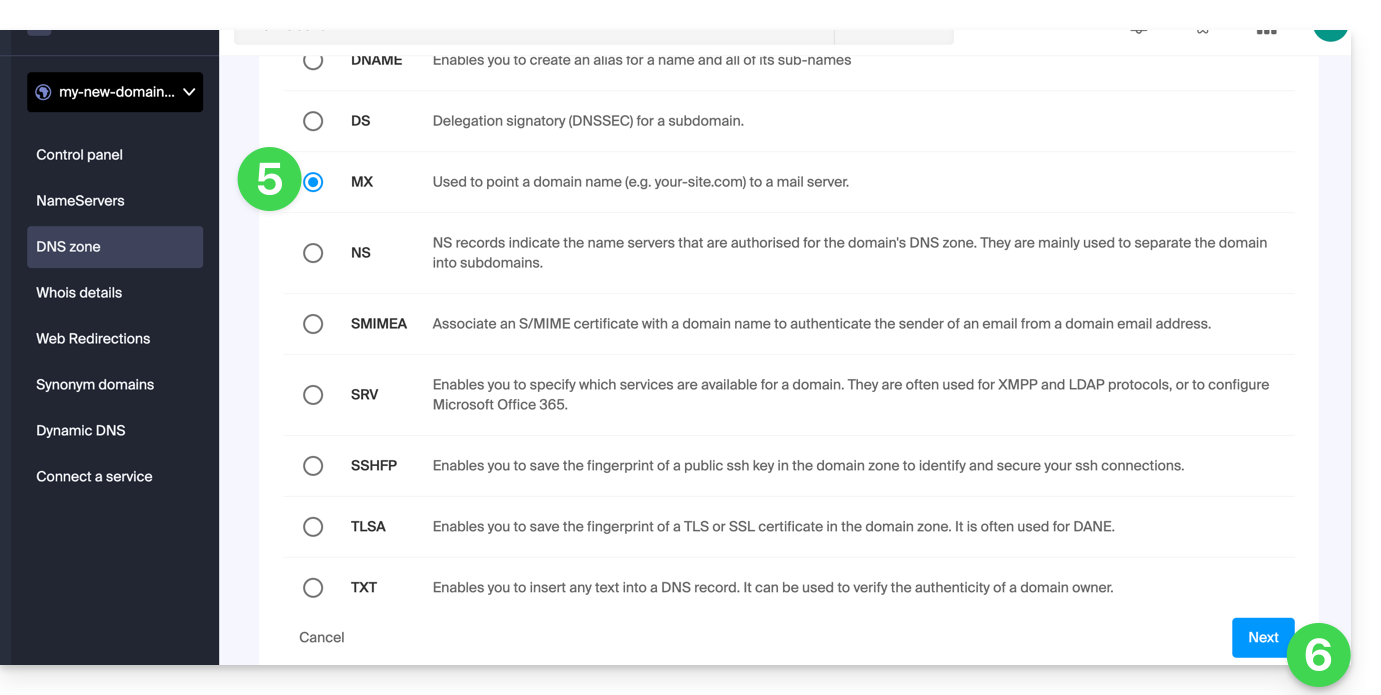
- Select the type of MX record.
- Click on the Next button:
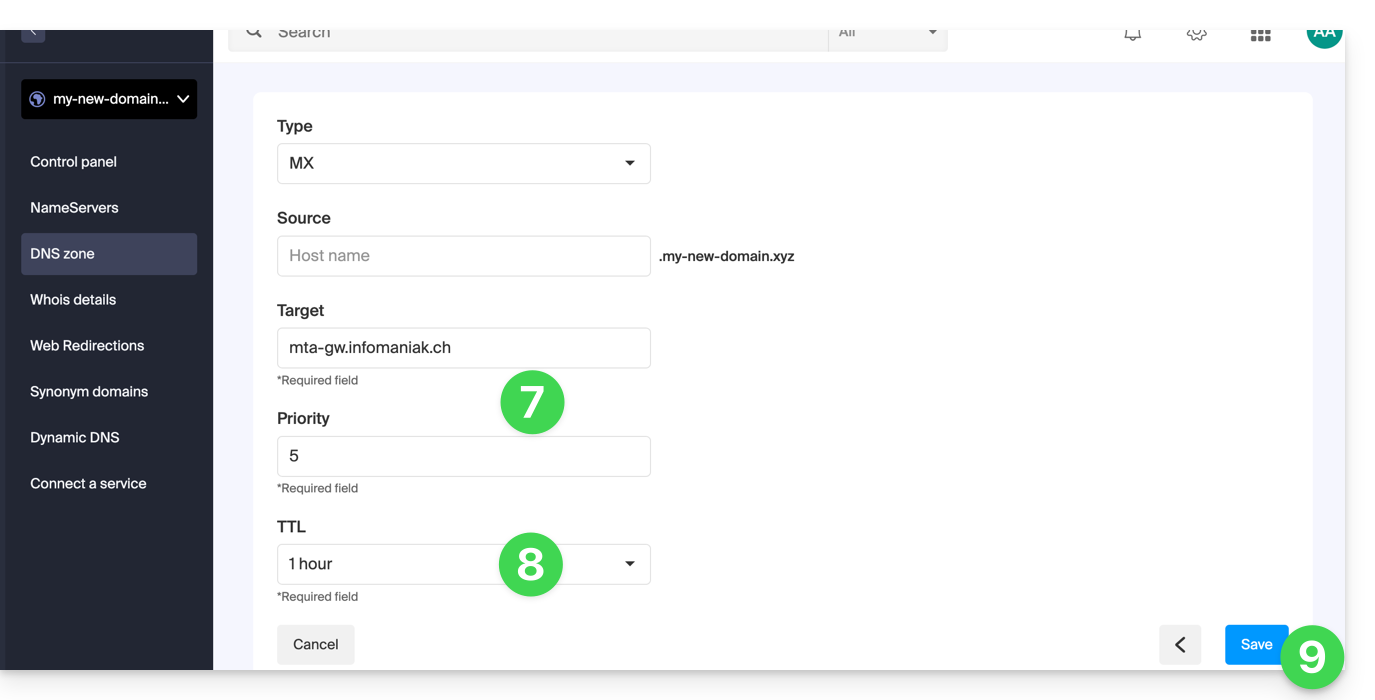
- Enter the requested values:
- for the email of the main domain, leave the Host or Source field blank
- enter the name of the email server provided by the provider in the Target field
- enter the priority indicated by this provider
- Keep the default value for TTL, unless your email provider indicates otherwise.
- Click on the Save button:
Once saved, the MX record will appear in the DNS zone table: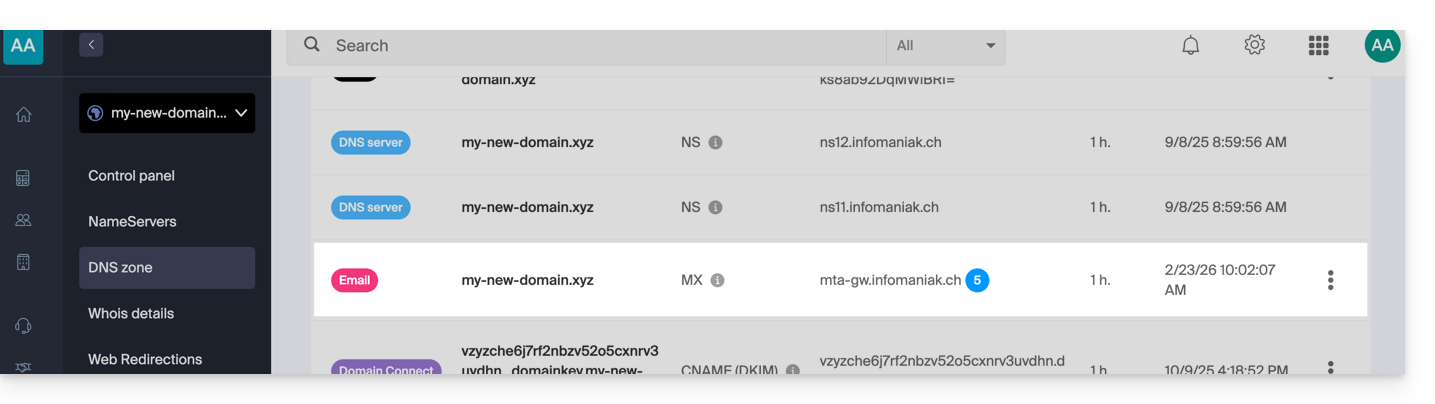
To send messages using Infomaniak's email service, the domain name must also have a correctly configured SPF record (❓: help).
Learn more
Link to this FAQ: https://faq.infomaniak.com/2110
Has this FAQ been helpful?