Knowledge base
1000 FAQs, 500 tutorials and instructional videos. Here, there are only solutions!
Install a free "wildcard" SSL certificate
This guide explains how to generate a certificate signing request (CSR) for a domain name and all its subdomains with a Web Hosting (excluding free hosting of type Starter), thus allowing you to encrypt the connection to your domain name and all its subdomains via a single SSL certificate.
Preamble
- The configuration allows for a "named site" and a "backup site"; to ensure this works without conflict, make sure that the wildcard and your specific subdomains do not overlap on the same web hosting:
- DNS Level the priority is natural: if a specific subdomain exists (e.g.,
private.domain.xyz), it is the one that is requested; otherwise, the request is redirected to the wildcard (*.domain.xyz). - Server Level it is necessary to be vigilant: if the wildcard and the specific subdomain are on the same server, it is the software implementation (Apache) that decides; Apache processes requests according to the evaluation order of the configuration files.
- The risk: if the wildcard is evaluated first, it "captures" all the traffic, making your specific subdomain inaccessible, even if it exists elsewhere.
- Therefore, do not place the wildcard on the same hosting as a more specific overlapping subdomain.
- DNS Level the priority is natural: if a specific subdomain exists (e.g.,
Setting up a Wildcard Certificate
1. Add an alias domain with an asterisk *
To add an alias of type * to your website:
- Click here to access the management of your site on the Infomaniak Manager (need help?).
- Click directly on the name assigned to the site concerned:
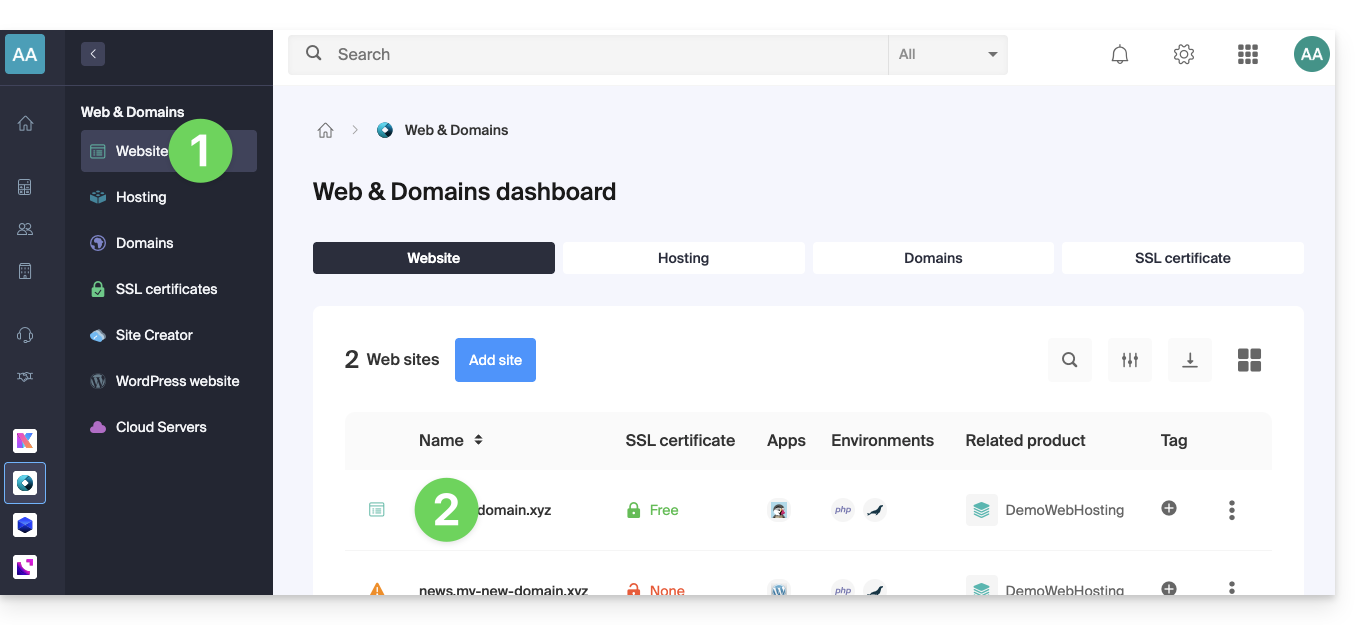
- Click on the chevron to expand the Domains section of this site.
- Click on the Add a Domain button:
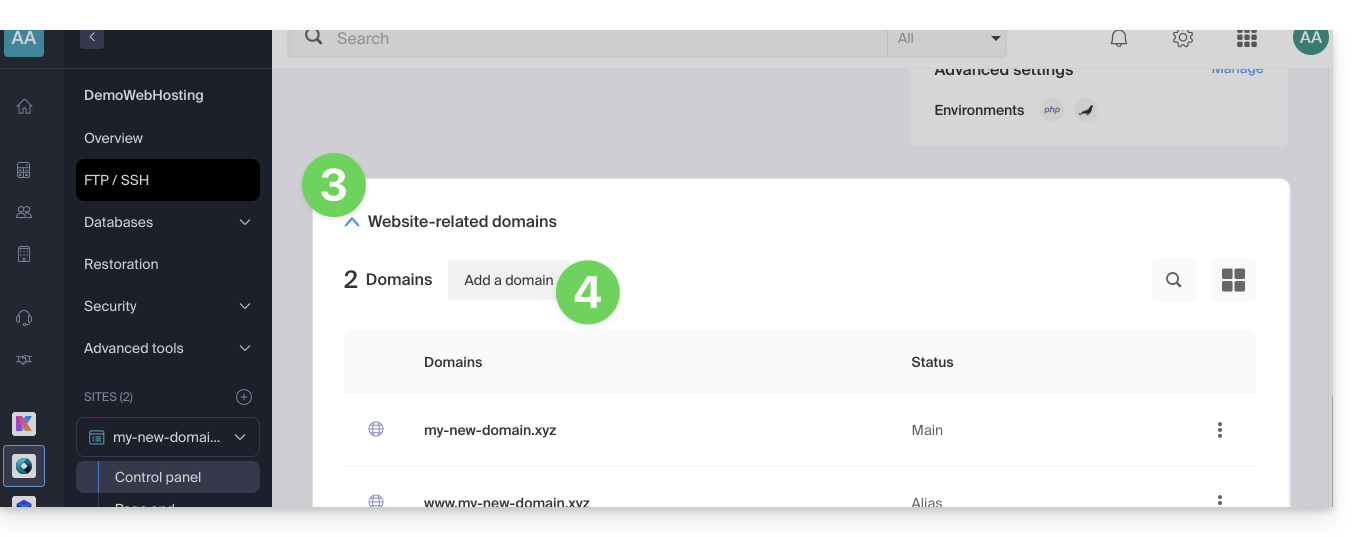
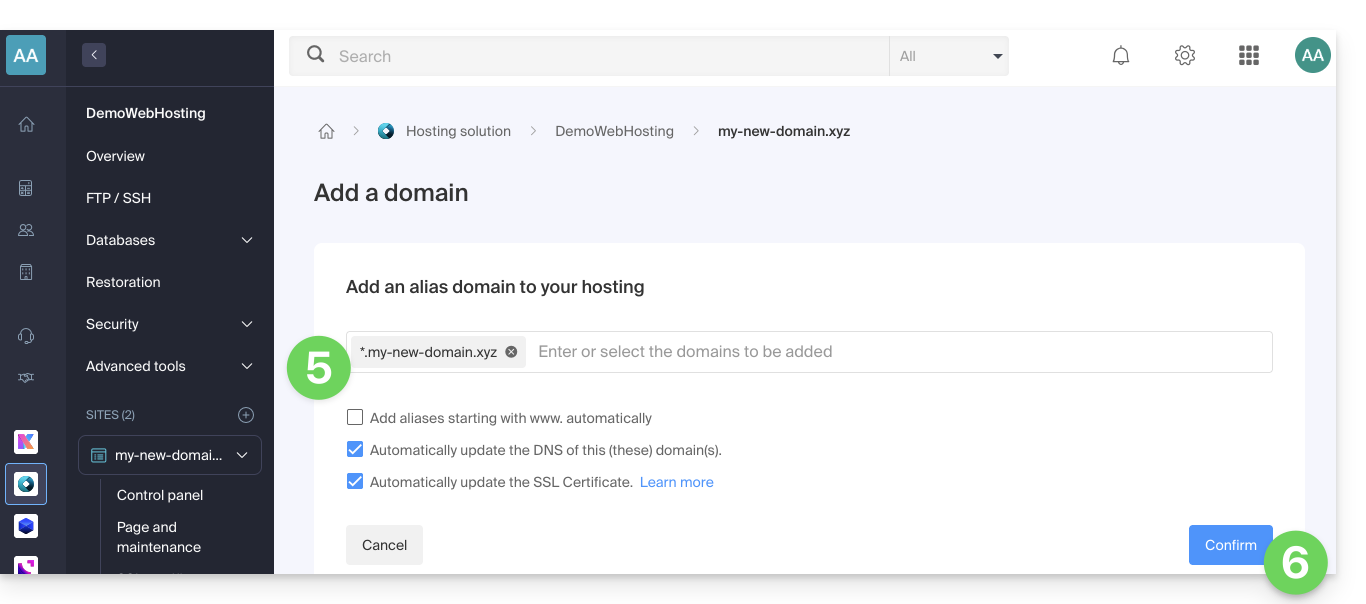
- Enter the domain name to be added in this form:
*.domain.xyz(the asterisk is mandatory, followed by a dot, then the domain name of the website which is domain.xyz in this example)
- Click on the Confirm button to complete the procedure:
2. Install or update an SSL certificate
Example of updating the existing certificate to include the * wildcard subdomain:
- Click here to access the management of your site on the Infomaniak Manager (need help?).
- Click directly on the name assigned to the site concerned.
- Click on SSL Certificate in the left sidebar menu.
- Click on the action menu ⋮ located on the right.
- Click on Update the certificate:
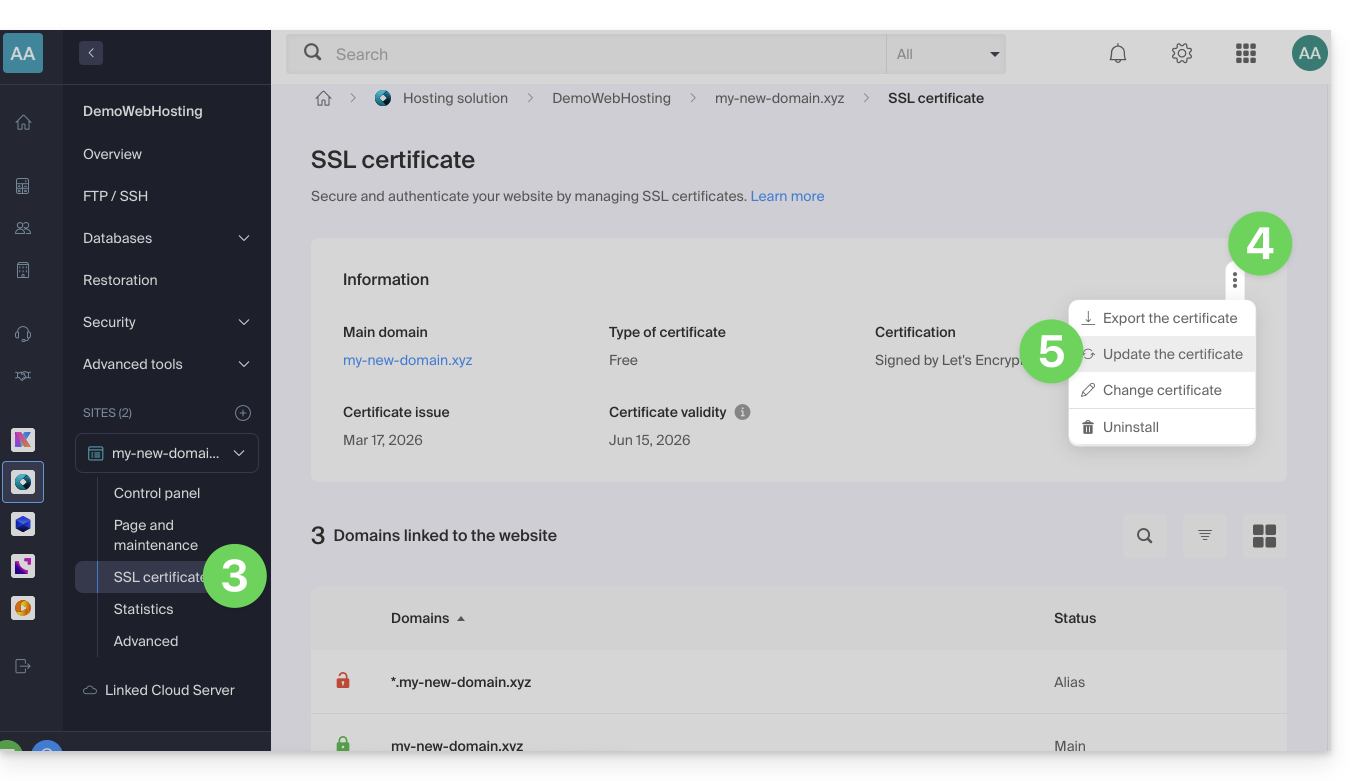
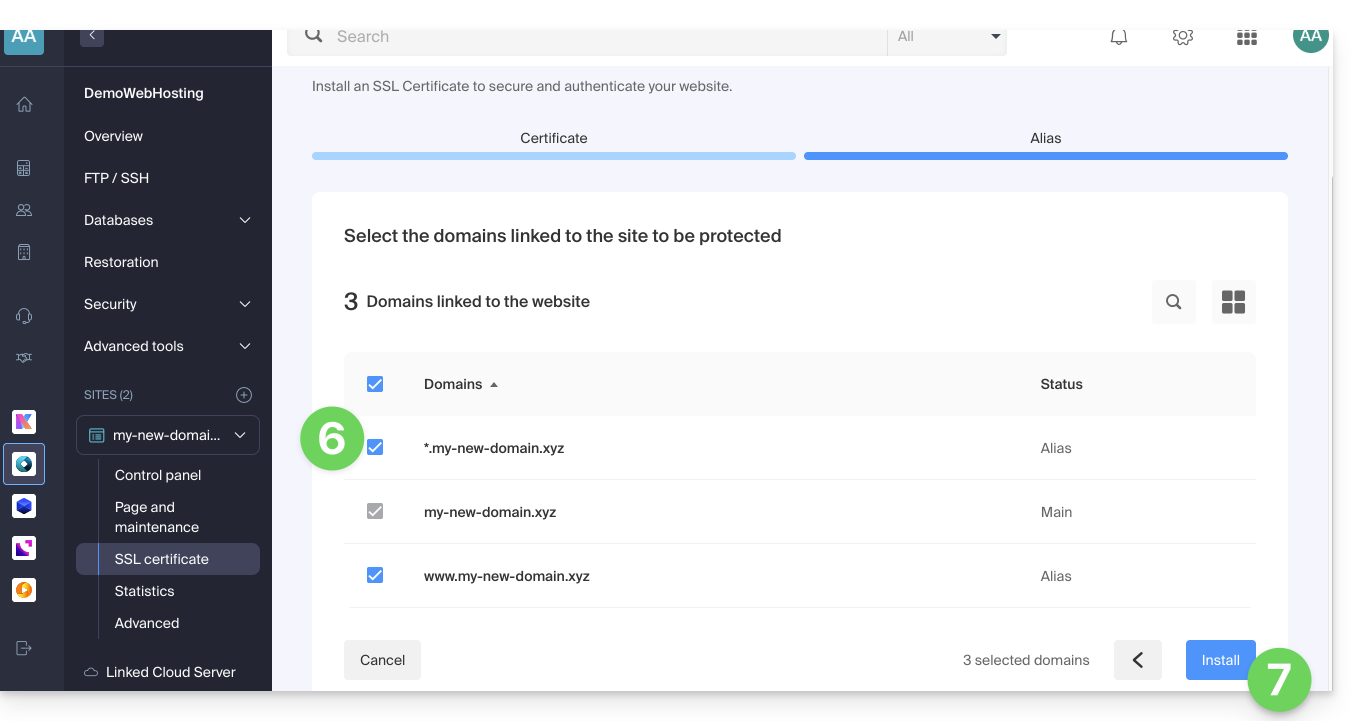
- Make sure the recently added subdomain is selected.
- Click on the Install button at the bottom:
- Wait for the creation or update to complete.
Link to this FAQ: https://faq.infomaniak.com/2096
Has this FAQ been helpful?