Knowledge base
1000 FAQs, 500 tutorials and instructional videos. Here, there are only solutions!
Manage A and AAAA records
Update 10/13/2026
This guide explains how to add or modify one or more A and AAAA type records in the DNS zone (of a domain name) managed in the Infomaniak Manager.
Introduction
- This type of record allows you to point a domain name to a static IP address (usually a server), type A for IPv4 and AAAA for IPv6.
- This is the method generally used to redirect your domain name to the IP address of the web server hosting your website. Furthermore, this type of record is used automatically to link your domain name with your website if they are in the same location and within the same Infomaniak organization.
- You should only modify this type of record if you have a specific configuration to implement (e.g., pointing a subdomain to an external application).
Modify the DNS zone
To manage this type of record in a DNS zone:
- Click here to access the domain management section in your Infomaniak Manager (❓: help).
- Click on the name of the domain in question.
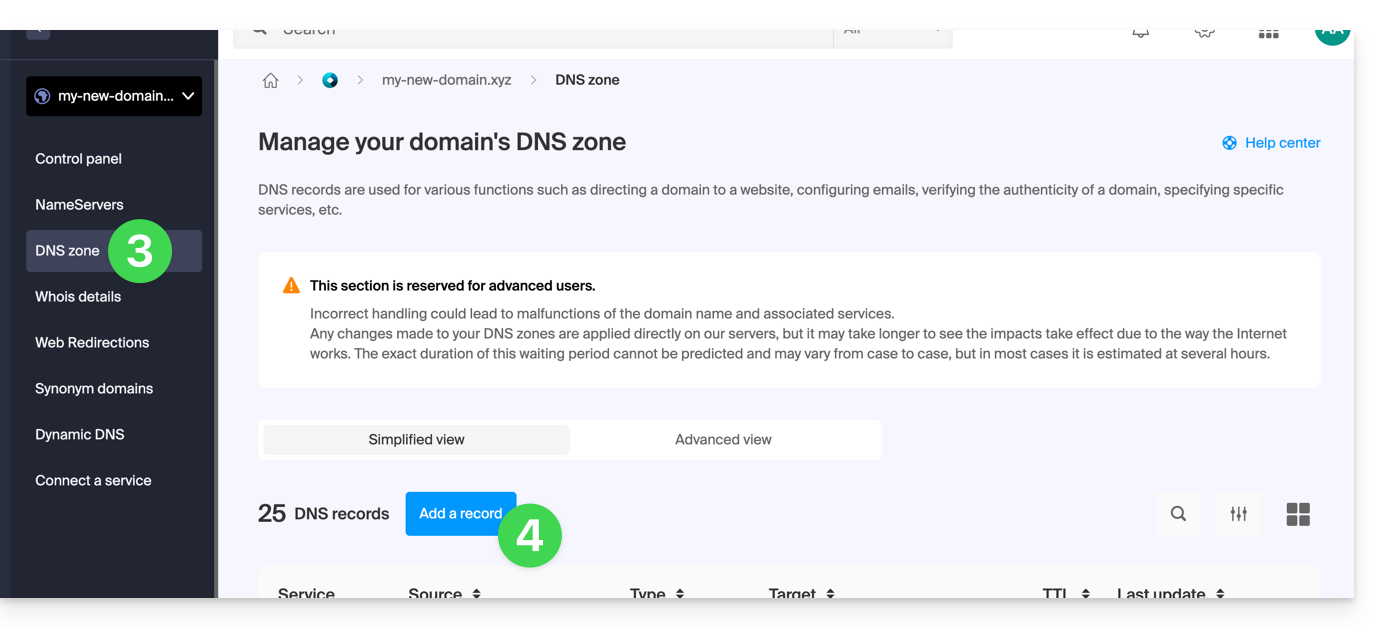
- Click on DNS Zone in the left-hand menu.
- Click the button to add a record:
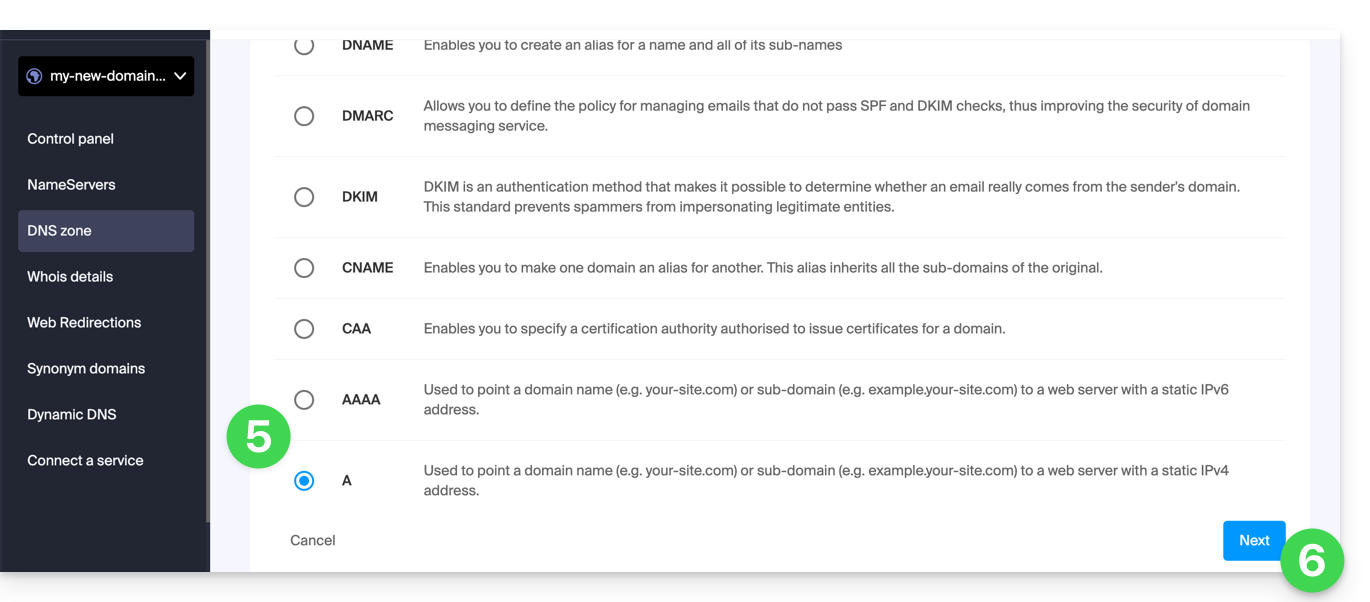
- Click the A or AAAA radio button to add a record.
- Click on the Next button:
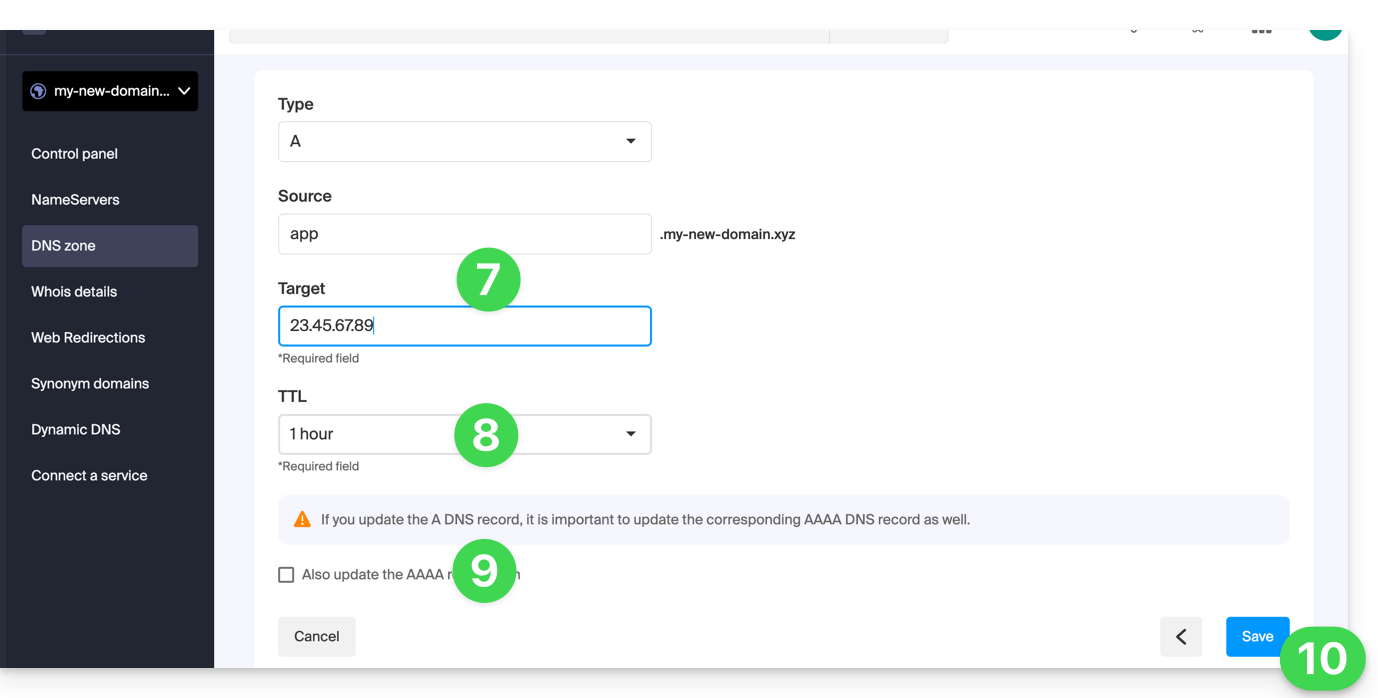
- Enter the values required for your DNS zone.
- Leave the default value for the TTL.
- If necessary, you can request an adjustment to the AAAA record by activating the checkbox, which will allow you to specify an IPv6 address at the same time.
- Click on the Save button:
Link to this FAQ: https://faq.infomaniak.com/2088
Has this FAQ been helpful?