Knowledge base
1000 FAQs, 500 tutorials and instructional videos. Here, there are only solutions!
Manage website maintenance mode
This guide explains how to enable or disable maintenance mode on a website hosted on an Infomaniak Hosting plan.
Introduction
- Maintenance mode allows you to display a custom message to your visitors, for example while resolving a technical issue.
- You can also specify IP addresses that will be able to bypass this page.
- An email is sent to the users of the Organization.
Enable maintenance mode
To activate a page that temporarily replaces your usual homepage:
- Click here to access the hosting & website management section in your Infomaniak Manager (❓: help).
- Click on the name of the website in question.
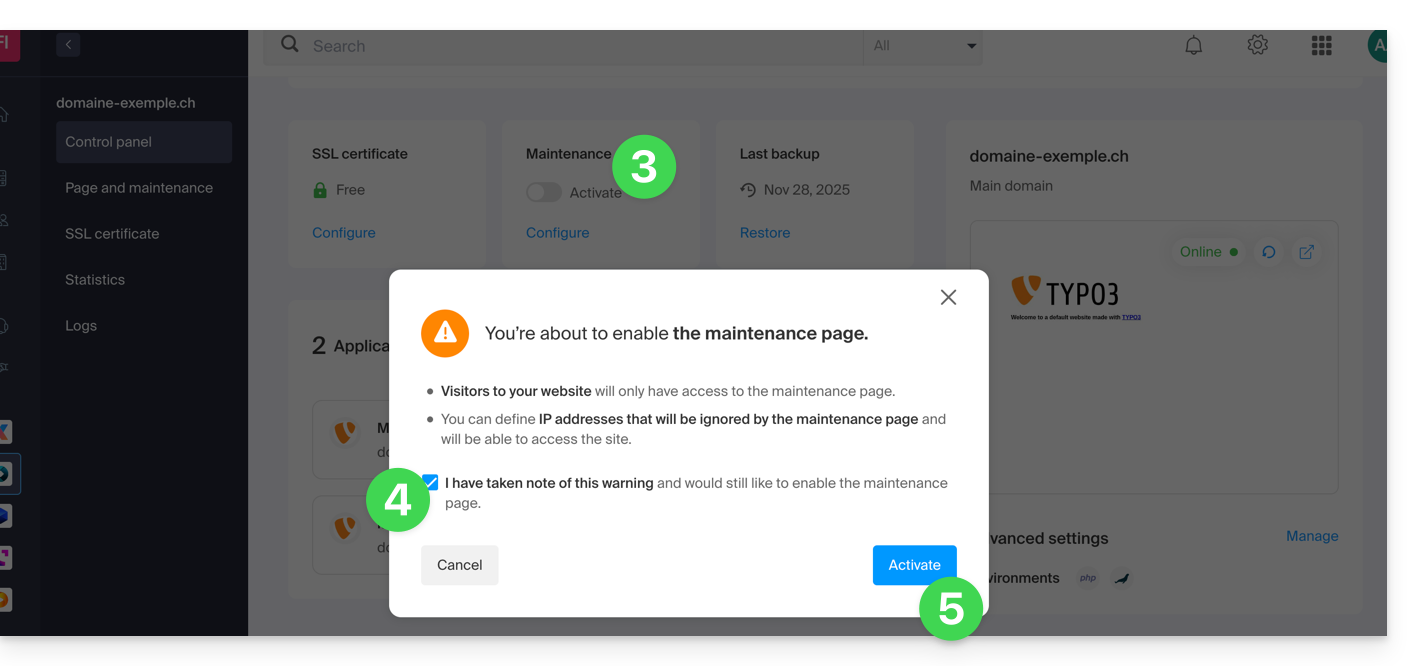
- Click on the toggle switch to enable the maintenance page.
- Confirm the warning.
- Click the button to activate:
Customize the maintenance page
To set up a page with your desired message:
- Click here to access the hosting & website management section in your Infomaniak Manager (❓: help).
- Click on the name of the website in question.
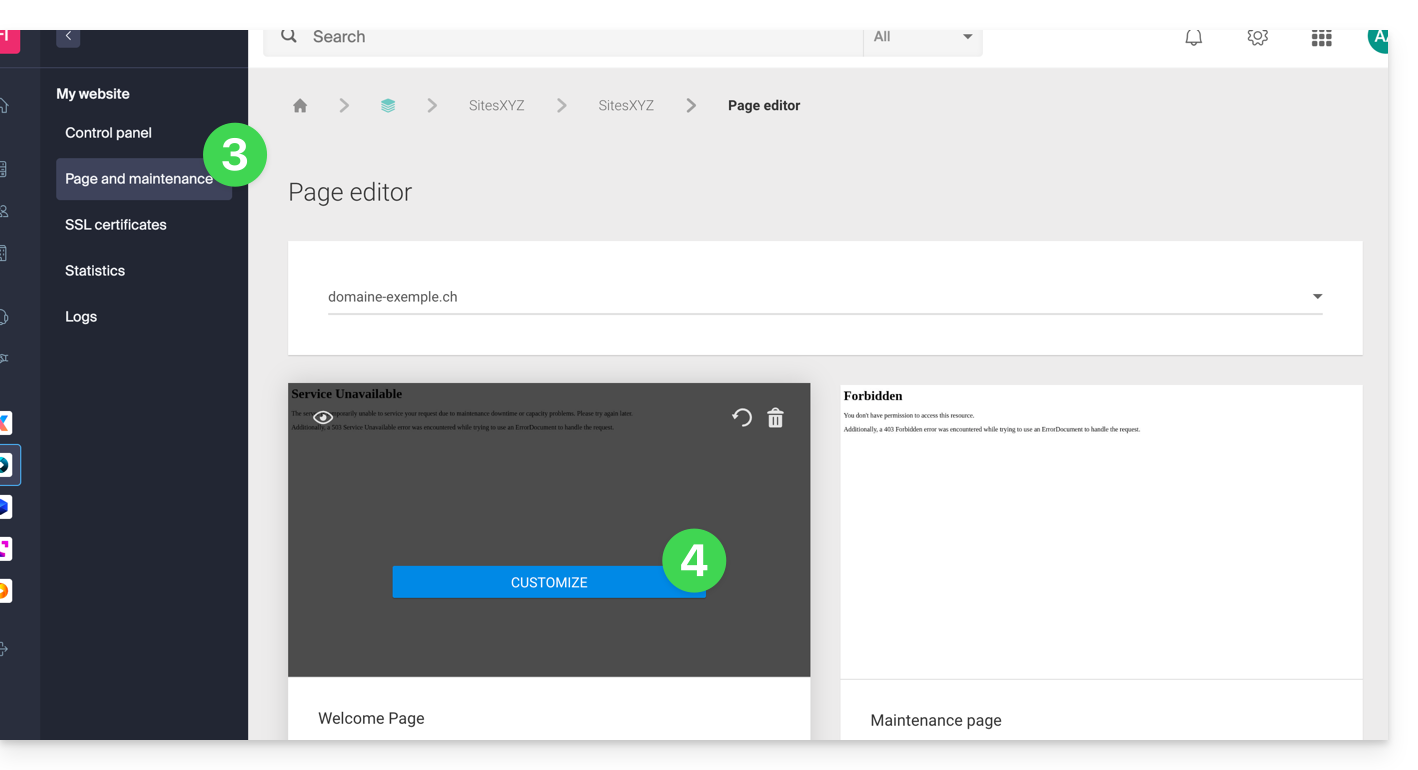
- Click on Page & Maintenance in the left-hand menu.
- Click on Create a page or on the Customize button if it already exists:
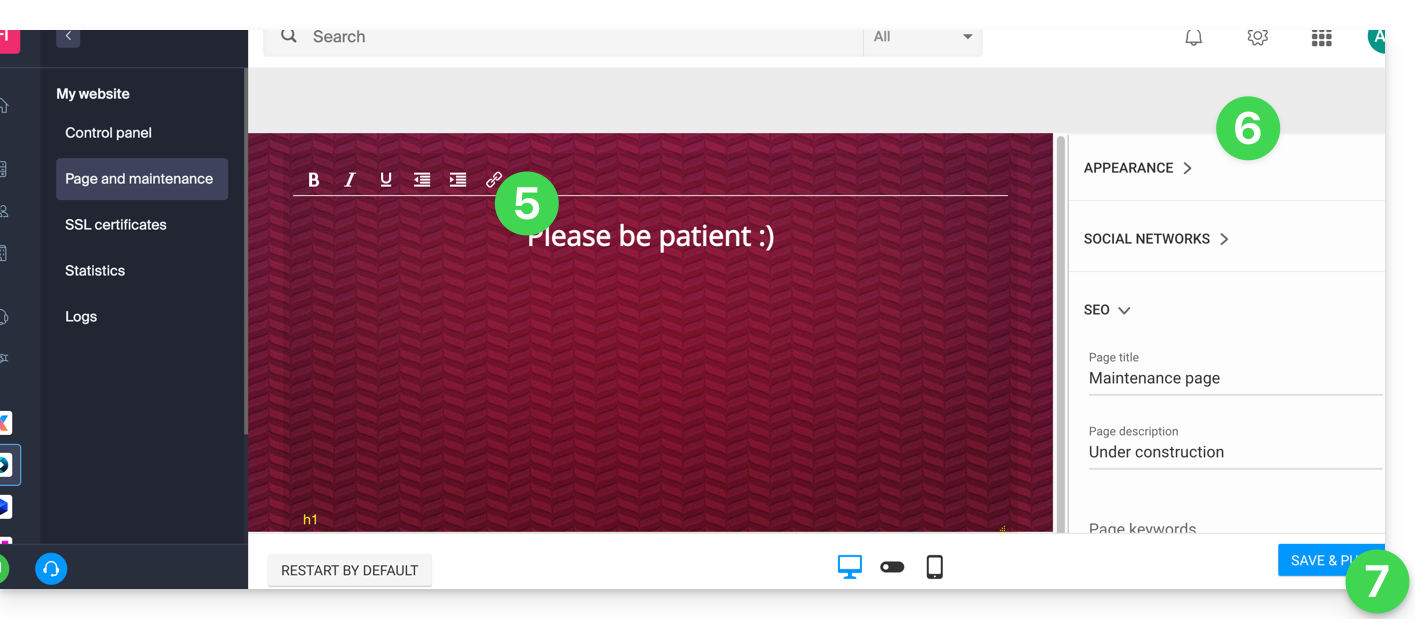
- Format the text of your choice.
- Configure the display using the elements on the right.
- Click Save & activate to publish the page:
Allow specific IP addresses to bypass the suspension
It is possible to display the actual website even with maintenance mode enabled. To do this, you need to specify the IP addresses of the computers that should be able to bypass maintenance mode:
- Enable maintenance mode according to the procedure above.
- Go back to the maintenance page configuration page (see procedure above).
- Under Maintenance on the right, click Insert my IP address to allow your computer to display the site without maintenance mode:
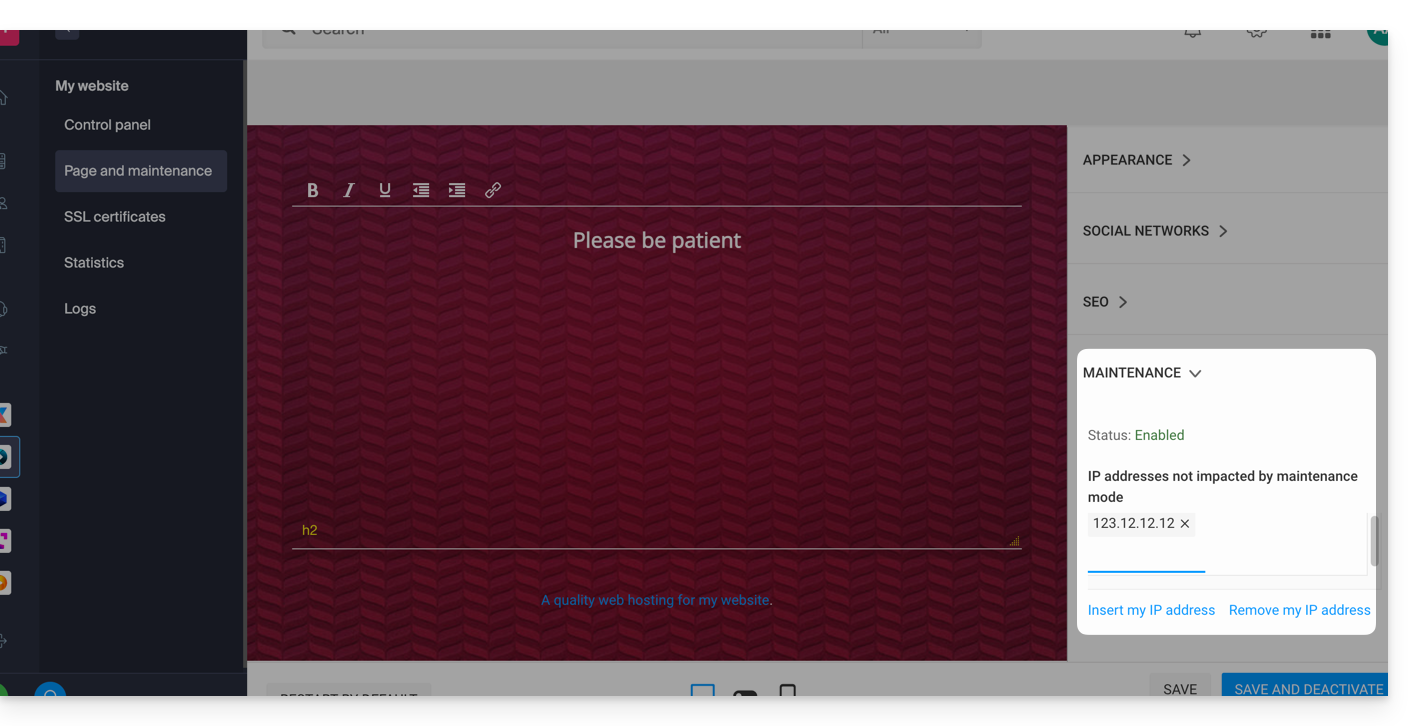
- You can also manually enter the IP addresses to allow.
- Click on Save and publish.
If the IP addresses of the added computers change, it will be necessary to repeat these steps.
Disable maintenance mode
To disable the message that appears on your website during maintenance:
- Click here to access the hosting & website management section in your Infomaniak Manager (❓: help).
- Click on the name of the website in question.
- Click either the Disable button or the toggle switch to disable the maintenance page:
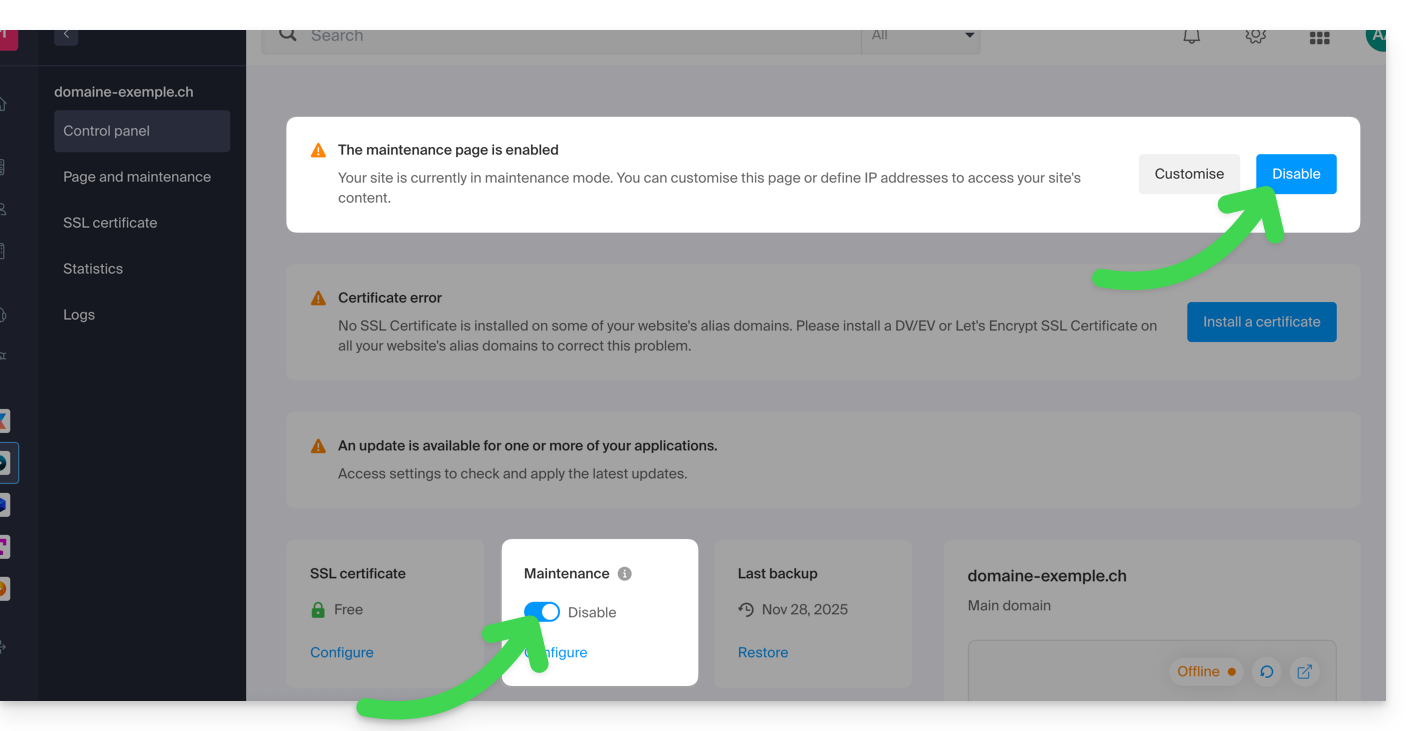
- Confirm the deactivation of maintenance.
Alternative method for WordPress
It is not recommended to activate the Infomaniak maintenance page above and then work in WordPress.
It is recommended to install a WordPress plugin (there are dozens available) dedicated to maintenance mode within the CMS itself.
Alternatively, you can add the code to a new, empty file named .maintenance (the dot before the file name is important) and place it on the server at the root of your site, which will disable all your pages except for the WordPress homepage.
Link to this FAQ: https://faq.infomaniak.com/2063
Has this FAQ been helpful?