Knowledge base
1000 FAQs, 500 tutorials and instructional videos. Here, there are only solutions!
Sync Outlook Contacts & Calendars (Windows app) with CardDAV/CalDAV
This guide explains how to synchronise Microsoft Outlook* Windows contacts & calendars (only Office 365, 2024, 2021, 2019, 2016, 2013, 2010, 2007 versions) with the contacts & calendars hosted by Infomaniak, using an extension for Outlook available on caldavsynchronizer.org.
* The free versions of Outlook (New Outlook) and the macOS version cannot install an extension; they are therefore unfortunately incompatible with Infomaniak data!
Introduction
- There is a paid alternative for Windows, Evo Collaborator, which offers a pre-configured profile for Infomaniak.
Configure Outlook CalDav Synchronizer
Outlook CalDav Synchronizer allows you to synchronise contacts & calendars via CalDAV and CardDAV protocols, including multiple (non-shared) calendars:
- Download CalDav Synchronizer for Outlook.
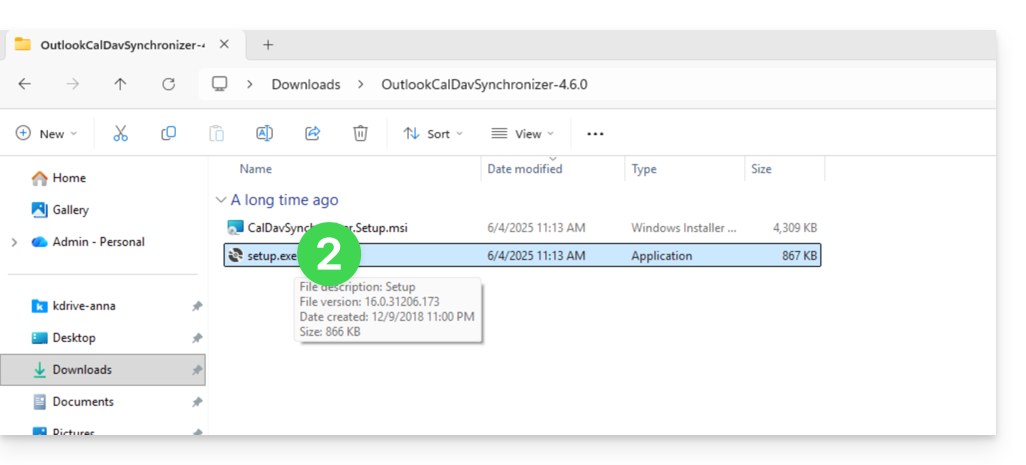
- Close Outlook and launch the installation of the plugin downloaded above:
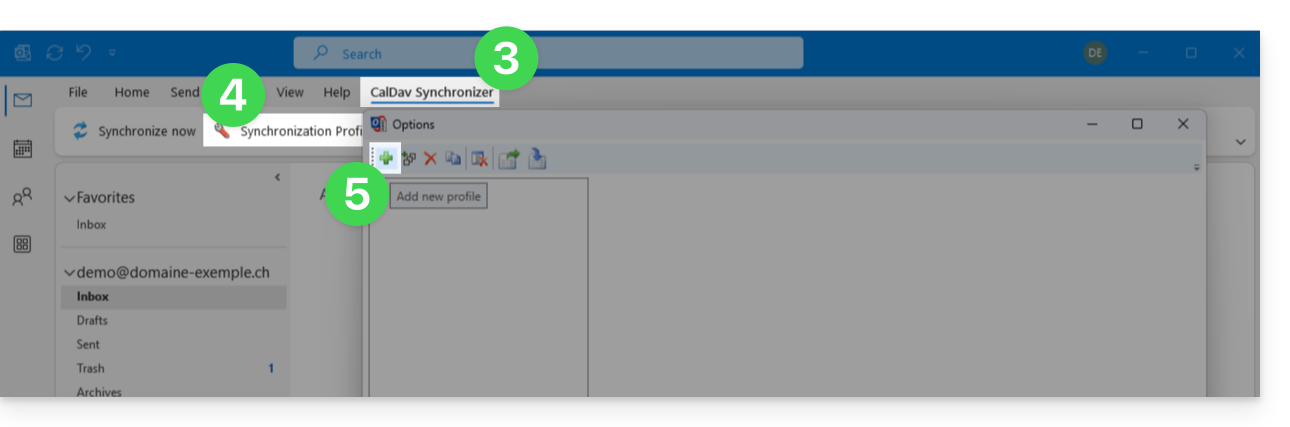
- Once the plugin is installed, open Outlook and click on the new CalDav Synchronizer tab.
- Click on Synchronisation Profiles.
- Click on the + icon to create a first profile (for the calendar or contacts – you will need to create a second profile later to synchronize both):
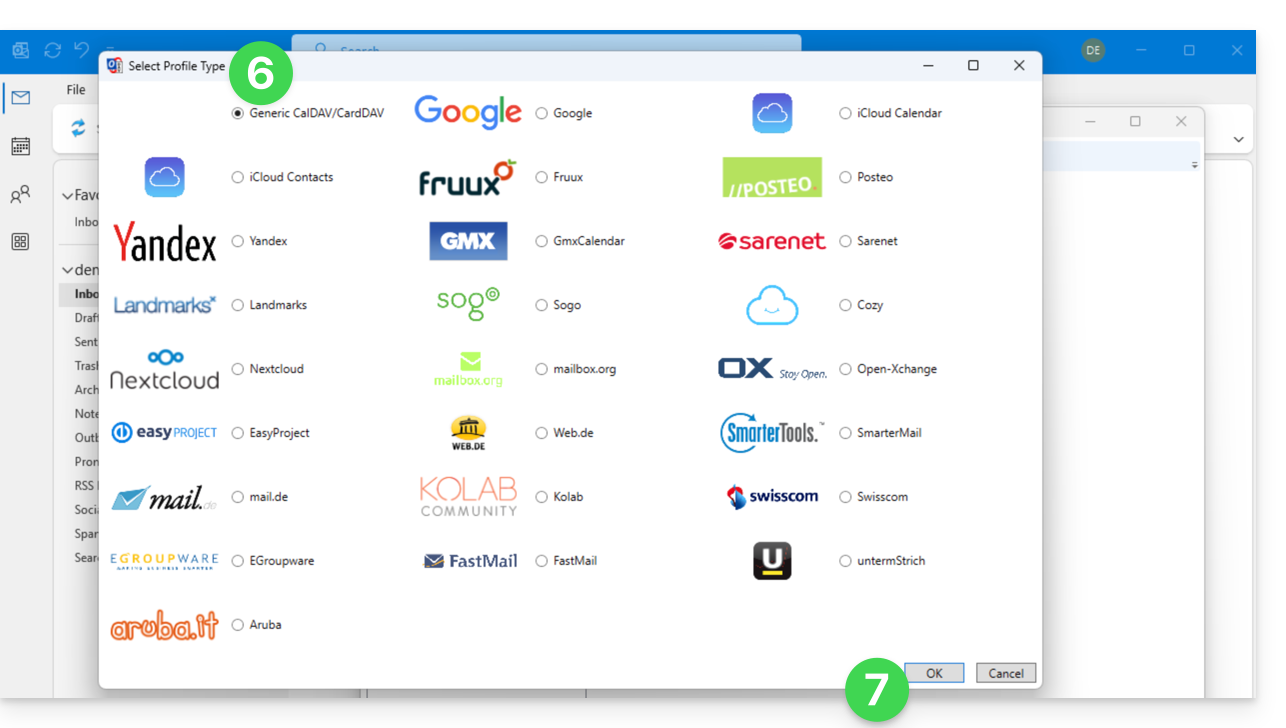
- Choose a generic profile type (first radio button).
- Click on the OK button:
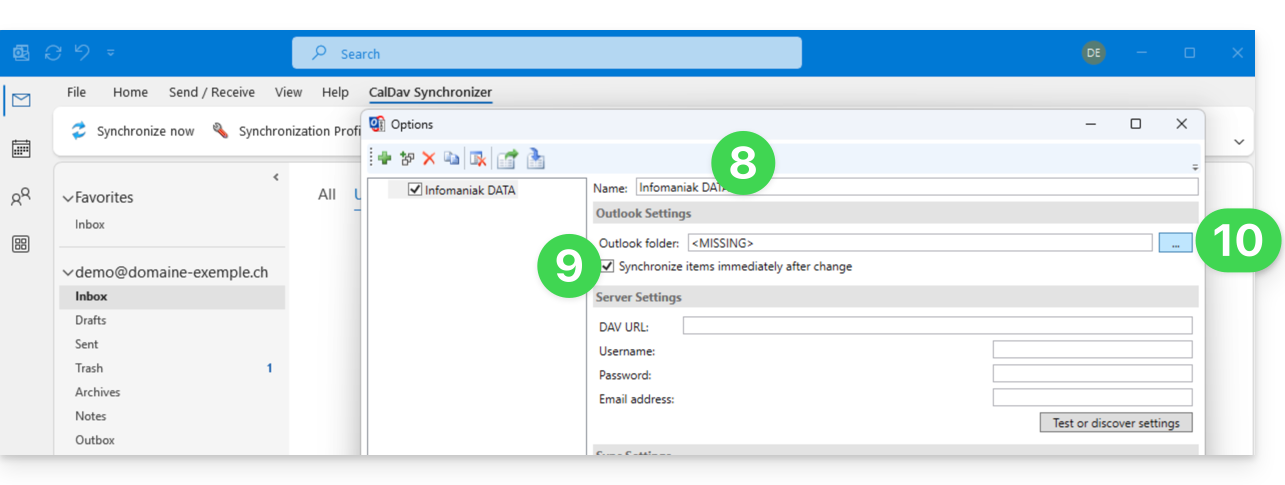
- Enter a profile name (e.g., the name of the Infomaniak calendar or address book you want to synchronize).
- Check the synchronization box.
- Click on the [ ▪ ▪ ▪ ] button:
- Click on the New… button:
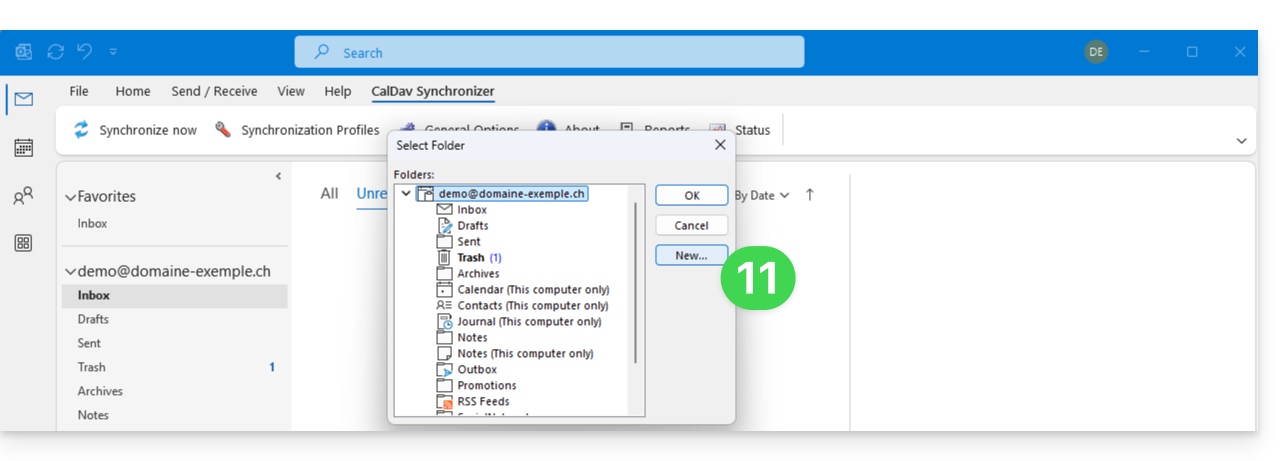
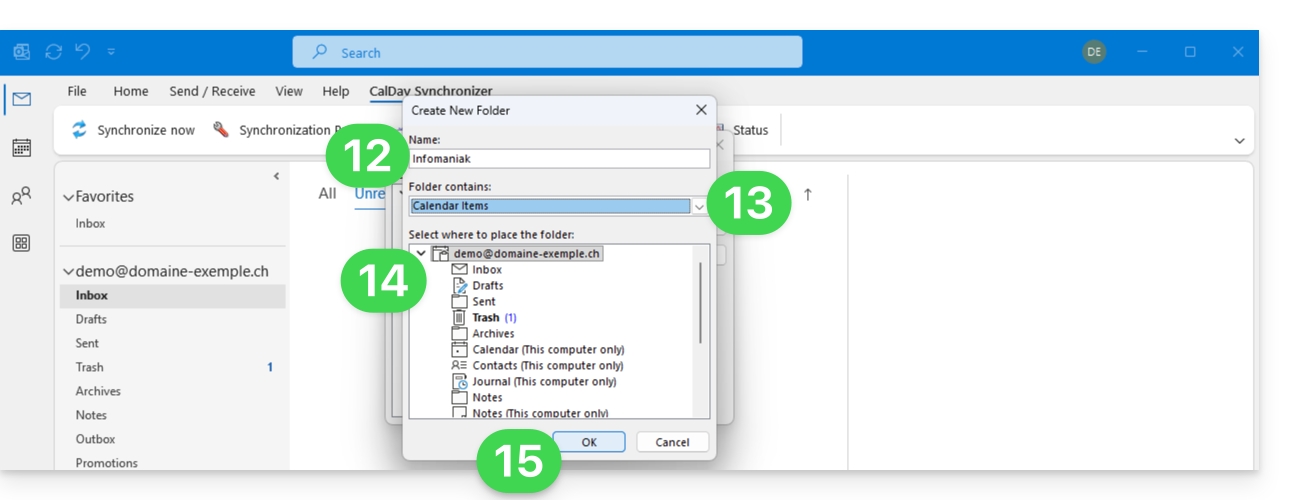
- Enter a name for the new folder.
- Choose the type of items the folder will contain (Calendar or Contacts).
- Click on the parent folder to create the folder within its structure.
- Confirm with the OK button:
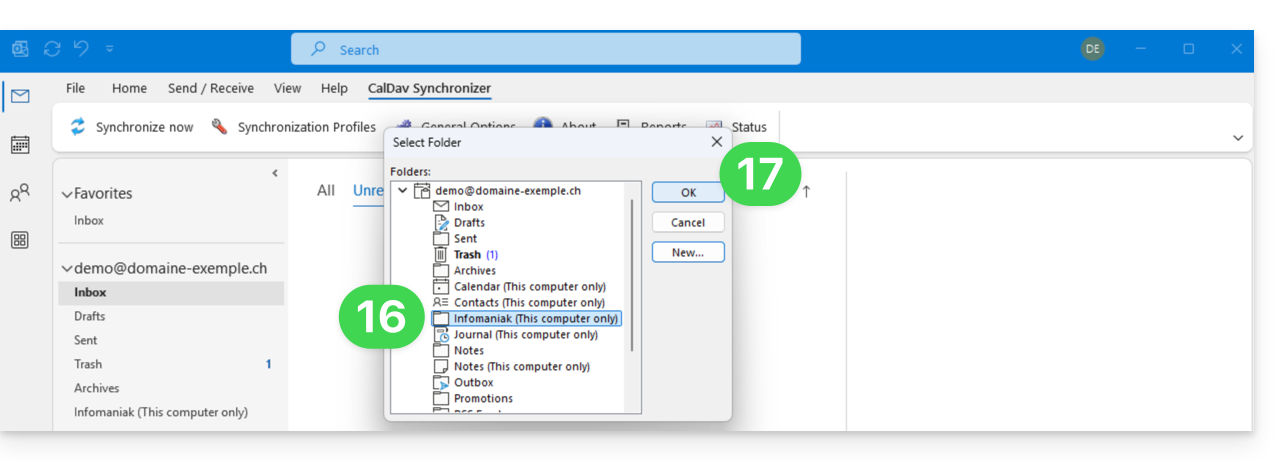
- Select the newly created folder from the list.
- Confirm with OK:
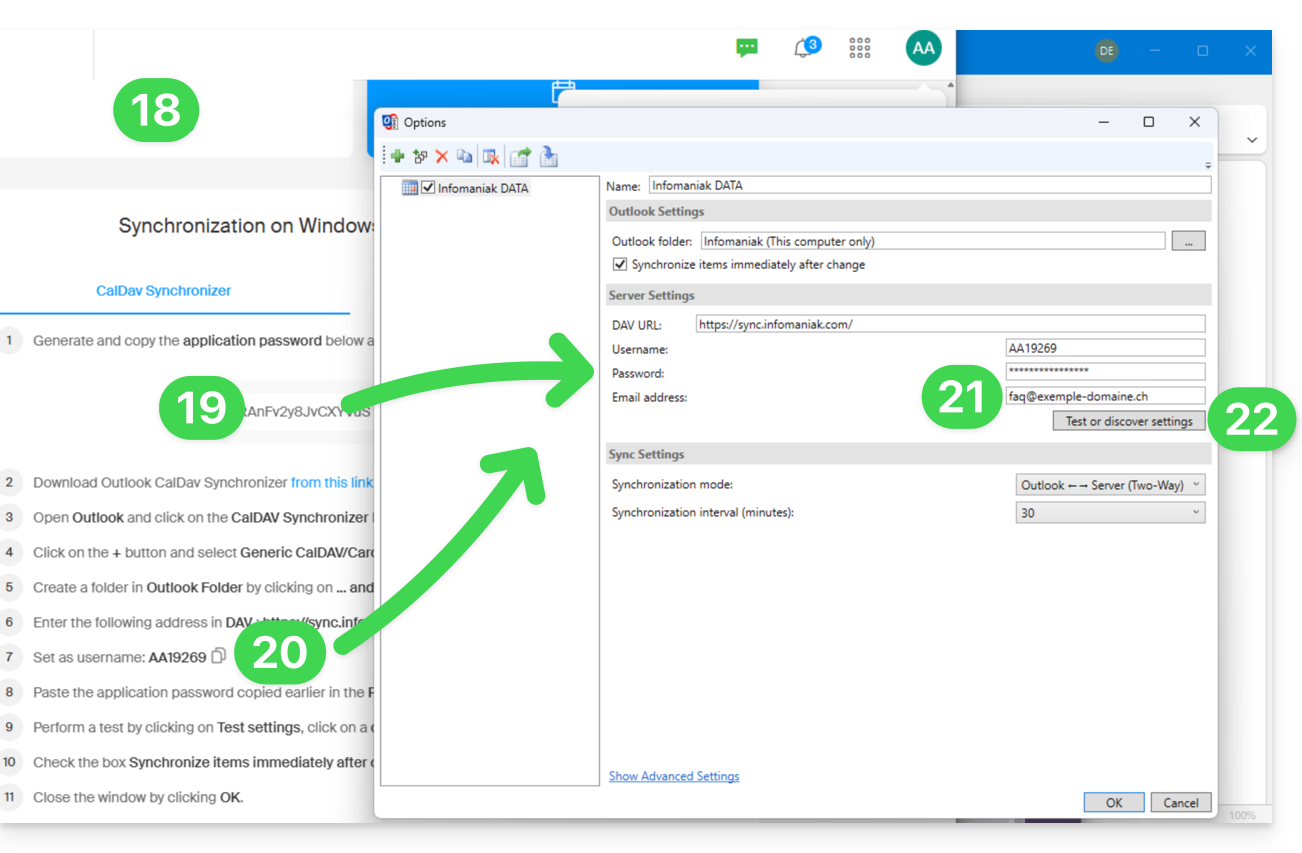
- Open the wizard https://config.infomaniak.com/ to obtain the information regarding synchronization with Outlook.
- Click the button to generate an application password (this allows you to bypass the 2FA for your user account for synchronization purposes only).
- Copy the information (password, URL, and username) obtained from config.infomaniak.com.
- Enter your email address, which is the address of your Infomaniak account.
- Click the button to Test the settings:
- In the window that opens, choose the Infomaniak calendar to synchronize.
- Click the OK button:
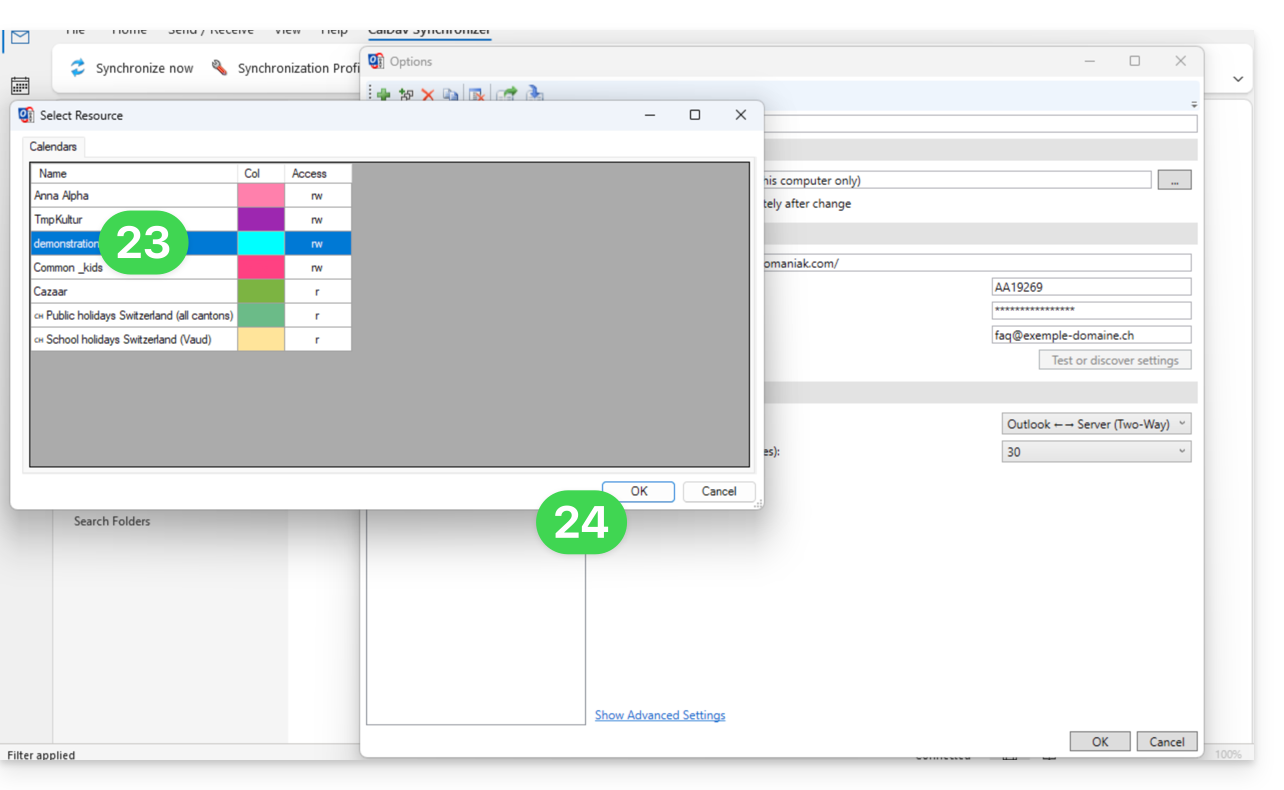
- Additional information may then appear automatically in some fields.
- Save a second profile if necessary (in this case, start again from step 5).
- Finish by clicking OK at the bottom right:
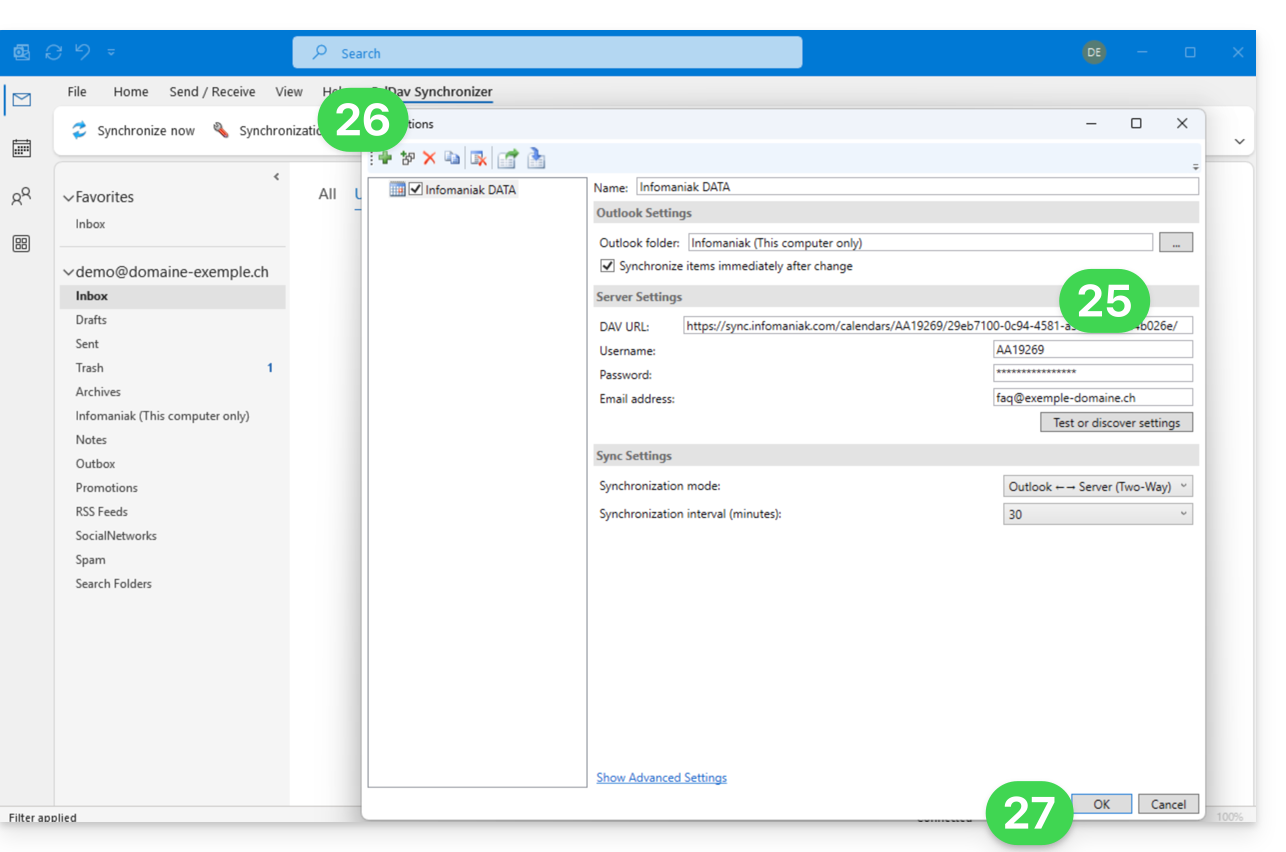
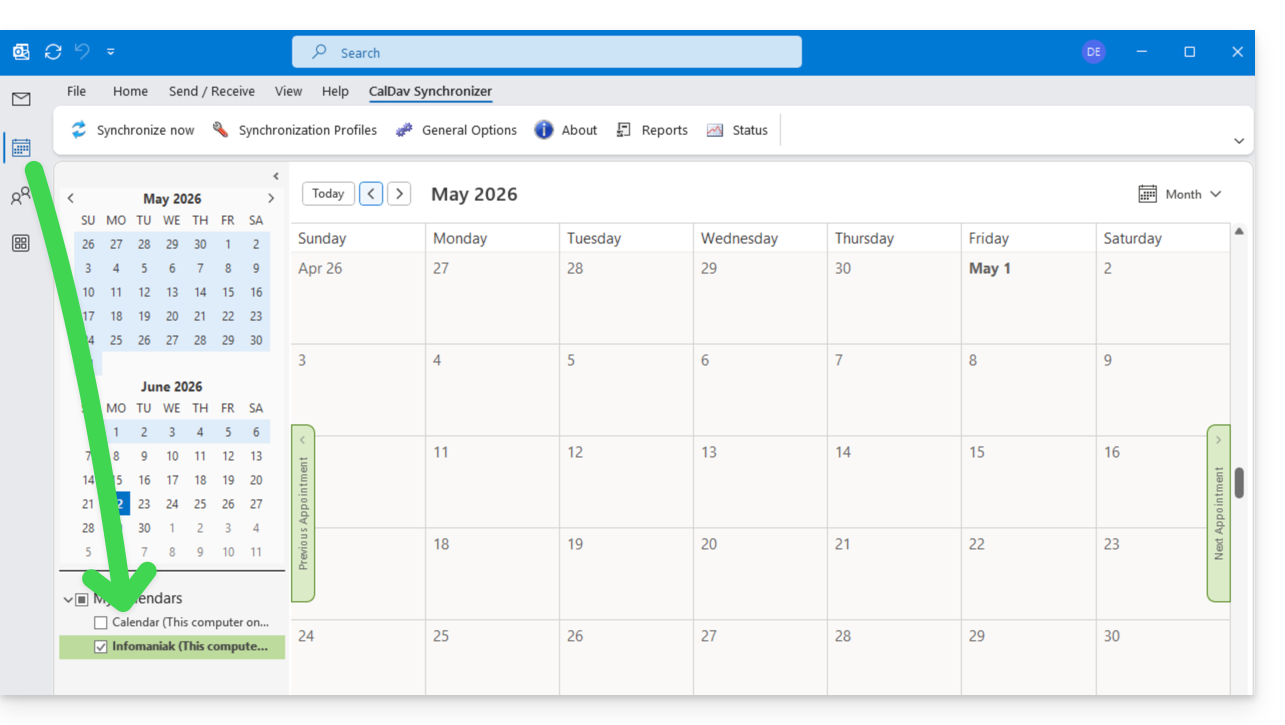
- A restart of Outlook may be required to update the added information, which will then be visible in the interface:
Resolving duplicate events
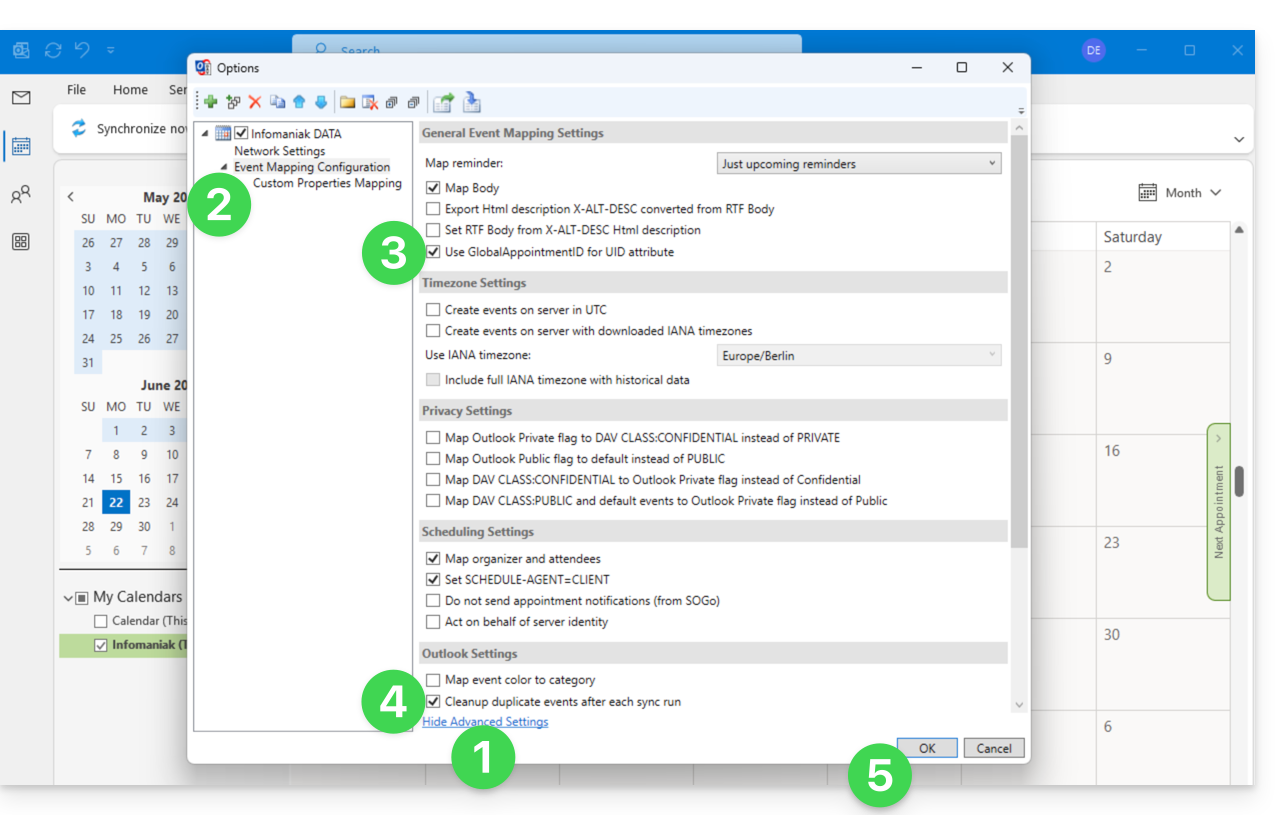
If you notice duplicate events in your Outlook calendar that are not duplicated on ksuite.infomaniak.com/calendar, apply these settings:
- Click to Show Advanced Settings.
- Click on Event Mapping Configuration.
- Check the box Use GlobalAppointmentID for UID attribute.
- Check the Cleanup duplicate events box.
- Save the changes by clicking the OK button:
This removal of duplicate events, and therefore potentially duplicate invitations, may result in a notification of event rejection being sent to the organizer; however, this does not affect the participant's initial choice.
For advanced macOS users
There is an alternative for Outlook / Exchange on macOS, via the ews-caldav-sync Python script:
- Unlike an ICS file import provided by Outlook Web, which only includes the last few weeks of events, the script will import all calendar events, including recurring events, without importing tasks.
- Synchronization via this script is one-way, from Microsoft Exchange to the CalDAV server. It is recommended to run it at regular intervals.
Link to this FAQ: https://faq.infomaniak.com/2045
Has this FAQ been helpful?