Knowledge base
1000 FAQs, 500 tutorials and instructional videos. Here, there are only solutions!
Broadcast files with Auto DJ on an audio stream
This guide details the Auto DJ feature of Infomaniak's Streaming Radio service, which allows you to create a live radio station that broadcasts 24/7 using your own audio content (music, shows, podcasts, jingles, etc.) that you have previously uploaded to your storage space.
Organize and import your audio files
Prerequisites
- Enable Auto DJ on your Streaming Radio (❓: help).
The first step is to prepare your content. The tool currently accepts files in .mp3 and .aac format. You can import an entire folder containing your audio files: 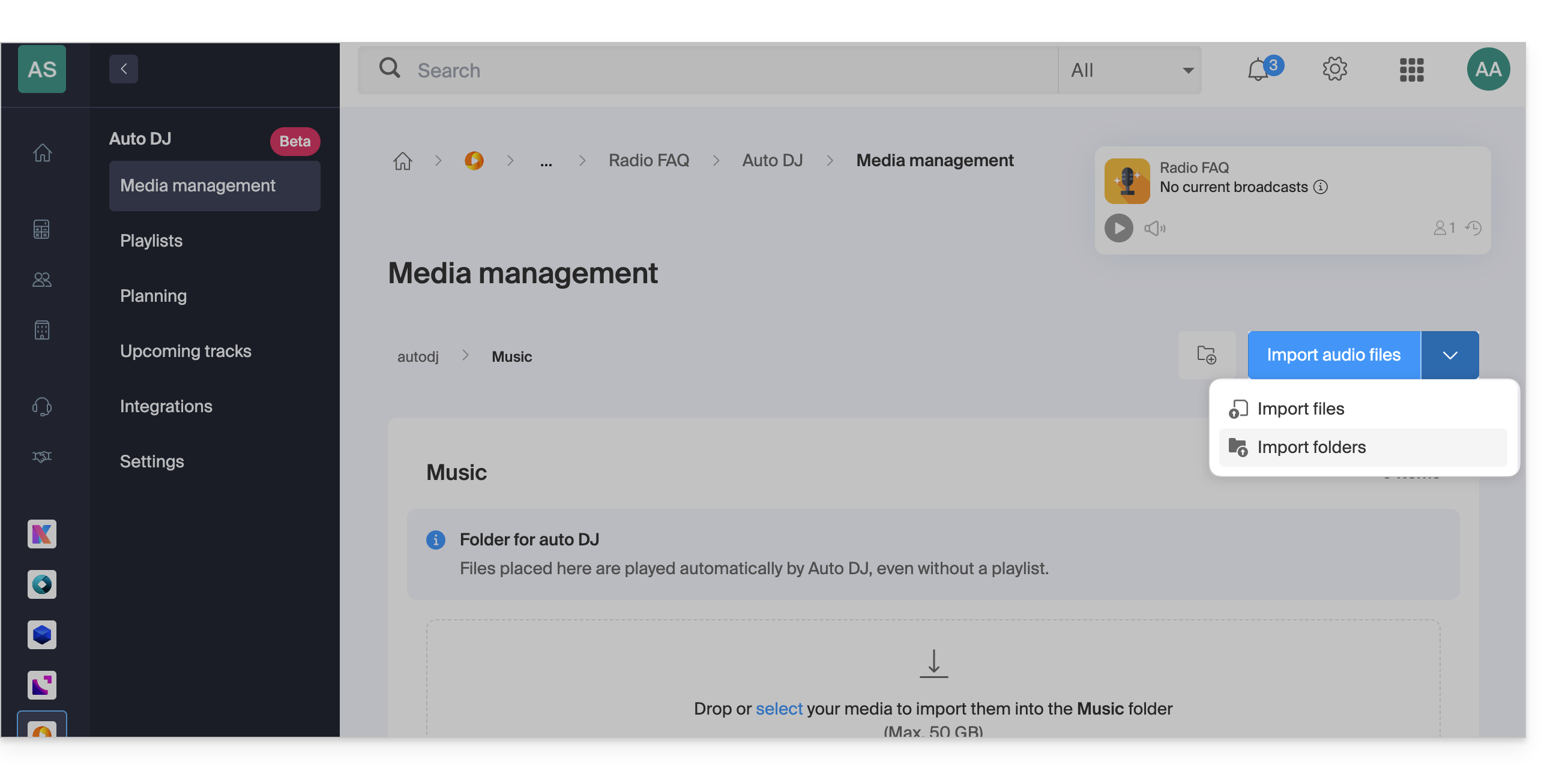
The default folder is named Music. You can create new folders within it beforehand to import files from your device.
You can also manage your library directly from your VOD/AOD space: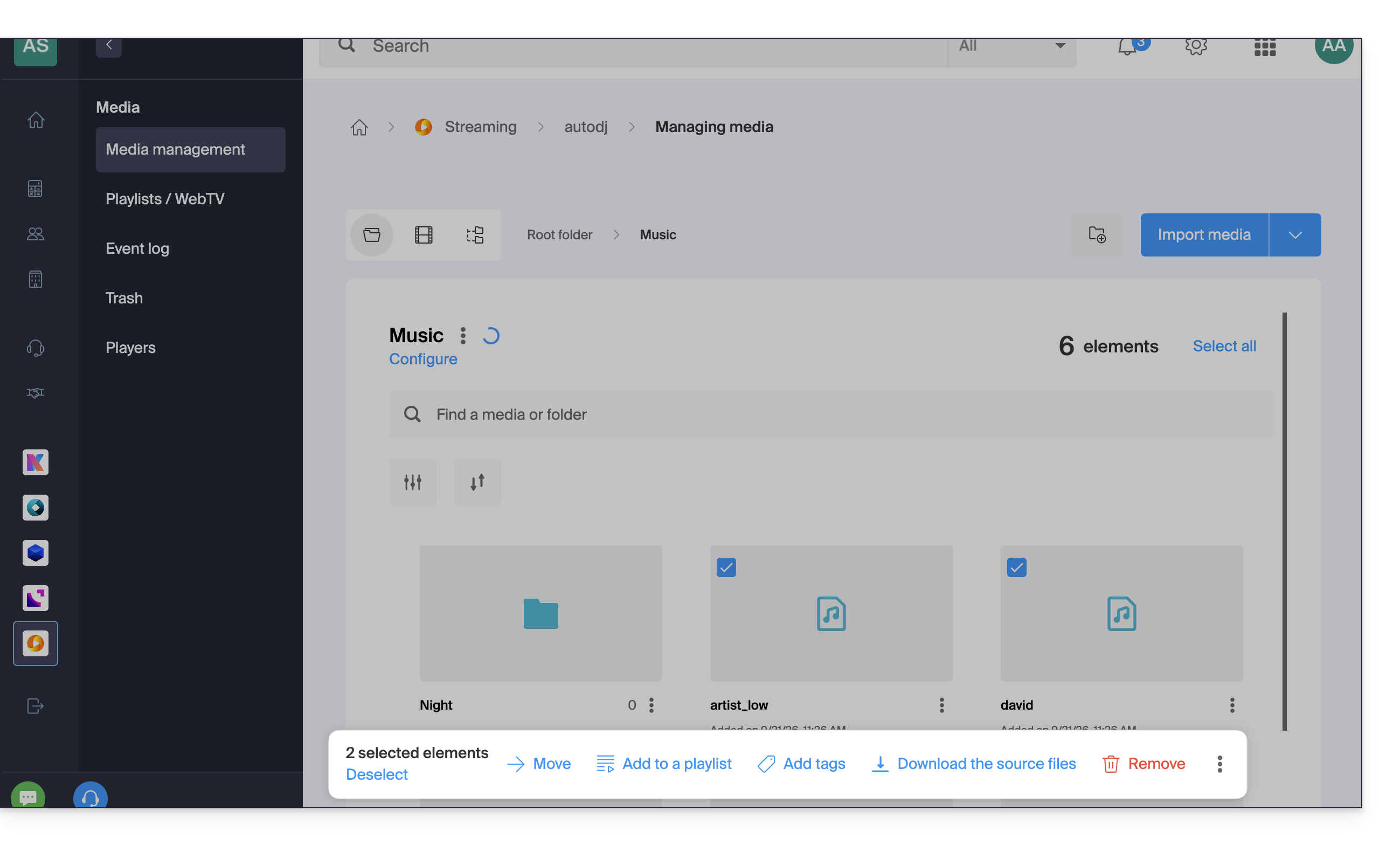
Metadata Management
You can directly modify the ID3 tags (title, artist, album, cover art) of an audio file from the interface so that this information is displayed correctly on your players: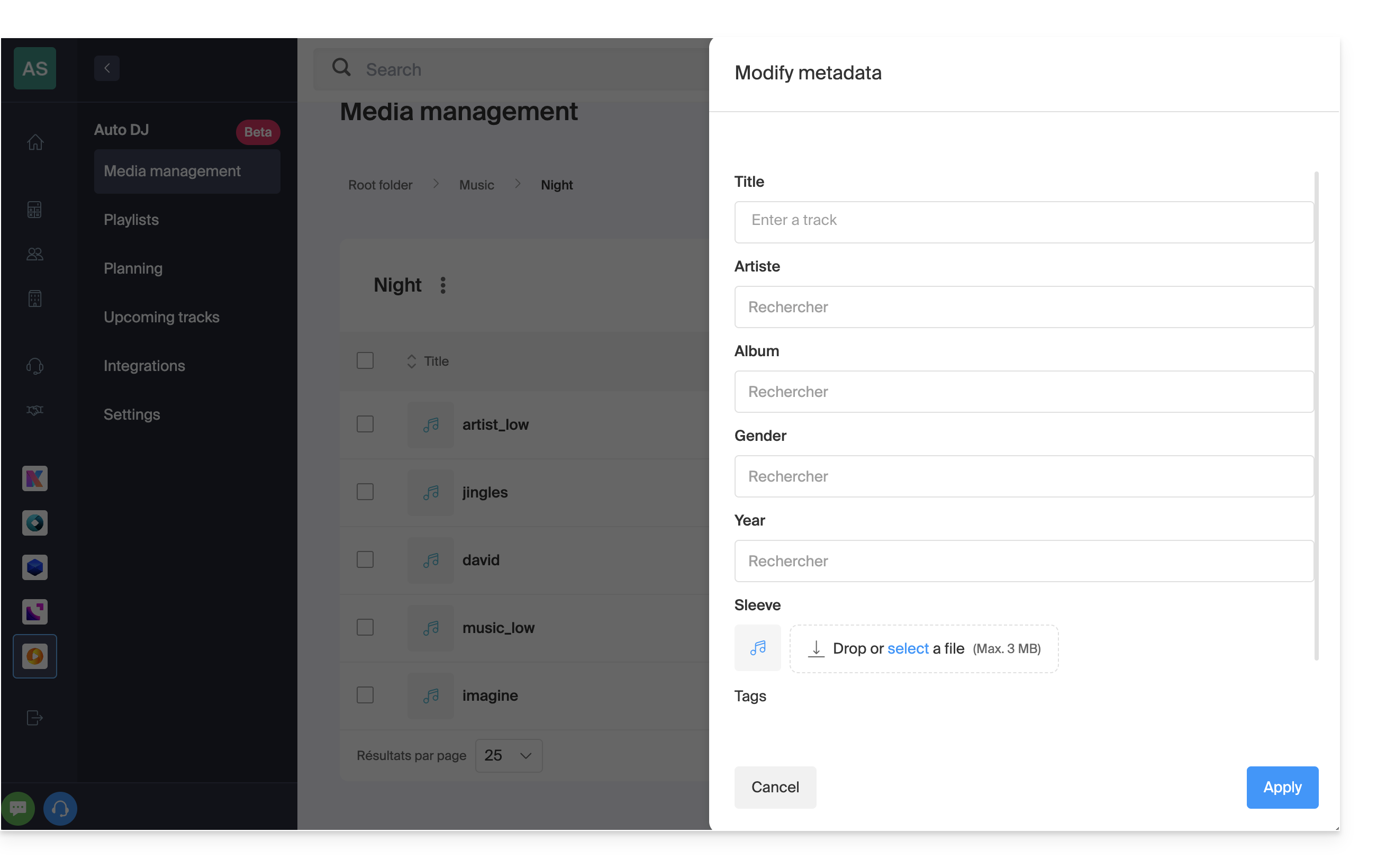
Create playlists
Once your files have been imported, you can group them into playlists: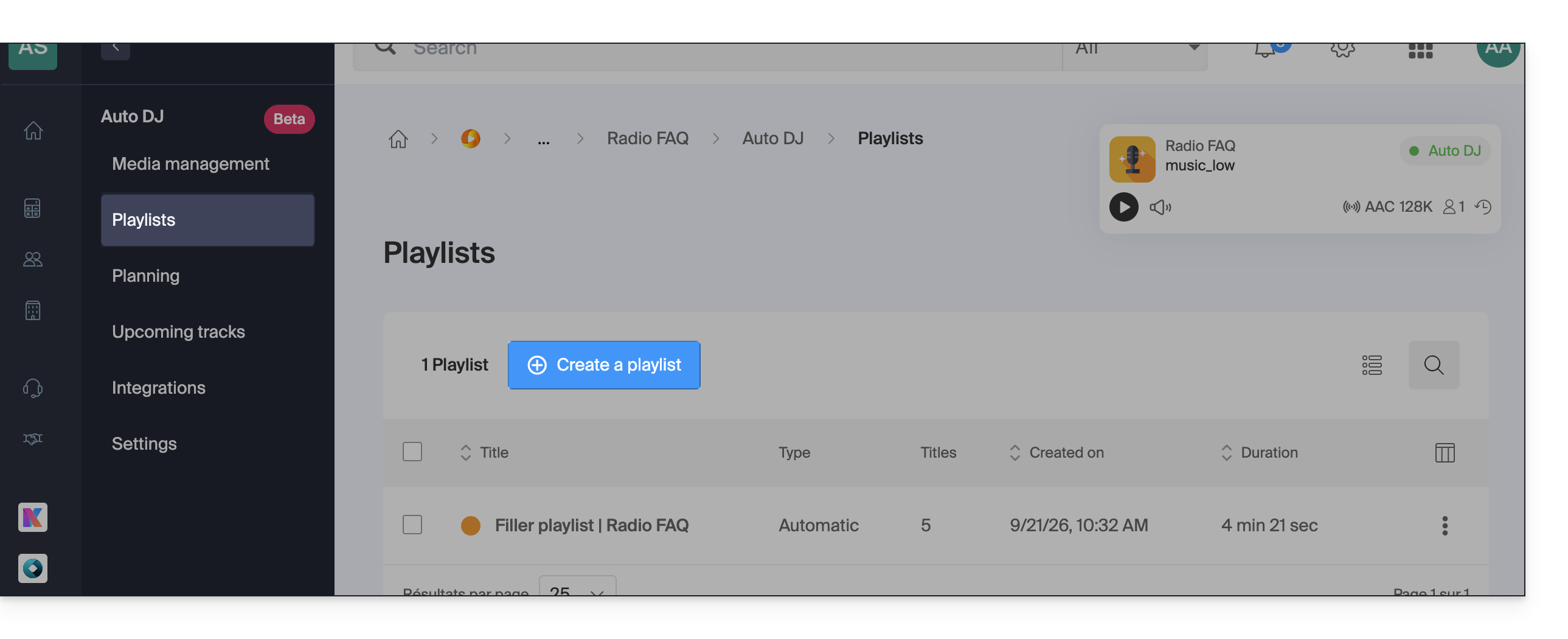
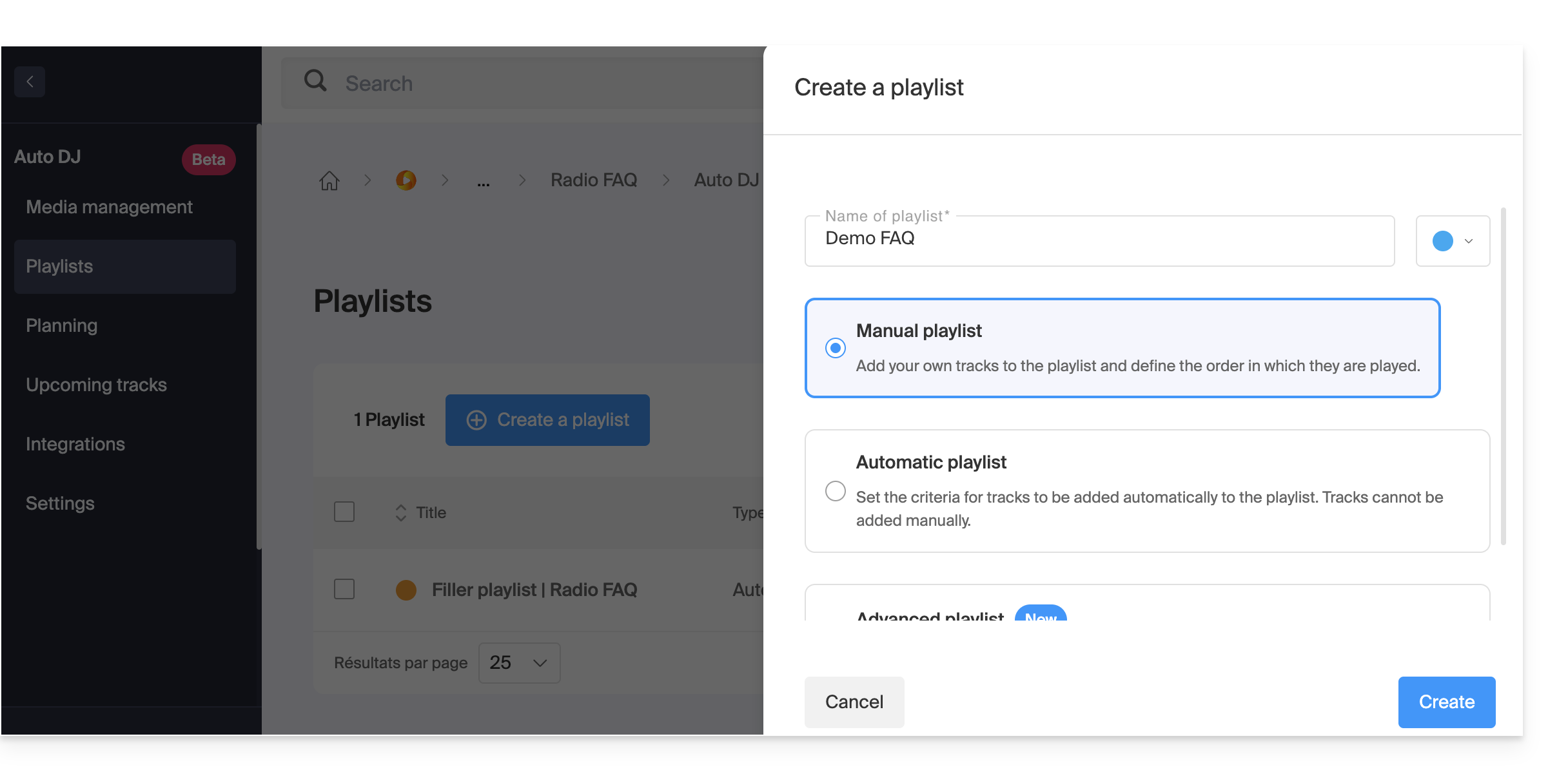
Manual playlist
- Create a manual playlist:
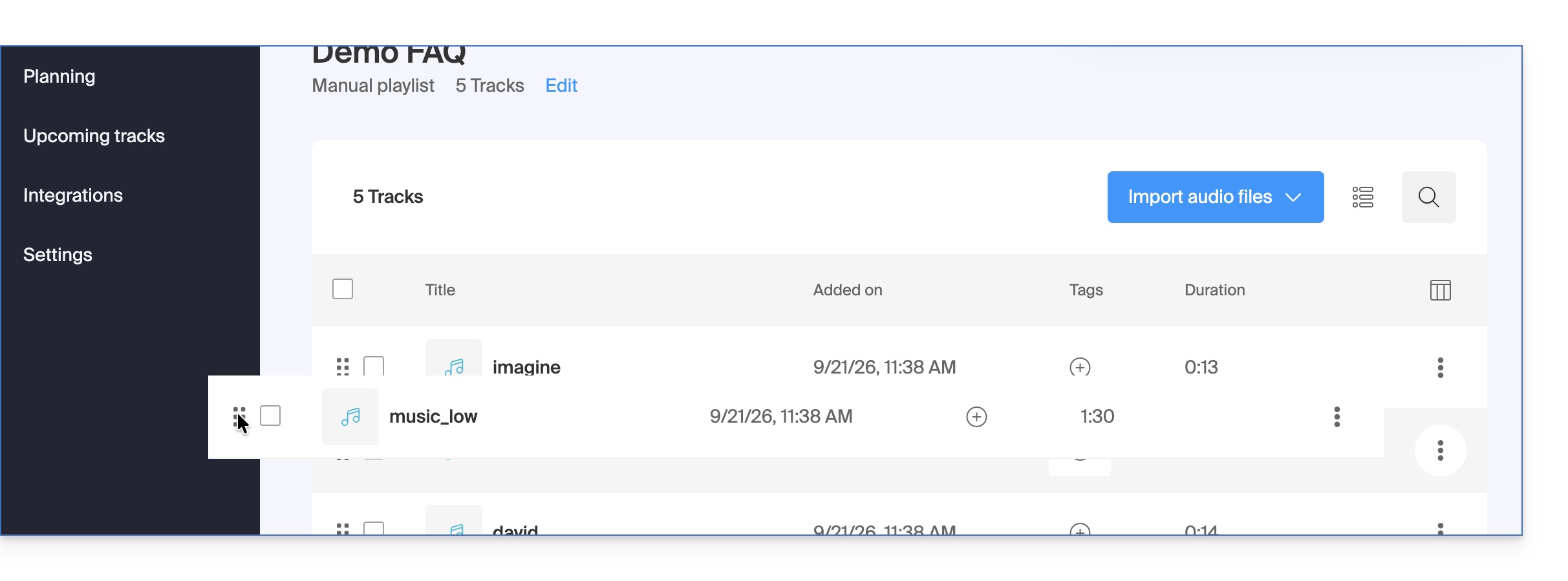
- Select the tracks and their order precisely:
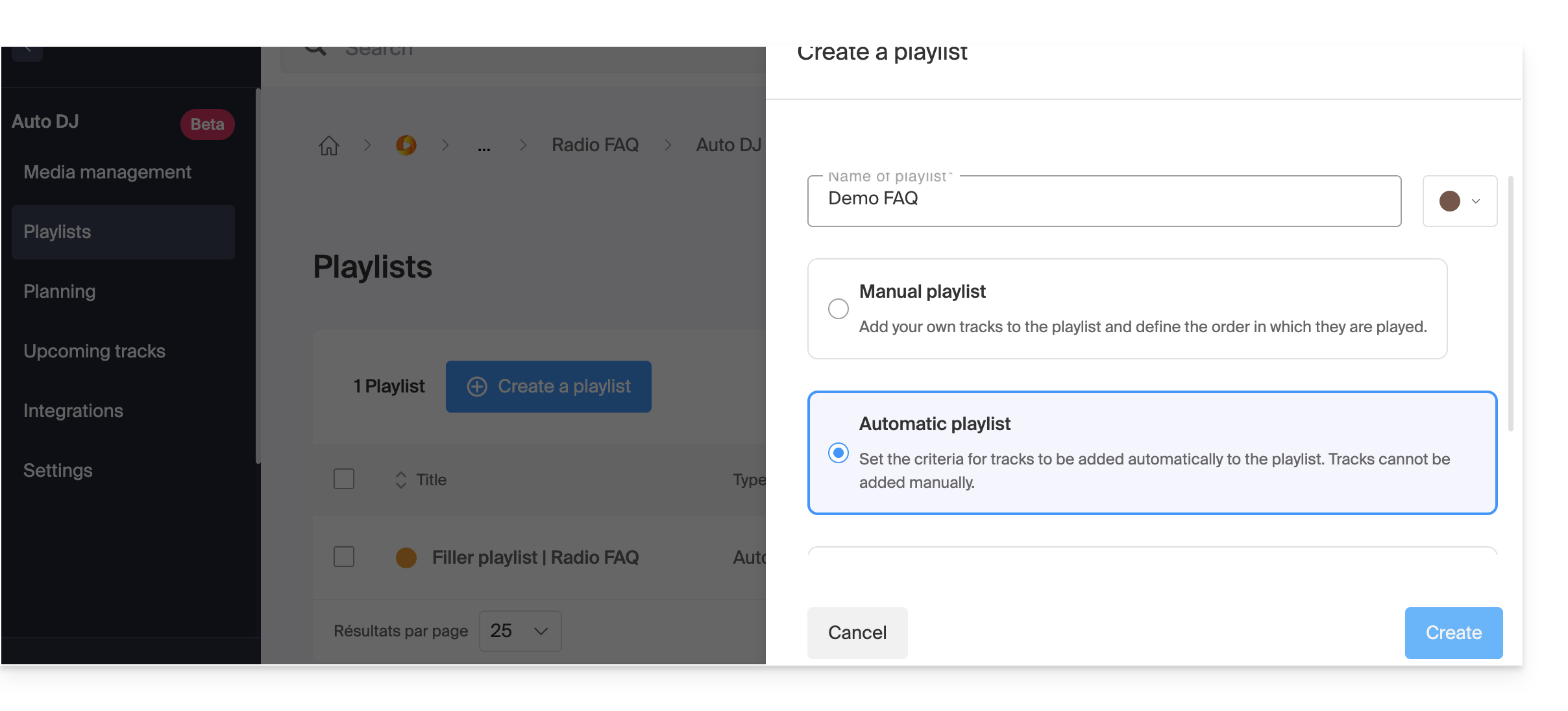
Automatic playlist
- Select an automatic playlist:
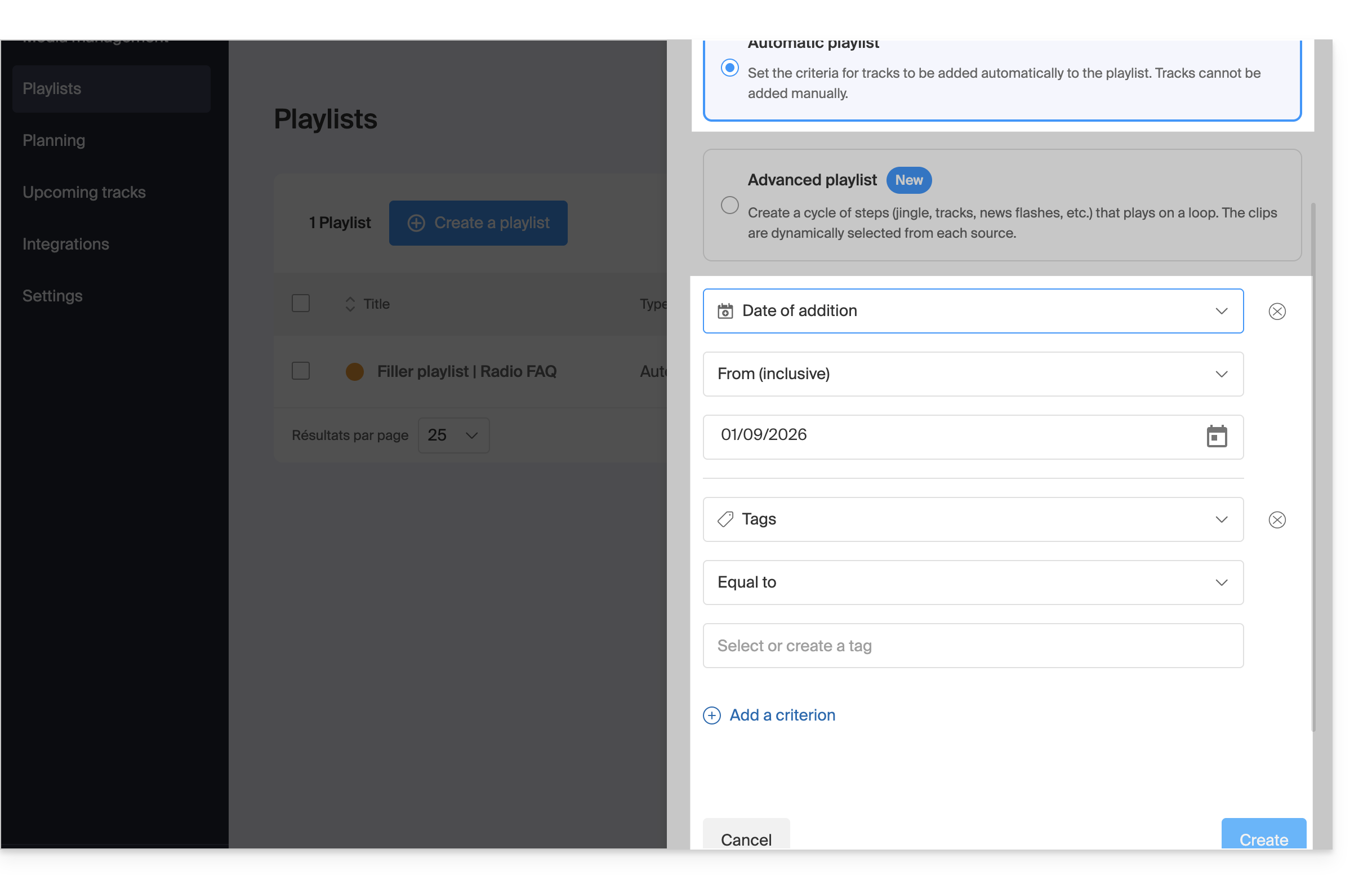
- Below, define smart criteria (by tags, styles, or artists) to allow the system to dynamically generate the playlist:
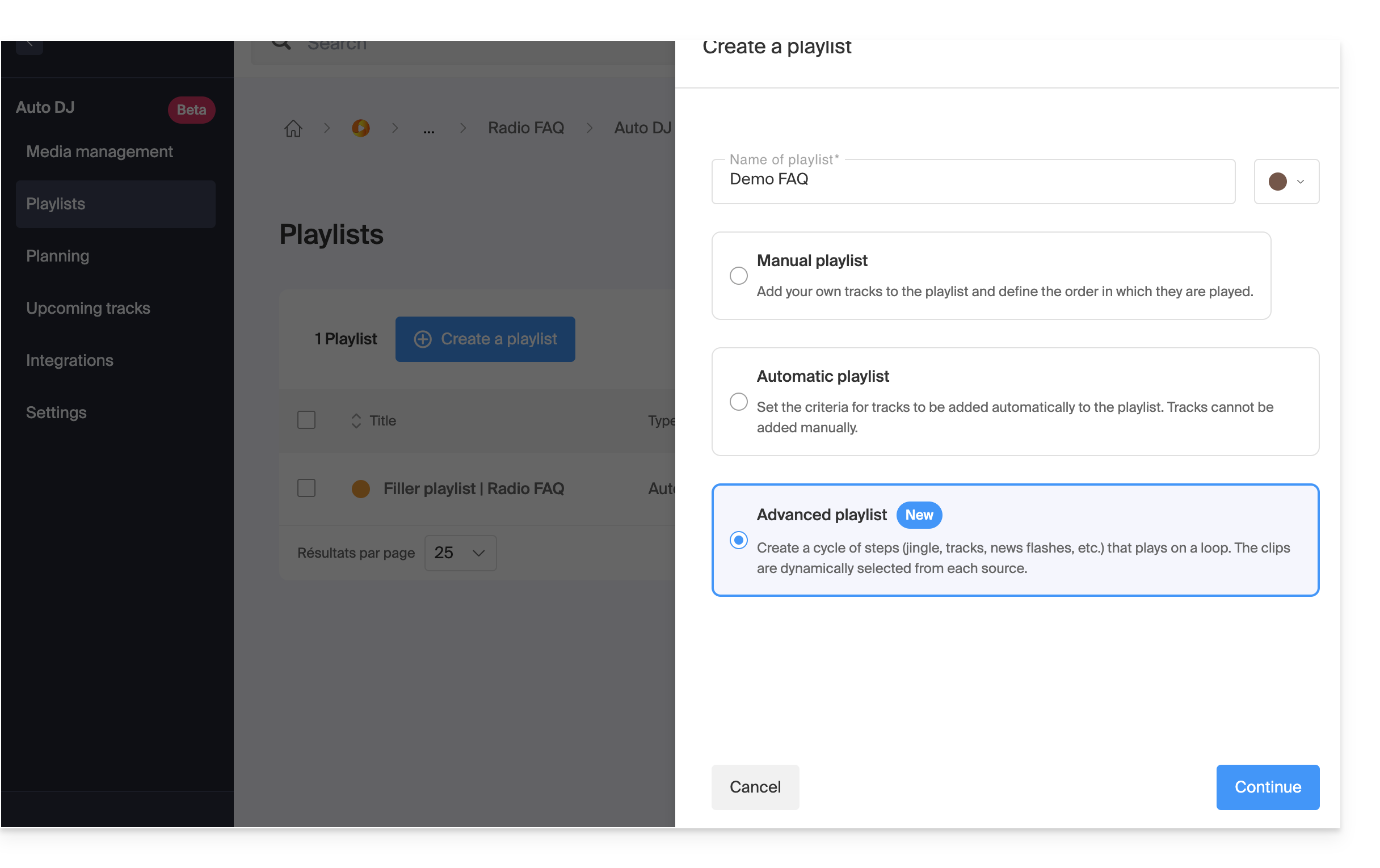
Advanced playlist
Unlike the playlists mentioned above, the advanced playlist allows you to schedule a precise sequence of content that will loop during the selected time slot. This feature is ideal for automatically inserting jingles or intermissions at regular intervals, and for grouping tracks from multiple sources within the same time slot:
- Select an advanced playlist:
- Below, define the structure of your broadcast cycles by combining different sources from your library (folders, playlists, or tags) and specifying the number of tracks to play for each item:
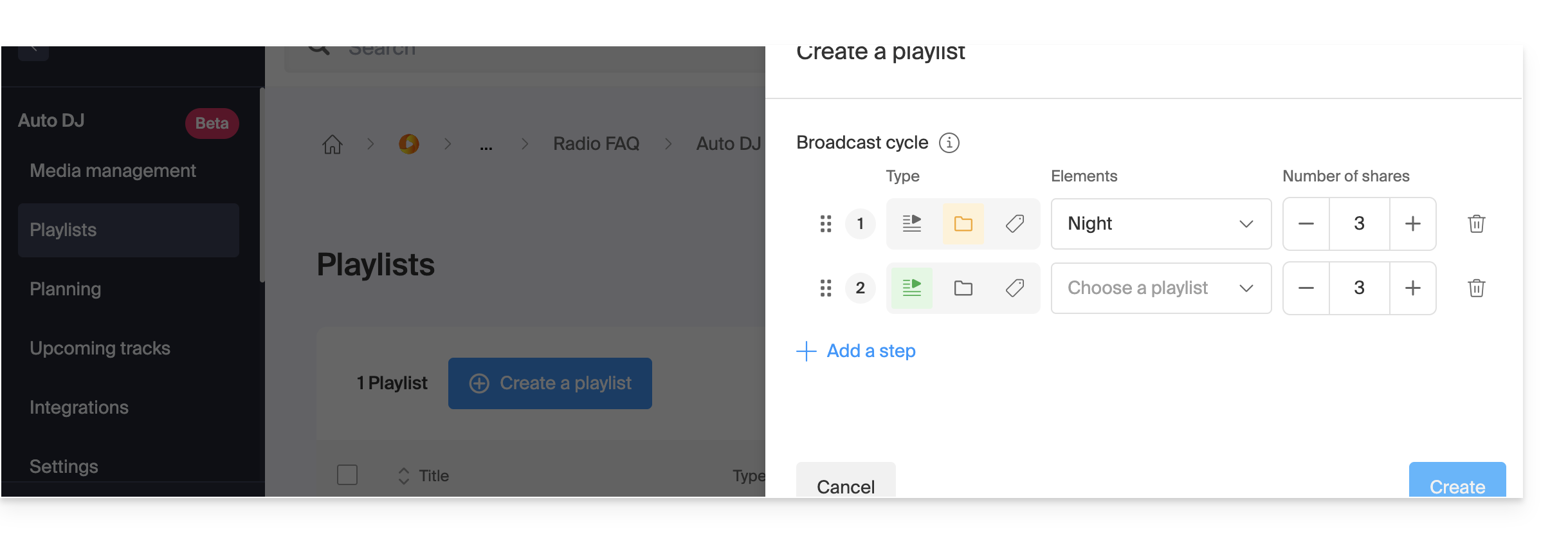
Example programming:- Play 3 tracks from the
Movie Musicplaylist - Play 1 track from the
Nightfolder - Play 1 sound with the
Jingletag
- Play 3 tracks from the
- The Auto DJ will then play the sequence in a loop (1 → 2 → 3 → 1 → 2 → 3, etc.).
- A weighting mechanism ensures fair rotation of media: the system will not replay the same tracks at the same time, thus ensuring a real refresh of your content with each cycle.
Schedule broadcasts (Planning)
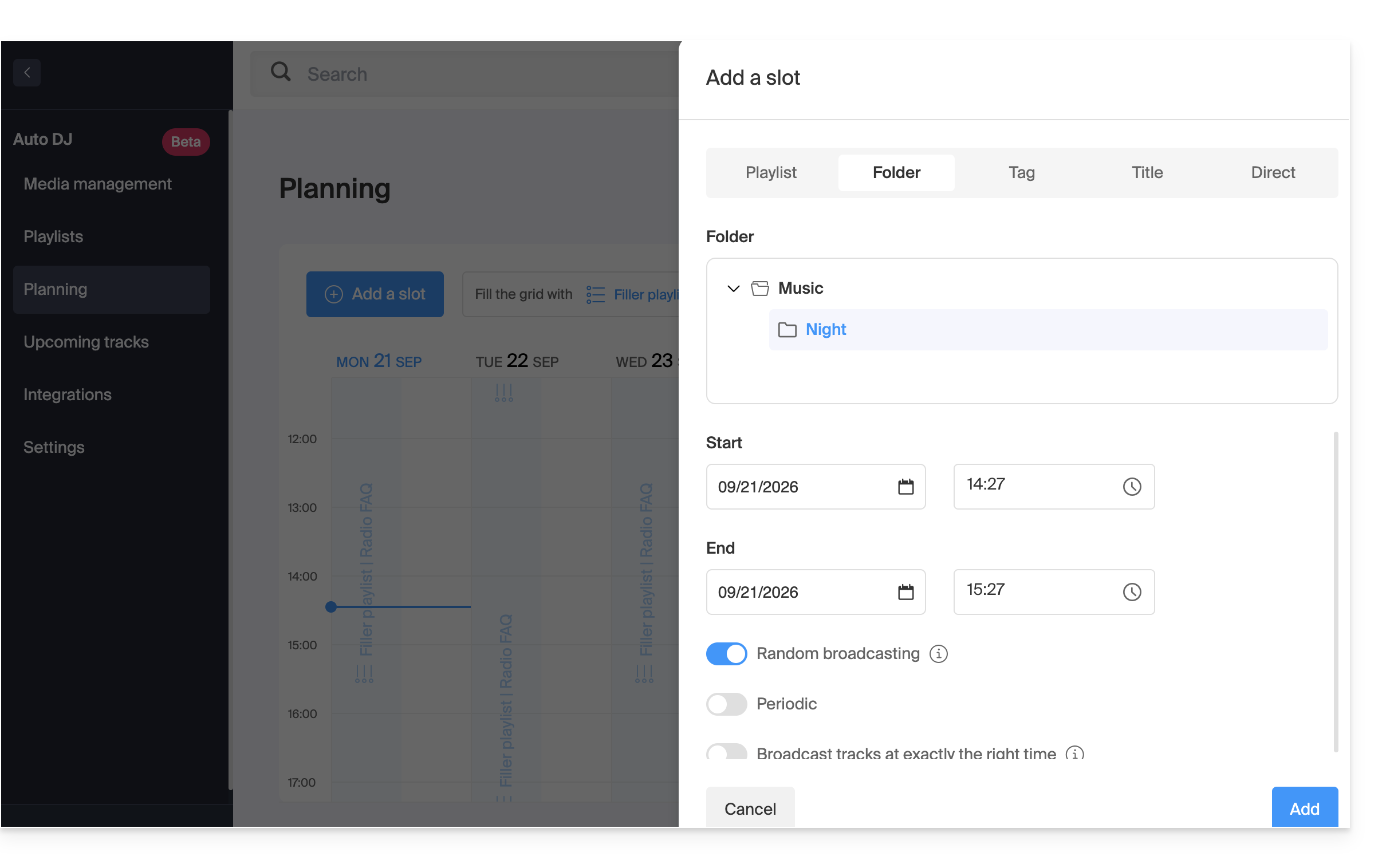
The scheduling tool allows you to manage your program schedule in detail:
- Scheduled programming: organize your broadcasts by playlist or by folder on a weekly calendar:
- Fallback playlist (existing by default): configure a backup playlist that will be broadcast automatically when no specific program is scheduled, ensuring an uninterrupted stream.
- Live / AutoDJ Transition: You can schedule time slots or automate the resumption of the AutoDJ stream as soon as an encoder (external source) stops broadcasting its stream.
Advanced Audio Settings
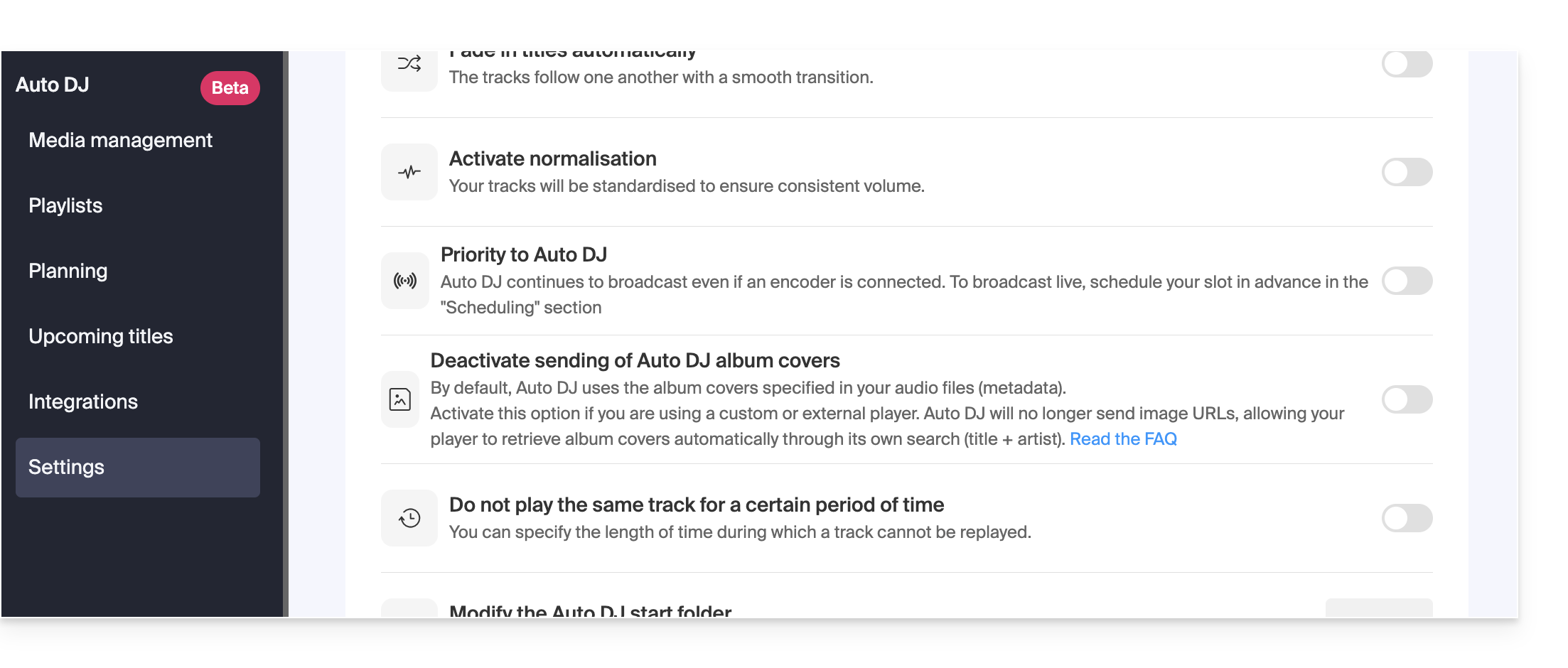
To ensure professional audio quality, several processing options are available:
- Audio normalization: standardizes the audio level of all your files to avoid volume differences between tracks.
- Transitions: configure crossfades and overlaps between tracks:
Integration and statistics
The stream generated by the Auto DJ is a standard streaming stream that benefits from all the tools in the Infomaniak ecosystem:
- Infomaniak Player: automatic display of currently playing tracks and broadcast history.
- Multi-format streaming: HLS support and stream transcoding.
- Advanced statistics: precise real-time audience tracking and detailed reports.
Link to this FAQ: https://faq.infomaniak.com/2028
Has this FAQ been helpful?