Knowledge base
1000 FAQs, 500 tutorials and instructional videos. Here, there are only solutions!
Transfer a product from one Organization to another
Update 10/12/2026
This guide explains how to transfer an Infomaniak product from one Organization to another.
Introduction
- You can move almost all products subscribed to with Infomaniak to a different Infomaniak Manager interface than the one the product is currently on; this is therefore an internal transfer, from Organization to Organization.
- kSuite cannot be transferred.
- Users who currently have access to the selected products will not be transferred (and may therefore no longer have access to the products).
- Regarding kDrive: users who currently have access to kDrive will be integrated into the new Organization.
- They will retain their access and their kDrive permissions, but any management rights they may have had on the product itself will be lost.
- Groups (formerly "work teams") are also not moved, and any rights managed via Groups will also be lost.
- If your user has access to multiple Organizations, it is even easier to move the product of your choice to one of them.
- The invoices for the selected products will not be transferred.
- This operation will not cause any interruption.
Generate a transfer link
Prerequisites
- You must be at least an Administrator of the Organization (❓: help).
To transfer a product:
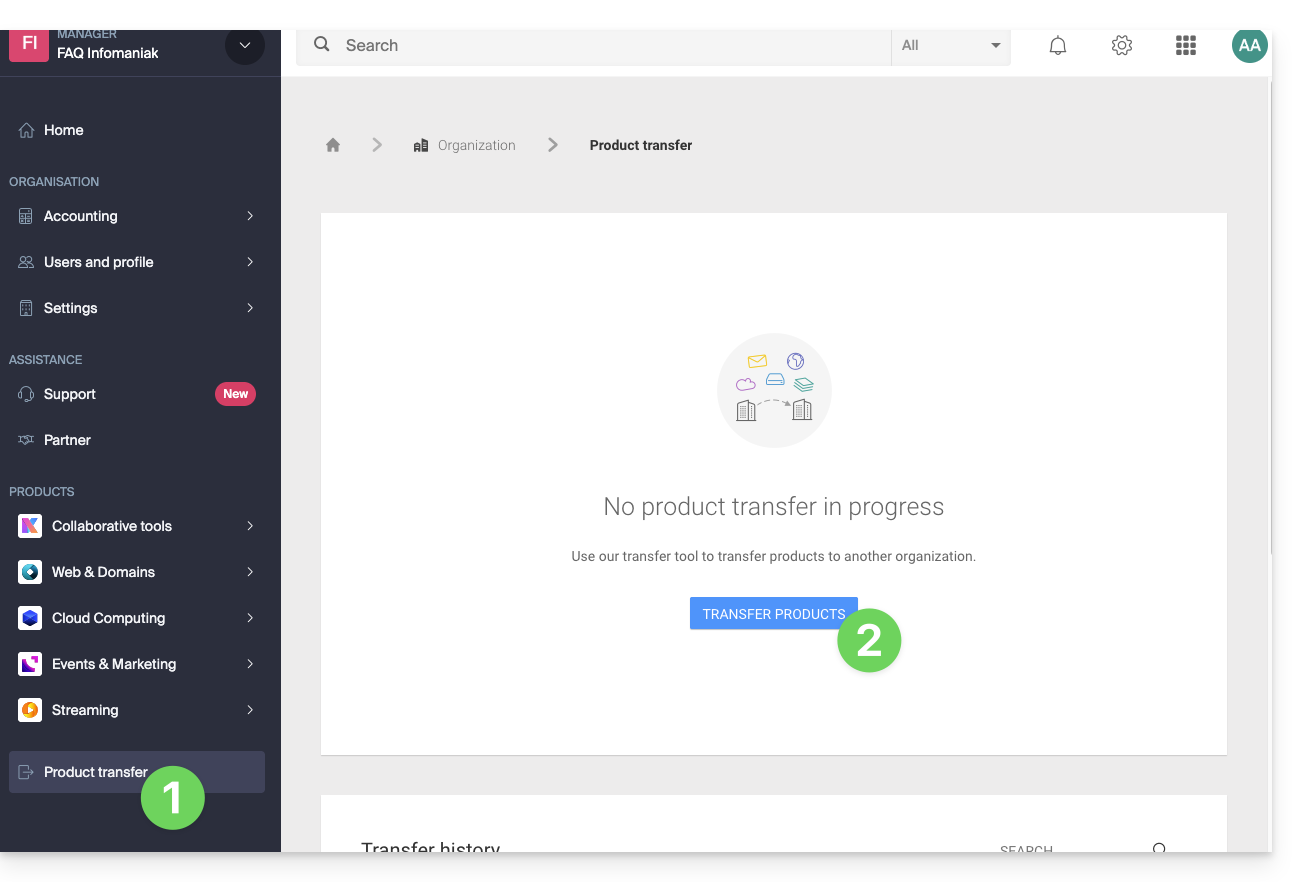
- Click here to access the product transfer management section in your Infomaniak Manager (❓: help).
- Click on the Transfer products button:
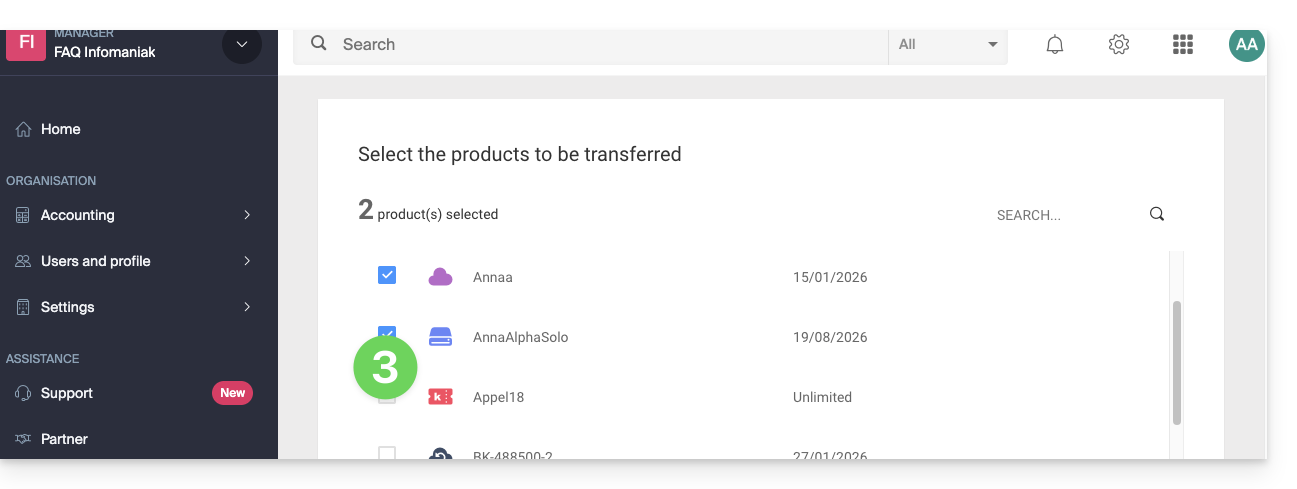
- Check the box next to the product(s) you want to move:
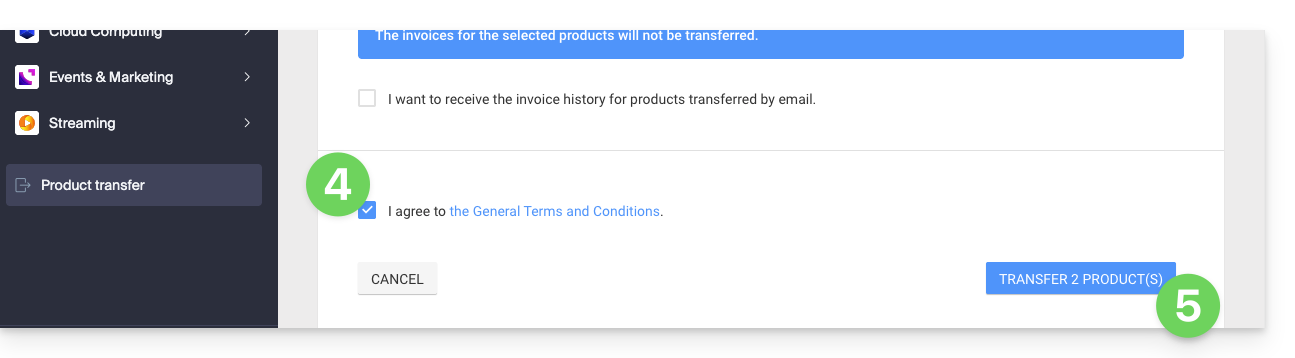
- Read and accept the terms and conditions.
- Click on the Transfer button:
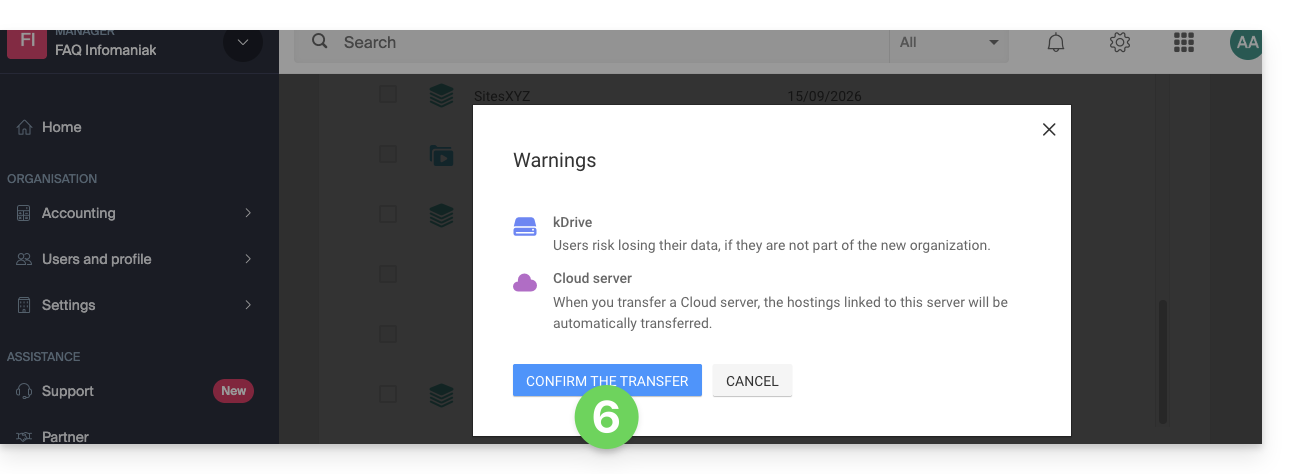
- Read and acknowledge any warnings:
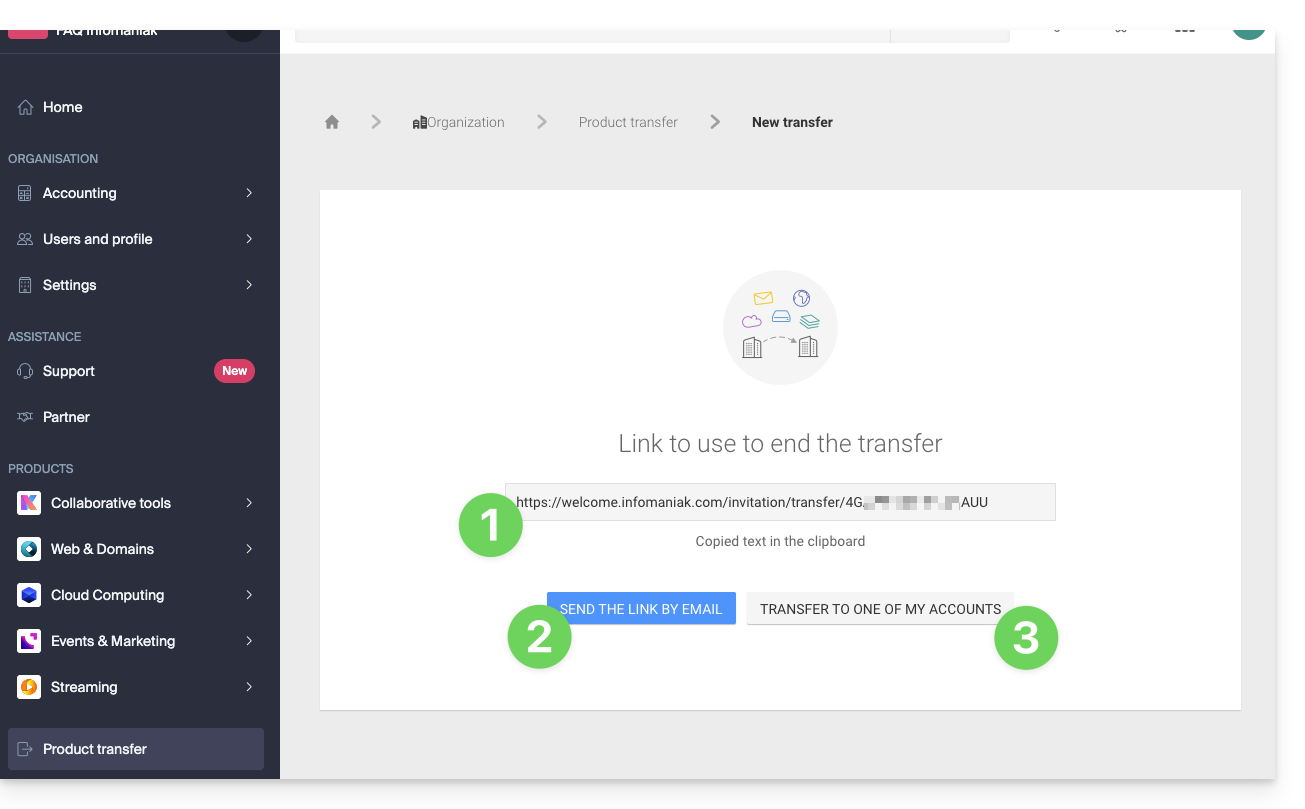
The transfer has started. You can now, optionally:
- Copy the transfer link…
- or send it to the email address of your choice…
- or directly select one of the Organizations to which your user is linked, and the selected product will be transferred there:
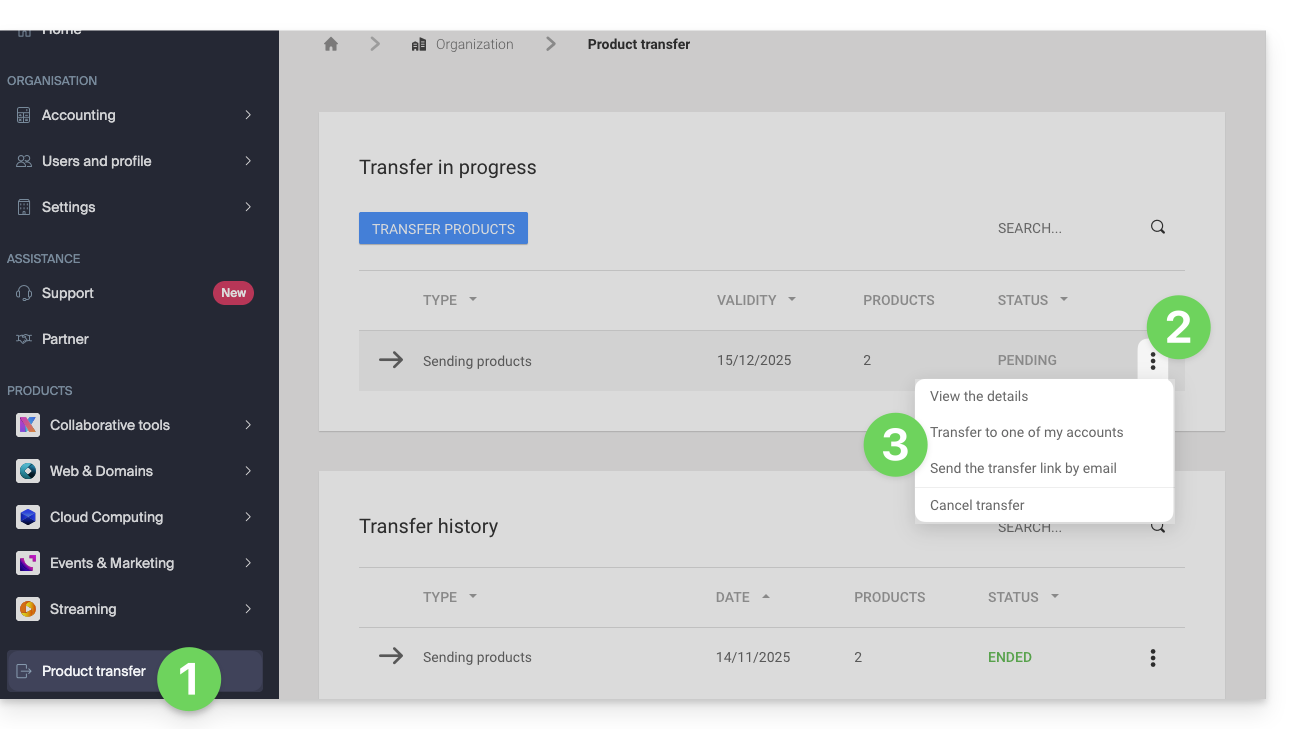
At any time, you can return to the product transfer page to find the options listed above:
Please refer to this other guide regarding Jelastic Cloud.
Receive the product
Once a product transfer has been initiated by a user…
1. Access the organization that will receive the product
- Click here to access the Infomaniak Manager.The organization that will receive the product(s)(❓: help).
2. Execute the link obtained
- Click on the link obtained in the first step above.
- You can also simply paste it into a browser while logged into the appropriate Infomaniak account.
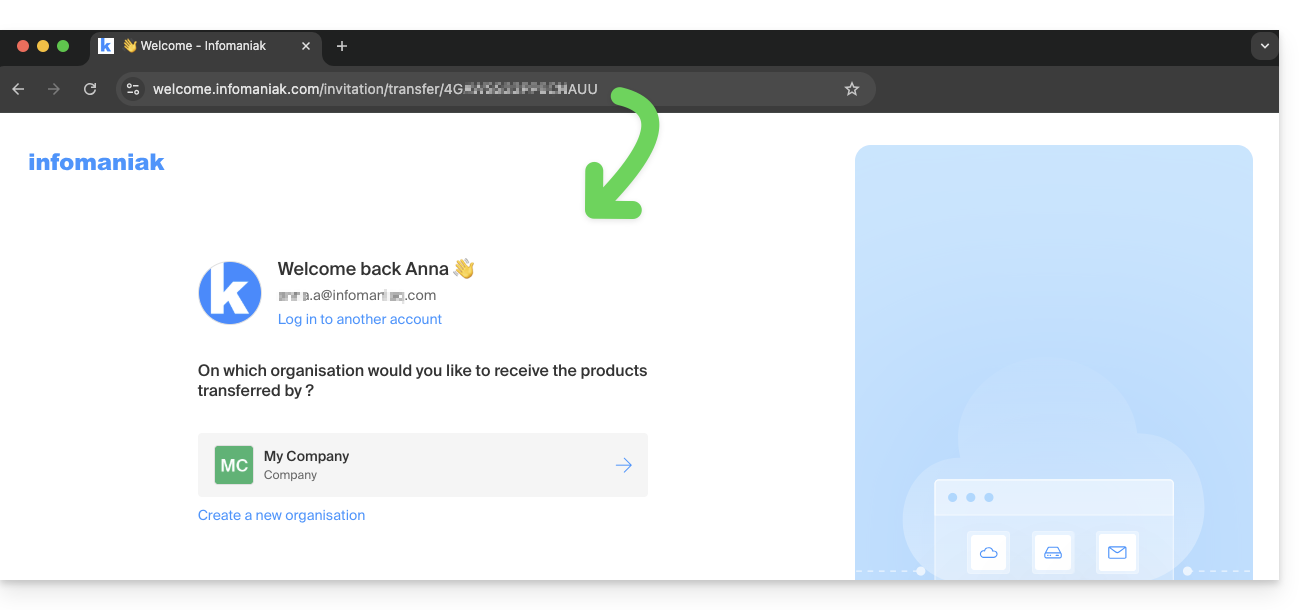
3. Confirm the product transfer
- If necessary, select the destination Organization using the drop-down menu.
- Read and accept the terms and conditions.
- Click on the Receive product button (if the button is not clickable, make sure you have selected the Organization):
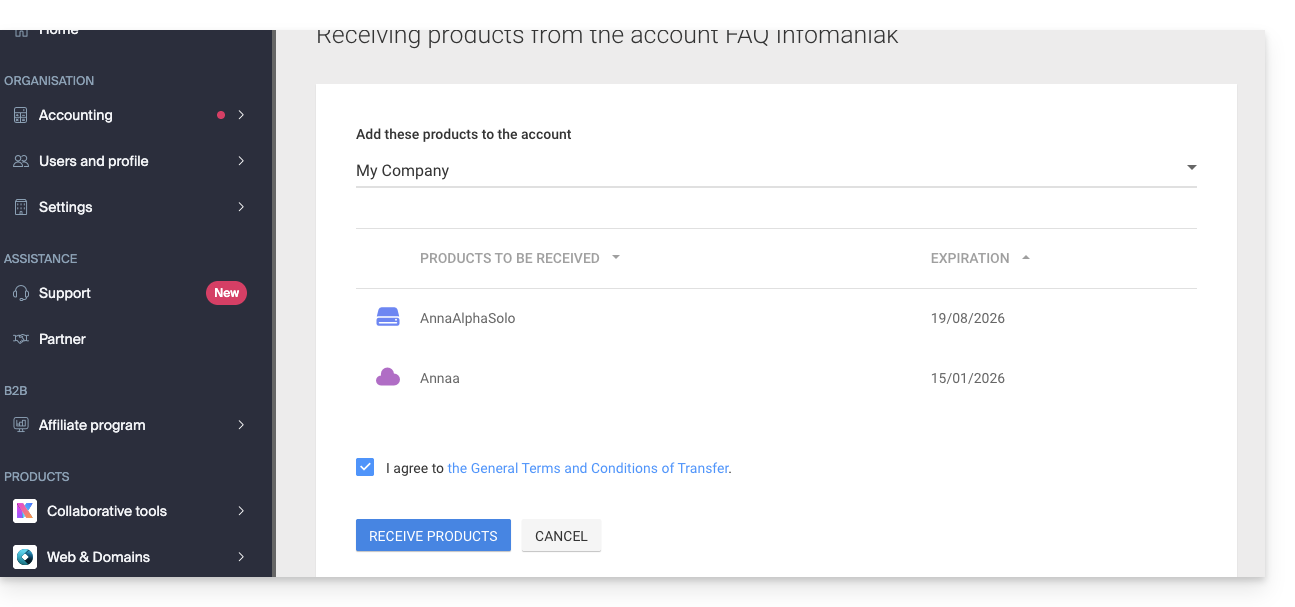
View your current or completed transfers at any time by clicking the icon at the bottom of the left-hand menu.Manager Infomaniak: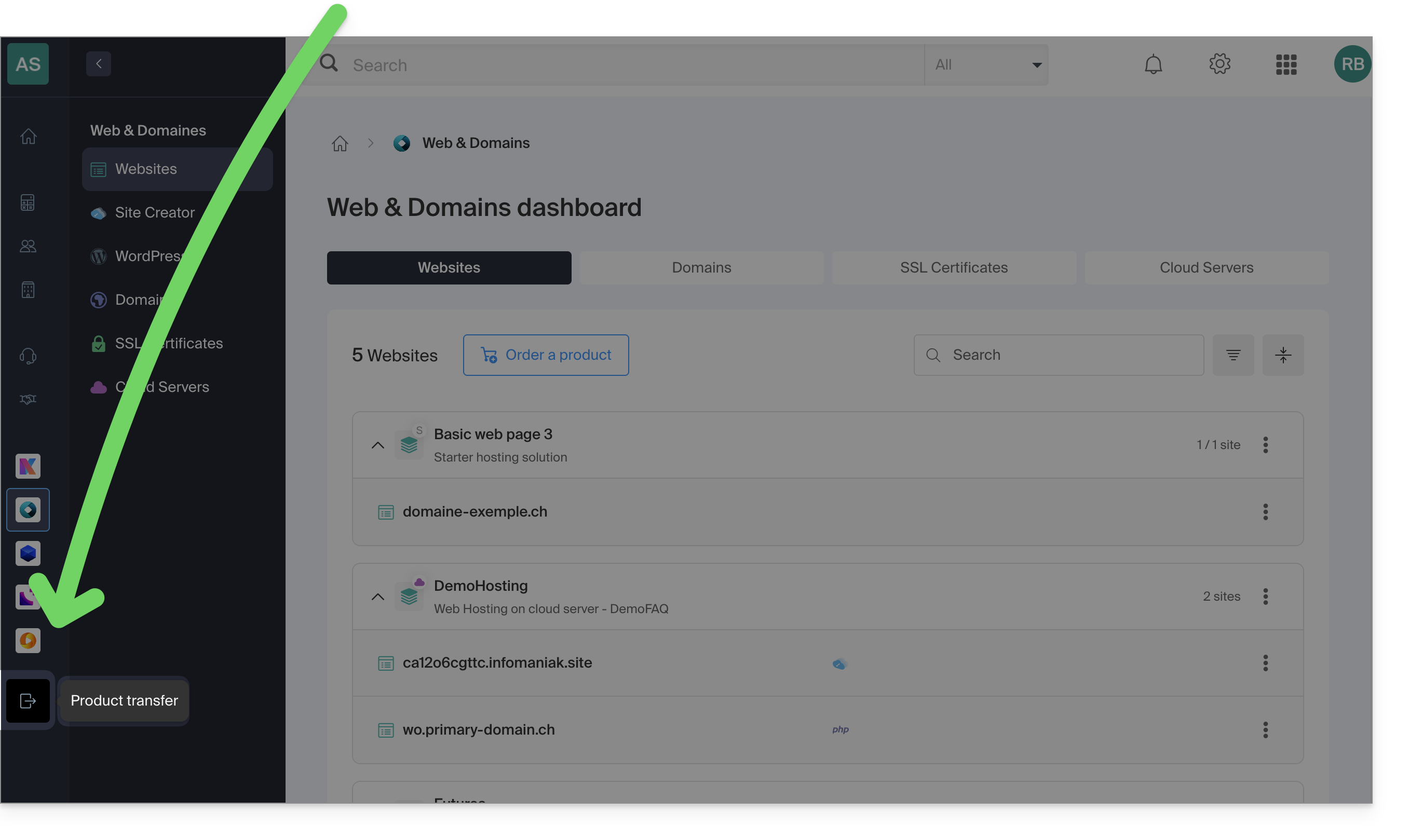
Link to this FAQ: https://faq.infomaniak.com/2024
Has this FAQ been helpful?