Knowledge base
1000 FAQs, 500 tutorials and instructional videos. Here, there are only solutions!
Disable two-factor authentication (2FA)
This guide explains how to disable two-factor authentication, also known as two-step verification (2FA), for logging into the Infomaniak Manager (manager.infomaniak.com) or Infomaniak Mail (ksuite.infomaniak.com/mail).
Introduction
- For security reasons, Infomaniak support will never disable a login validation method activated on an account based on a simple request.
- You must follow the procedures below.
- Please note that if you were using SMS authentication, once disabled, you will only be able to re-enable this method if you reside in CH / FR / BE / DE.
- Outside of these countries, you will need to use Infomaniak Authenticator or any other OTP application.
Disable 2FA
If two-step verification is enabled and you want to disable it:
- Click here to access the 2FA management section in the Infomaniak Manager.
- Click the Delete button to remove the security:
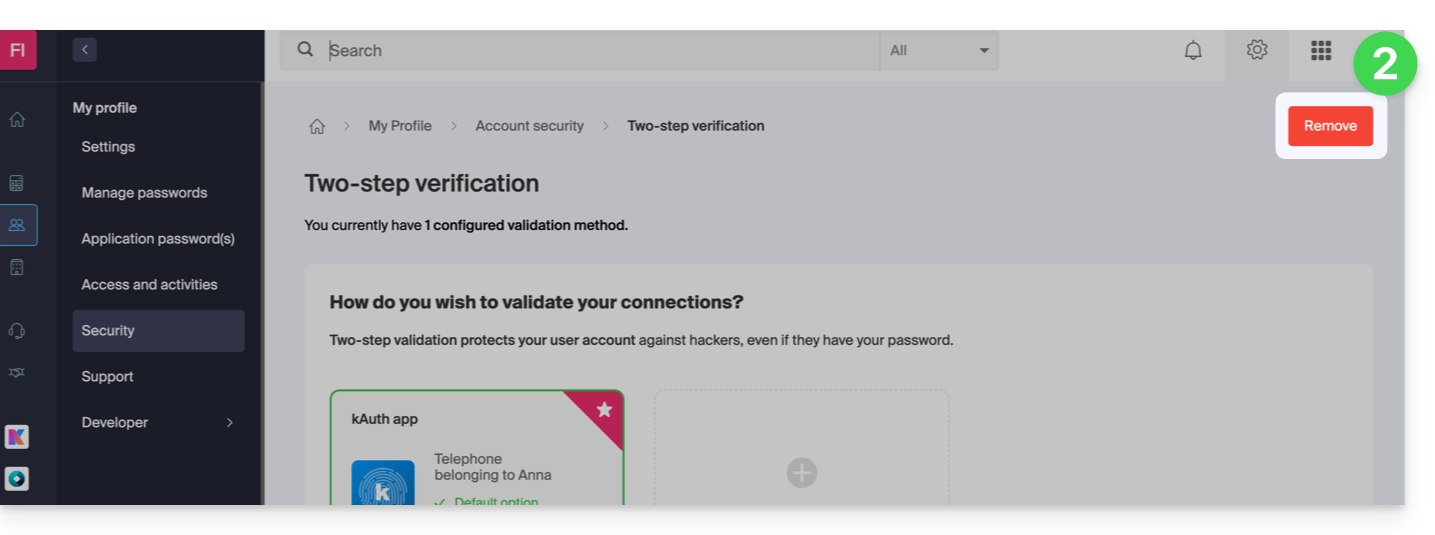
- If the red button is inactive / greyed out…
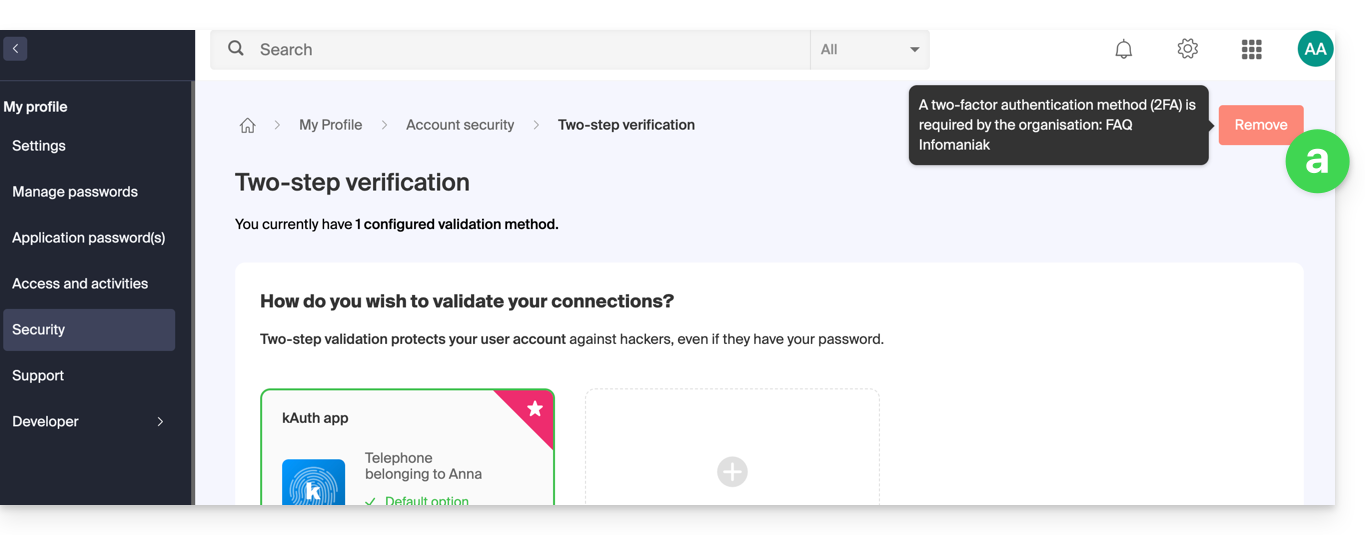
- … there is probably a security option in place that prevents you from disabling 2FA:
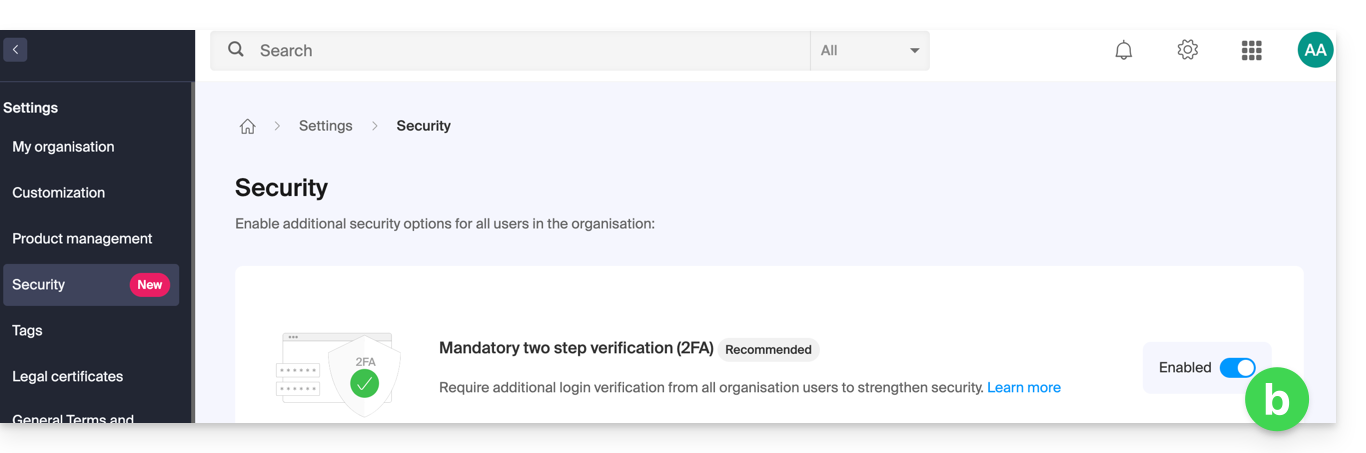
- If the red button is inactive / greyed out…
- Enter the password to log in to your account.
In case of problems
Obviously, the procedure above requires you to log in one last time with two-factor authentication, so that you can then disable it.
If you have no access to the Infomaniak Authenticator app or to the device that receives the verification SMS, there is no point in calling Infomaniak; in this case, you have no choice, you will have to provide a number of security elements manually or via the Infomaniak Check app (kCheck) to regain access to your account:
- Click here to access the Infomaniak Manager login page.
- Enter the username and the usual and correct password.
- When prompted for additional authentication, click on the alternative methods:

- Choose to enter one of your backup codes if you downloaded the sheet when activating 2FA:

- Otherwise, select the last option to request assistance, which will take you to the form where you can submit your identification documents and a recognition selfie:

- Follow the procedure to the end and wait:

Link to this FAQ: https://faq.infomaniak.com/2021
Has this FAQ been helpful?